Learn how to plan, create, and run your in-person event fundraiser on RallyUp.
RallyUp’s live event features make it easier to run your in-person fundraiser with less staff, effort, and stress. This comprehensive guide covers everything you need to know about creating and managing your live event.
What should I plan before creating my live event Campaign?
Before you create your Campaign on RallyUp, you’ll want to nail down the following details:
- Dates and timing
- Fundraising Components you want to run during your event
- Size of your event (e.g., how many people you expect to attend) and ticket/admission types (early bird, standard, VIP, etc.)
- Venue location
- Parking (including whether there will be a reserved lot/valet service/etc.)
- Wi-fi availability in chosen venue
- Volunteers and/or staff
- Emcee and/or auctioneer (if needed)
- Sponsors (if any)
- Prizes (if running a Raffle or Sweepstakes during your event)
- Storefront merch or Auction items (if selling merch or running an Auction during your event)
How do I create a Campaign for a live event?
Once you’ve nailed down your event details, you’re ready to create your Campaign:
- Go to rallyup.com and log into your account.
- Go to Account Navigation in the left menu and select Campaigns.
- Select NEW CAMPAIGN in the top right corner of the screen.
- Select Skip and continue without a template:

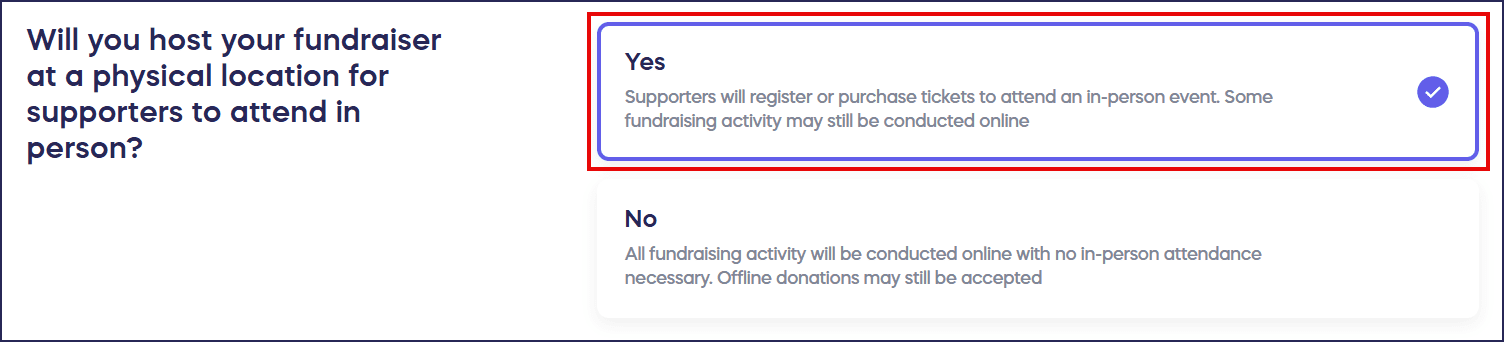
- The system will ask you a series of questions to understand your fundraising needs. For Will you host your fundraiser at a physical location for supporters to attend in person?, select Yes:
- When the system asks Do you need to manage running Event Balances of each guest’s donations/purchases during your event?, select Yes:

Understand: Event Balances and Guest Numbers
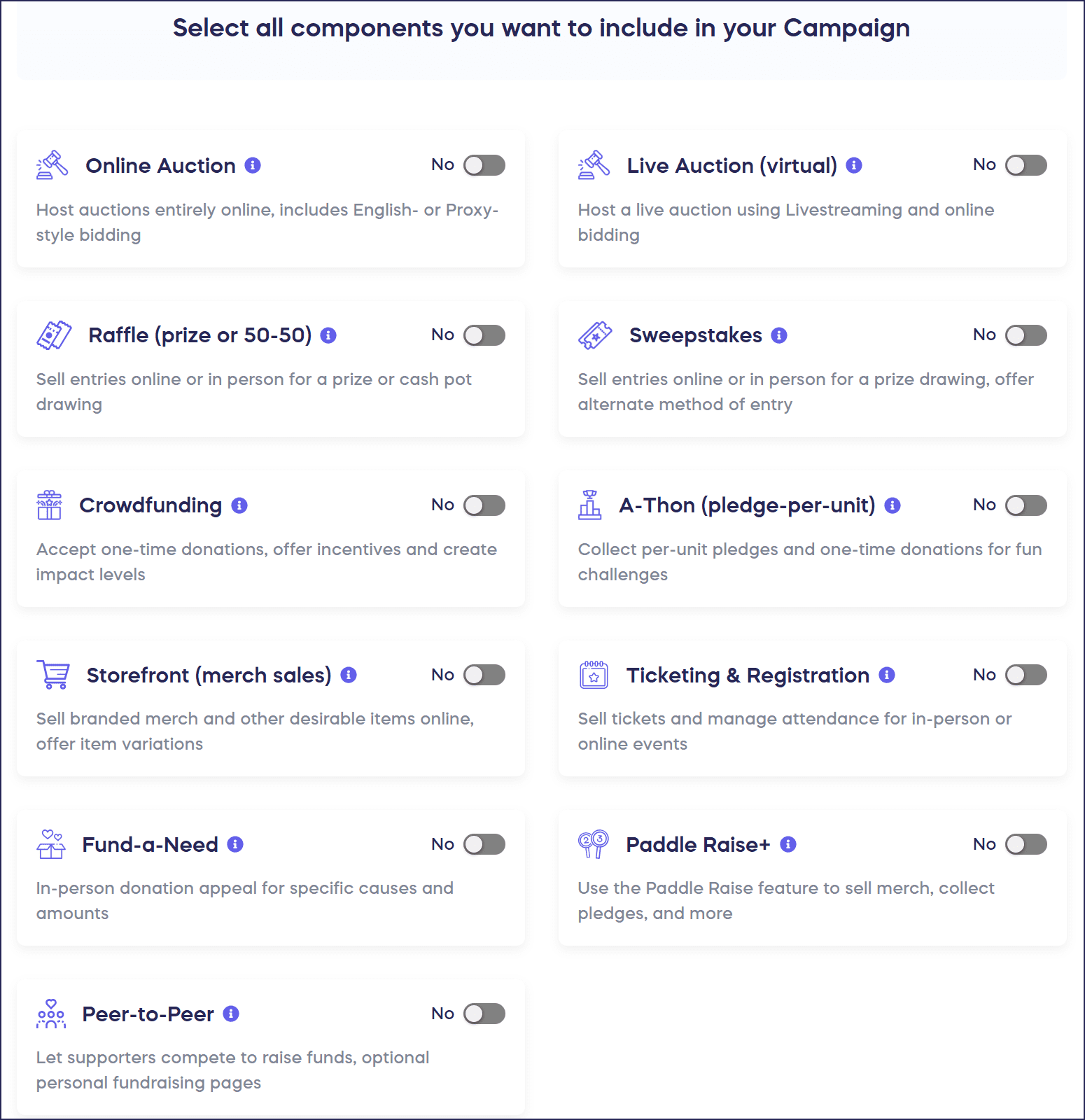
- Select the fundraising Component(s) you want to use, then select Continue at the bottom of the screen:
- Select your event start and end dates. You can also select the same or different start/end dates for each Component:
How-to: Enter or Change Your Fundraiser Start Dates
How-to: Change Your Campaign End Date
- Proceed through each step in Campaign Setup to customize your settings. We recommend:
- Immediately enabling all Components you plan to use.
- Adding all Component items (e.g., Auction items or Raffle prizes) before your event starts. If you don’t want to display an item on your Campaign Page, you can hide it.
- Enabling QR code check-in.
- Requiring pre-registration, which allows attendees to create an account and save a payment method before your event starts. This also allows you to enable Automated Checkout so attendees can skip the checkout line when the event ends.
- Adding custom sections or FAQs to your Campaign Page to include directions to the venue, parking instructions, or any other necessary information.
- Customizing the thank-you note that displays on receipts.
- Adding a tax exemption notice to each receipt, if applicable.
- Use Draft Mode to preview your Campaign and make sure everything is arranged how you want and works the way you expect (see Campaign Testing below for more details). Ensure that you’ve added all Components you want to use, as you won’t be able to add more after you go live.
- If you’re ready to launch your Campaign right away, select Go Live:
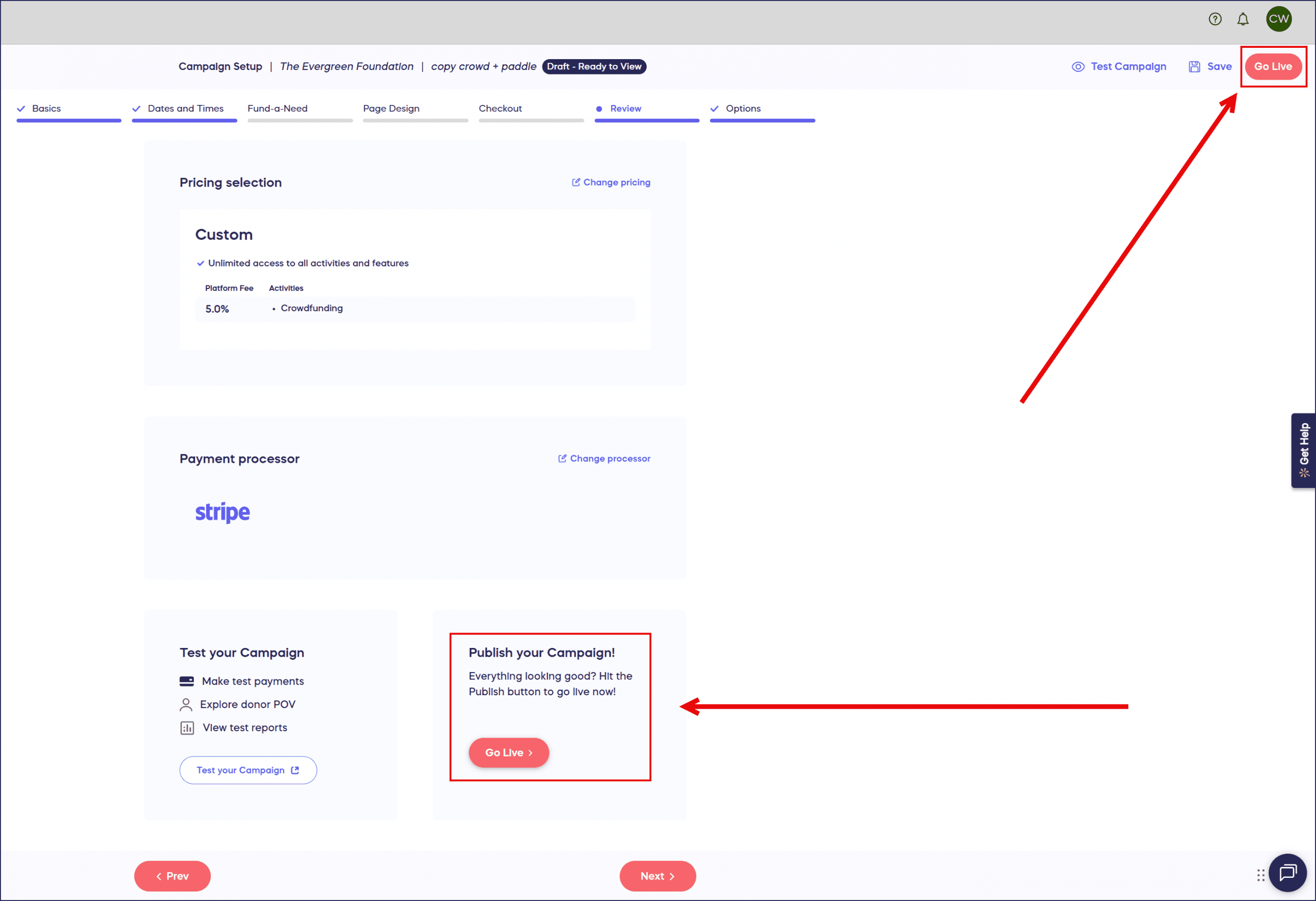
If you’ve set your Campaign to start at a later date/time, this button will say Complete Setup instead.
How do I test my Campaign before the event starts?
Before publishing your Campaign, you can test out nearly all features to ensure everything looks and acts the way you want:
How-to: Preview Your Campaigns in Draft Mode
You can also use Draft Mode to train staff or volunteers to navigate the platform and do practice run-throughs of your Live Auction, Paddle Raise, or other in-person Components so everything proceeds smoothly on the day of your event.
For Draft Mode to work properly, you’ll need to enter all Component start and end dates (you can always change them before going live). We also recommend adding all Component items (e.g., Raffle entry levels or Storefront merch) before testing out your draft Campaign to ensure that you can preview everything properly. Please note that you won’t be able to test out drawing Raffle/Sweepstakes winners or declaring Auction winners while in Draft Mode.
What preparation is needed before my event starts?
Before your event starts, ensure you’ve taken care of the following:
- If running a Live Auction, Fund-a-Need, or Paddle Raise+, ensure each attendee has a paddle or card with their Guest Number printed on it. This article shows you where to find each attendee’s Guest Number.
- If you plan to project a Live Display around your venue, determine how you will project it and where. You can use a projector, HDMI cable connection, or a wireless screen mirroring option such as Chromecast or AirPlay.
- Confirm that each staff member or volunteer has been added as a Campaign Administrator and has a mobile device they can use to access the platform throughout the event.
How do I manage my Campaign during the live event?
While your event is running, you’ll see a Quick Admin Menu option in your left menu:
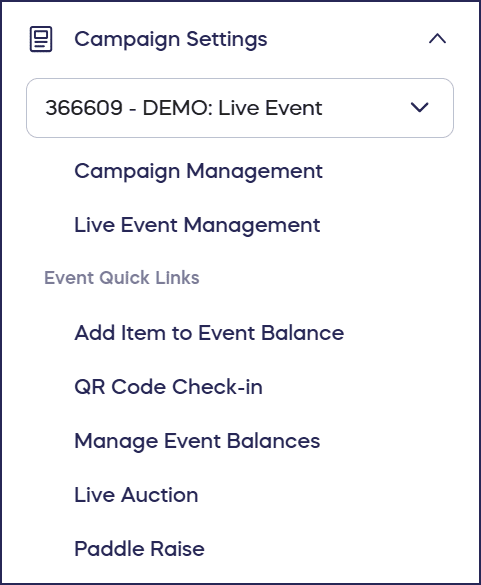
The Quick Admin Menu simplifies platform navigation so you can more easily manage your Campaign. When you select your Campaign from the drop-down menu, you can quickly access your Campaign Management Menu, Live Event Management Menu, and Event Quick Links.
Campaign Management Menu
This menu includes the most comprehensive list of options for managing every aspect of your Campaign, including (but not limited to):
- Campaign Setup
- Hide items from your Campaign Page or show hidden items again
- Update your Campaign settings
- View Ticket/Table Registrations
- View Donations
Live Event Management Menu
This menu displays the same options as your Event Quick Links (see below).
Event Quick Links
- Add Item to Event Balance
- QR Code Check-In
- Scan an attendee’s QR code to check them in
- Confirm that their Guest Number matches the one on their paddle or card, if using
- Confirm their answers to any custom questions, if needed
- Manage Event Balances
- Live Auction/Paddle Raise/Fund-a-Need
- Access and run your Live Auction/Paddle Raise/Fund-a-Need
Frequently Asked Questions
Do I need to enable Event Balances for my live event?
Event Balances are recommended for any live event as they allow you to track each guest’s purchases, donations, and bids throughout the event. This eliminates the need for attendees to check out after every transaction and streamlines payment processing. If you are running a Live Auction, Fund-a-Need, or Paddle Raise+ during your event, then Event Balances are required.
Can attendees participate in my live event remotely?
While RallyUp’s live event features are designed for in-person fundraisers, attendees can still participate online through your Campaign Page. However, features like Live Display, Guest Numbers, and QR code check-in are specifically designed for in-person participation.
What is Automated Checkout and should I use it?
Automated Checkout allows attendees to skip the checkout line when your event ends by automatically charging their Event Balance to their saved payment method. This requires pre-registration, and we recommend enabling it to reduce wait times and streamline your event conclusion.
How do Guest Numbers work with paddles for Live Auctions?
Each attendee receives a unique Guest Number when they register. Print or write this number on their paddle or card so spotters can quickly enter their bids during Live Auctions, Paddle Raise, or Fund-a-Need activities.
Can I test my live event features before the actual event?
Yes, you can use Draft Mode to preview your Campaign and test nearly all features. This is also perfect for training staff and volunteers or running practice sessions for Live Auctions and Paddle Raise activities.
What devices do staff and volunteers need during the event?
Each staff member or volunteer should have a mobile device (smartphone or tablet) to access the platform throughout the event. This allows them to check in attendees, manage Event Balances, run in-person Components like Live Auctions, and handle other real-time tasks. You’ll also need to ensure that each staff member or volunteer has been given Campaign Administrator status.
How do I add Campaign Administrators?
When should I send Event Balances for checkout?
If you’re not using Automated Checkout, you can send all Event Balances for checkout when the event ends. This prompts attendees to review and pay their balance before leaving. With Automated Checkout enabled, charges are processed automatically.
How do I display the Live Display at my venue?
You can project the Live Display using a projector, HDMI cable connection, or wireless screen mirroring options like Chromecast or AirPlay. Plan your display setup before the event to ensure smooth technical execution.