Run both a Silent Auction and a Live Auction side by side — in one Campaign, on one page, with one checkout.
Many nonprofits raise more by combining a Silent Auction (where supporters place bids online or on their phones throughout the event) with a Live Auction (where a few high-value items are auctioned off by an auctioneer in front of an audience). RallyUp supports running both formats inside a single Campaign, so all the bidding activity, donor records, and totals roll up together.
This article walks you through setup, event-day management, and closing for both Auctions.
📝 Note: If you choose to run a Silent Auction and Live Auction in the same Campaign, we recommend using English-Style bidding for your Silent Auction. The Auction style you select will apply to all Auctions on your Campaign, including the Live Auction, which functions best with English-Style bidding.
Before You Begin
Before you start adding Auction items, make sure you have:
- A Campaign created in RallyUp — learn how to create a charity Auction
- Your Auction items list ready (item name, description, starting bid, and fair market value for each item)
- Administrator access to your RallyUp Campaign
Adding Silent and Live Auction Items
Silent Auction items and Live Auction items are managed in two separate lists inside your Campaign. This keeps bidding organized: your supporters bid on Silent Auction items directly on the Campaign page, while your event team manages bids for Live Auction items through the Live Auction Management page.
To add items to your Silent or Live Auction:
- Go to Account Navigation in the left menu and select Campaigns.
- If you have chosen a list view, click on the Campaign title. If you have chosen a grid view, click on the Campaign image.
- Select Campaign Setup and go to Auction in the timeline at the top.
- Scroll down to Add Live & Silent Auction items.
- Select the Silent Auction tab to add items that supporters will bid on themselves, or select the Live Auction tab to add items that your team will manage during the event.
- Select Create a Live/Silent Auction item and fill in the item details.
- Select Save.
Repeat this process for all your items, making sure each one goes into the correct list.
✓ Result: Your item appears in the list for the Auction type you selected.
⚠️ Warning: If you add an item to the wrong list, you will need to delete it and recreate it in the correct list. There is no option to move an item between the Silent Auction and Live Auction lists after it has been saved.
💡 Tip: If you have many items to add, you can import them in bulk using a spreadsheet. See How-to: Import Multiple Auction Items to Your Campaign at Once.
How Live Auction Items Appear to Supporters
Live Auction items are automatically hidden from your public Campaign Page. This is intentional — Live Auction bidding is managed by your event team, not by supporters browsing online, so there is no risk of confusion between the two Auction types.
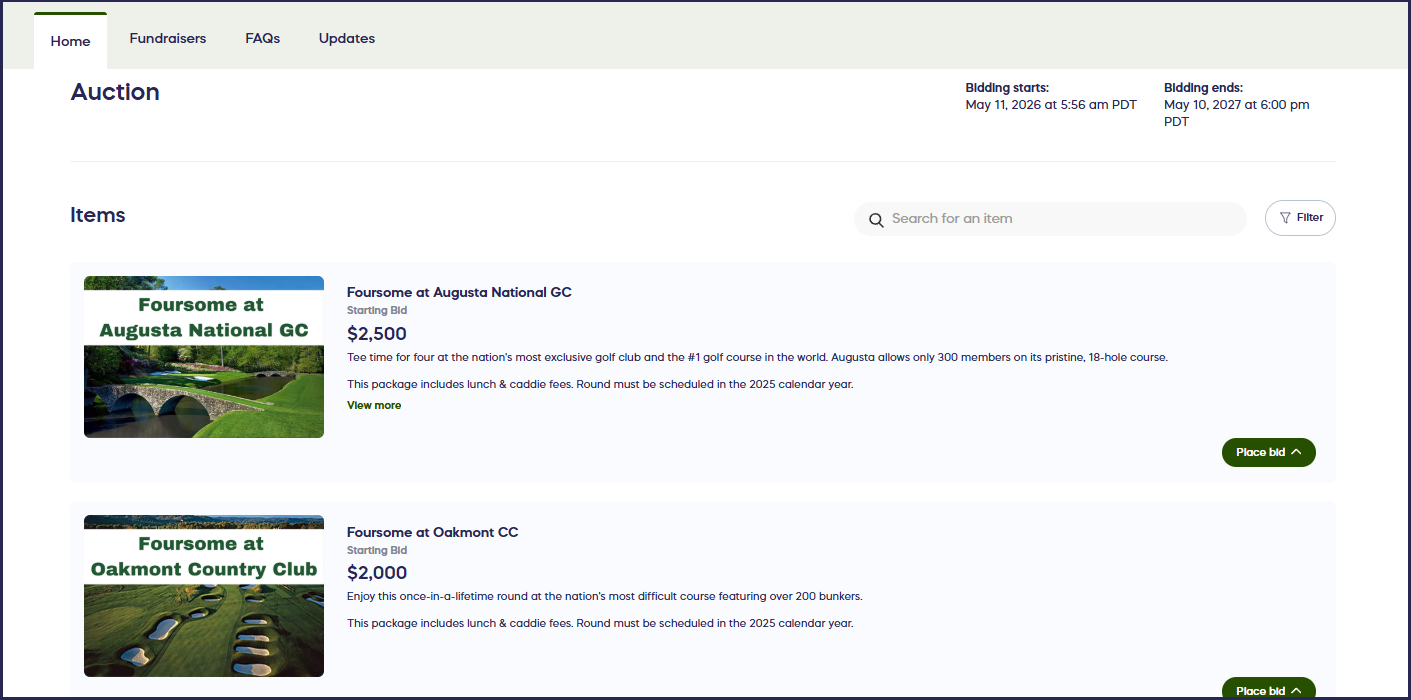
Your Silent Auction items display normally on the Campaign Page, where supporters can browse and place bids at any time during the Auction window:
Setting Start and End Times
Both your Silent Auction and your Live Auction use the same start and end times. You set these once, and they apply to both Auction types.
Your Auction start and end times can be the same as your overall Campaign dates, or they can be different. For example, if your Campaign Page opens two weeks before your gala to accept ticket sales, your Auction might not open until the night of the event.
To set your Auction start and end times:
- Go to Account Navigation in the left menu and select Campaigns.
- If you have chosen a list view, click on the Campaign title. If you have chosen a grid view, click on the Campaign image.
- Select Campaign Setup and go to Dates and Times in the timeline at the top.
To set your Auction start time:
- If you are running multiple Components in addition to your Auctions, scroll down to Choose when fundraising activities start for your donors and select your preferred option. If you are only running a Live and Silent Auction, scroll down to When do you want to start auction bidding? and select your preferred option.
- Enter your start date and time, then select Save.
To set your Auction end time:
- Scroll down to Choose when to end fundraising activities and select your preferred option.
- Enter your end date and time, then select Save.
📝 Note: If your Campaign also includes other Components — such as Ticketing, Fund-a-Need, or Crowdfunding — each Component can have its own start and end times. Your Auction end time does not need to match the end time of other Components or the overall Campaign.
💡 Tip: Set your end time a few minutes later than you plan to close the Auction on the night of the event. This gives you a small buffer to make any last-minute announcements or allow final bids. You can also change the end time manually before it is reached — see Changing the End Time Before the Auction Closes below.
Creating QR Codes for Silent Auction Items
QR codes let your in-person guests bid on Silent Auction items from their phones — no paper bid sheets required. Guests scan the code at an item’s display table, and RallyUp automatically tracks all bids and determines the winner when the Auction closes.
For detailed instructions on generating and printing QR codes, see How-to: Create QR codes for Your Auction Items.
💡 Tip: RallyUp automatically tracks every bid and identifies winners when the Auction closes — there is no manual tallying needed.
Preparing Your Wi-Fi
A smooth Auction experience — for both bidders and your team — depends on a reliable internet connection. Before your event, check the following:
- Test your venue’s Wi-Fi ahead of time. Log in on multiple devices at once to simulate event-night traffic. If the connection is slow or drops, contact the venue to explore options.
- Bring a backup hotspot. A mobile hotspot gives you a reliable fallback if venue Wi-Fi becomes unreliable during the event.
- Share the Wi-Fi password with guests. Post it at check-in, on table cards, or include it in your event program so guests can connect quickly and start bidding.
Running Both Auctions During Your Event
Once your event starts and the Auction window opens, your Silent Auction and Live Auction run in parallel but through different processes.
Silent Auction
Your Silent Auction runs automatically. Guests browse items on the Campaign Page or scan QR codes at display tables, place bids on their phones, and receive automatic outbid notifications via email or SMS. You do not need to manage Silent Auction bidding manually.
Live Auction
Your Live Auction is managed through the Live Auction Management page — a dedicated tool for your event team to enter bids on behalf of in-person attendees as your auctioneer calls the room.
For instructions on how to start and run your Live Auction, see Understand: Live Auctions.
Hiding Your Live Auction from the Campaign Page
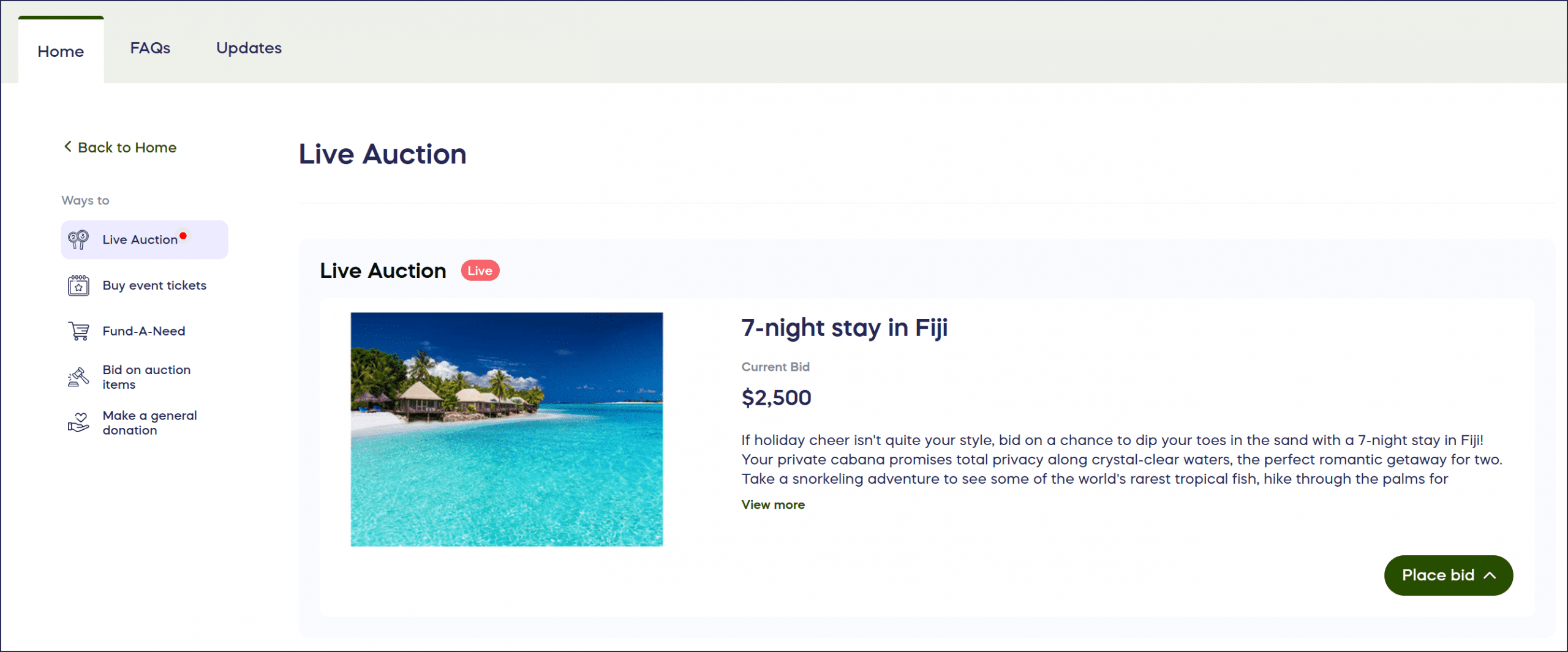
Live Auction items are hidden from the public Campaign Page until your Live Auction starts. Once the Live Auction begins, the current spotlighted Auction item is featured on your Campaign Page and online donors can place bids:
If you want to restrict Live Auction participation to in-person guests only, you can hide your Live Auction from your Campaign Page by going to your Live Auction settings.
Live Display
RallyUp’s Live Display feature lets you show real-time Auction activity on a large screen at your event. At this time, Live Display is available for the Live Auction only. For setup instructions, see Understand: Live Display.
Changing the End Time Before the Auction Closes
You can change the end time of your Auction at any point before the current end time is reached. This applies to both your Silent Auction and your Live Auction — they share the same end time, so any change affects both.
You cannot change the end time after it has already passed.
For instructions on how to change your Auction end date and time, see How-to: Change Your Campaign End Date.
⚠️ Warning: Once the Auction end time has passed, it cannot be changed. If your Auction has already closed but you want to extend it, contact RallyUp support.
Closing Both Auctions
Silent Auction
When the Silent Auction end time is reached, RallyUp automatically identifies the winning bidder for each item and charges their payment method on file. No manual action is required from your team.
Live Auction
Live Auction winners are charged according to your Event Balance settings. Winning bids are automatically added to the winner’s Event Balance. When the event ends, you can send a checkout link to all attendees (self-checkout) or automatically charge all balances to the attendees’ saved payment methods (automatic checkout).
For a full explanation of how winners are charged after both Auction types close, see Understand: What Happens After Your Auction Ends.
Frequently Asked Questions
Can I run a Silent Auction and a Live Auction in the same Campaign?
Yes. RallyUp supports both Auction types in a single Campaign. You add Silent Auction items and Live Auction items in separate lists within the same Campaign builder, and they run simultaneously during your event window. Supporters bid on Silent Auction items on the Campaign Page; your event team manages Live Auction bids through the Live Auction Management page.
How do I make sure my Live Auction items don’t appear on the public Campaign Page?
Live Auction items are automatically hidden from your public Campaign Page — you do not need to do anything. RallyUp hides them by default so that online visitors only see Silent Auction items and are not confused by items they cannot bid on.
I added an item to the wrong list. How do I fix it?
There is no option to move an item between the Silent Auction and Live Auction lists. Delete the item from the list it was accidentally added to, then recreate it in the correct list.
Can the Silent Auction and the Live Auction have different end times?
No. Both Auction types share the same start and end times. If you need to close one Auction before the other, you can end the Live Auction early by closing all items manually through the Live Auction Management page, then let the Silent Auction run until the scheduled end time. See Understand: How Auction Timing and Closing Works for more detail.
If I run both a Live Auction and a Silent Auction in the same Campaign, can I turn on Proxy Bidding for my Silent Auction?
If you choose to run a Silent Auction and Live Auction in the same Campaign, we recommend using English-Style bidding for your Silent Auction. The Auction style you select will apply to all Auctions on your Campaign, including the Live Auction, which functions best with English-Style bidding.
Can I manually charge Silent Auction winners?
No. Manual charging isn’t available for Silent Auction items. When a Silent Auction closes, winning bidders are automatically charged using the payment method they provided during registration or bidding — no action is needed from the organizer to trigger the charge.
Can I close one specific Silent Auction item earlier than the rest?
Individual item end times cannot be set separately from the overall Auction end time. All Silent Auction items close at the same time. Your options are to hide the item (which prevents new bids from being placed on it) or to add a Buy It Now price so a donor can purchase it immediately rather than waiting for bidding to end.
How do I extend the end time of my Auction?
You can update the End Date/Time field in Campaign Setup at any point before the current end time is reached. Both the Silent Auction and Live Auction end times will update together. See How-to: Change Your Campaign End Date for step-by-step instructions.
Can I extend the Auction after it has closed?
No. The end date and time can only be changed before the deadline is reached. Once the Auction closes, it cannot be reopened, so make any extensions ahead of the deadline rather than waiting.
My Auction was supposed to close, but bidding is still open. How do I end it immediately?
Go to Campaign Setup and manually update the End Date/Time to the current time (or a past time). If you are unable to close the Auction this way, contact RallyUp support immediately so they can assist.
Can we collect bids after the Auction has officially closed?
No. Once the Auction end time has passed, the bidding window is closed and winners are finalized. Accepting bids after close would affect winner determination and payment processing. If you have a specific situation — for example, a technical issue prevented a guest from submitting a bid — contact RallyUp support.
Is there a screen we can project at the event to show Live Auction bids as they come in?
Yes. Go to your Live Auction Management page and select Open Live Display in the top left. The Display opens in a new tab, ready to be dragged to a projector and put in fullscreen mode.
Do we need extra Wi-Fi for a large in-person Auction?
Almost always, yes. Standard venue guest Wi-Fi is usually not built for several hundred people refreshing a page at once. Talk to your venue about a dedicated event network, and bring at least one cellular hotspot as a backup for your check-in and checkout team.
Related Articles
- Before you start: What Is a Charity Auction and How Does It Work?
- Before you start: Understand: Live Auctions
- Setup: How-to: Import Multiple Auction Items to Your Campaign at Once
- Setup: How-to: Create QR Codes for Your Auction Items
- Setup: Understand: Event Balances and Guest Numbers
- During your event: Understand: Live Display
- During your event: Troubleshoot: Auction Item Not Showing on Campaign Page
- Managing timing: How-to: Change Your Campaign End Date
- Managing timing: Understand: How Auction Timing and Closing Works
- After your event: Understand: What Happens After Your Auction Ends