Find and fix an Auction item that isn’t appearing on your Campaign Page or disappeared after you made a change.
When running an Online, Silent, or Live Auction on RallyUp, you may notice one or more of the following:
- All items imported via spreadsheet are missing from the Campaign Page.
- An Auction item you created or imported is not visible on your Campaign Page.
- An item appears in your item list in Campaign Setup but not in the live or preview view.
- An item was visible before and has now disappeared.
If an Auction item is missing from your Campaign Page, there are steps you can take to locate the item and ensure it displays properly.
Common Causes
This issue is usually caused by one of the following:
- Hide This Item is enabled — The toggle was switched on during setup or while editing the item, either intentionally or by accident. This is by far the most frequent cause.
- The item didn’t import correctly — If you used the import spreadsheet and the item’s row had a formatting error or a missing required field, the item may not have been created at all. If the Hide This Item from the Campaign Page column in the spreadsheet was set to
Yes, the item imported successfully but was hidden on arrival. - Your browser is showing a cached version of the page — After making changes in Campaign Setup, your browser may display an older version of the Campaign Page. This can make it look like changes haven’t taken effect even when they have.
- Images failed to load — In rare cases, broken image URLs cause display issues that can make items appear incomplete or not render properly on some browsers.
The Hide This Item Setting
The most common reason an item doesn’t appear on your Campaign Page is the Hide This Item toggle. When this setting is enabled for an item, that item is saved in your item list but hidden from donors on the Campaign Page.
Where to find it: Open your Campaign, go to Campaign Setup, navigate to the Auction step, and click on the item to edit it. Look for the Hide This Item toggle near the bottom of the item settings:
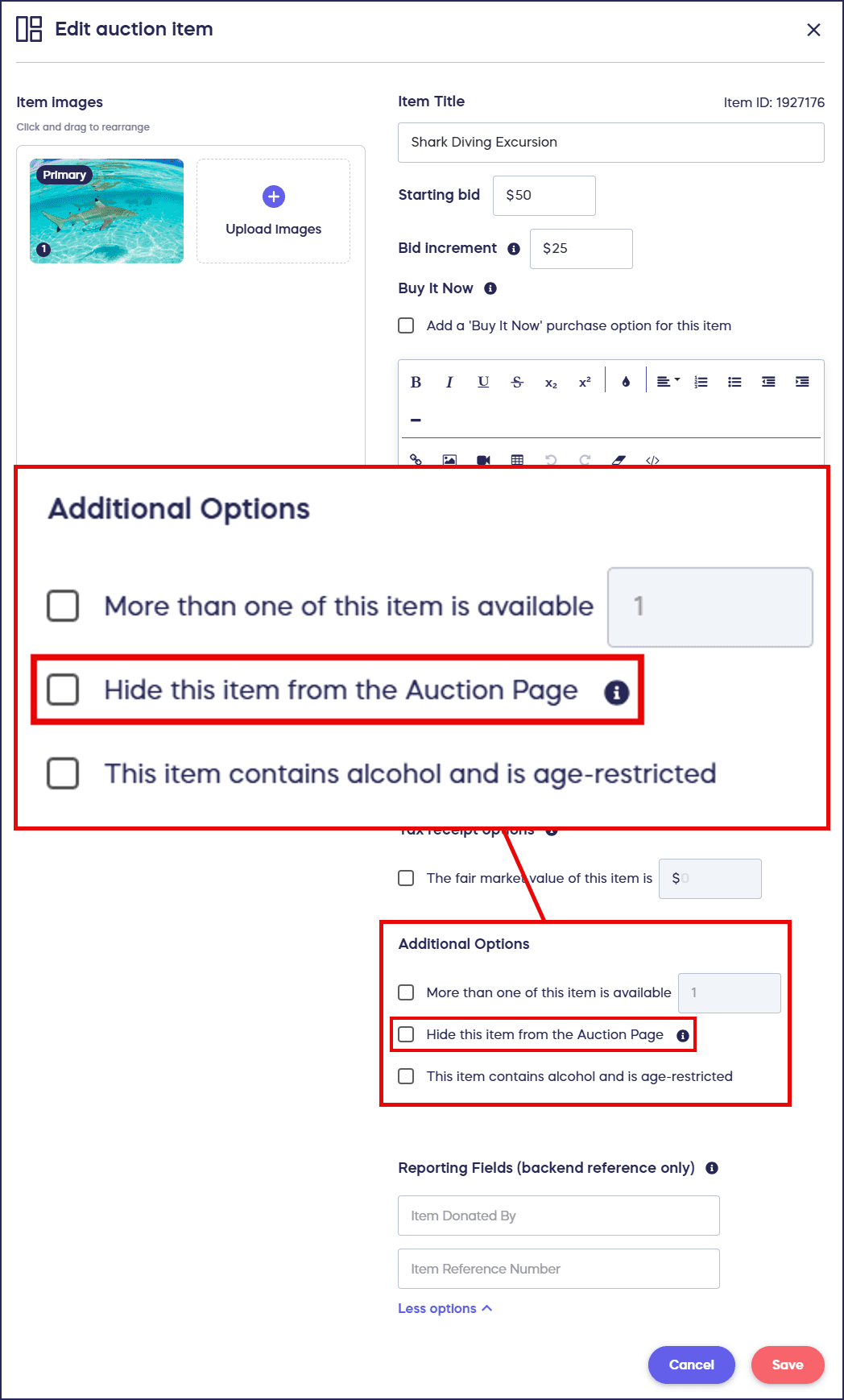
Why you might want to hide an item intentionally: Some organizers add high-value items to their Auction in advance but reveal them partway through the event to build excitement and re-engage bidders. Hiding an item lets you have it ready to go without showing it to donors before the right moment. When you’re ready to reveal it, just turn the toggle off.
Important: If an item has already received bids, you cannot delete it — you can only hide it. Hiding an item with bids removes it from the Campaign Page and prevents new bids from being placed, but it does not cancel the existing bids.
⚠️ Warning: Hiding an item that already has bids will prevent new bids from being placed on it. If you later unhide the item, bidding can resume.
Resolution Checklist
Work through these steps in order. Most organizers resolve the issue at step 1 or 2.
Step 1: Check the Hide This Item toggle
- Go to Account Navigation in the left menu and select Campaigns.
- Click on the Campaign with the missing item.
- Select Campaign Setup, then select Auction in the timeline at the top.
- Find the item in your item list and click it to open the item editor.
- Scroll to the Hide This Item toggle. If it’s turned on, turn it off.
- Click Save.
✓ Result: The item should now appear on your Campaign Page. Open the Campaign Page or use Preview to confirm.
Step 2: Confirm the item exists in your item list
If the toggle wasn’t the issue, confirm the item was actually created.
- In Campaign Setup, go to Auction in the timeline at the top and review your full item list.
- If the item is missing entirely, it may not have been saved or may have failed to import.
- If you used the import spreadsheet, check whether RallyUp flagged any errors during the upload. Rows with formatting errors are skipped — they don’t appear in your item list and don’t generate an error after the fact.
📝 Note: If you imported a spreadsheet that included Yes in the Hide This Item from the Campaign Page column, those items were created but hidden. Follow Step 1 above to unhide them. For further guidance on importing Auction items, see How-to: Import Multiple Auction Items to Your Campaign at Once.
Step 3: Open your Campaign Page in an incognito or private browser window
Browser caching can make it look like a change hasn’t taken effect when it actually has.
- Open a new incognito window (Chrome:
Ctrl+Shift+N/ Mac:Cmd+Shift+N) or a private window (Firefox/Safari:Ctrl+Shift+P/ Mac:Cmd+Shift+P). - Navigate to your Campaign Page URL.
- Check whether the item is visible now.
✓ Result: If the item appears in incognito but not in your regular browser, clearing your browser cache will resolve the display issue in your regular session.
Step 4: Verify your item’s images
If the item appears on the page but looks broken or isn’t displaying correctly:
- Open the item editor in Campaign Setup.
- Check that any image URLs are valid, publicly accessible links. Expired, private, or incorrectly formatted URLs will cause images to fail to load.
- If you’re not sure whether an image URL works, paste it directly into a browser address bar. If the image loads, the URL is valid.
- Replace any broken image URLs and click Save.
📝 Note: For guidance on creating valid image links for the import spreadsheet, see How-to: Create Image Links for the Import Auction Items Spreadsheet.
Campaign Status and Bidding
Items are visible on your Campaign Page whether your Campaign is in Draft or Live status. You can preview your full item list at any time by opening the Campaign Page while it’s still in draft — no items are hidden from organizers during setup.
The key difference between draft and live is bidding access:
- Draft Campaigns: Donors cannot access your Campaign Page. You and your team can preview the page and place test bids to check how the bidding experience looks and works.
- Live Campaigns: Donors can access the Campaign Page and place real bids.
⚠️ Warning: Any test bids placed during Draft mode are automatically deleted when your Campaign goes live. This ensures your Auction starts with a clean slate and no misleading bid history. Test bids do not affect your items or settings — only bid records are removed.
If you’re trying to confirm that items are visible to donors, the most accurate check is to open your Campaign Page in an incognito window after the Campaign has gone live.
Still Not Resolved?
If the steps above didn’t fix the issue:
- Check the system status page at status.rallyup.com for any ongoing incidents that may be affecting Campaign Pages.
- Contact support — use the purple chat button at the bottom right of any RallyUp page. To help us resolve your issue quickly, include:
- The name of the Campaign and the item(s) that aren’t appearing
- Which steps from this article you’ve already tried
- Whether the item was created manually or via the import spreadsheet
- A screenshot of your item list in Campaign Setup alongside your Campaign Page
Frequently Asked Questions
Why can’t I delete an Auction item that has bids on it?
Once a bidder places a bid on an item, that item is part of an active transaction record. Deleting it would remove the bid history and could cause inconsistencies in your records and donor communications. Instead, you can hide the item from the Campaign Page using the Hide This Item toggle, which prevents new bids while preserving the existing bid history.
Can I hide an item now and reveal it later during the Auction?
Yes. This is a common technique for building Auction excitement — some organizers hold back a headline item and reveal it mid-event to re-engage bidders. Simply enable Hide This Item during setup, and when you’re ready to reveal the item, edit it and turn the toggle off. The item will immediately become visible on the Campaign Page.
I imported items using the spreadsheet but they’re not showing up. What should I check?
There are two things to check first. Look at your item list in Campaign Setup to confirm the items were actually created — if they’re missing entirely, the rows may have failed to import due to a formatting error (required fields left blank, incorrect data types, etc.). If the items are in your list but not visible on the Campaign Page, check the Hide This Item column in your original spreadsheet: if those rows had Yes in that column, the items imported successfully but were set to hidden. Edit each item and turn off the Hide This Item toggle to make them visible. For full import instructions, see How-to: Import Multiple Auction Items to Your Campaign at Once.
Can donors see my Auction items before the Campaign goes live?
No. Your Campaign Page is not accessible to donors while the Campaign is in Draft status. Only people with an organizer login can view the page in draft mode. Once your Campaign goes live, donors can see all items that don’t have Hide This Item enabled.
Why did this happen — did I do something wrong?
Not necessarily. The Hide This Item toggle is easy to enable accidentally while editing an item, especially on smaller screens where toggles can be tapped unintentionally. If you used the import spreadsheet, the column may have been set to Yes without you noticing. Both are quick fixes — check the toggle or the spreadsheet column and you should be back on track in a minute or two.
Will any data be lost if I hide and then unhide an item?
No. Hiding an item only affects its visibility on the Campaign Page. Your item details, images, settings, and any existing bid history are all preserved. When you unhide the item, everything is exactly as it was.
Related Articles
- Importing items: How-to: Import Multiple Auction Items to Your Campaign at Once
- Creating image links for imports: How-to: Create Image Links for the Import Auction Items Spreadsheet
- Auction overview: What Is a Charity Auction and How Does It Work?
- Previewing your Campaign: How-to: Preview Your Campaigns in Draft Mode
- Buy It Now: How-to: Add Buy It Now to Your Auction Items