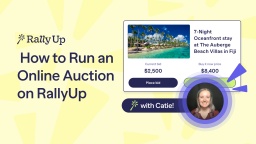
Hi! I'm Catie with RallyUp, and today, I'm gonna walk you through how to run a Live Auction. So when you first log into your RallyUp account, you'll go to Campaigns in the left menu and select New Campaign. And then you'll see a few questions that'll just help us understand your Campaign's unique needs. So if it asks if you'll host a fundraiser at a physical location, you will select Yes. And then you can also update your Campaign terminology. You can enable Peer-to-Peer if you need, but I'll skip that for now. And then at the bottom, it will ask if you need to manage running Event Balances for each guest. And you are going to select Yes. And if you forget to enable this here, don't worry. You can enable it later. But Event Balances are pretty essential to how our Live Auctions operate, and I will explain all of that in full detail. So I will select Continue. And now you can select the Components you want to include in your Campaign. So I am going to enable Live Auction. And then down at the bottom, you will see that Event Balances is enabled and can't be turned off. That's because Event Balances are required for Live Auctions. And then I'm going to skip to the Auction portion of Campaign Setup. And as you can see here, you'll go down to Add Auction Items and select Create an Item. And this will allow you to add images, a title, your starting bid and bid increment, a detailed description that you can format however you like. And then if you scroll down to More Options, you can select "Hide this item from the Auction page", and that makes sure that anyone who goes to your Campaign Page can't see this item displayed. So it will only be visible to the people who are actively participating in your Live Auction while it's running. And then one thing I want to show y'all is that this is how setup will look if you're just running a Live Auction. But if you're running a Live Auction and a Silent Auction in the same Campaign, which you can do, then setup is going to look like this. And you can add your Live Auction items and your Silent Auction items separately. And here, you can see all the details for this Live Auction item, which I have hidden from the Auction page. And then before I show you how a Live Auction is operated, I'm going to explain in a little more detail about Event Balances and Guest Numbers. So I'm going to go to my Campaign and go to the Campaign Management Menu, which is this little gear icon. And then if I scroll down to Event Management, I will click on View Ticket Registrations. And then as you can see, every donor that has purchased tickets to my event has been assigned a Guest Number. And this is a unique number for each attendee. And you can use this number to add donations, purchases, bids to a donor's Event Balance, which works a lot like a restaurant tab. So donors can just keep adding charges to their Event Balance and then pay for everything all at once when the event ends. So they don't have to go through a checkout line. They don't have to complete checkout more than once. Everything is just super smooth and simple and easy. And then before you start your Live Auction, you'll want to make sure that each donor has a paddle or a card with their Guest Number on it. And then they can raise their paddle or their card to indicate that they want to make a bid. So now that we've covered that, let's see a Live Auction in real time. So you'll go to the left menu, and you'll see this Quick Admin Menu. And this is available for any event or Campaign that is currently live. So you will select the Campaign from the drop-down, and then you'll see these quick links that pop up. And I'm going to select Live Auction. And this will take me into my Live Auction Management page. And I'm going to select this trip to Fiji and start the bidding. And then you'll also have something called a Live Display, and I'll show you what that looks like. So you can project this Live Display on screens or monitors all around your venue, and it is already branded with your organization's branding settings. And it shows the item that you are auctioning off. You can add a fundraising goal if you like, and then there's also a live bidding feed. So while the bidding is going on, donors can see what item they're bidding on. They can watch that fundraising thermometer go up. They can see the bids come in in real time, and it really generates excitement, and can help increase the amount that people are willing to bid. So going back to the Live Auction Management page, let's say someone wants to make a bid. They raise their paddle. It has their Guest Number on it. So I'm going to place that bid for them. I will enter their Guest Number and then their bidder amount. Let's say, three thousand even. Enter their bid. And done! Their bid has been entered. And then once you're ready to end your Live Auction, you'll simply select End Live Auction and select it again, and that will award the item to the highest bidder, which in this case is Ted Miller. And then you can select a new Auction item and start the process all over. And that is how you run a Live Auction on RallyUp! Thank you so much for watching, and I'll see y'all in the next video.