View any emails you send and resend them to donors whenever you need.
If you need to view or resend an email to a donor for any reason, you can do so anytime from their Donor Profile.
RallyUp’s Donor Profiles maintain a complete activity timeline that includes all emails sent to each donor, making it easy to reference past communications or resend important messages. This functionality is particularly useful when donors report they didn’t receive a receipt, when you need to verify what information was sent, or when you want to send the same message to an updated email address.
The entire email history is accessible with just a few clicks, giving you complete transparency and control over your donor communications.
How do I view an email sent to a donor?
Accessing previously sent emails through Donor Profiles lets you see exactly what content was delivered to each donor:
- Go to Account Navigation in the left menu and select Donor Profiles.
- Find the donor you’re looking for and click on their name. This will bring up their Donor Profile.
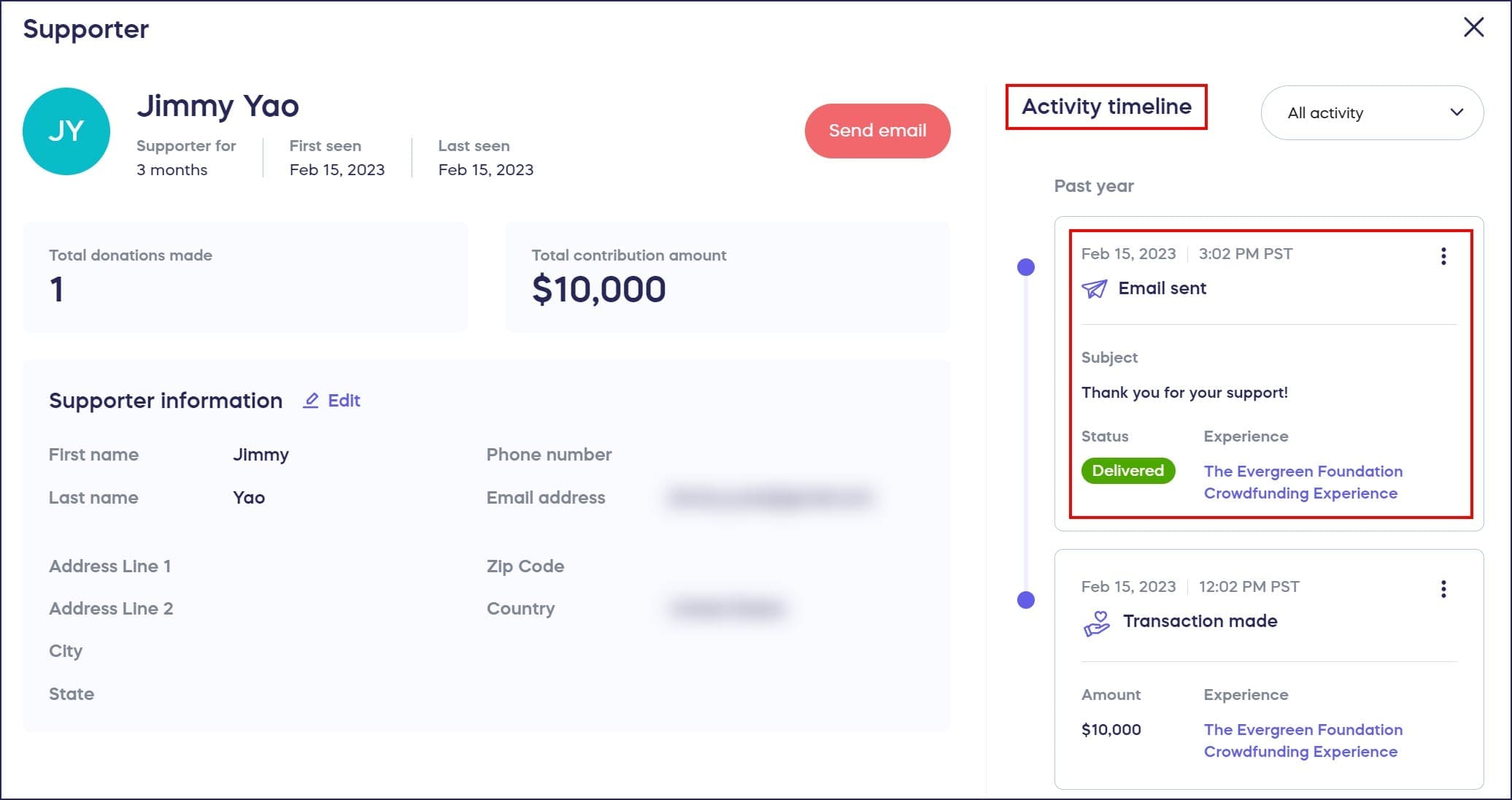
- Go to the Activity timeline on the right and find the email you’re looking for. Emails will be labeled Email sent:
- Click on the three-dot icon:
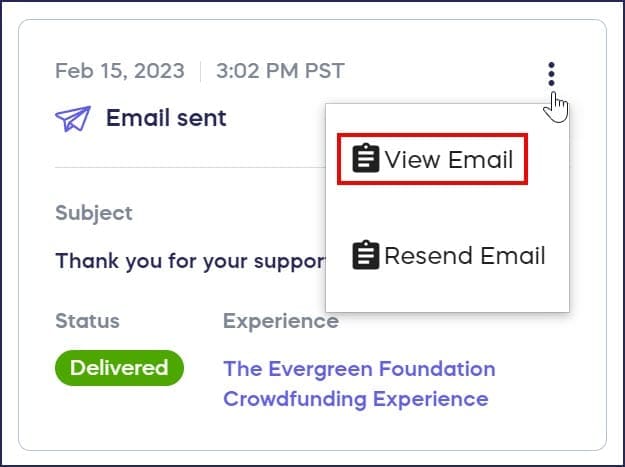
- Select View Email.
The email will open, showing you the exact content that was sent to the donor, including the subject line, message body, and any formatting or images included in the original communication.
How do I resend an email to a donor?
Resending emails is straightforward and allows you to change the recipient email address if needed:
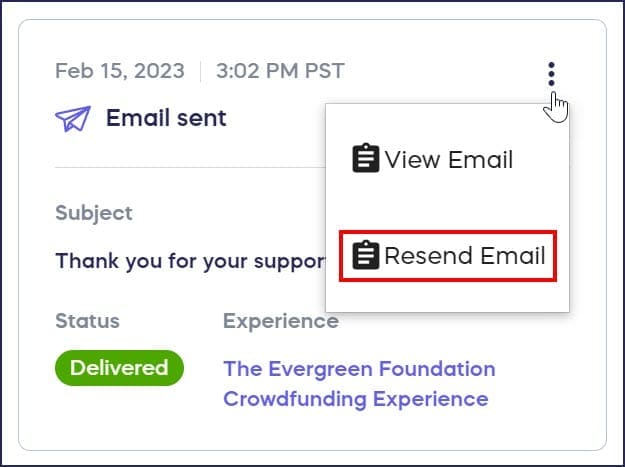
- Click on the three-dot icon and select Resend Email:
- The original email address will automatically appear. If you need to change the email address, you can do so now:

- Select Resend email.
The email will be sent immediately to the specified address. If you need to learn how to compose and send new emails to your donors, see How-to: Email Donors and Post Updates.
What types of emails appear in the activity timeline?
The activity timeline in Donor Profiles displays all automated and manual emails sent to that specific donor, including:
- Donation receipts
- Ticket confirmations
- Auction winning notifications
- Campaign updates you’ve sent
- Any custom emails you’ve composed through the Donor Profile
Each email entry shows the send date, subject line, and a preview of the content, making it easy to locate specific communications in the donor’s complete email history. This comprehensive record helps you maintain consistent communication and avoid sending duplicate messages.
Frequently Asked Questions
Can I edit an email before resending it?
No, the resend function sends the exact same email that was originally delivered. You cannot edit the content when resending. If you need to send different or updated information, compose a new email to the donor instead. The resend feature is specifically designed for situations where donors didn’t receive the original email due to delivery issues or need a duplicate of the exact message that was sent.
Will resending an email create a duplicate activity timeline entry?
Yes, when you resend an email, a new “Email sent” entry appears in the donor’s activity timeline showing the resend date and time. This creates a complete audit trail of all communications with that donor. The original email entry remains in the timeline as well, so you can always see both when the email was first sent and when it was resent.
Can I resend emails to multiple donors at once?
No, the resend function works only for individual donors through their specific Donor Profiles. If you need to send the same message to multiple donors, use the bulk email feature to compose and send a new email to your selected donor group. The resend function is designed for one-on-one situations where a specific donor needs a duplicate of their individual communication.
What happens if I change the email address when resending?
When you change the email address in the resend dialog, the email is sent to the new address you specify, but the donor’s primary email address in their Donor Profile remains unchanged. If you need to permanently update a donor’s email address, edit their Donor Profile separately. Changing the address during resend only affects where that one specific email is delivered.
How far back can I access sent emails in the activity timeline?
The activity timeline maintains a complete history of all emails sent to the donor throughout their entire relationship with your organization. There’s no time limit on email history—you can view and resend emails from years ago if needed. This permanent record ensures you always have access to your complete communication history with each donor, which is valuable for donor relations and record-keeping purposes.