Engage with your donors by sending emails and posting updates.
RallyUp helps you keep in touch with donors in two ways:
- Send emails
- Post updates to the Updates tab on your Campaign Page
Use emails or updates to let your supporters know how close you are to your fundraising goal, how the funds raised will impact the cause, how they can help promote your Campaign, and more. These types of updates keep your donors engaged and invested.
RallyUp allows you to email one person, a few people, or everyone who donated to a specific Campaign. You can also use Donor Profiles to email anyone who contributed to your organization, no matter which Campaign they contributed to.
How do I post an update to my Campaign Page?
- Go to Account Navigation in the left menu and select Campaigns.
- If you have chosen a list view, click on the Campaign title. If you have chosen a grid view, click on the Campaign image.
- Select Manage Updates.
- Go to the Updates tab and select Create update.
- Write your update (you can also include photos, videos, and more), then select Save:

Updates are visible to anyone who visits your Campaign Page and goes to the Updates tab:

Anyone that donates to your Campaign or registers to participate will automatically be opted into receiving updates. Whenever you post an update, they’ll get an email notification. They can opt out of receiving updates from their donation receipt or registration confirmation:

How do I email all donors from a specific Campaign?
- Go to Account Navigation in the left menu and select Campaigns.
- If you have chosen a list view, click on the Campaign title. If you have chosen a grid view, click on the Campaign image.
- Select View Donations.
- Go to the Donors tab.
- Check the box next to Name, which will make a Select all records option appear. Then, check the box next to Select all records:

Note that if you check the box next to Name but don’t check the box next to Select all records, only the people listed on the first page will be included.
- Select SEND EMAIL:

- Write your email, then select Send:

How do I email one or a few Campaign donors?
- Go to Account Navigation in the left menu and select Campaigns.
- If you have chosen a list view, click on the Campaign title. If you have chosen a grid view, click on the Campaign image.
- Select View Donations.
- Go to the Donors tab.
- Find the name of the person or people you’d like to email and check the boxes next to their names:

- Select SEND EMAIL:

- Write your email, then select Send:

How do I email all donors across Campaigns using Donor Profiles?
- Go to Account Navigation in the left menu and select Donor Profiles.
- Select Email Supporters:

- Check the box next to Name, then select Email xx recipients (the number will change depending on the number of donors you have):

- Write your email, then select Send:

How do I email specific donors using Donor Profiles?
- Go to Account Navigation in the left menu and select Donor Profiles.
- Select Email Supporters:

- Find the person or people you want to email and check the boxes next to their names, then select Email xx recipients (the number will change depending on the number of donors you selected):

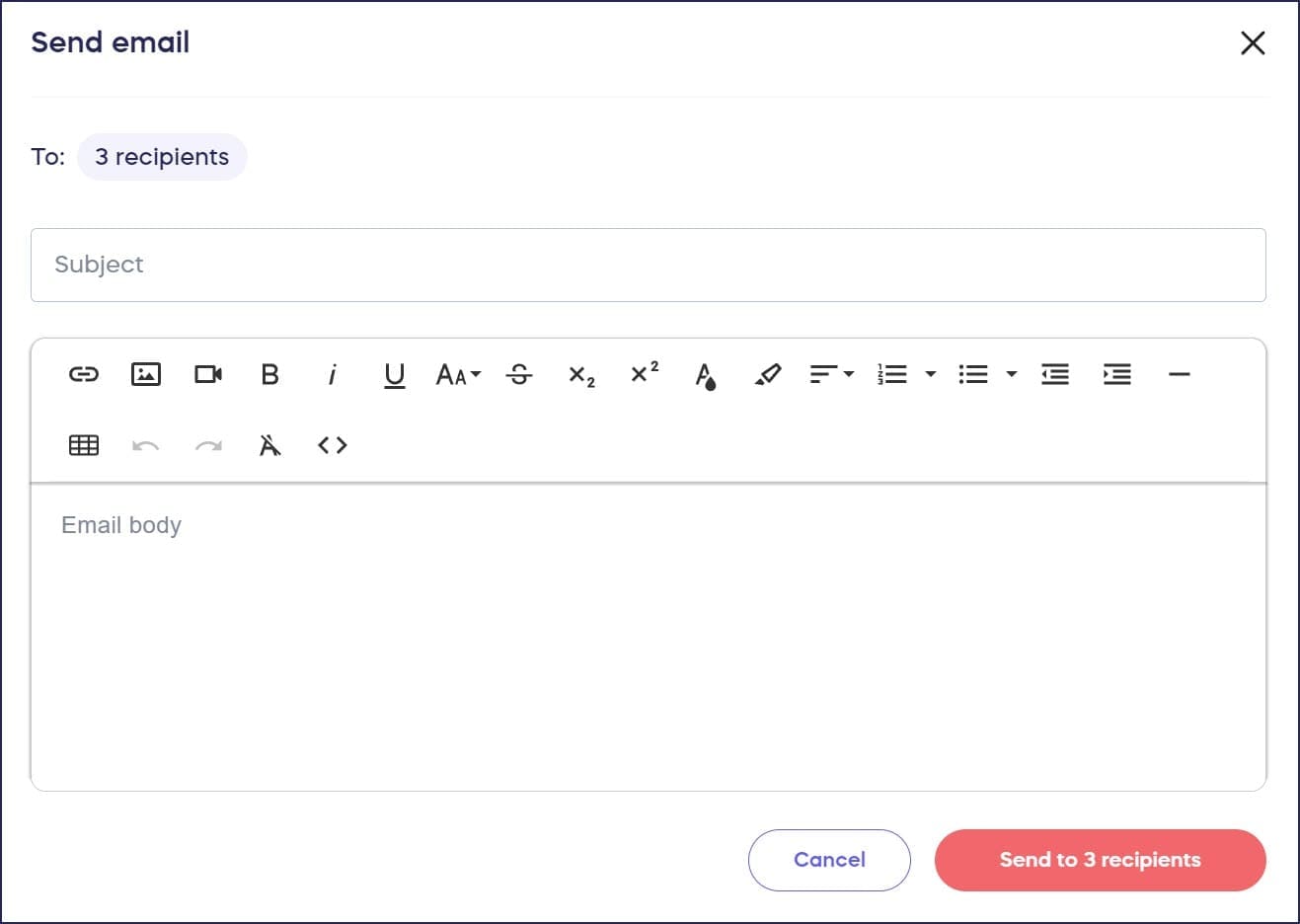
- Write your email, then select Send to xx recipients (the number will vary depending on the number of donors you selected):
What else should I know about emailing donors?
- Emails are sent out in a queue, so if you’re contacting many donors, sending all emails may take a few minutes.
- You can add expanded email marketing automation options to your RallyUp account by integrating with a CRM: Understand: RallyUp Integration Options.
- You can also view and resend any previously sent email: How-to: View and Resend Emails.
Frequently Asked Questions
What’s the difference between posting an update and sending an email?
Updates are posted to the Updates tab on your Campaign Page and are visible to anyone who visits. When you post an update, donors who opted in automatically receive an email notification. Direct emails are sent only to the specific donors you select.
Who receives notifications when I post a Campaign update?
Anyone who donates to your Campaign or registers to participate is automatically opted into receiving update notifications. They’ll receive an email whenever you post a new update unless they opt out from their donation receipt or registration confirmation.
Can I disable automatic update notification emails for my Campaign?
At this time, there is no setting to turn off automatic update notification emails at the campaign or organization level. When you post a Campaign update, all donors who are opted in will automatically receive an email notification. If your team manages its own donor email strategy and you don’t want RallyUp to send update notifications, the simplest approach is to avoid posting Campaign updates.
Can I include photos and videos in Campaign updates?
Yes, you can include photos, videos, and more in your Campaign updates to make them more engaging for your supporters.
What’s the difference between emailing from a Campaign and using Donor Profiles?
Campaign emails go to donors from that specific Campaign only. Donor Profiles let you email anyone who has contributed to your organization across all Campaigns, making it useful for organization-wide communications.
What happens if I check the “Name” box but not “Select all records”?
If you check the box next to Name but don’t check Select all records, only the donors listed on the first page will be included in your email. Always check Select all records to email everyone.
How long does it take to send emails to many donors?
Emails are sent out in a queue, so if you’re contacting many donors, sending all emails may take a few minutes to complete.
Can I view or resend emails I’ve already sent?
Yes, you can view and resend any previously sent email. This is useful for following up with donors or sharing important communications again.
Can I add advanced email marketing automation?
Yes, you can add expanded email marketing automation options to your RallyUp account by integrating with a CRM system.