Learn which Campaign settings can and can’t be changed once you’ve published, and what to do if you need to change a locked setting.
After your Campaign is published, you can still edit most settings. However, a few structural settings lock permanently to protect your donors’ data, payment integrity, and Campaign structure. This article explains exactly what locks, what stays editable, and what to do if you need to change something that’s locked.
Settings That Lock After Publishing
These settings cannot be changed once your Campaign is published. Locked settings appear greyed out in Campaign Setup.
| Setting | Why it locks | Workaround |
|---|---|---|
|
🔒 Locks Organization receiving the funds CSR & Advocate accounts only |
Tied to payment processing and legal/tax reporting. Changing it mid-campaign would split financial records. |
Workaround
Contact RallyUp Support. If no transactions yet, the team can revert to Draft — or create a new Campaign under the correct organization.
|
|
🔒 Locks Campaign primary currency |
Built into all pricing, payment processing, and donor receipts from the moment the Campaign goes live. |
Workaround
Contact RallyUp Support. If no transactions exist, the team can revert to Draft, or copy the Campaign with the correct currency.
|
|
🔒 Locks Campaign pricing model Free → Flex allowed once; not reversible |
Determines how platform fees are handled for all transactions. Cannot be mixed within a single Campaign. |
Workaround
You can change Free to Flex after publishing — once only, and it cannot be reversed. Flex to Free is not possible.
|
|
🔒 Locks Raffle entry type Any prize vs. specific prizes |
Determines how entries are allocated and winners are drawn. Changing it after entries are purchased would invalidate existing entries. |
Workaround
Set this correctly before publishing. If wrong, you must create a new Campaign.
|
|
🔒 Locks Sweepstakes prizes No new prizes after going live |
Participants enter based on the prizes listed when the Sweepstakes goes live. Adding prizes afterward would change what entrants signed up for. |
Workaround
Add every prize you plan to offer before publishing.
|
|
🔒 Locks Peer-to-Peer registration type Locks after first registration |
Controls whether fundraisers can self-register or must be invited. |
Workaround
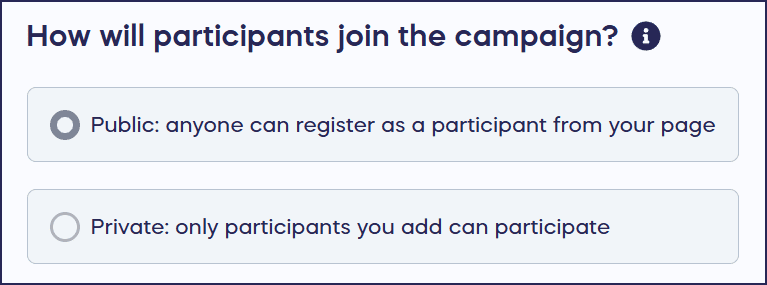
Can still be changed after publishing — until the first fundraiser registers. After that, it locks permanently.
|
|
🔒 Locks Entry levels Once purchased |
Entry levels with purchases attached cannot be edited or deleted because donors have already paid for them. |
Workaround
Hide the old entry level and create a new one. Existing purchases are preserved.
|
|
🔒 Locks Auction bidding style English vs. Proxy |
Determines the bidding mechanic for the entire Auction. Changing it mid-auction would disrupt active bidding. |
Workaround
Set your bidding style before publishing. For future Auctions, copy the Campaign and adjust.
|
📝 Note: Start and end dates/times can generally be changed after publishing, with two exceptions: dates cannot be changed on Sweepstakes Campaigns, and changing dates on Raffle Campaigns is not recommended as it may affect entry sales and compliance.
Settings You Can Still Edit After Publishing
Most Campaign settings remain fully editable after publishing. Here’s what you can change at any time:
| Setting | Details |
|---|---|
| ✓ Editable Campaign page design and branding |
Update logos, banners, colors, and page layout at any time. |
| ✓ Editable Campaign title and description |
Edit your Campaign name and story text whenever needed. |
| ✓ Editable Campaign goal amount |
Raise or lower your fundraising goal at any time. |
|
✓ Editable Start and end dates/times Exceptions apply — see details |
Adjust scheduling as long as the Campaign has not yet ended. Cannot be changed on Sweepstakes Campaigns. Not recommended on Raffle Campaigns. |
| ✓ Editable New Fundraising Components |
Enable new Components and relaunch your Campaign. |
| ✓ Editable New Auction or Store items |
Add new items to existing Auction or Store Activities at any time. |
| ✓ Editable Auction end time (while active) |
Extend or shorten the Auction end time while the Auction is running. |
| ✓ Editable General donations toggle |
Enable or disable the general donations option. |
| ✓ Editable FAQs and additional content |
Add, edit, or remove FAQ entries and supplemental page content. |
| ✓ Editable Hide/unhide items |
Toggle visibility of specific items without deleting them. |
| ✓ Editable Email notifications and messaging |
Update automated emails, thank-you messages, and notifications. |
Pre-Publish Checklist
Before you hit Go Live, run through this checklist to make sure everything is set correctly. Once published, some of these settings cannot be undone.
How do I update my Campaign after publishing?
- Go to Account Navigation in the left menu and select Campaigns.
- If you have chosen a list view, click on the Campaign title. If you have chosen a grid view, click on the Campaign image.
- Select Campaign Setup.
- Make your desired changes, then select SAVE. If a setting isn’t editable, it will appear greyed out:
What If I Need to Change a Locked Setting?
If you realize a locked setting is wrong after publishing, you have three options depending on your situation.
Option 1: Contact Support to Revert to Draft
Use this if: Your Campaign has not yet received any donations, purchases, or bids.
Contact RallyUp Support and ask us to revert your Campaign to Draft mode. This unlocks all settings so you can make corrections. Once you’ve made your changes, publish again.
📝 Note: You cannot revert a Campaign to Draft yourself — this requires RallyUp Support to do it on your behalf.
Option 2: Copy the Campaign
Use this if: Transactions have already occurred and reverting to Draft isn’t possible.
Copy your Campaign to create a copy with all your settings, content, and items. Update the locked setting on the new copy, then publish it. You can end or hide the original Campaign and redirect donors to the new one.
Option 3: Contact RallyUp Support for Complex Situations
Use this if: You need help with something more involved — such as changing your organization mid-campaign, resolving a currency issue, or a situation not covered by the options above.
Contact RallyUp Support and our team can advise on the best path forward. In some cases, we may be able to assist with adjustments that aren’t available through Campaign Setup.
Frequently Asked Questions
Can I change my Campaign from Free to Flex pricing after publishing?
Yes — you can change from Free to Flex after publishing. However, this change cannot be reversed: once you’ve switched to Flex, the pricing model is locked permanently for that Campaign. If you need to go back to Free pricing, you’ll need to create a new Campaign.
Can I add new fundraising Components (like a Raffle or Auction) after publishing?
Yes. You can add or remove fundraising Components after publishing and re-launch your Campaign.
Can I delete entry levels or Auction items after people have purchased or bid on them?
No. Once entry levels have been purchased or Auction items have received bids, they cannot be deleted. You can hide them so they no longer appear to new visitors, then create new entry levels or items as replacements.
What if I selected the wrong Raffle entry type?
The Raffle entry type — any prize vs. specific prizes — locks after publishing. If you chose the wrong type, you’ll need to create a new Campaign with the correct entry type. We recommend using Draft Mode to confirm this is set correctly before publishing.
I need to revert my Campaign to Draft to fix a locked setting. Can I do that myself?
No — reverting a Campaign to Draft requires RallyUp Support to do it on your behalf. Contact us and let us know what you need to change. If your Campaign has no transactions yet, we can typically revert it quickly so you can make your corrections and republish.
How do I preview my Campaign before publishing to catch issues early?
Use Draft Mode to preview and test your full Campaign experience before going live. You can also share your draft with team members to get a second opinion. See How-to: Preview Your Campaigns in Draft Mode for instructions.
Can I update Peer-to-Peer prizes after my Campaign is published?
Yes, you can add, remove, and update prize listings in your Peer-to-Peer campaign after it goes live. If you’re still confirming prizes, consider adding a note in your participant center letting fundraisers know that more prizes may be announced — this can build excitement and encourage early sign-ups.
What else should I know before publishing my Campaign?
Most Campaigns go live immediately after publishing, unless you have set a future start date. If your Campaign includes a Sweepstakes, it will go through a brief review process to ensure it meets our internal standards before going live — usually completed within one business day. RallyUp doesn’t determine or guarantee that a Sweepstakes is legal or compliant — confirming that is the organizer’s responsibility, through their own research and legal counsel as needed.
Related Articles
- Previewing before you publish: How-to: Preview Your Campaigns in Draft Mode
- Copying a Campaign: How-to: Copy a Campaign
- Auction bidding styles: Understand: Auction Bidding Styles
- P2P registration types: Understand: Public vs. Private Registration
- Pricing options: What Are RallyUp’s Pricing Options? Free vs Flex
- Hiding items: Troubleshoot: Auction Item Not Showing on Campaign Page