Add custom text and images to your fundraising Component buttons.
When you run multiple fundraising Components in one RallyUp Campaign, your Campaign Page will display buttons that take donors directly to each Component:
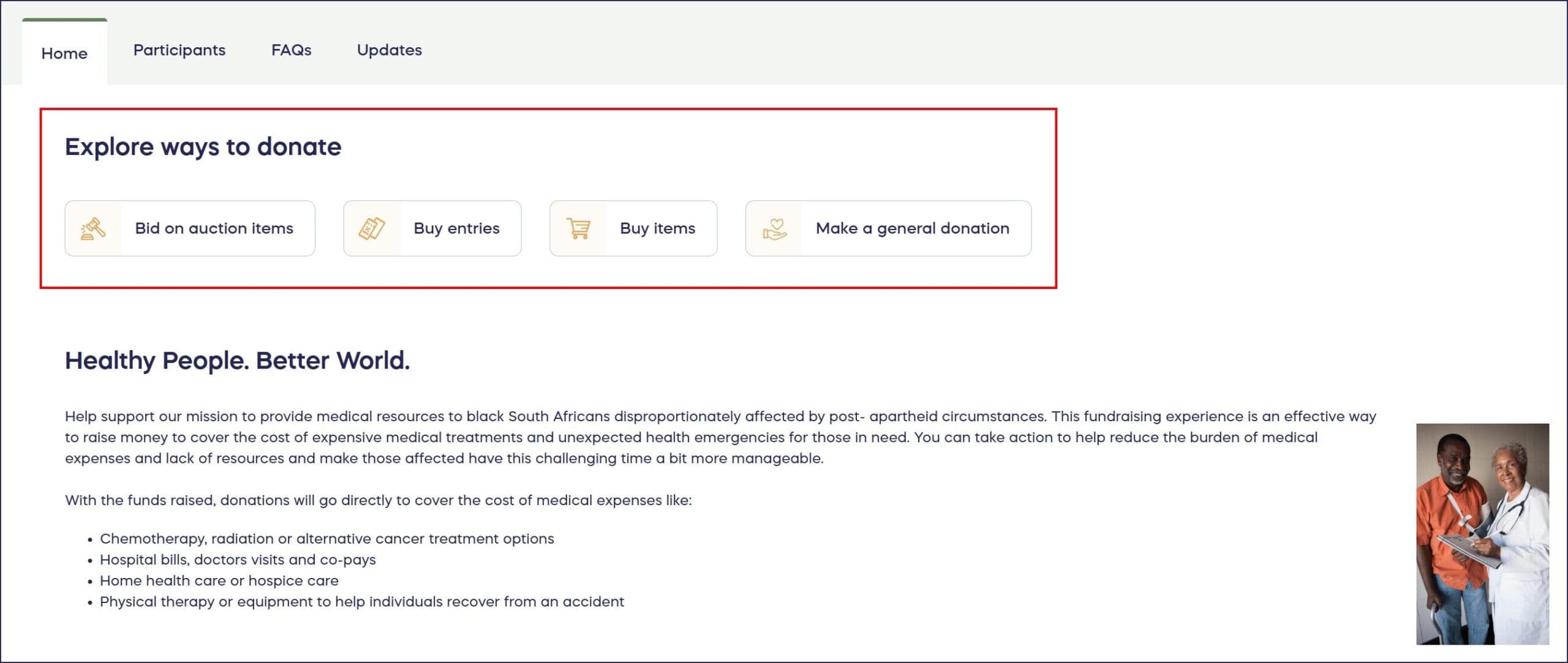
You can customize the following for each button:
- Section headline
- Button order
- Text
- Images
How do I customize the Component buttons on my Campaign Page?
- Go to Account Navigation in the left menu and select Campaigns.
- If you have chosen a list view, click on the Campaign title. If you have selected a grid view, click on the Campaign image.
- Select Campaign Setup.
- Go to Options in the timeline at the top and select Page Design Options.
- Scroll down to Customize the Activity buttons on your Campaign Page:
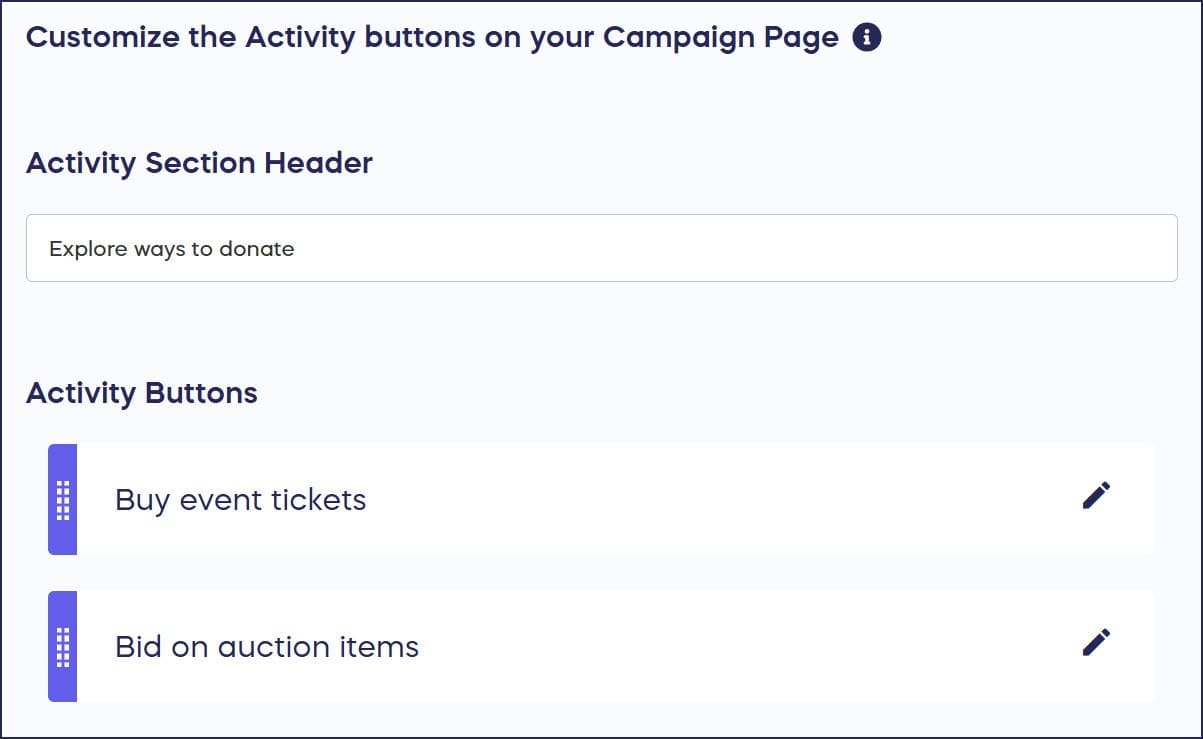
- To update the section header, type it into the text box under Activity Section Header.
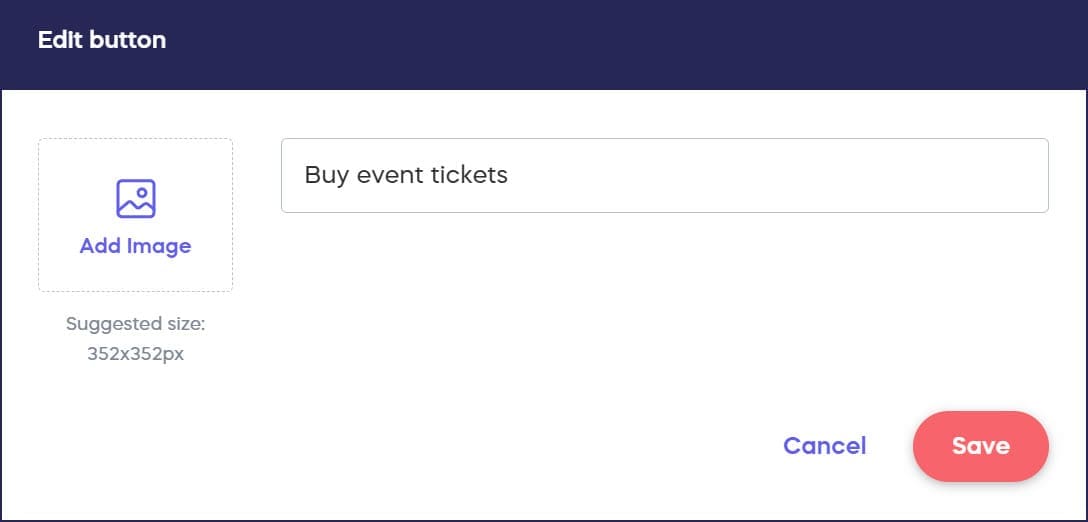
- To update text and images, click on the button you want to customize, enter the new text and image, and select SAVE:
- To change the order of your Component buttons, click on the one you want to move and drag it into place:
- Select Save.
Frequently Asked Questions
What are Component buttons on my Campaign Page?
Component buttons appear when you run multiple fundraising Components in one Campaign. These buttons direct donors to each specific Component like Raffles, Auctions, Crowdfunding, or Ticketing & Registration within your Campaign.
Can I change the order of Component buttons?
Yes, you can reorder Component buttons by clicking and dragging them into your preferred position. This lets you prioritize which fundraising Components appear first to your donors.
What images work best for Component buttons?
Use clear, high-quality images that represent each Component. The images should be visually distinct from each other to help donors quickly identify different fundraising Components on your Campaign Page.
Can I customize the section header above the buttons?
Yes, you can update the Activity Section Header by typing new text into the text box under Campaign Setup > Options > Page Design Options. This header appears above all your Component buttons.
Do I need multiple Components to see these buttons?
Yes, Component buttons only appear when you run multiple fundraising Components in one Campaign. If you have just one Component, donors go directly to that Component without button selection.