Learn how to access, view, organize, and manage all your RallyUp fundraising Campaigns from one central dashboard. Find archived Campaigns, create new fundraisers, and track performance.
All your RallyUp fundraising Campaigns are managed from one centralized dashboard accessible by going to Account Navigation in the left menu and selecting Campaigns:
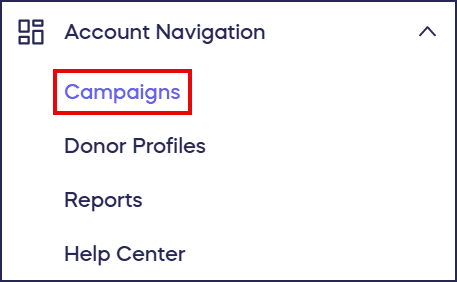
This Campaign management hub allows you to view active fundraisers, access archived Campaigns, create new fundraisers, edit Campaign settings, track donations and performance, and manage all aspects of your fundraising efforts. The centralized system ensures you can efficiently oversee multiple Campaigns without switching between different platforms or interfaces.
Accessing Your Campaign Dashboard
To view and manage your fundraising Campaigns:
- Log into your RallyUp account at rallyup.com.
- Go to Account Navigation in the left menu and select Campaigns.
- Your Campaign dashboard displays all active Campaigns.
Dashboard views:
RallyUp offers two display options for your Campaign dashboard:
List view: Shows Campaigns in a vertical list format with key details like Campaign name, status, dates, and total raised. Click on the Campaign title to access management options.
Grid view: Displays Campaigns as cards with banner images, providing a more visual overview. Click on the Campaign image to access management options.
You can switch between list and grid views based on your preference and how you prefer to organize your fundraisers.
Finding Archived Campaigns
If you don’t see a specific Campaign in your main dashboard, it may be archived. Archived Campaigns are fundraisers that have ended or that you’ve manually archived to declutter your active Campaign list.
To view archived Campaigns:
- Go to Account Navigation in the left menu and select Campaigns.
- Scroll to the bottom of the page.
- Check the Show archived Campaigns checkbox.
- Your archived Campaigns will now display.
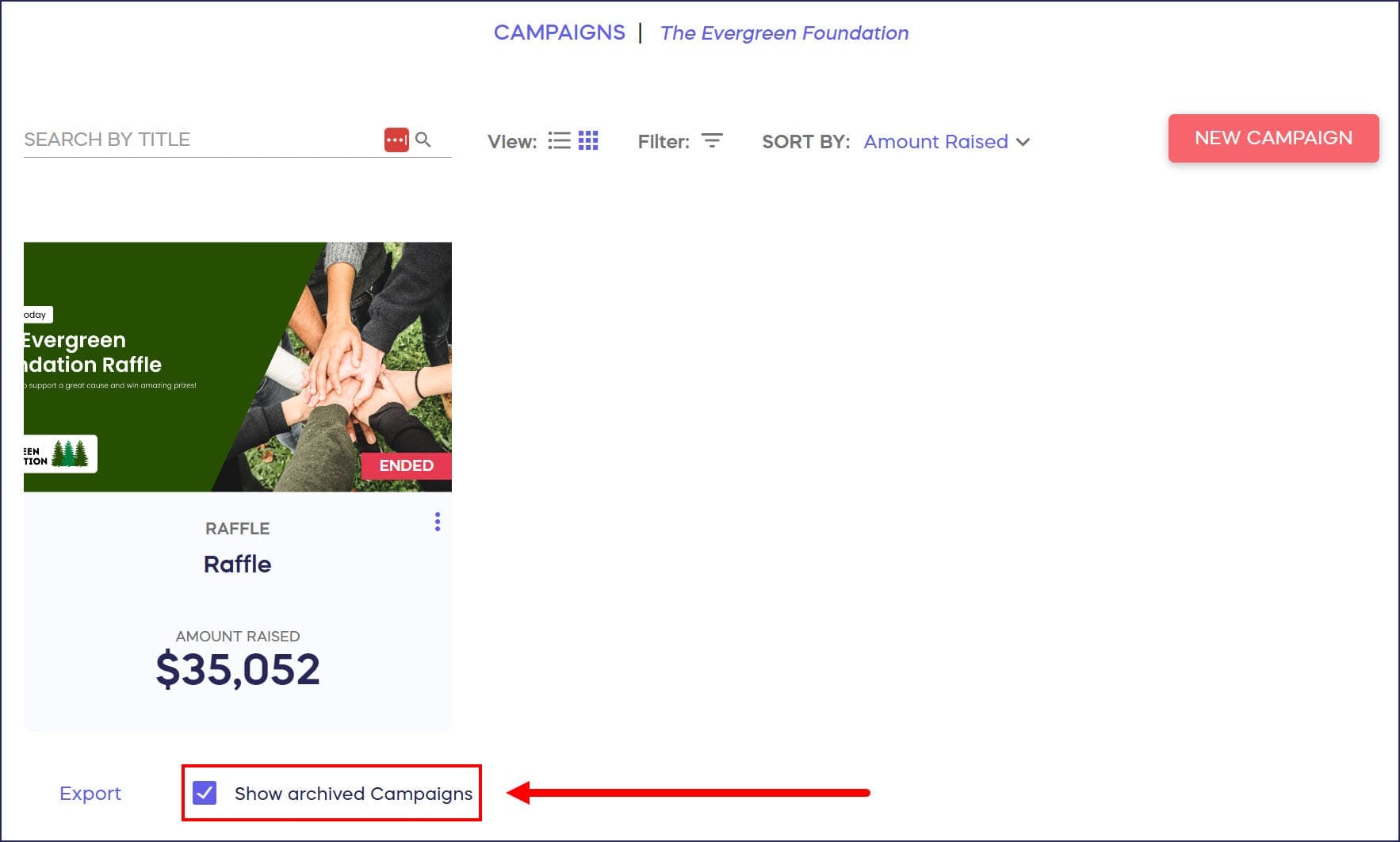
Archiving Campaigns doesn’t delete them—it simply removes them from your primary view. You can unarchive Campaigns at any time to make them visible again in your main dashboard.
Using Filters and Sorting to Find a Campaign
If you need to find a specific Campaign but can’t remember the Campaign title, you can use the Filters or SORT BY to narrow your search.
To filter your Campaigns:
- Go to Account Navigation in the left menu and select Campaigns.
- Open Filters at the top of your Campaign dashboard:
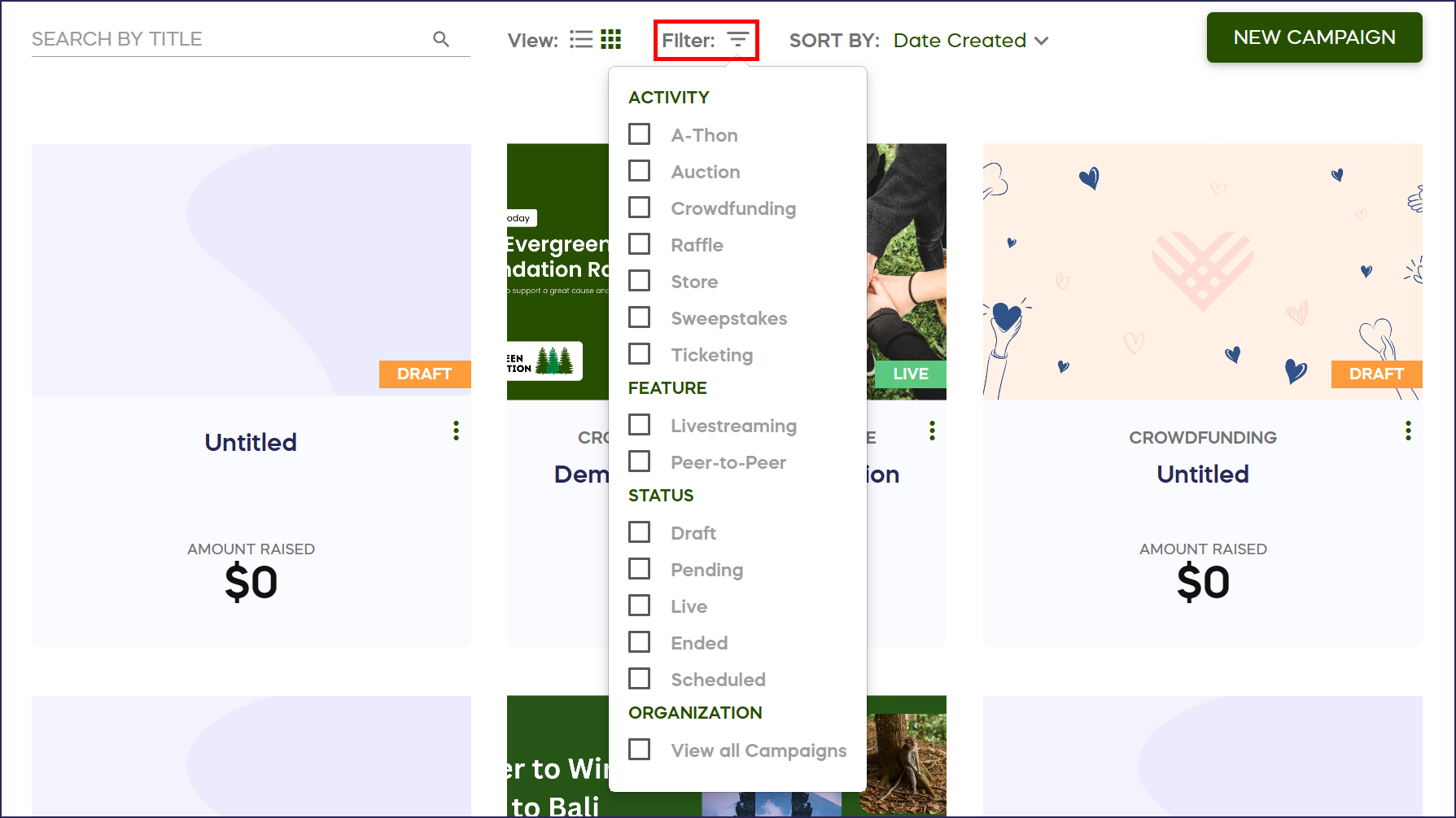
You should now be able to filter your Campaigns by Activity, Feature, or Status.
To sort your Campaigns:
- Go to Account Navigation in the left menu and select Campaigns.
- Select the drop-down arrow next to SORT BY at the top of your Campaign dashboard:
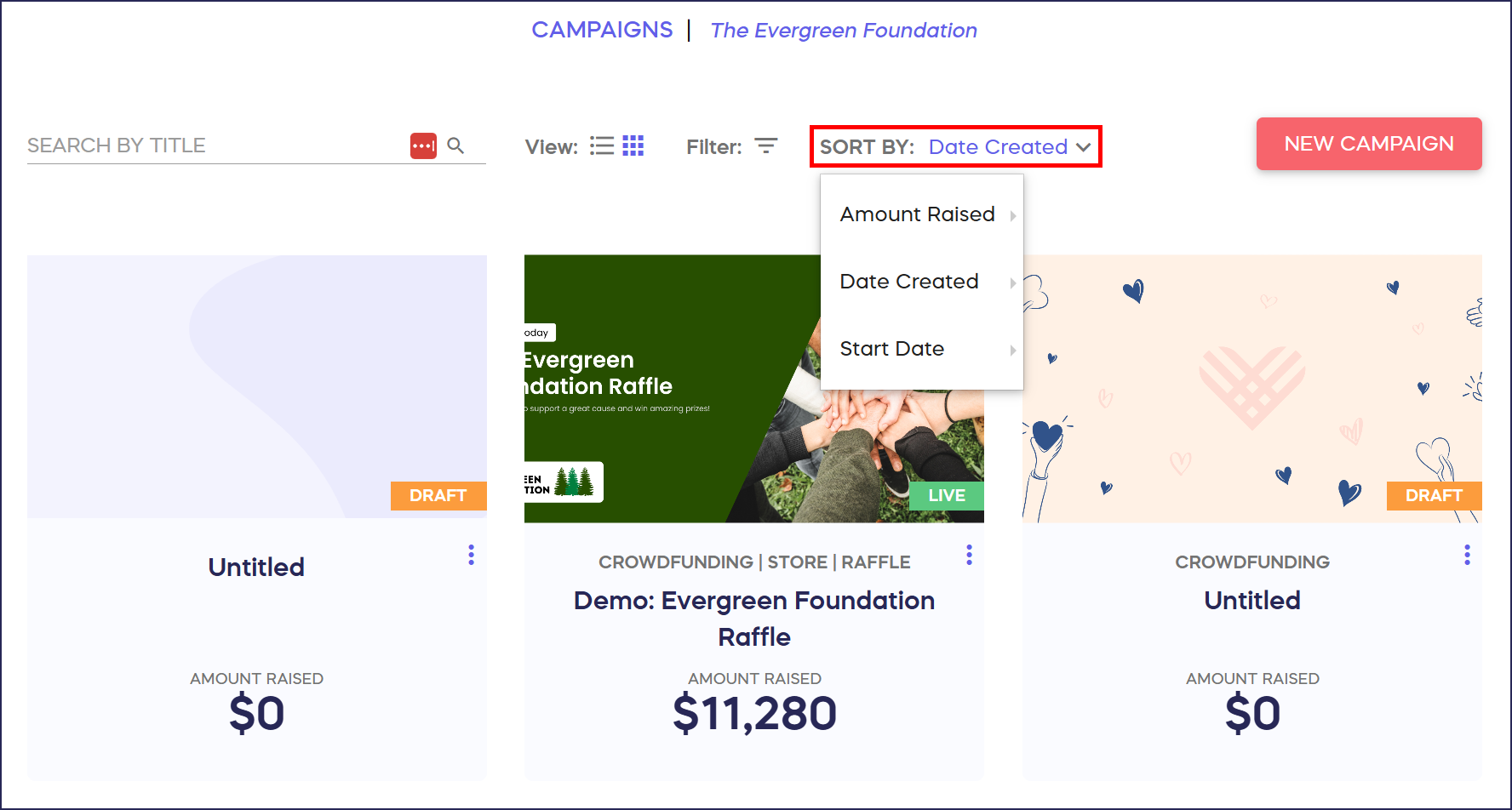
You should now be able to sort your Campaigns by Amount Raised, Date Created, or Start Date.
Creating New Campaigns
The Campaign dashboard is also where you launch new fundraisers:
- Go to Account Navigation in the left menu and select Campaigns.
- Select NEW CAMPAIGN in the top right corner.
- Choose to start with a blank Campaign or select an Instant Fundraising Template with pre-filled settings.
- Proceed through Campaign Setup to customize your fundraiser.
How to Create a Fundraising Campaign
Instant Fundraising Templates streamline Campaign creation by providing pre-configured settings for popular fundraising types like Raffles, Auctions, and Peer-to-Peer Campaigns. These templates can save significant setup time while ensuring you don’t miss important configuration steps.
Understand Instant Fundraiser Templates
Managing Individual Campaigns
Once you click on a Campaign title or image, you access comprehensive management options:
Campaign Setup
Access all configuration settings including:
- Campaign dates and times
- Fundraising Components (Raffles, Auctions, etc.)
- Payment processing options
- Branding and customization
- Email and communication settings
- Advanced features and integrations
View Donations
Track all contributions received through your Campaign:
- Individual donation details
- Donor information
- Payment status
- Transaction history
- Export donation reports
How to Export Donation and Donor Reports
View Participants (for Peer-to-Peer Campaigns)
Manage Participants who are fundraising on your behalf:
- View Participant profiles and fundraising pages
- Track individual Participant performance
- Monitor Team progress
- Access Participant contact information
Understand Peer-to-Peer Reports
Component-Specific Management
Depending on which fundraising Components you’ve added to your Campaign, you’ll see additional management options:
For Auctions: View bids, manage Auction items, export bid reports
For Raffles/Sweepstakes: Manage entries, draw winners, export entry lists
For Ticketing & Registration: Check in attendees, manage ticket sales, view registrations
For Storefronts: Process orders, manage inventory, coordinate fulfillment
For Paddle Raises, Fund-a-Needs, and Live Auctions: Track real-time pledges and bids, manage donor numbers, spotlight donation amounts or specific items
Campaign Performance Tracking
Your Campaign dashboard provides at-a-glance performance metrics:
Key metrics displayed:
- Total amount raised
- Number of donations/contributions
- Campaign progress toward goal
- Active vs. ended status
- Campaign duration remaining
For detailed analytics, access individual Campaign reports showing:
- Donation trends over time
- Donor demographics
- Conversion rates
- Component-specific performance
- Revenue by fundraising Component type
Organizing Multiple Campaigns
When managing multiple fundraising initiatives simultaneously, use these strategies:
Naming conventions: Use clear, descriptive Campaign names that indicate the fundraising type, purpose, or date (e.g., “Spring 2025 Gala & Auction” or “Q2 Scholarship Raffle”)
Archive completed Campaigns: Regularly archive finished fundraisers to keep your active dashboard clean and focused
Use search and filters: Find specific Campaigns quickly by searching campaign names or filtering by status
Set Campaign dates carefully: Proper start and end dates help you track which Campaigns are currently active vs. upcoming or completed
Campaign Status Options
Campaigns can exist in several states:
Draft: Campaign is being built but not yet visible to the public. You can preview and test without launching.
Active/Live: Campaign is published and accepting donations/purchases from supporters.
Ended: Campaign has reached its end date or you’ve manually ended it. No new contributions are accepted, but you can still access reports and data.
Archived: Campaign has been moved to archived status for organizational purposes. Can be unarchived anytime.
Previewing Campaigns Before Launch
Before making your Campaign public, test all features in Draft Mode:
- While in Campaign Setup, select Preview at the top of any page
- Test the donor experience by making sample transactions
- Review all settings, text, and images
- Make adjustments as needed
- Return to Campaign Setup to launch when ready
How to Preview Your Campaigns in Draft Mode
Frequently Asked Questions
Where can I find my fundraising Campaigns in RallyUp?
All your campaigns are located under Campaigns, which you reach by going to Account Navigation in the left menu of your RallyUp dashboard. This centralized hub displays all active fundraisers and provides access to archived Campaigns through the “Show archived Campaigns” checkbox at the bottom of the page.
How many Campaigns can I run at the same time?
RallyUp allows you to run unlimited Campaigns simultaneously. You can have multiple active fundraisers for different purposes, causes, or time periods without restrictions. This flexibility lets you manage year-round fundraising initiatives, seasonal Campaigns, and special events all from one account.
Can I edit a Campaign after it’s already live?
Yes, you can edit most Campaign settings even after going live. However, some settings may be locked once donations or purchases have been made to protect data integrity. You can update Campaign text or images, add new items, and adjust many features throughout the Campaign duration.
How to Update Your Campaign After Publishing
What’s the difference between ending and archiving a Campaign?
Ending a Campaign stops it from accepting new contributions—it’s finished. Archiving simply removes the Campaign from your main dashboard view for organizational purposes. You can archive active, draft, or ended Campaigns, and you can unarchive them anytime to view or manage them again.
How do I access reports for past Campaigns?
Navigate to Campaigns in the left menu, check Show archived Campaigns if needed, click on the Campaign title or image, then select View Donations or other relevant report options. All historical data remains accessible even for long-ended Campaigns.
Can I duplicate a successful Campaign to use again?
Yes! RallyUp allows you to copy any existing Campaign to save time when running similar fundraisers. The copy feature transfers Campaign settings, fundraising Components, custom text, images, items, and other configurations to a new Campaign. To copy a Campaign, hover over the Campaign title (list view) or click the three-dot icon under the Campaign image (grid view), select “Copy,” enter a title for the new Campaign, and click “Create copy.” Note that donations, Participants, Teams, and updates don’t transfer—only the Campaign structure and settings.
What happens to donor data when I archive a Campaign?
Archiving a Campaign doesn’t delete or affect any data. All donor information, contributions, reports, and Campaign details remain intact and accessible. Archiving only changes the Campaign’s visibility in your dashboard—it’s purely an organizational tool.
My Campaign has disappeared — how do I find it?
Open the Filters panel on your Campaigns dashboard and select View all Campaigns. This displays every Campaign on your account regardless of status, including drafts that may be hidden by an active filter. If the Campaign still doesn’t appear after that, your account may need to be re-associated with your organization — contact RallyUp support for help.
Best Practices for Campaign Management
Regular Dashboard Reviews
Schedule weekly dashboard reviews during active Campaigns to:
- Monitor performance against goals
- Identify Campaigns needing promotional boosts
- Respond to any issues or questions
- Track donation trends and patterns
Keep Campaign Names Organized
Use systematic naming that helps you quickly identify Campaigns:
- Include the year: “2025 Annual Gala”
- Specify the type: “Holiday Raffle” or “Spring Auction”
- Add purpose when relevant: “Building Fund Campaign”
Archive Strategically
Don’t let your dashboard become cluttered with dozens of old Campaigns. Archive:
- Campaigns ended more than 30 days ago
- Test Campaigns used for training or demonstrations
- Seasonal Campaigns after their season passes
- Any Campaign no longer actively managed
Document Campaign Settings
For Campaigns you plan to run annually, document your configuration choices:
- Screenshot key settings
- Note what worked well and what didn’t
- Record successful pricing, entry levels, or donation tiers
- Keep promotional materials and schedules for reference
This documentation makes recreating successful Campaigns much faster next year.
Getting Support
If you need help managing your Campaigns or have questions about specific features, RallyUp’s support team is available via chat on our website during business hours. Click the purple message button at the bottom right of your screen.
You can also search our Knowledge Base for detailed how-to articles covering:
- Campaign setup and configuration
- Component-specific management guides
- Reporting and analytics
- Troubleshooting common issues
- Best practices and optimization tips
Related Resources
How to Create a Fundraising Campaign
How to Export Donation and Donor Reports