Learn how to add or remove email addresses from your Contact Organizer recipient list. Control who receives and responds to donor questions submitted through your RallyUp Campaign.
Contact Organizer emails are messages sent when Campaign visitors click the “Contact Organizer” button on your fundraising page to ask questions or share feedback:
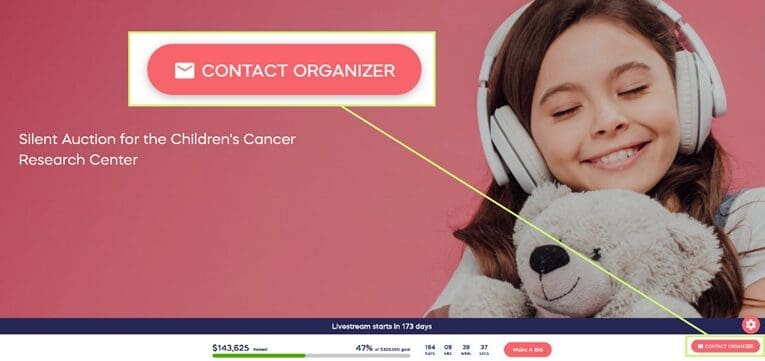
By default, the Campaign creator (organizer) and any assigned administrators receive these emails. However, you can customize the recipient list by adding or removing email addresses, giving you complete control over who can view and respond to donor inquiries. This flexibility allows you to route questions to the appropriate team members based on expertise or availability.
Why do people submit Contact Organizer emails?
Positive feedback: Donors want to offer words of encouragement and express support for your cause.
Prize eligibility questions: Donors ask about drawing eligibility, Raffle entries, or Sweepstakes requirements.
Prize or perk delivery: Winners inquire when and how they’ll receive items they’ve won or purchased.
Winner announcements: Participants ask when and where raffle, sweepstakes, or contest winners will be announced — especially when winner notifications are shared outside of RallyUp, such as on social media or a separate website
Event logistics: Attendees ask about event location, parking, timing, or check-in procedures.
Volunteer opportunities: Supporters want to know how they can contribute time or skills to your organization.
Donation updates: Donors need to update payment information, correct donation amounts, or request receipts.
Technical assistance: Visitors need help navigating your Campaign Page or completing transactions.
Who receives Contact Organizer emails by default?
Campaign creator: The person who originally created the Campaign automatically receives all contact form submissions
Campaign administrators: Anyone you assign as an administrator is automatically added to the recipient list
This default setup ensures important inquiries reach team members with full Campaign access. However, you may want to customize this list for several reasons.
Why should I customize the Contact Organizer email recipient list?
Distribute workload: Prevent one person from being overwhelmed by routing questions to multiple team members.
Assign specialists: Direct specific inquiry types to team members with relevant expertise (e.g., event logistics to your events coordinator).
Ensure responsiveness: Add backups so someone always responds even when key team members are unavailable.
Remove unnecessary recipients: Administrators who don’t need to see donor questions can be removed from the list.
Add support staff: Include customer service team members or volunteers who help answer questions but don’t need full administrator access.
Manage administrator additions: When you add new administrators, they’re automatically added to the recipient list—you may need to remove them if they shouldn’t receive these emails.
How do I customize who receives Contact Organizer emails?
- Go to Account Navigation in the left menu and select Campaigns.
- If you have chosen a list view, click on the Campaign title. If you have chosen a grid view, click on the Campaign image.
- Select Campaign Setup.
- Go to Options in the timeline at the top and select Campaign Options.
- Scroll down to Choose who will receive donor questions from the “Contact Organizer” button and select DELETE to remove an email address or + Add another to add a new email address:

This setting defaults to the email address of the person who created the Campaign. You can change the email address or add more than one, but you must include at least one email address.
- Select Save.
Important note: Changes to the recipient list take effect immediately. New contact form submissions will be sent to the updated email list.
Do Campaign Administrators automatically receive Contact Organizer emails?
When you assign someone as a Campaign Administrator, RallyUp automatically adds their email address to the Contact Organizer recipient list. This automation ensures Administrators stay informed about donor questions.
If you don’t want an Administrator receiving these emails:
- Add the person as an Administrator first.
- Follow the steps above to access Contact Organizer email recipients.
- Manually remove their email address from the recipient list.
- Save your changes.
The person remains a Campaign Administrator with full management access but won’t receive Contact Organizer emails.
How to Add Campaign Administrators
What is included in Contact Organizer emails?
Contact form submissions sent to your recipient list include:
- The visitor’s message or question
- The visitor’s email address for direct response
- The visitor’s name (if provided)
- The Campaign they’re contacting you about
- Timestamp of when the message was submitted
Responding to inquiries:
Reply directly to the visitor’s email address included in the contact form notification. Your response comes from your own email account, not from RallyUp’s system, allowing for personalized, direct communication.
What are some best practices for managing Contact Organizer emails?
Respond Promptly
Quick responses improve donor experience and increase conversion rates:
- Aim to respond within 24 hours.
- Set up email notifications so recipients see messages immediately.
- Consider assigning backup recipients to cover evenings and weekends.
Reduce Incoming Questions with FAQs
Minimize contact form submissions by proactively answering common questions:
Add FAQs to your Campaign Page addressing:
- When prizes will be drawn and how winners are notified
- Event location, parking, and check-in procedures
- How and when donors receive receipts
- Eligibility requirements for Raffles or Sweepstakes
- What happens if someone is outbid in an Auction
How to Add FAQs to Your Campaign Page
Assign Recipients Strategically
Route questions efficiently by considering:
Event-specific questions: Include your events coordinator for Campaigns with ticketing or in-person Components.
Financial questions: Add your accounting or finance team member for inquiries about receipts, refunds, or payment issues.
Program information: Include program directors who can answer detailed questions about how funds will be used.
Technical support: Add team members comfortable troubleshooting donation or registration technical issues.
Create Response Templates
Develop template responses for frequently asked questions:
- Prize delivery timelines
- Receipt resend instructions
- Event logistics details
- Volunteer opportunity information
Templates ensure consistent, accurate information while saving response time.
Monitor Response Quality
Periodically review how your team handles inquiries:
- Are responses timely and helpful?
- Do certain question types receive better responses from specific team members?
- Are you receiving the same questions repeatedly (indicating a need for better FAQs)?
- Should you adjust the recipient list based on response patterns?
Frequently Asked Questions
Can I have different recipients for different Campaigns?
Yes, Contact Organizer email recipients are configured per Campaign. You can customize the recipient list differently for each fundraising Campaign, allowing you to route questions to the most appropriate team members based on Campaign type or purpose.
What happens if I remove all email addresses from the recipient list?
You cannot remove all recipients—at least one email address must remain on the list to receive contact form submissions. If you try to remove the last email address, the system will prevent you from saving changes. This ensures donor questions always reach someone on your team.
Do recipients need RallyUp accounts to receive these emails?
No, recipients don’t need RallyUp accounts. Contact Organizer emails are sent to the specified email addresses as regular emails. Anyone with a valid email address can receive these notifications and respond directly to visitors without logging into RallyUp.
Can I see who’s on the recipient list without editing it?
Yes, you can view the current recipient list by following the steps to access Campaign Options > Contact Organizer email recipients. You don’t need to make changes—simply view the list and navigate away without saving. The list remains unchanged.
Will changing recipients affect previously sent emails?
No, changing the recipient list only affects future contact form submissions. Previously sent Contact Organizer emails remain in the inboxes of whoever was on the recipient list when those messages were submitted. Past messages are not forwarded to newly added recipients.
Can recipients see each other’s email addresses?
Contact Organizer emails are sent individually to each recipient, not as a group email. Recipients cannot see who else is on the recipient list unless they’re added as CC or BCC (which RallyUp does not do). Each recipient receives their own copy of the message.
How do I know if someone on my team isn’t responding to inquiries?
Contact Organizer emails don’t include read receipts or response tracking. To monitor response quality, consider having all recipients forward their responses to a shared email folder, or ask recipients to log responses in a shared document. Alternatively, you could use a shared email address as one of the recipients (like support@yourorg.org) where multiple team members can see and track responses.
Can I test out the Contact Organizer button before my Campaign goes live?
Yes, you can preview many aspects of your Campaign in Draft Mode, including the Contact Organizer button. Note that when the Contact Organizer form opens, the “Let the organizer know how to respond to you” fields will automatically populate with your contact information:
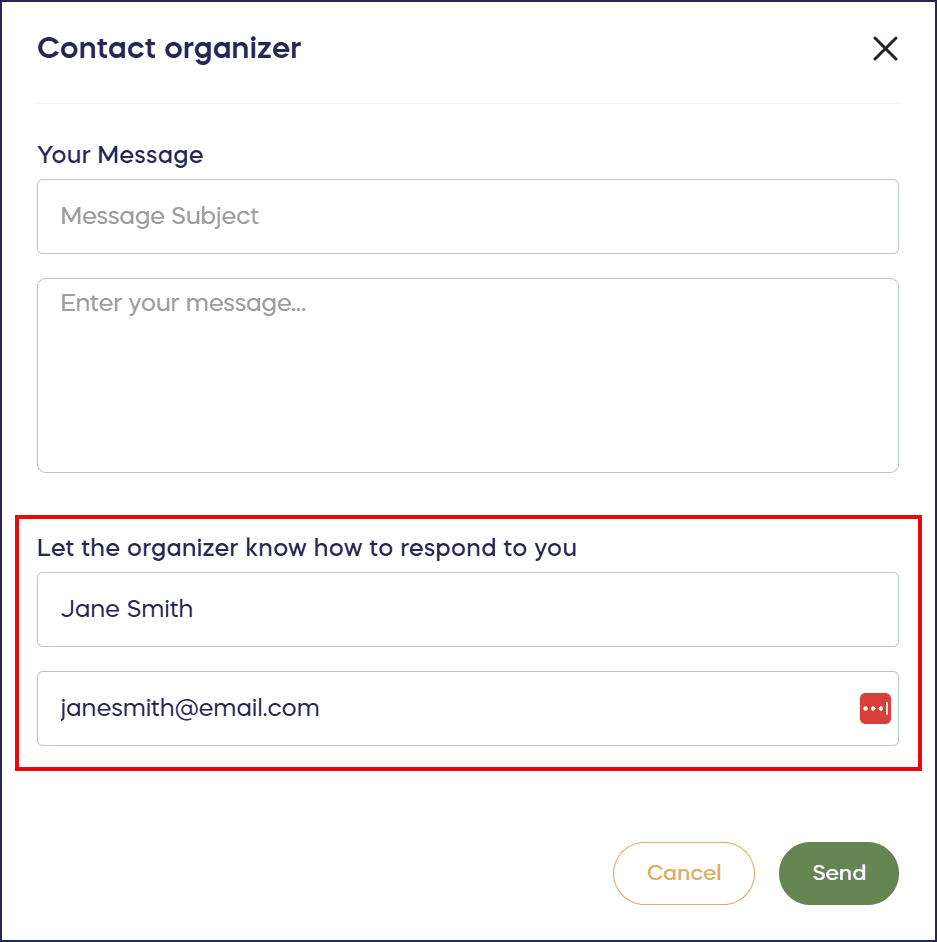
This information reflects the logged-in user’s contact information, and not the contact information for the recipient. If you don’t want these fields to auto-populate with your contact information, you can open your draft Campaign in an incognito or private browser window.
For Donors and Campaign Participants
How do I contact the Campaign organizer if I have a question about a fundraiser I supported?
Click the Contact Organizer button on the Campaign page. On mobile, tap the envelope icon instead. Fill in your name, email address, and your question or message, then click Send. Your message goes directly to the organizer’s email inbox, and they’ll reply to you from their own email address.
My RallyUp link isn’t working. How do I reach the Campaign organizer for help?
Use the Contact Organizer button on the Campaign page (or the envelope icon on mobile) to reach the organizer directly. Describe what’s happening — for example, that your RallyUp link isn’t loading or is showing an error — so the organizer can look into it and send you an updated link or next steps.
I participated in a Campaign and have a question about the winner announcement. Who do I contact?
Winner announcements, prize delivery, and other Campaign-specific details are managed by the organizer, not RallyUp. Return to the Campaign page and click the Contact Organizer button (or tap the envelope icon on mobile) to send your question directly to them. They’ll reply from their own email address.
Related Campaign Communication Features
Optimize your donor communication with these related features:
How to Email Donors and Post Updates
Need Help?
Our support team is available via chat on our website during business hours. Click the purple message button at the bottom right of your screen. You can also search our Knowledge Base for detailed how-to articles and answers to common questions about Campaign management and donor communication.