Allow donors to create an account and save a payment method before your fundraising Components begin.
If you want to publish your fundraising Campaign before one or more of your fundraising Components begin, consider enabling pre-registration. This allows your supporters to create a RallyUp account and save a payment method before your fundraising Components begin, speeding up checkout later. You can make pre-registration optional or required, and add custom fields to collect additional information from donors.
How do I enable pre-registration for my Campaign?
The way you enable pre-registration will depend on whether you’ve added Ticketing & Registration to your Campaign:
Campaign does not include Ticketing & Registration
- Go to Account Navigation in the left menu and select Campaigns.
- If you have chosen a list view, click on the Campaign title. If you have chosen a grid view, click on the Campaign image.
- Select Campaign Setup.
- Go to Options in the timeline at the top and select Checkout Options.
- Scroll down to Enable donor pre-registration and click on the toggle so it shifts to the right:

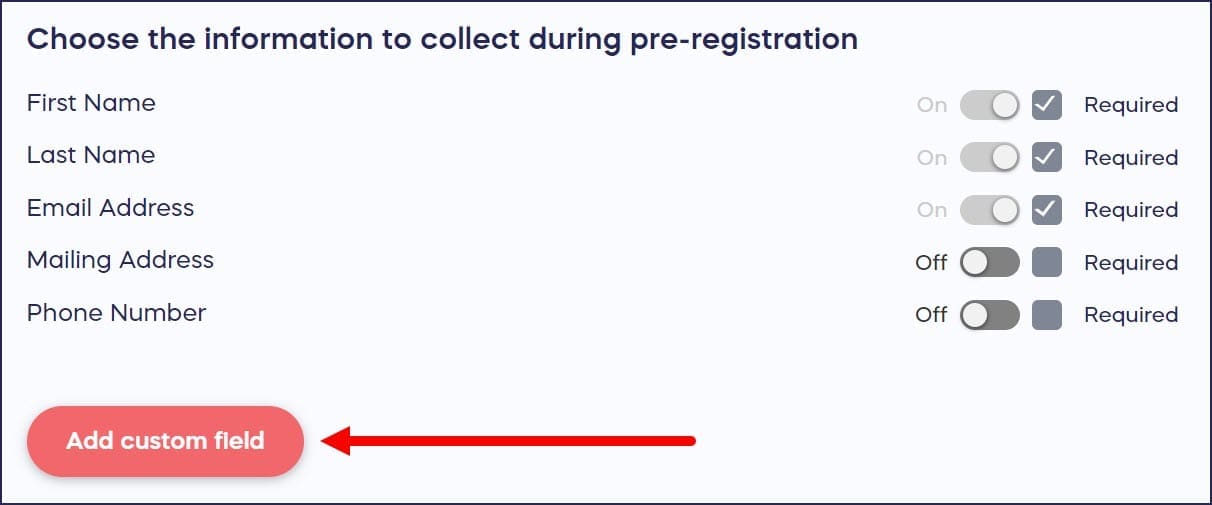
- Scroll down to Choose the information to collect during pre-registration and select the information you want donors to provide. If you like, you can add custom fields to collect additional information:
- Scroll down to Select which Activities will allow pre-registration and select the Components you want donors to pre-register for:

- Select Save.
Campaign includes Ticketing & Registration
- Go to Account Navigation in the left menu and select Campaigns.
- If you have chosen a list view, click on the Campaign title. If you have chosen a grid view, click on the Campaign image.
- Select Campaign Setup and go to Ticketing in the timeline at the top.
- Scroll down to Optional settings and select Show optional settings.
- Scroll down to Ask attendees to create an account and save a payment method and click on the toggle:
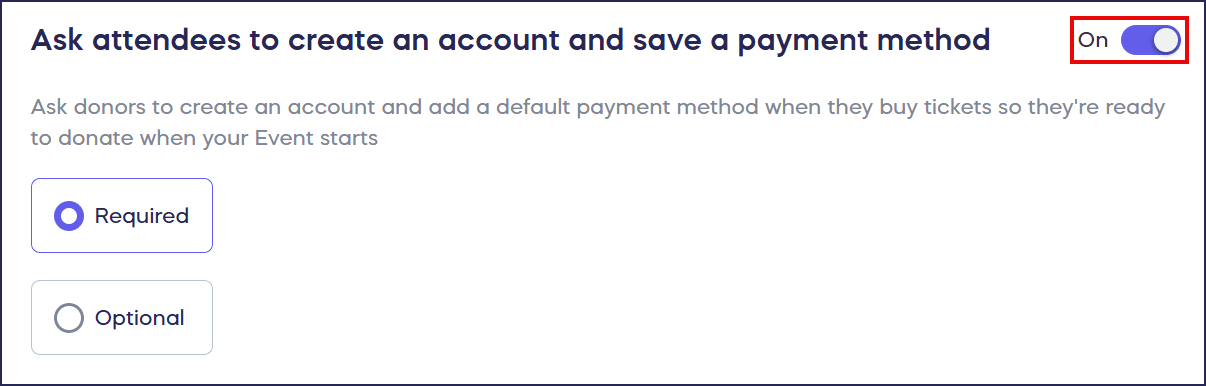
- Select whether pre-registration is Required or Optional.
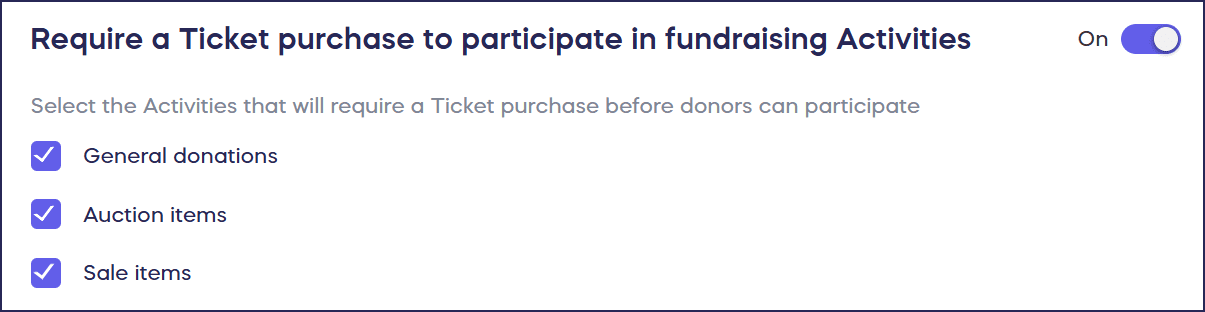
- If you want to require donors to purchase an event Ticket in order to participate in certain Components, you can enable that setting and select which Components will require a Ticket purchase:
- Select Save.
What do donors see when pre-registration is enabled?
When donors visit your Campaign Page, they’ll see a banner letting them know they can pre-register:
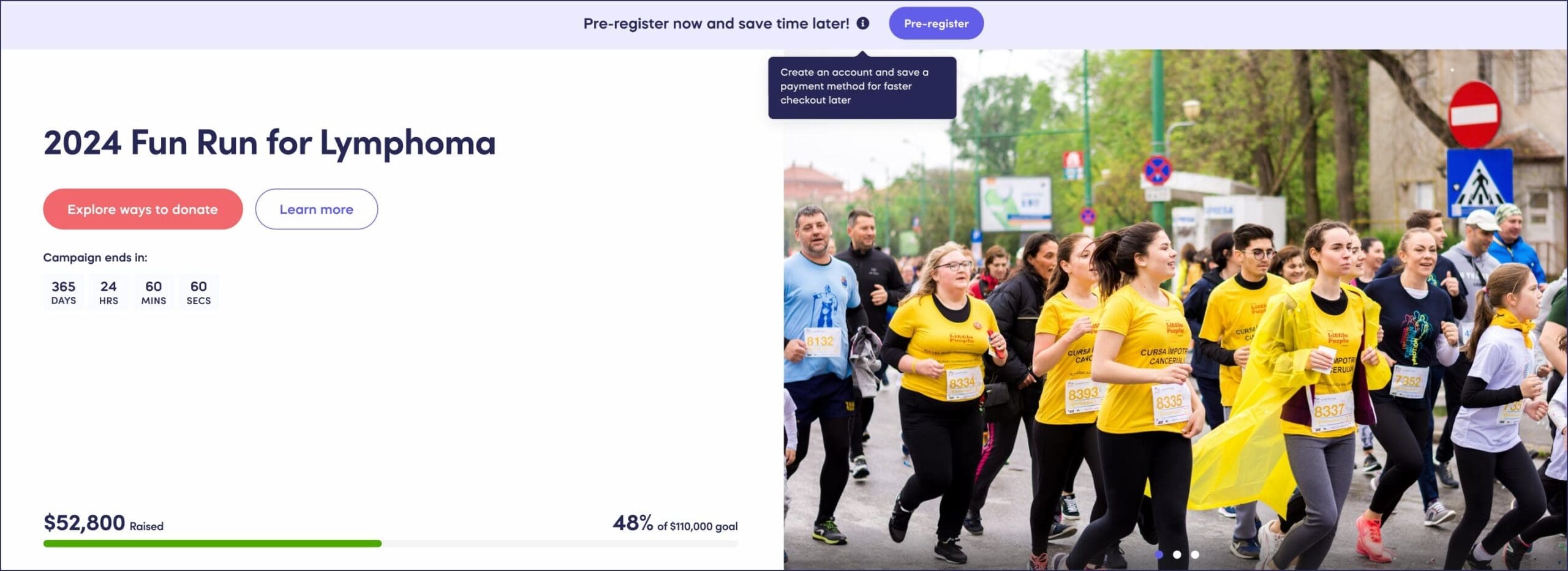
The Pre-register button will take them to a form where they can fill out and save their information:

How do I track pre-registered donors?
The View Donations report includes a Registered Donors tab to help you keep track of pre-registered donors:
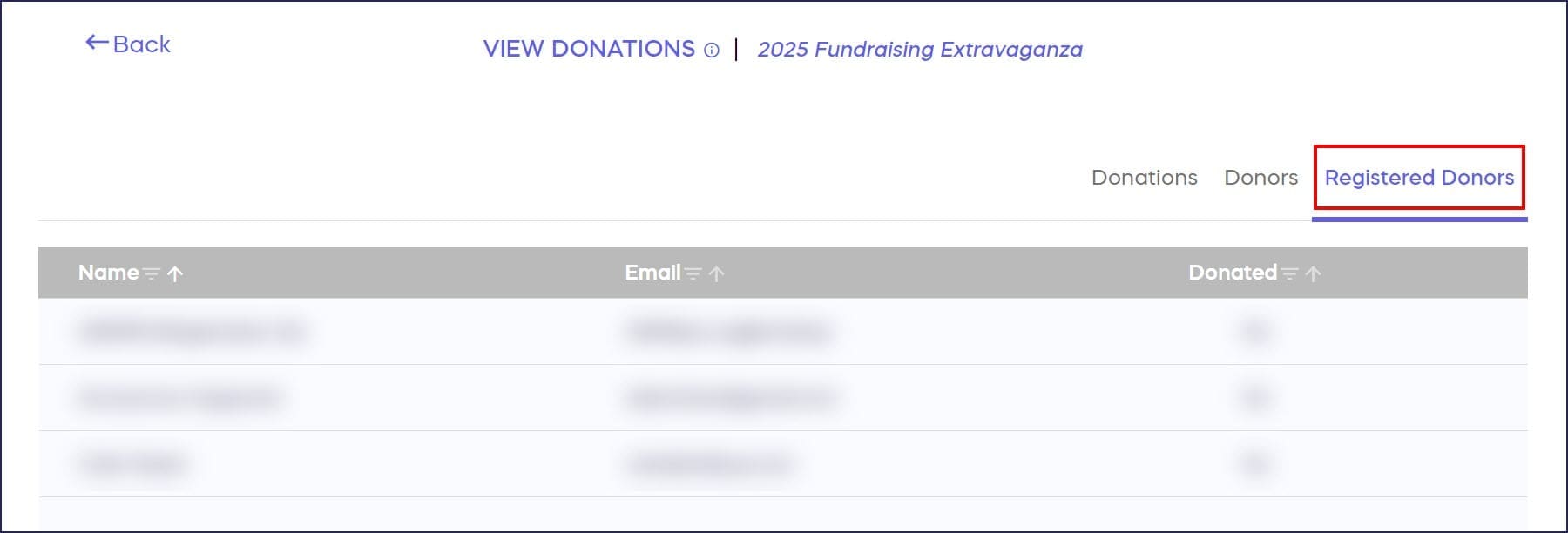
This tab automatically displays the following:
- Name
- Donated (pre-registered donor went on to contribute to your Campaign)
You can download one report from this tab:
This report gives you information about each person who pre-registered, including:
Name
Email
Donated (pre-registered donor went on to contribute to your Campaign)
Marketing Opt-In (only appears if you enable marketing opt-in during pre-registration)
You can use this report to see whether pre-registered donors were more likely to participate in the Campaign and/or opt to receive marketing emails.
Frequently Asked Questions
What is Campaign pre-registration on RallyUp?
Pre-registration allows supporters to create a RallyUp account and save a payment method before your fundraising Components begin. This speeds up checkout later and helps you gauge interest before activities start.
Which Campaign types benefit most from pre-registration?
Pre-registration can be enabled for any RallyUp Component, but it’s especially useful for events (to predict attendance before tickets go on sale) and Auctions (to make it easier for donors to start bidding as soon as the Auction starts).
Can I require donors to pre-register or make it optional?
Yes, you can make pre-registration either optional or required. You can also customize which information to collect during pre-registration and add custom fields to gather additional donor information.
How do I view who has pre-registered for my Campaign?
The View Donations report includes a Registered Donors tab that displays all pre-registered donors. You can see their name, whether they donated, and their marketing opt-in status. You can also download a full report with this information.
Can I enable pre-registration for only some Components?
Yes, after enabling pre-registration in Checkout Options, you can select which specific Components will allow pre-registration. This gives you flexibility to use pre-registration strategically for different activities.