Add an optional fundraising goal to your Campaign so donors can see your target and your team can track progress.
A fundraising goal is the target dollar amount you set for your Campaign. Adding one gives donors a clear number to rally around and helps your team track progress toward what your cause needs. You set a goal in Campaign Setup, and it appears on your Campaign Page. This article explains what a fundraising goal is, how to set one, and what donors see.
Prerequisites
Before you begin, make sure you have:
- A RallyUp Campaign, either a draft or one you’ve already published. If you haven’t created one yet, see How-to: Create a Fundraising Campaign.
What is a fundraising goal, and why should I add one?
A fundraising goal is the amount you want your RallyUp Campaign to raise. It’s an optional setting, so you can run your Campaign with or without one.
A fundraising goal helps your organization in several ways:
- It gives donors a clear target to rally around.
- It shows supporters how close your Campaign is to reaching that target.
- It helps your team compare what you’ve raised with what your mission needs.
- It gives you a natural milestone to share in updates, such as “We’re halfway there!”
If you’re not sure which amount to choose, start with the cost of the project or program your Campaign supports. Then adjust it based on results from your past fundraisers. Choose a number that stretches your team but still feels within reach.
How do I set a fundraising goal?
You can add a goal while you build a new Campaign or add one to an existing Campaign:
- Go to Account Navigation in the left menu and select Campaigns.
- If you have chosen a list view, click on the Campaign title. If you have chosen a grid view, click on the Campaign image.
- Select Campaign Setup.
- Go to Page Design in the timeline at the top and scroll down to Optional settings.
- Scroll down to Add a fundraising goal for your campaign, turn on the toggle, and enter your goal amount.
- Select Save.
✓ Result: Your fundraising goal is saved and appears on your Campaign Page.
💡 Tip: Before you publish your Campaign, preview your Campaign Page in Draft Mode to see how the goal looks to donors. See How-to: Preview and Test Your Campaigns in Draft Mode.
📝 Note: The fundraising goal is optional. If you’d rather not show a goal, leave the toggle off. You can also disable the goal anytime by clicking on the toggle again to turn it off.
How does the fundraising goal appear on my Campaign Page?
When you turn on a fundraising goal, donors see a progress bar on your RallyUp Campaign Page. The bar shows the total amount raised on the left and the percentage of your goal reached on the right, next to your goal amount. In this example, it sits below the Campaign banner, next to the countdown timer.
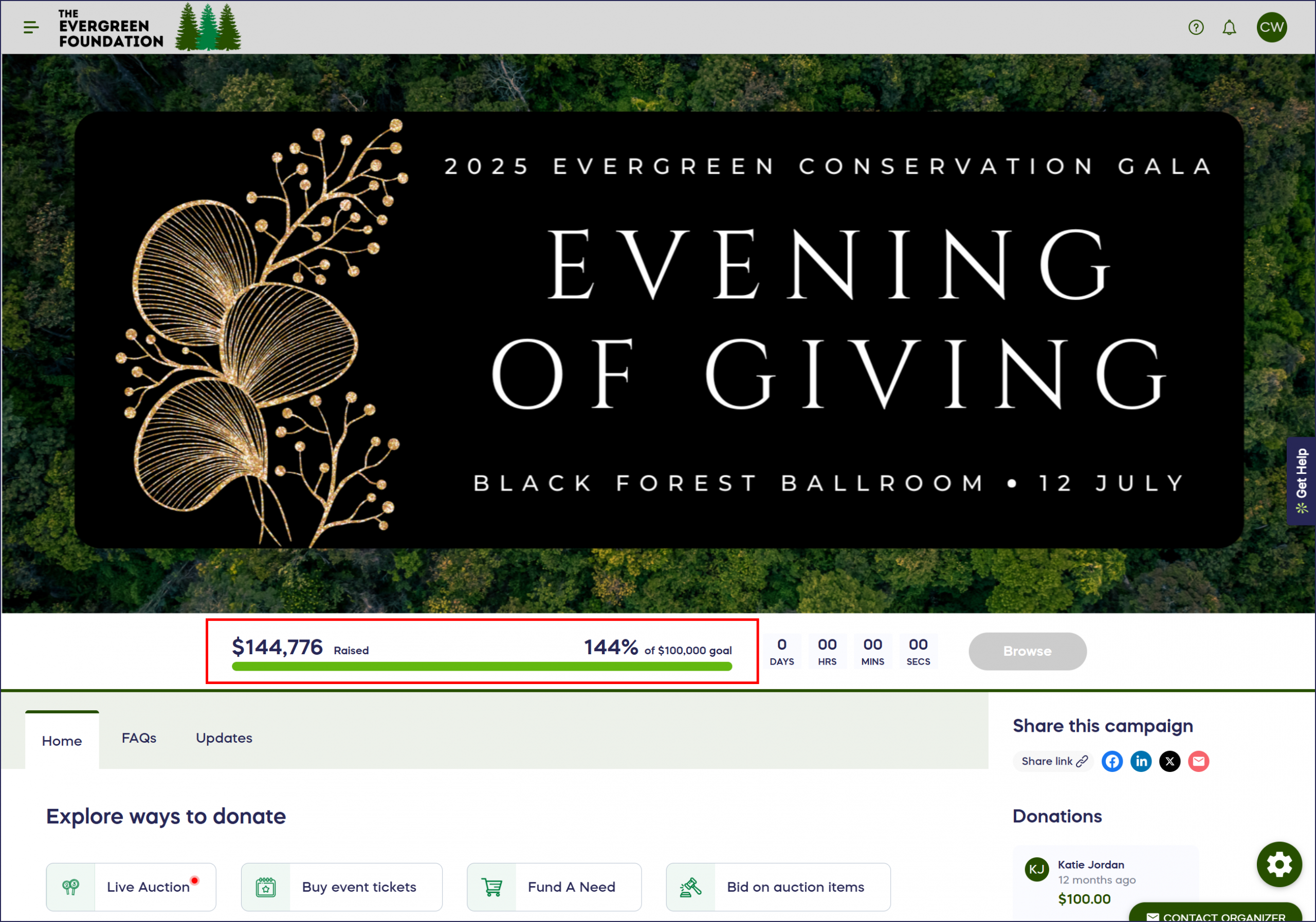
The percentage keeps counting if your Campaign raises more than your goal. In the example above, the Campaign has raised $144,776 toward a $100,000 goal, so the bar shows 144%.
What counts toward my fundraising goal?
The amount raised on your Campaign Page reflects total donations received before any fees are deducted. Here’s what counts (and what doesn’t):
Counts toward your total:
- Online credit/debit card donations and purchases
- Winning Auction bids after the Auction ends
- Offline donations after you manually enter them
- Check payments after you mark them as Received
- Fund-a-Need or Paddle Raise event balances — but only paid ones (unpaid pledges don’t count until collected)
- A-Thon pledges after Participants log their activity
Does not count until an action is taken:
- Checks not yet marked as Received
- Unpaid event balances from Fund-a-Need or Paddle Raise
- A-Thon pledges before activity progress has been logged
- Auction bids before bidding has ended (only winning bids will be included)
If your totals don’t look right, it’s worth checking for voided/cancelled donations, any offline donations not yet entered, and whether your credit card processing rate is set correctly.
Relevant Articles:
- Understand: Why the Amount Raised on Your Campaign Page is Different from the Amount Received
- How-to: Allow Donors to Pay by Check
- How-to: Add Offline Donations
Frequently Asked Questions
Do I have to set a fundraising goal?
No. The fundraising goal is an optional setting in Campaign Setup. You can run your Campaign without one.
Can I change or remove my fundraising goal after I publish my Campaign?
Yes. Go to Campaign Setup > Page Design > Optional settings, update the amount or turn off the toggle, and click Save. See How-to: Update Your Campaign After Publishing for more on changing a live Campaign.
What happens when my Campaign reaches its fundraising goal?
Nothing changes when you reach your goal. The percentage on your Campaign Page keeps counting past 100%, and donors can keep giving until your Campaign closes.
Can I preview my fundraising goal before I publish my Campaign?
Yes. Use Draft Mode to preview your Campaign Page before you publish. See How-to: Preview and Test Your Campaigns in Draft Mode.
What amount should I choose for my fundraising goal?
Start with the cost of the project or program your Campaign supports. Then adjust the amount based on results from your past fundraisers. Choose a goal that stretches your team but still feels within reach.
Related Articles
- Before you start: How-to: Create a Fundraising Campaign
- Next steps: How-to: Preview and Test Your Campaigns in Draft Mode
- Next steps: How-to: Update Your Campaign After Publishing
- Related: Understand: Campaign Customization Options