Control whether donors can write in names when crediting Participants or Teams for their donations.
When you run a Peer-to-Peer Campaign on RallyUp, donors can credit Participants* or Teams* for their donations. Donors can select the Participant or Team by choosing them from a dropdown. If they can’t find the Participant or Team they’re looking for, they can write in the name:
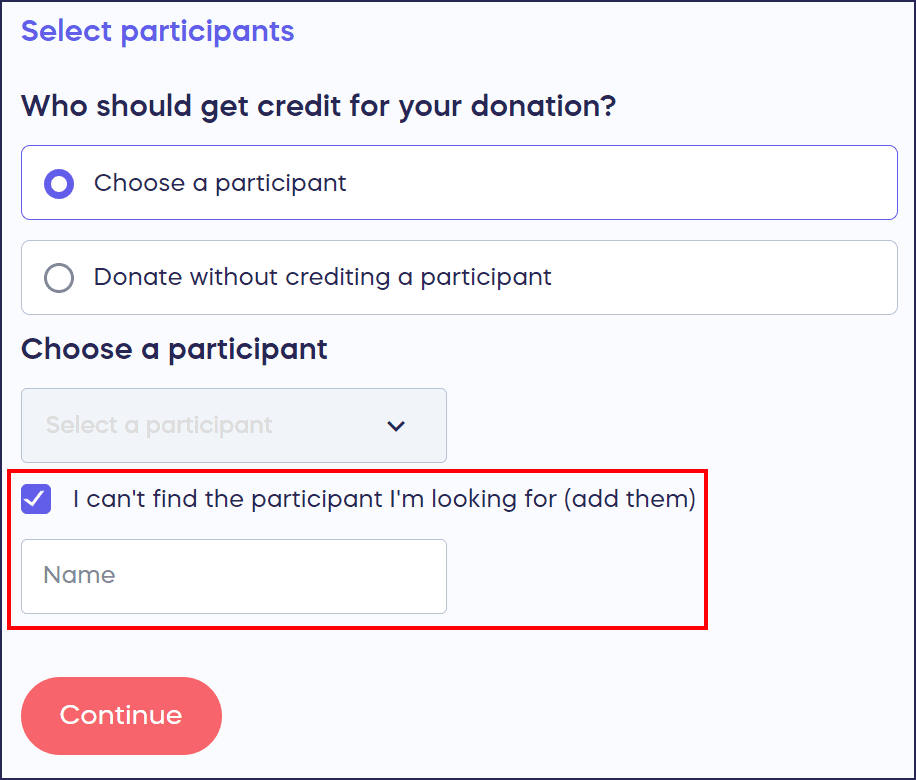
*Terminology may differ according to Campaign settings.
What are the benefits of allowing write-in donations?
Benefits of allowing write-in donations include:
- Donors don’t have to wait for a Participant or Team to sign up before making donations. Donors can donate right away, and you can assign the donations to the correct Participant or Team after they sign up. Note: Write-in donations require manual crediting by the Campaign organizer to assign them to the correct Participant or Team.
- Donors won’t abandon their donations if they can’t find the right Participant’s or Team’s name.
If you don’t want to allow donors to make write-in donations, you can turn this setting off anytime, even when your Campaign is live.
How do I disable write-in donations?
- Go to Account Navigation in the left menu and select Campaigns.
- If you have chosen a list view, click on the Campaign title. If you have chosen a grid view, click on the Campaign image.
- Select Campaign Setup.
- Go to Options in the timeline at the top and select Peer-to-Peer Options.
- Scroll down to Allow supporters to credit their donations to Participants/Teams that don’t appear on the Participant/Team list:

This setting will be turned on (toggle will be on the right) by default.
- Click on the toggle to turn this setting off (toggle will shift to the left):

How do I credit write-in donations?
If you allow write-in donations, you’ll need to manually assign each one to the correct Participant or Team so that everyone is credited properly and your reports remain accurate: How-to: Credit a Write-in Donation.
Frequently Asked Questions
Are write-in donations enabled by default?
Yes, write-in donations are enabled by default for Peer-to-Peer campaigns. This allows donors to credit anyone they choose, even if that Participant or Team hasn’t registered yet. You can disable this setting at any time.
Why would I want to disable write-in donations?
You might disable write-in donations to reduce manual work, ensure only registered Participants or Teams receive credit, prevent spelling errors or confusion with similar names, or maintain tighter control over who can be credited.
Can I enable or disable write-in donations after my Campaign is live?
Yes, you can turn write-in donations on or off at any time, even when your Campaign is already live. Changes take effect immediately for all future donations.
What happens to existing write-in donations if I disable the feature?
Existing write-in donations remain in your system and still need to be manually assigned to the correct Participant or Team. Disabling the feature only prevents new write-in donations from being made.
How do I assign write-in donations to the correct Participant or Team?
If you allow write-in donations, you’ll need to manually assign each one to ensure everyone is credited properly and your reports remain accurate. Learn how here: How-to: Credit a Write-in Donation.