
Change the wording that displays on your Campaign Page navigation tabs.
When donors visit your Campaign Page, they can navigate to different sections using tabs near the top of the page. Each tab can be customized with text up to 30 characters.
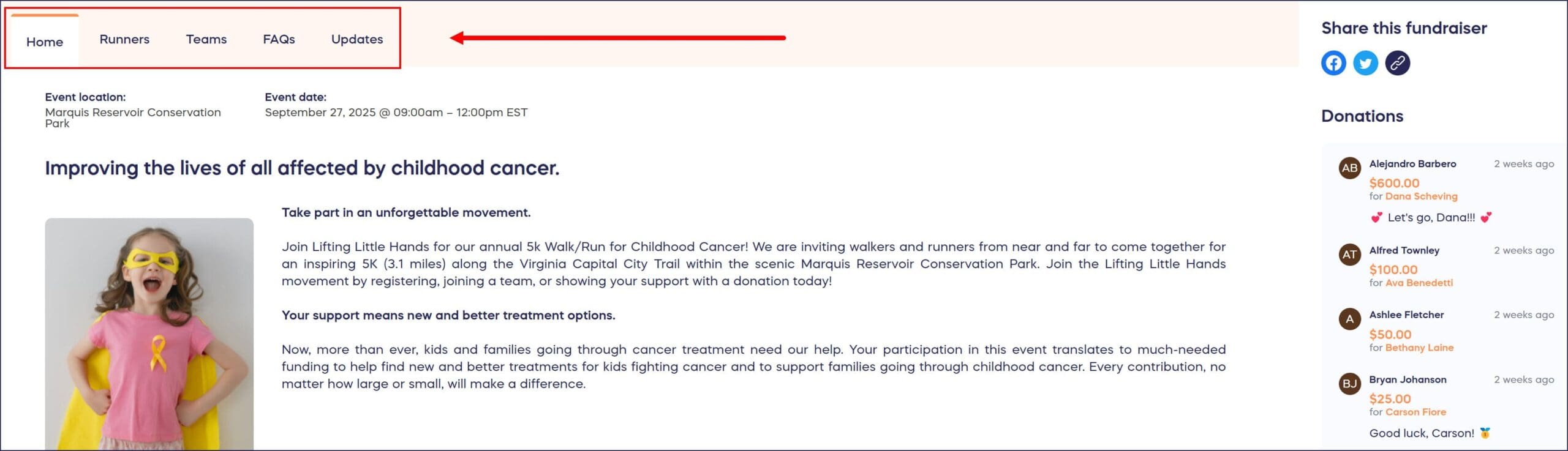
Home (always appears)
- Campaign description
- Organization description
- Component buttons
- Other Component-specific details such as event location or Sweepstakes rules
Participants (only appears if Peer-to-Peer or A-Thon is enabled)
- Supporters who have registered to participate in a Peer-to-Peer or A-Thon activity
Teams (only appears if Peer-to-Peer or A-Thon is enabled and Team registration is allowed)
- Teams that have registered to participate in a Peer-to-Peer or A-Thon activity as a group
FAQs (only appears if you create an FAQ)
- Answers to questions your supporters are likely to ask
Updates (only appears if you post an update)
- Notifications such as progress updates, encouragement or thank-you messages, announcements about new items or items that are selling out quickly, etc.
The text for each tab can be customized to anything you like. Each tab has a 30 character limit.
How do I customize the navigation tab text?
- Go to Campaigns in the left menu.
- If you have chosen a list view, click on the Campaign title. If you have selected a grid view, click on the Campaign image.
- Select Campaign Setup*.
- Go to Options in the timeline at the top and select Page Design Options.
- Scroll down to Customize the navigation tabs on your Campaign Page*:
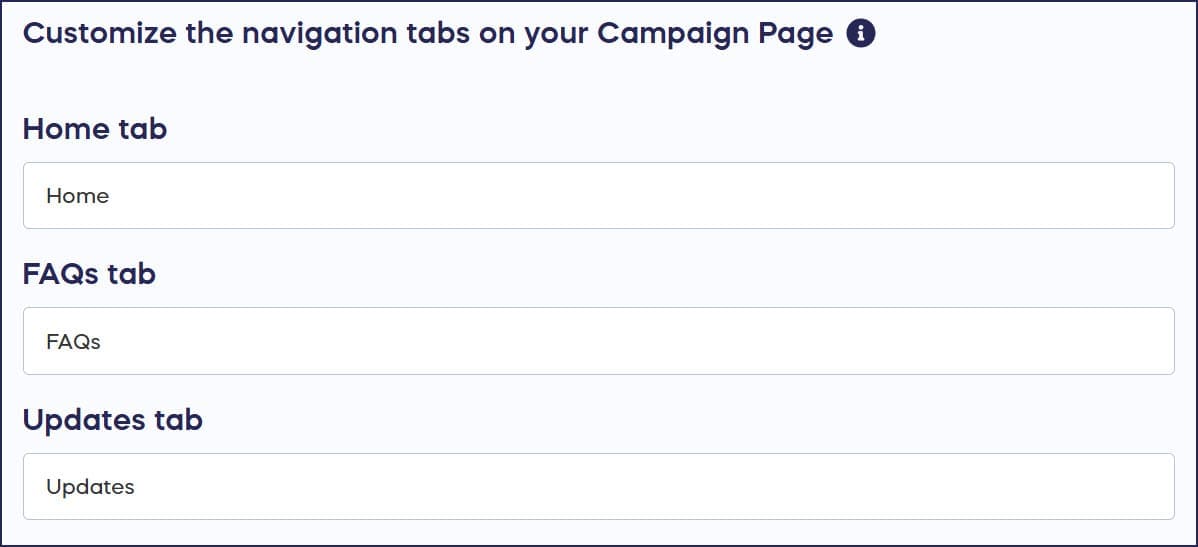
- Enter the desired text for each tab, up to 30 characters.
- Select Save.
*Terminology/customization options may differ according to Campaign Settings.
Frequently Asked Questions
What navigation tabs appear on my Campaign Page?
The Home tab always appears on every Campaign Page. Additional tabs like Participants, Teams, FAQs, and Updates only appear when you enable specific features or add content like FAQs or updates to your Campaign.
Can I customize what each navigation tab says?
Yes, you can customize the text for each tab to anything you like, up to 30 characters per tab. Go to Campaign Setup, then Options, select Page Design Options, and scroll to the navigation tabs customization section.
What does each navigation tab display to donors?
The Home tab shows your Campaign description, organization description, and Component buttons. The Participants and Teams tabs show registered supporters. The FAQs tab displays answers to common questions, and the Updates tab shows progress updates and announcements.
When do the Participants and Teams tabs appear?
The Participants tab only appears if you enable Peer-to-Peer or A-Thon Components. The Teams tab appears when Peer-to-Peer or A-Thon is enabled and you allow Team registration for your Campaign.
Can I also customize the Component buttons on my Campaign Page?
Yes, you can customize your Component buttons in addition to navigation tabs. Learn how in our guide on how to customize Component buttons on your Campaign Page.