Access your Campaign Setup anytime to edit settings for draft, live, or completed campaigns. Quick 4-step guide to finding Campaign Setup in RallyUp.
Campaign Setup in RallyUp is your central hub for editing and managing all Campaign settings, from basic details to advanced configurations. You can access Campaign Setup at any time—whether your Campaign is in draft mode, actively running, or already completed. This guide shows you exactly where to find it.
How to Access Campaign Setup
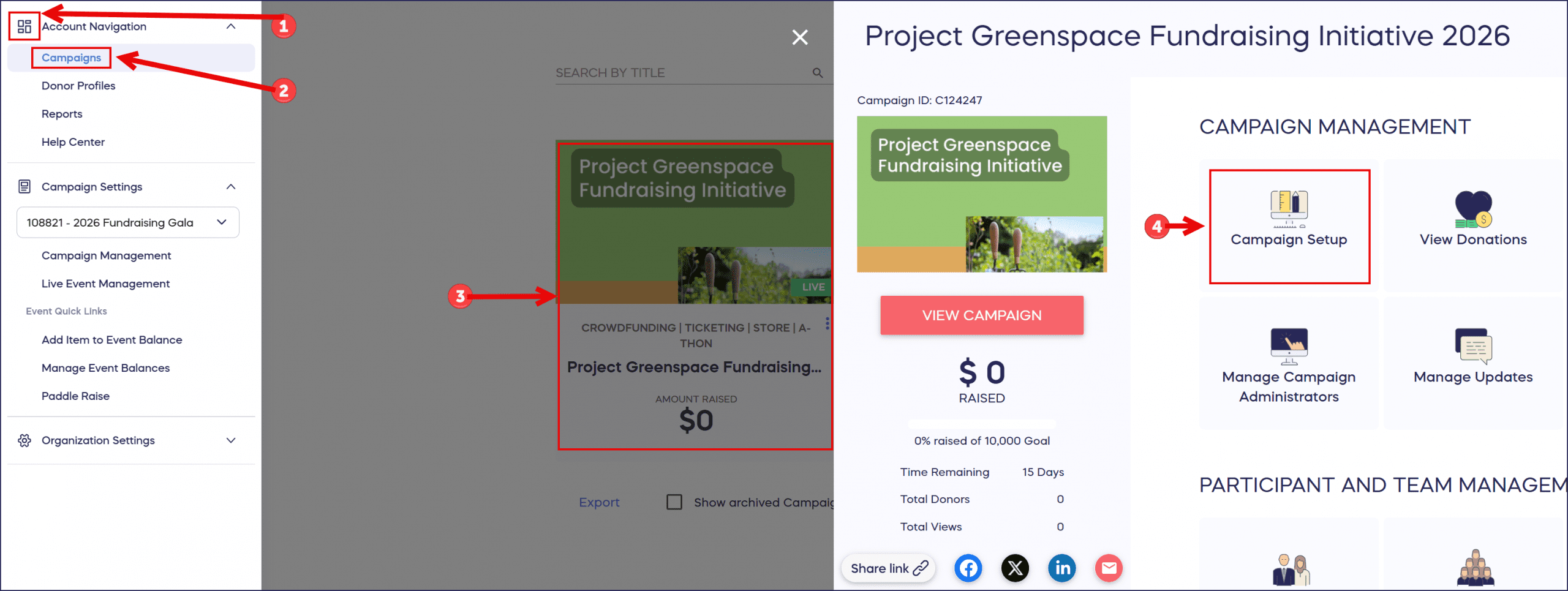
- Select the menu icon in the top left corner of your screen.
- Go to Account Navigation and select Campaigns.
- Click on your Campaign (title in list view or image in grid view).
- Select Campaign Setup.
Frequently Asked Questions
Where is Campaign Setup located in RallyUp?
Campaign Setup is accessed through the main menu. Click the menu icon (top left), go to Account Navigation and select Campaigns, click your Campaign, then select Campaign Setup from the options.
Can I edit my Campaign after it goes live?
Yes, you can access Campaign Setup and make edits to live Campaigns. Some settings may have restrictions once a Campaign is published, but most configurations remain editable.
How-to: Update Your Campaign After Publishing
What can I do in Campaign Setup?
Campaign Setup lets you edit all Campaign settings including basic information, fundraising Components, design customization, payment settings, and advanced features. It’s your control center for managing every aspect of your Campaign.
How do I access Campaign Setup for a completed Campaign?
Follow the same steps: menu icon → Account Navigation → Campaigns → select your completed Campaign → Campaign Setup. Completed Campaigns remain accessible so you can view settings and export reports.
What should I do if clicking my Campaign image or title doesn’t respond?
If clicking the Campaign image or title opens nothing, start by logging out of RallyUp and logging back in, then clear your browser’s cache and cookies. Next, disable any ad blockers, pop-up blockers, or browser extensions and try again. You can also reach your Campaign directly by going to Account Navigation > Campaigns and selecting your Campaign from the list view.
Can a VPN or restrictive network prevent me from accessing my campaign?
Yes — a VPN, firewall, or restrictive network (such as a work or school network) can interfere with how RallyUp loads your Campaign pages. Try accessing RallyUp on a different network, such as a home Wi-Fi connection or mobile data. If the issue only occurs on one specific network, ask your network administrator to allow traffic to rallyup.com.