Learn about your donors by viewing their data in one location.
Donor Profiles give you access to valuable donor data to help you learn about your donors and create fundraisers that appeal to them. This data is organized into sections so you can quickly find the information you need.
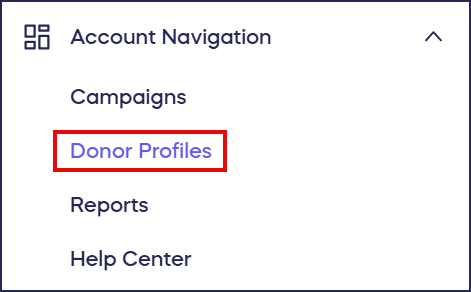
You can access this feature by going to Account Navigation in the left menu and selecting Donor Profiles:
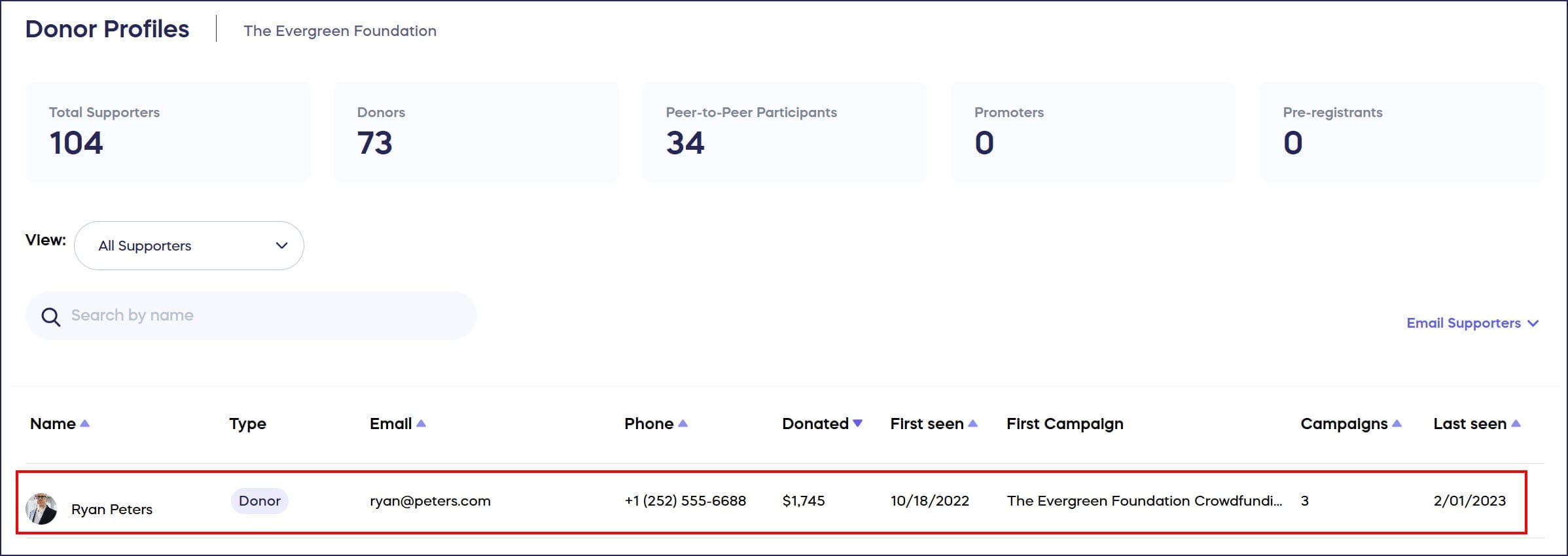
Anyone who has contributed to any of your RallyUp fundraising Campaigns, including Peer-to-Peer Participants, will have their own profile. To view individual Donor Profiles, click on the row with the donor’s name:
What supporter information is included in Donor Profiles?
Each supporter’s basic information, including supporter statistics like number of donations made, is included at the top of the page:
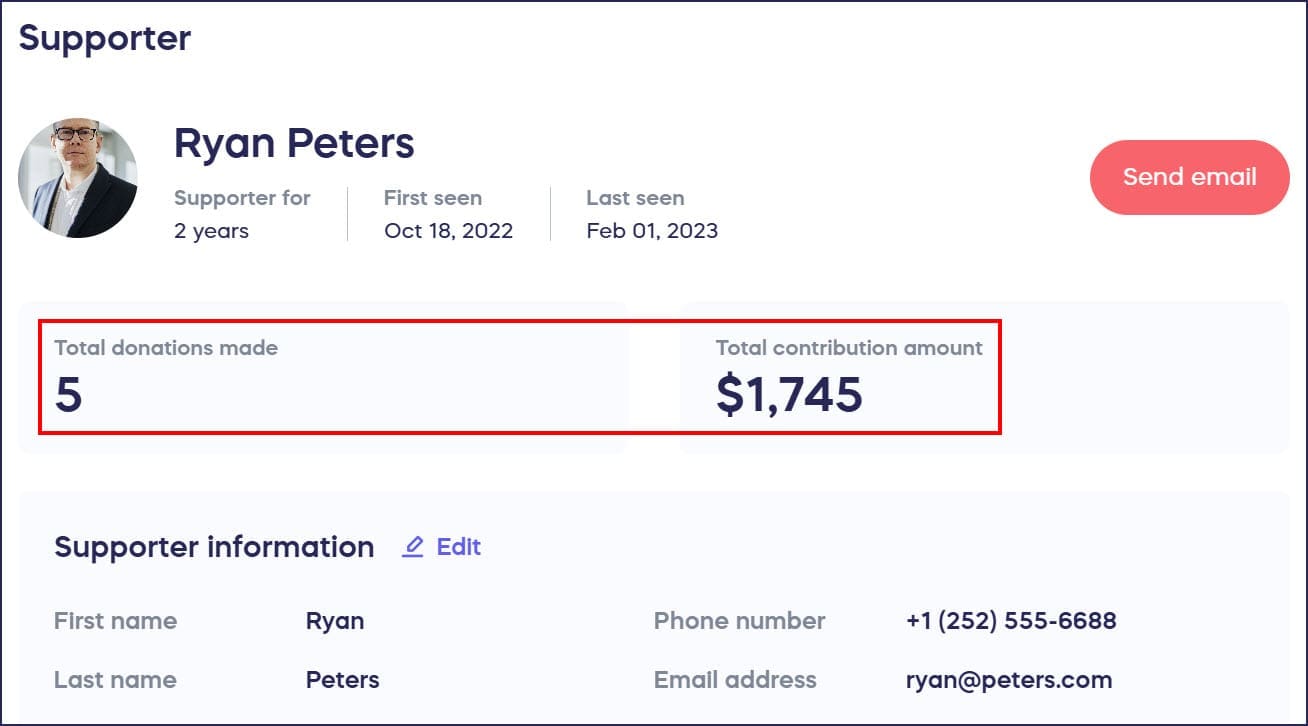
The Supporter Information section is editable, so you can easily update a donor’s address or contact information if needed by selecting the Edit button:

How can I view a donor’s donation history?
The donor’s donation history is included below the Supporter Information section:

One-time donations and recurring donations are organized separately. The column headers allow you to reorder the donation list so you can quickly find what you need.
What information appears in the Activity Timeline?
A timeline of all donor activity is included on the right, including transactions made, Peer-to-Peer registrations, Promoter signups, recurring donations set up, and emails sent. The most recent activity will be shown first:
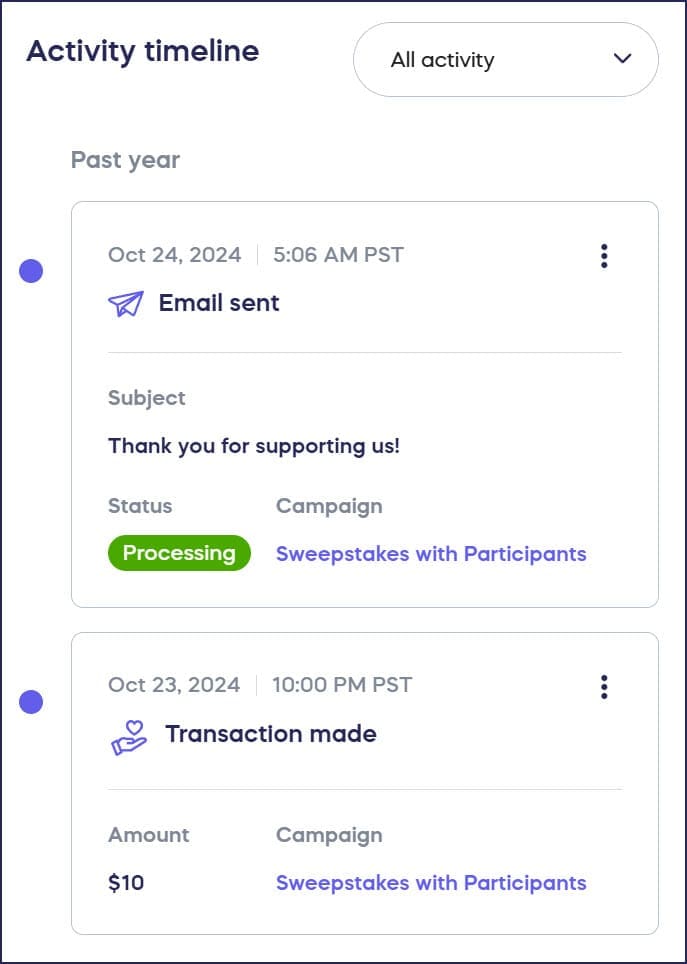
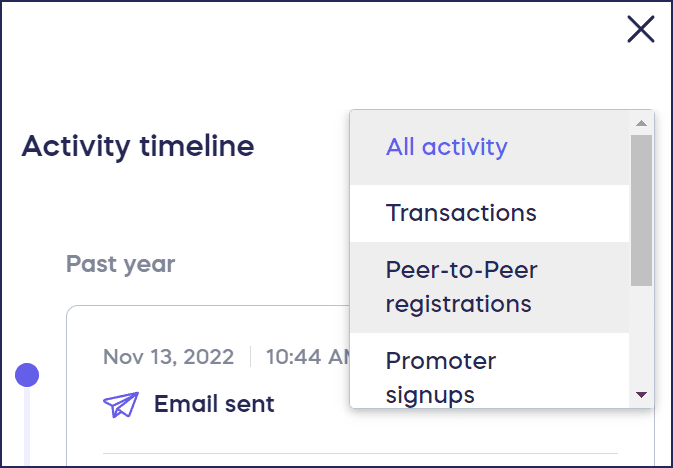
If you’re looking for something specific, you can filter your search results by selecting the dropdown menu next to Activity timeline:
If you select the three-dot menu to the right of each activity, you’ll be able to take further action:
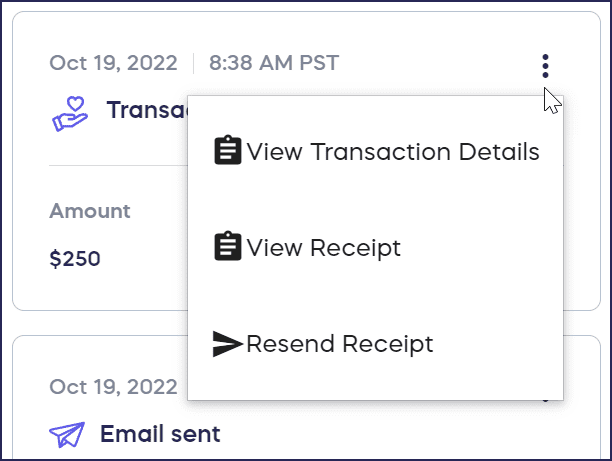
The menu options will differ depending on the kind of activity you select.
What additional features are available in Donor Profiles?
- Use the Send email button to write and send a new email to a donor, or resend an email by locating it in the Activity timeline, selecting the three-dot menu, then selecting Resend Email:

- You can download a report of all donor activity by selecting Export to spreadsheet on the Donor Profiles page:

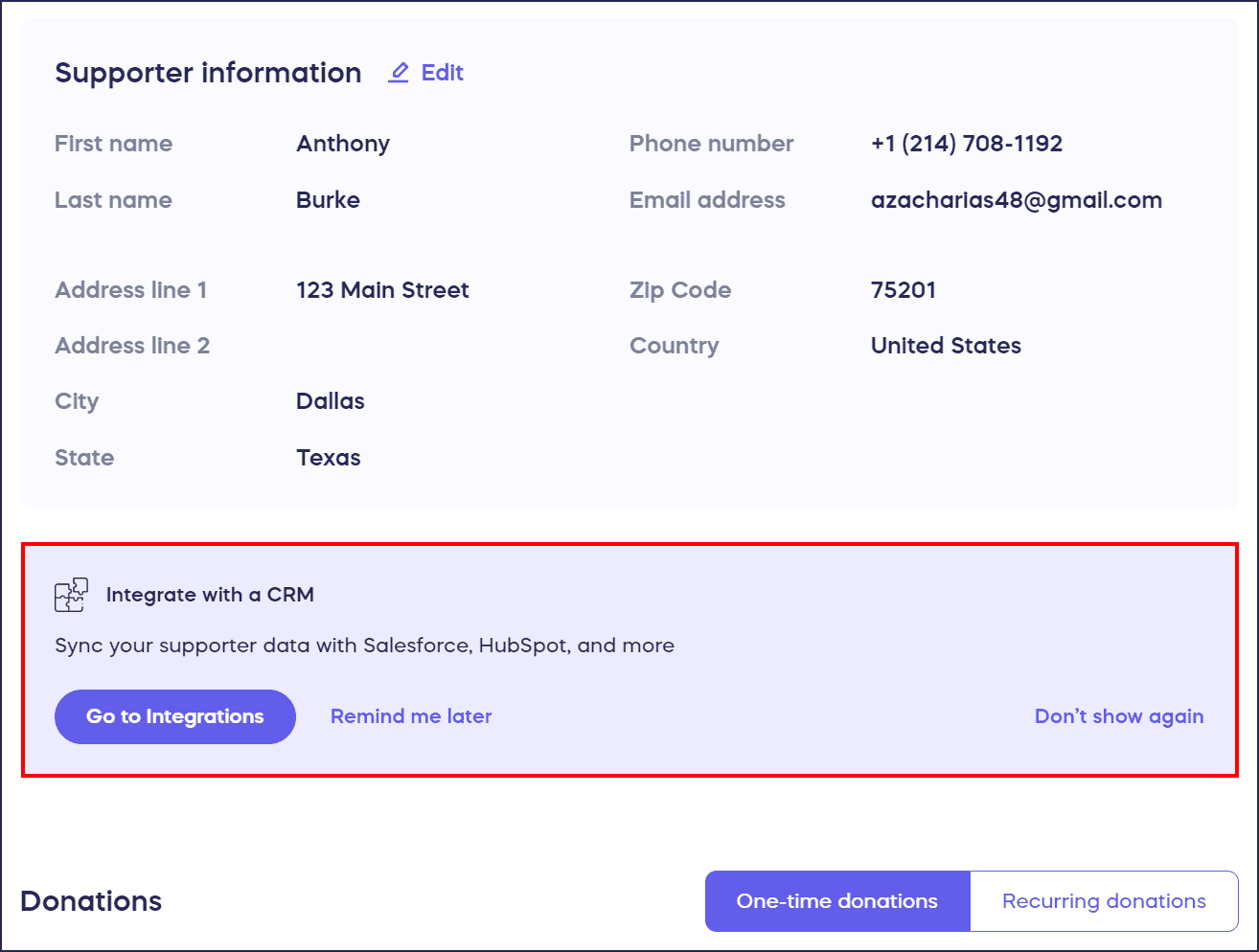
- If your organization is using a CRM such as Salesforce or HubSpot, you can integrate to access a donor’s CRM contact directly from their Donor Profile:
Understand: Email Marketing Automation
Frequently Asked Questions
Who has a Donor Profile in my account?
Anyone who has contributed to any of your RallyUp Campaigns, including Peer-to-Peer Participants, automatically has their own Donor Profile. Each profile organizes all their engagement data in one location.
Can I edit donor information in Donor Profiles?
Yes, the Supporter Information section is editable. You can update a donor’s address, contact information, and other basic details by selecting the Edit button at the top of their profile.
How are donations organized in Donor Profiles?
Donations are organized into separate sections for one-time donations and recurring donations. You can reorder the donation list using column headers to quickly find specific transactions or donation patterns.
Can I communicate with donors directly from their Donor Profile?
Yes, you can use the Send Email button to write and send new emails to donors, or resend previous emails by locating them in the Activity Timeline and selecting Resend Email from the three-dot menu.
Can I integrate Donor Profiles with my CRM?
Yes, if your organization uses a CRM like Salesforce or HubSpot, you can integrate it with RallyUp to access a donor’s CRM contact information directly from their Donor Profile for seamless data management.
Keep Learning
Looking to go deeper? RallyUp’s Fundraising Education page is packed with videos, guides, and resources to help you run better Campaigns — whether you’re just getting started or looking to level up your next fundraiser.