Collaborate with staff, employees, friends, or others by adding them as Organization Users or Campaign Admins.
Once you’ve created your organization’s RallyUp account, you can collaborate with others by giving Organization Users access to the organization account or by adding Campaign Administrators to individual Campaigns, depending on your needs.
What are Organization Users and what can they do?
There are two kinds of organization Users, each with a different level of access. Both can create fundraising Campaigns on your organization’s behalf. Any Campaign they create with their User account will automatically pull in your organization’s information, and the funds they raise will go to the funding method on file.
- Organization Administrators: Can access and update any account settings and add additional Users.
- Staff: Can’t change funding settings or add additional Users.
If you’re unsure which role to pick, we suggest selecting Staff first, then updating to Organization Administrator later if needed.
What are Campaign Administrators and what can they do?
Campaign Administrators can access the Campaign they’ve been assigned to, update Campaign settings, and help run Campaign reports. They can’t access Campaigns they haven’t been assigned to or update account settings. Only the person who created the Campaign can add Campaign Administrators to it.
What should I know before adding Users or Administrators?
- If you haven’t yet created your organization account, you can do so by following the steps in this Knowledge Base article: How-to: Get Started by Creating an Account and Registering Your Organization.
- If an outside individual or company wants to raise funds on your organization’s behalf, you can invite them to create an Advocate account instead of adding them as a User. Advocates won’t have any access to your organization account settings but can still create a fundraiser on your behalf: How-to: Allow Supporters to Fundraise for Your Organization.
What should I do if I’m a Campaign Administrator trying to access payment or funds information?
Campaign Administrators can access Campaign settings and reports, but they don’t have access to payment processing details. However, Payment Processing is only visible to Organization Administrators. Staff-level Organization Users also can’t see the Payment Processing section, so if you’ve been added as Staff, you’ll need an Organization Administrator to check payout details for you or to upgrade your role.
Funds raised through your Campaign are sent to your organization’s connected payment processor as donations come in. To view payout details, you’ll need to sign in with your Organization Administrator account. For steps on checking which processor is connected and reviewing payout details, see Understand: How Long It Takes to Receive Funds.
If you’re not sure which email address belongs to your Organization Administrator account, check with the person who originally set up your organization’s RallyUp account, or alternatively, try any other email addresses you may have used when signing up for RallyUp. If you can’t remember the password for that account, select the Forgot Password link on the sign-in page to reset it.
How do I add Organization Users to my account?
- Go to Organization Settings in the left menu and select User Management.
- Select the ACTIONS button in the upper right corner of the screen.
- Select Add User:

- Enter the email of the person or people you want to invite and select their role (Admin or Staff):

- Select Send invites.
RallyUp will send the invited Users an invitation email. Their status shows as Invited until they click the email link and sign up. Once they do, their status will change to Accepted:

If you need to re-send an invitation, hover over the User’s name, select the three-dot icon on the right, then select Resend Invite:

How do I update or remove Organization Users?
You can also update any User’s role or remove their Account Admin or Staff permissions anytime you need.
How do I change an Organization User’s role?
- Go to Organization Settings in the left menu and select User Management.
- Hover over the User’s name and select the pencil icon on the right:

- Select their new role:
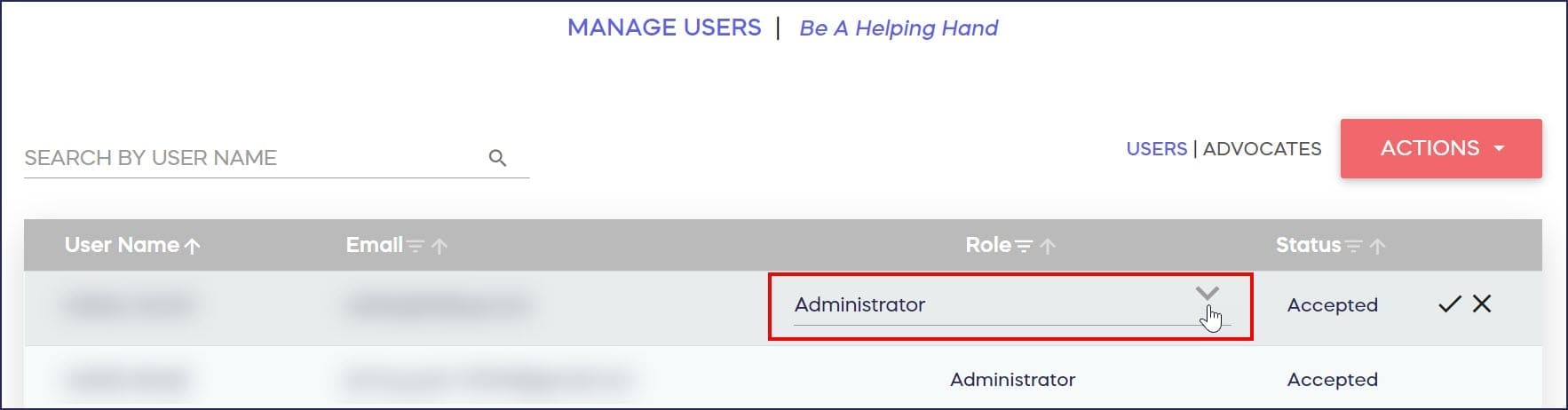
- Select the checkmark on the right to save your changes:

What are the steps to remove an Organization User?
- Go to Organization Settings in the left menu and select User Management.
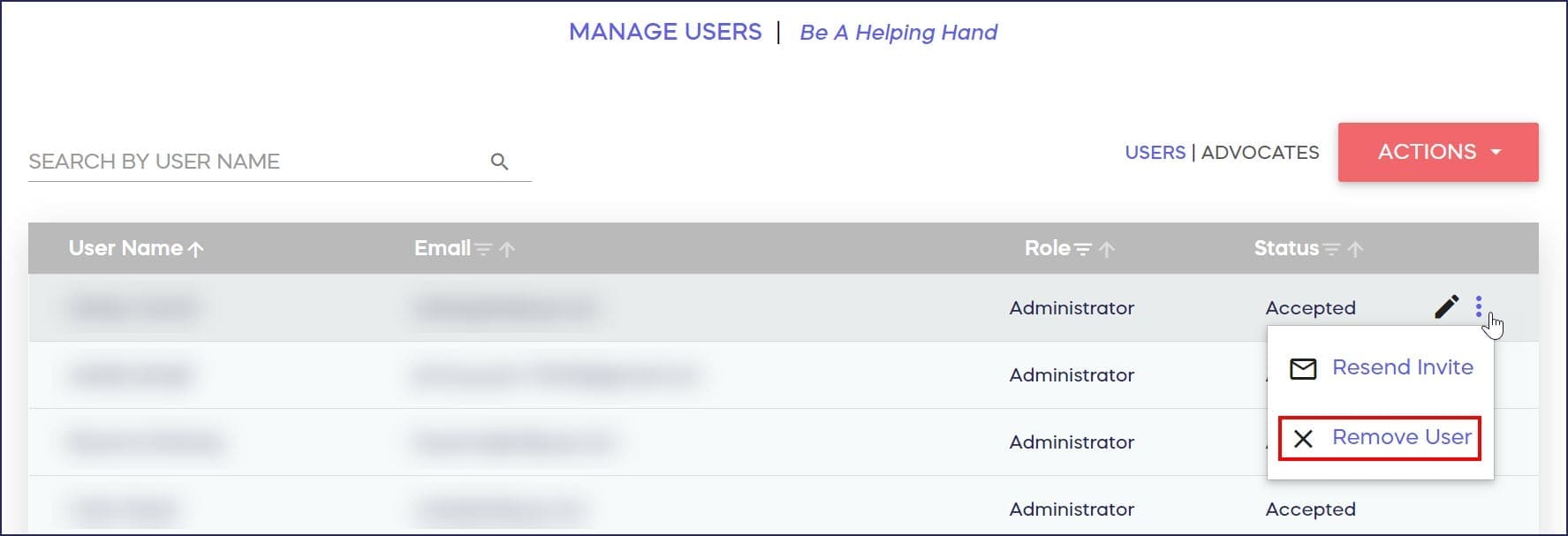
- Hover over the User’s name and select the three-dot icon on the right.
- Select Remove User:
How do I add Campaign Administrators?
- Go to Account Navigation in the left menu and select Campaigns.
- If you have chosen a list view, click on the Campaign title. If you have chosen a grid view, click on the Campaign image.
- Select Manage Administrators.
- Select Add Administrator:

- Enter the email address of the person you would like to add, then select Invite:

Once invited, RallyUp will send the new Campaign Administrator a notification email with a link to the Campaign. Their name and email address will appear in the list of Campaign Administrators as soon as they’re invited.
How do I remove a Campaign Administrator?
- Go to Account Navigation in the left menu and select Campaigns.
- If you have chosen a list view, click on the Campaign title. If you have chosen a grid view, click on the Campaign image.
- Select Manage Administrators.
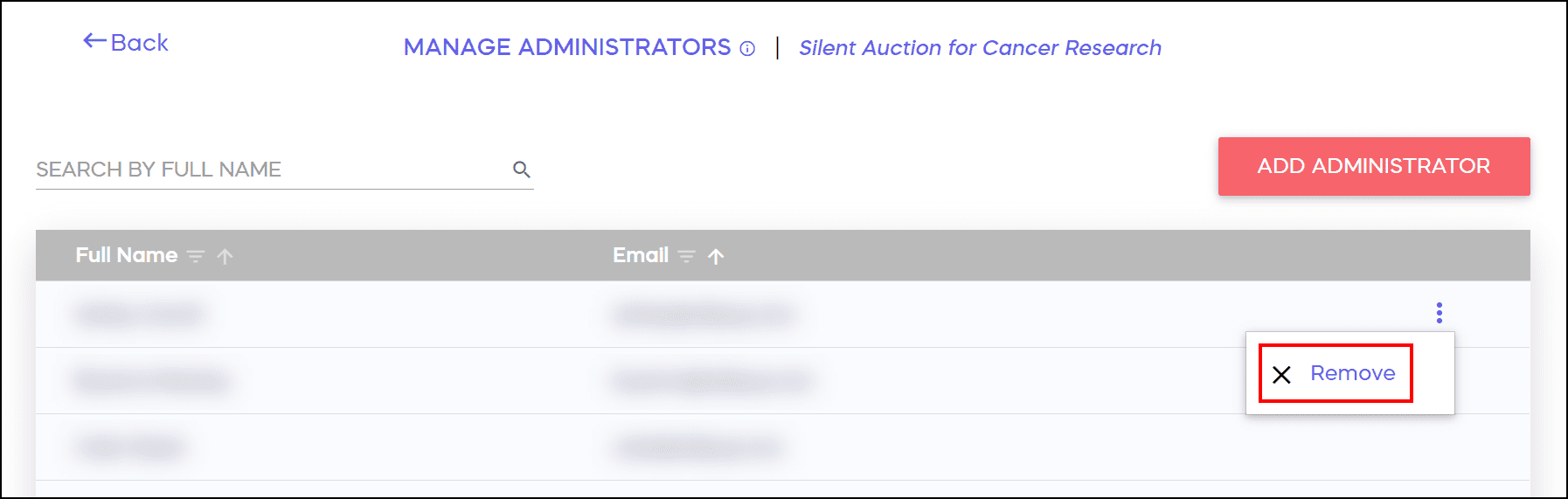
- Hover over the Administrator’s name and select the three-dot icon on the right.
- Select Remove:
Frequently Asked Questions
What’s the difference between Organization Users and Campaign Administrators?
Organization Users can create Campaigns and access organization-level settings, while Campaign Administrators can only access specific Campaigns they’ve been assigned to. Organization Users work at the account level, while Campaign Administrators work at the individual Campaign level.
What’s the difference between Organization Administrator and Staff roles?
Organization Administrators can access and update any account settings and add additional Users. Staff members can create Campaigns but cannot change funding settings or add additional Users. If unsure, start with Staff and upgrade later if needed.
Can Campaign Administrators access all of my Campaigns?
No, Campaign Administrators can only access the specific Campaigns they’ve been assigned to. They cannot view other Campaigns or update account-level settings.
Who can add Campaign Administrators to a Campaign?
Only the person who created the Campaign can add Campaign Administrators to that Campaign.
What happens when I invite someone as an Organization User or Campaign Administrator?
RallyUp sends them an invitation email. Their status shows as Invited until they click the email link and sign up. Once they complete signup, their status changes to “Accepted.”
Can I change someone’s role after adding them?
Yes, you can update any Organization User’s role at any time. Simply go to User Management, select the pencil icon next to their name, choose their new role, and save your changes.
What’s the difference between adding a User and creating an Advocate account?
Users have direct access to your organization account or specific Campaigns. Advocates are outside individuals or companies who can create fundraisers on your behalf without accessing your organization account settings.
Will Campaigns created by Organization Users use my organization’s information?
Yes, any Campaign created by an Organization User will automatically pull in your organization’s information, and the funds raised will go to the funding method on file.
What if I’m the only Organization Administrator and need to hand off access to someone else?
If you are the only Organization Administrator on your account, you’ll need to invite the new Organization Administrator first. You can only remove your administrator role after the new one accepts their invitation. See the How do I add Organization Users to my account? section above for instructions on how to invite a new administrator.
Why can’t I see payment or funds information when I log in?
If you can’t see payment or payout information, you’re likely signed in as a Campaign Administrator or as a Staff-level Organization User. Neither role can view Payment Processing. Only Organization Administrators can access organization-level settings like payment processing. Sign in with an Organization Administrator account to view payout details.