Learn how Apple Pay, Google Pay, and PayPal speed up the donation process.
Apple Pay, Google Pay, and PayPal allow donors to quickly donate without manually entering their credit card information, streamlining the payment process and maximizing donations.
What should I know before enabling these payment options?
- The funding option you choose will affect what payment options are available to your donors. See this Knowledge Base article to learn more: Understand: PayPal vs. Stripe.
- Apple Pay and Google Pay are automatically enabled as payment options on Campaigns using Stripe to collect funds. If you’re using PayPal to collect funds, you’ll need to enable PayPal as a payment option:

- These payment options work best when donors have already set up Apple Pay, Google Pay, or PayPal.
How do Apple Pay, Google Pay, and PayPal work on RallyUp?
When donors check out, they’ll see different payment options to choose from:
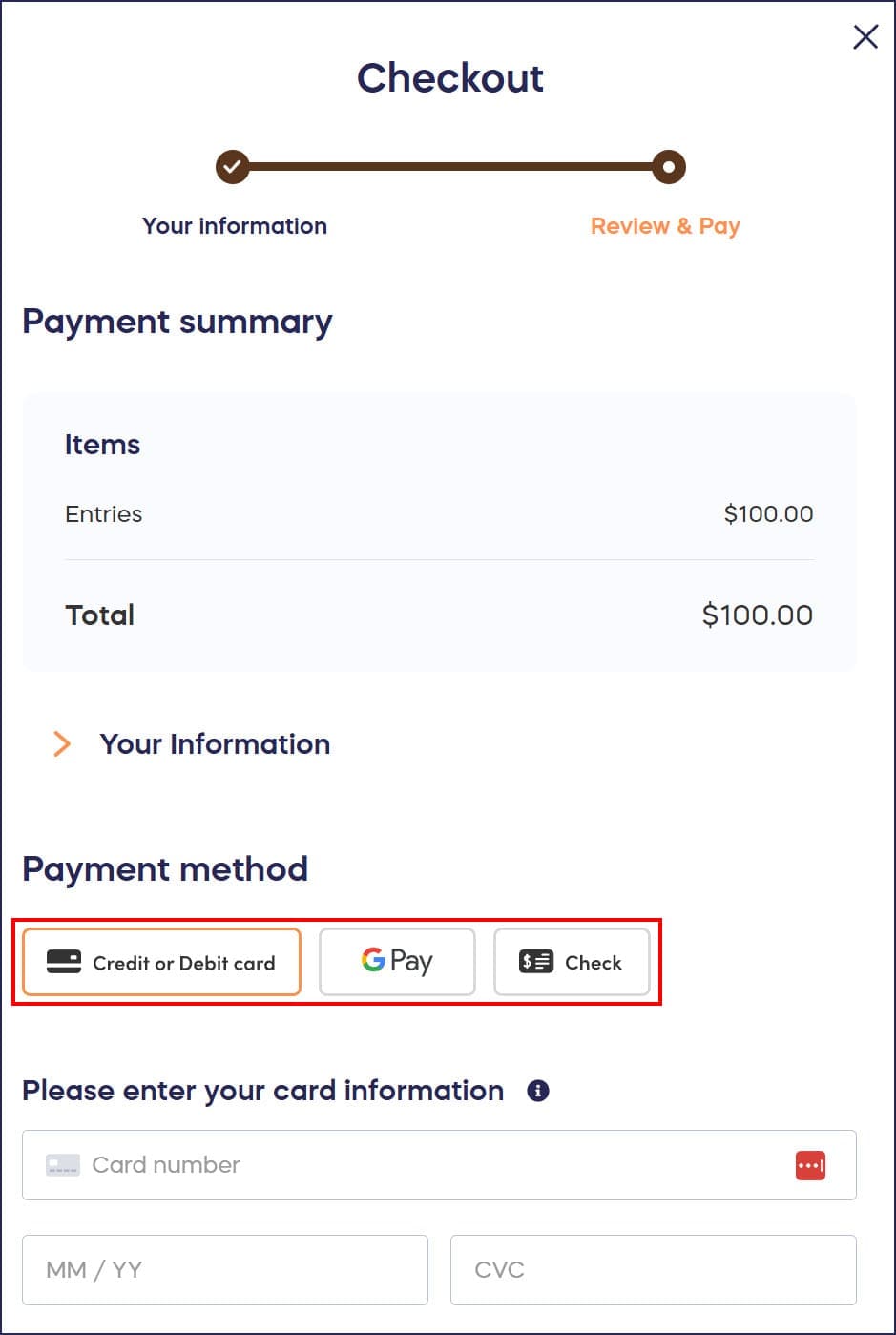
Donors can select their preferred payment option to check out with one click.
What devices are compatible with each payment option?
Depending on which funding option you set up, RallyUp will automatically detect what kind of device your donor is using and display the available options accordingly.
PayPal works with:
- any device
Apple Pay works with:
- iPhones
- iPads
- Macs using the Safari web browser
Google Pay works with:
- Android phones
- Chrome web browser
Why isn’t Apple Pay appearing or working for my donors?
Apple Pay only appears at checkout when all of the following conditions are met:
- The donor is on a supported Apple device — an iPhone, iPad, or a Mac running Safari
- The donor has at least one card saved in Apple Wallet on that device
- Your campaign is using Stripe to collect funds
What should I do if donors encounter checkout errors?
If donors report errors when trying to complete a payment, the information below can help you identify and resolve the issue.
- Ask the donor what device and browser they were using when the error occurred.
- Ask which payment method they selected — Apple Pay, Google Pay, credit card, or PayPal.
- Ask whether an error message appeared on screen, and if so, what it said.
- Try the resolution that matches the situation:
- Card declined. Ask the donor to verify their card details or try a different payment method. Card declines are issued by the donor’s bank and are not controlled by RallyUp.
- Checkout page not loading. Ask the donor to try a different browser, clear their browser cache, or disable any browser extensions that may block payment scripts.
- General error message at checkout. Ask the donor to refresh the page and try again. If the error repeats, ask them to try a different payment method.
If you are unable to resolve the issue using the steps above, contact RallyUp Support. Include your Campaign ID, the device and browser the donor was using, the payment method they selected, and the exact text of any error message. You can find your Campaign ID in Campaign Setup.
Frequently Asked Questions
Are Apple Pay and Google Pay automatically enabled on my Campaign?
Yes, if you’re using Stripe to collect funds, Apple Pay and Google Pay are automatically enabled as payment options. If you’re using PayPal to collect funds, you’ll need to manually enable PayPal as a payment option in your Campaign settings.
Do donors need to set up these payment methods in advance?
Yes, these payment options work best when donors have already set up Apple Pay, Google Pay, or PayPal on their devices. However, donors can still use traditional credit card payment if they haven’t set up these services.
Can donors use Apple Pay on Android devices?
No, Apple Pay only works on Apple devices including iPhones, iPads, and Mac computers using the Safari web browser. Android users can use Google Pay or PayPal as quick payment alternatives.
Does RallyUp automatically show the right payment options for each donor?
Yes, RallyUp automatically detects what type of device your donor is using and displays only the compatible payment options. For example, iPhone users see Apple Pay, while Android users see Google Pay.
How do these payment options increase donations?
Apple Pay, Google Pay, and PayPal streamline the donation process by allowing donors to complete their contribution with one click, without manually entering credit card information. This convenience reduces checkout friction and can significantly increase donation completion rates.
Does RallyUp support in-person tap-to-pay or point-of-sale terminals at events?
No, RallyUp does not support in-person physical tap-to-pay terminals or point-of-sale hardware. Apple Pay and Google Pay are available as online checkout options when donors complete payment through RallyUp’s web-based checkout on their own device. For in-person fundraising events such as paddle raises or galas, all payments should be processed through RallyUp’s online checkout to ensure that pledges, payments, and donor records stay accurate.
How should I collect payments at an in-person fundraising event?
For in-person events, donors complete their payment through RallyUp’s online checkout on their own device — using Apple Pay, Google Pay, a credit card, or PayPal. Keeping all payments within RallyUp ensures that pledges, event balances, and donor records remain accurate and up to date. To learn more about how in-person event payments work, see Understand: In-Person Fundraising and Understand: Event Balances and Guest Numbers.
Why isn’t Apple Pay appearing even though my donor is on an iPhone?
A few conditions must all be true for Apple Pay to appear at checkout. Make sure your campaign is using Stripe as the funding option, the donor has at least one card saved in Apple Wallet, and the donor is accessing the campaign page in Safari — not another browser or an in-app browser. If all of these are in place and Apple Pay still does not appear, ask the donor to refresh the page and try again.
Can donors still give if Apple Pay isn’t working?
Yes. Apple Pay is one of several checkout options on RallyUp. Donors who cannot use Apple Pay can complete their donation using a credit card, Google Pay (on Android devices), or PayPal. RallyUp automatically shows each donor the payment options available for their device.
What information should I include when contacting support about a checkout error?
When contacting RallyUp Support about a checkout error, include your Campaign ID, the device type and browser the donor was using, the payment method they selected, and the exact text of any error message they saw. This helps the support team identify and resolve the issue as quickly as possible. You can find your Campaign ID in Campaign Setup.