Use custom fields to accurately transfer donor information from your RallyUp Campaign to your Salesforce account.
The RallyUp Salesforce integration allows you to save donor information in your Salesforce account whenever someone takes action on your RallyUp Campaign. To ensure that all information transfers over correctly, you’ll need to create custom fields in Salesforce that correspond to unique RallyUp identifiers. Once your custom fields are created, you can set up your RallyUp integration.
What does the Salesforce integration do?
When a donor completes a transaction on any of your RallyUp Campaigns, the integration automatically creates or updates three types of records in Salesforce:
- Contacts (donor information)
- Opportunities (transaction data)
- Campaigns (RallyUp Campaign information)
Your Salesforce records will automatically update in real time.
What should I know before setting up my Salesforce integration?
- This integration is built for the Salesforce Nonprofit Success Pack (NPSP). Please ensure you’ve installed your NPSP before setting up your Salesforce integration, as it may not work as expected without it.
- Salesforce integration settings are configured at the organization level only. Campaign-level integration settings are not available.
- We recommend testing out your custom fields and integrations with a sandbox or developer Salesforce account first, then integrating your actual Salesforce account once you’ve confirmed that everything is working as expected.
- This integration sends data from both Draft and live Campaigns. If you’re testing your Campaign in Draft Mode, use a sandbox Salesforce account to avoid creating test records in your production account.
How do I create custom fields in Salesforce?
Follow the instructions in this Salesforce help article to set up your custom fields: Create a Custom Field. When you create your custom field, ensure you enable the External ID field:

What custom fields should I create in Salesforce for my RallyUp integration?
We recommend creating the following custom fields:
- RallyUp Campaign ID
- Each RallyUp Campaign receives a unique identification number when you create it. This helps Salesforce distinguish between different Campaigns, even if they have the same title.
- Participant ID
- If you add Peer-to-Peer to your RallyUp Campaign and allow supporters to compete as individual Participants, each Participant receives a unique identification number. This helps Salesforce accurately track activity for each Participant, even if they have the same name.
- Team ID
- If you add Peer-to-Peer to your RallyUp Campaign and allow Participants to compete in Teams, each Team receives a unique identification number. This helps Salesforce accurately track activity for each Team, even if they have the same name.
Custom field names are flexible, so you can use whatever works best for your organization. The ones above are simply suggestions. Any naming system will work as long as each field is mapped to the correct corresponding RallyUp identifier during integration setup.
Why are there two Salesforce integrations, and do I need both?
RallyUp offers two Salesforce integrations:
- Salesforce Transactions syncs donor and transaction data whenever someone completes checkout on your RallyUp Campaign. This creates Contacts, Opportunities, and Campaigns in Salesforce. Set up this integration first, as authentication carries over to the Peer-to-Peer integration.
- Salesforce Peer-to-Peer syncs Participant and Team registration data from your Peer-to-Peer Campaigns. This creates Campaign records for Teams and individual Participants in a parent-child hierarchy structure for rollup reporting.
If you run Peer-to-Peer Campaigns, both integrations must be active. Otherwise, Peer-to-Peer Participants/Teams will not receive credit for their transactions.
How is Peer-to-Peer information stored?
In the Peer-to-Peer integration, Teams and Participants are stored as Salesforce Campaigns, not Contacts. This creates a parent-child hierarchy:
- Your RallyUp Campaign is the parent.
- Teams are children of the Campaign.
- Participants assigned to a Team are children of their Team.
- Participants not assigned to a Team are direct children of the Campaign.
- Teams are children of the Campaign.
This structure enables rollup reporting across your entire Peer-to-Peer fundraiser.
How do I set up a Salesforce integration in RallyUp?
- Go to Organization Settings in the left menu and select Integrations.
- Go to Salesforce Transactions to store donor information, or go to Salesforce Peer-to-Peer to store Peer-to-Peer Participant or Team information.
- Select View Integration.
- Select New authentication.
- Your authentication name should automatically populate, but if you want to change it, you can enter a new authentication name.
- Select an instance type. If you’re using a sandbox account to test your integration, select Sandbox. If you’re ready to set up your integration using your actual Salesforce account, select Production.
- Select Create to connect your Salesforce account. A pop-up window will appear for you to log in with your Salesforce username and password. You’ll only need to log in once during initial setup.
- Select the RallyUp identifiers that correspond to each custom field:
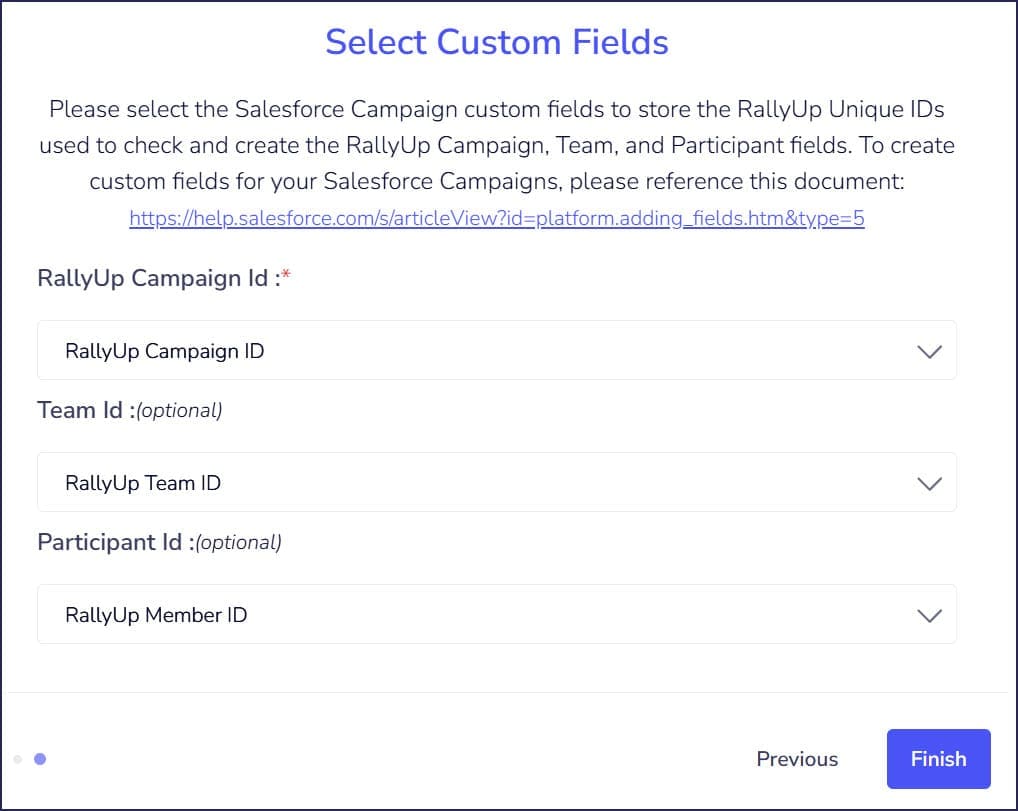
The RallyUp identifiers you should select are RallyUp Campaign ID, RallyUp Team ID, and RallyUp Member ID.
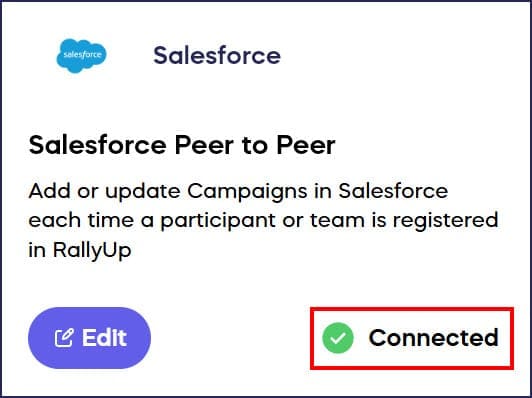
- When you’re done, select Finish. When setup is successful, the integration will show a Connected status:
Can I customize which RallyUp data fields map to my Salesforce fields?
Yes, after connecting your integration, you can customize which RallyUp data fields map to your Salesforce fields:
- Go to Organization Settings in the left menu and select Integrations.
- Find your Salesforce integration and select Edit:
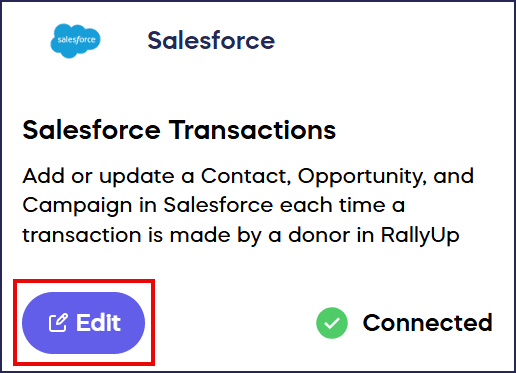
Note that the initial setup configuration only appears when first connecting. When editing, you’ll go directly to the field mapping screen.
- To map additional fields, select Add new mapping and use the dropdown menus in the integration settings:
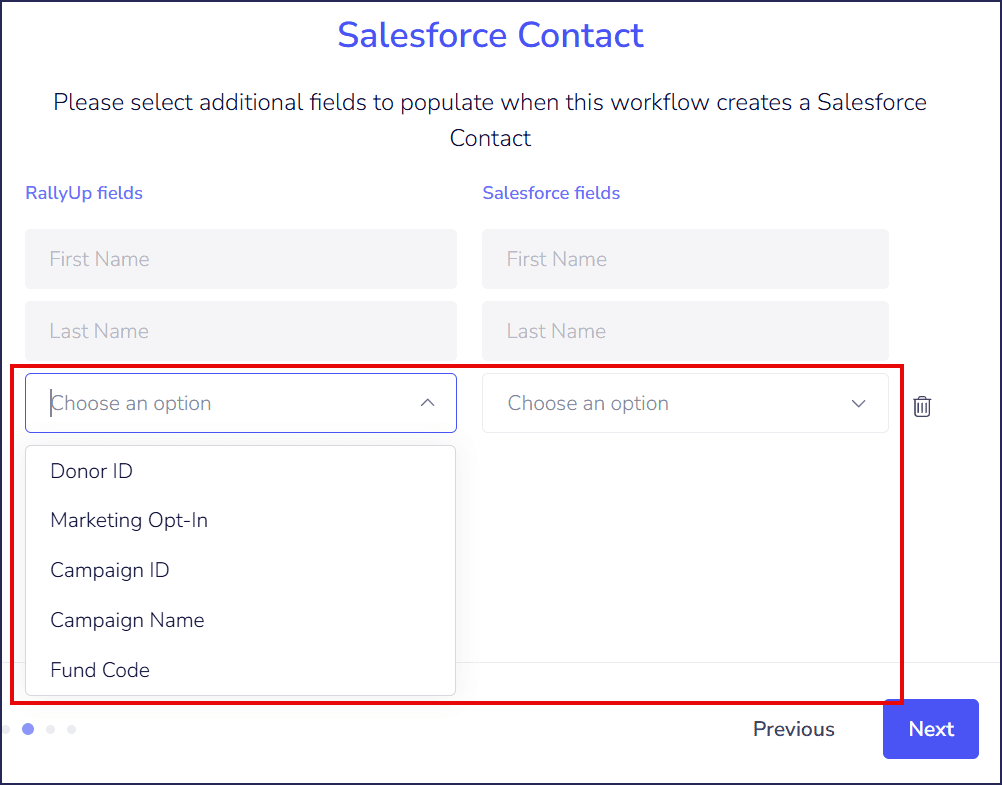
The left column shows available RallyUp fields and the right column shows your Salesforce fields. If a Salesforce field you need is not available in the dropdown, create a custom field in Salesforce first, then return to the integration to map it.
Note that default fields like First Name, Last Name, and transaction data are already pre-mapped. Additionally, write-in fields are not supported. Only fields available in the RallyUp dropdown menu can be mapped to your Salesforce fields.
Frequently Asked Questions
Does RallyUp integrate with Salesforce?
Yes, RallyUp offers Salesforce integrations that allow you to automatically save donor information in your Salesforce account whenever someone takes action on your RallyUp Campaign. You can integrate both transaction data and Peer-to-Peer Participant information.
Why do I need to create custom fields in Salesforce for RallyUp?
Custom fields ensure that donor information transfers correctly from RallyUp to Salesforce by creating fields that correspond to unique RallyUp identifiers like Campaign ID, Participant ID, and Team ID. This prevents data conflicts and ensures accurate tracking.
Should I test my Salesforce integration before using it live?
Yes, we strongly recommend testing your custom fields and integrations with a sandbox or developer Salesforce account first. This allows you to verify that data transfers correctly before connecting your production Salesforce account.
What’s the difference between Salesforce Transactions and Salesforce Peer-to-Peer integrations?
Salesforce Transactions integration stores donor transaction information, while Salesforce Peer-to-Peer integration stores information about individual Participants and Teams competing in your Peer-to-Peer Campaigns. You can set up either or both integrations based on your needs. If you run Peer-to-Peer Campaigns, we recommend setting up both integrations so that Peer-to-Peer Participants and Teams receive credit for their transactions. Learn more about setting up Peer-to-Peer Campaigns in Understand: Peer-to-Peer Fundraising.
What does the External ID field do in Salesforce custom fields?
The External ID field in Salesforce allows the system to recognize and match records from RallyUp using unique identifiers. Enabling this field is essential for the integration to work properly and prevent duplicate records.