Resend registration and Team invitation emails as needed to A-Thon or Peer-to-Peer Participants.
When Participants* are registered for your A-Thon or Peer-to-Peer Campaign, they automatically receive a registration email. If you enable Personal Fundraising Pages, this email includes a link to the Participant’s Fundraising Page* and instructions for accessing their Participant Dashboard*.
If you allow Participants to form Teams*, you or they can also send invitation emails to other Participants to join a Team. You can easily resend any of these emails if needed.
*Terminology may differ according to Campaign settings.
How do I resend one or a few registration emails?
- Go to Account Navigation in the left menu and select Campaigns.
- If you have chosen a list view, click on the Campaign title. If you have chosen a grid view, click on the Campaign image.
- Select View Participants.
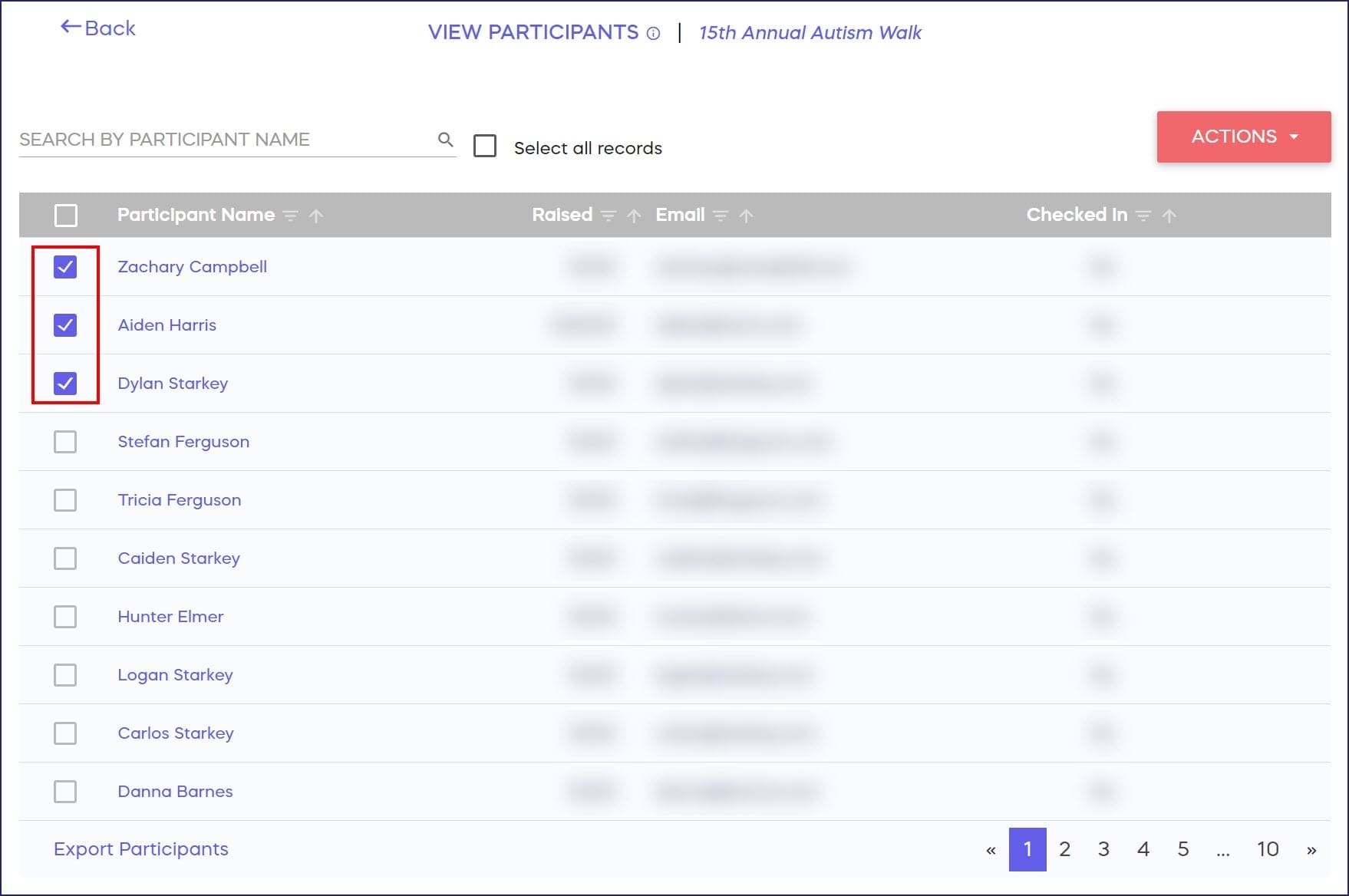
- Find the name of the person or people whose registration emails you’d like to resend, and click the boxes next to their names:
- Select the ACTIONS button in the upper right portion of the screen:
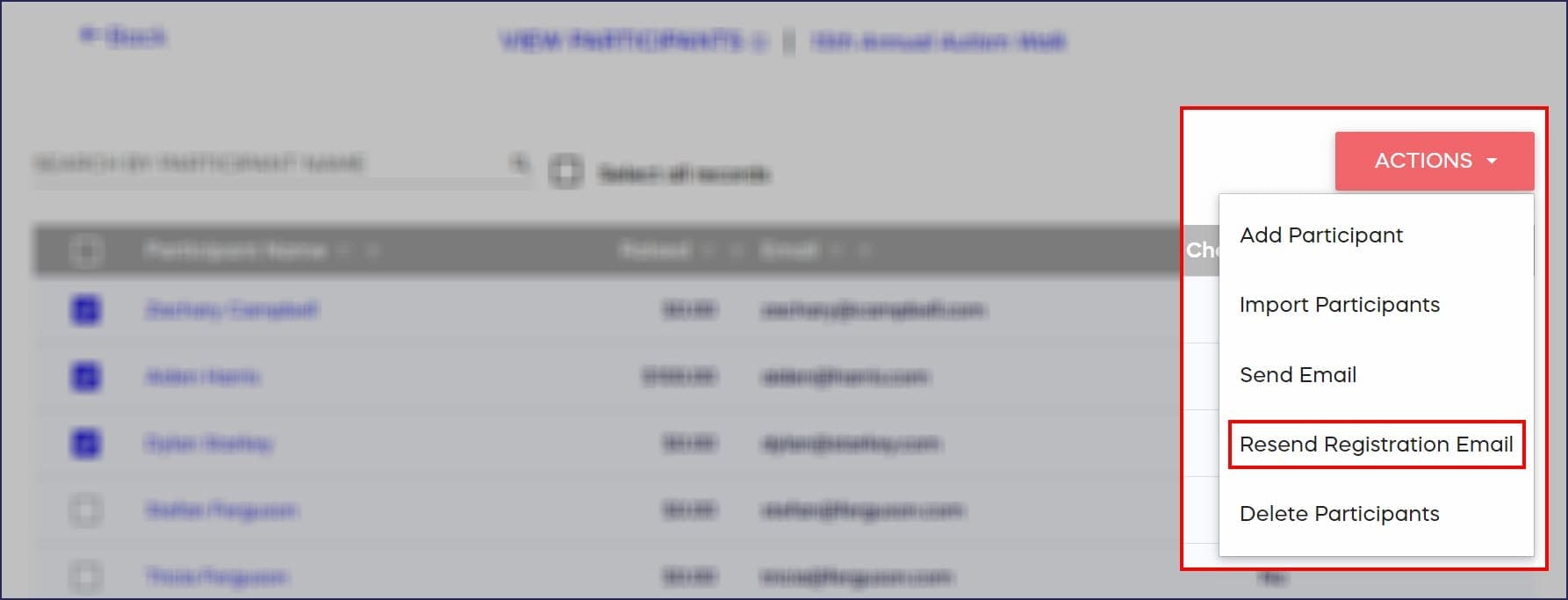
- Select Resend Registration Email.
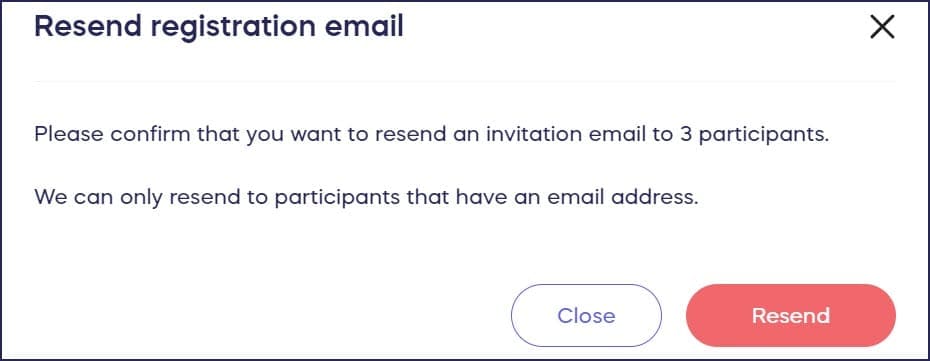
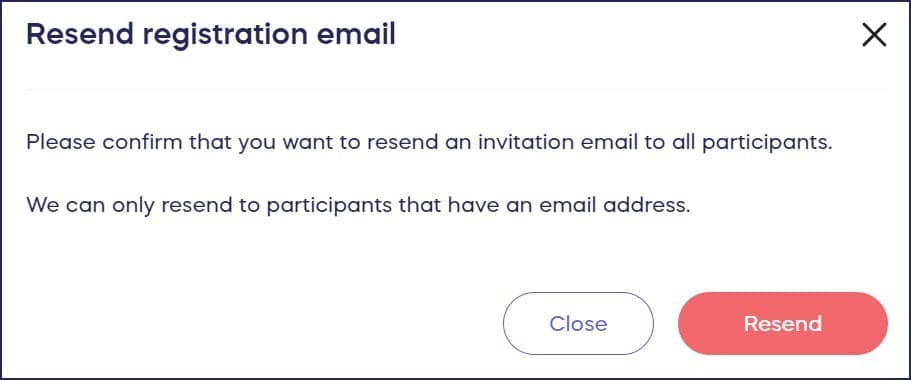
- Select Resend:
How do I resend all registration emails?
- Go to Account Navigation in the left menu and select Campaigns.
- If you have chosen a list view, click on the Campaign title. If you have chosen a grid view, click on the Campaign image.
- Select View Participants.
- Check the box next to Participant Name, which will make a Select all records option appear. Then, check the box next to Select all records:
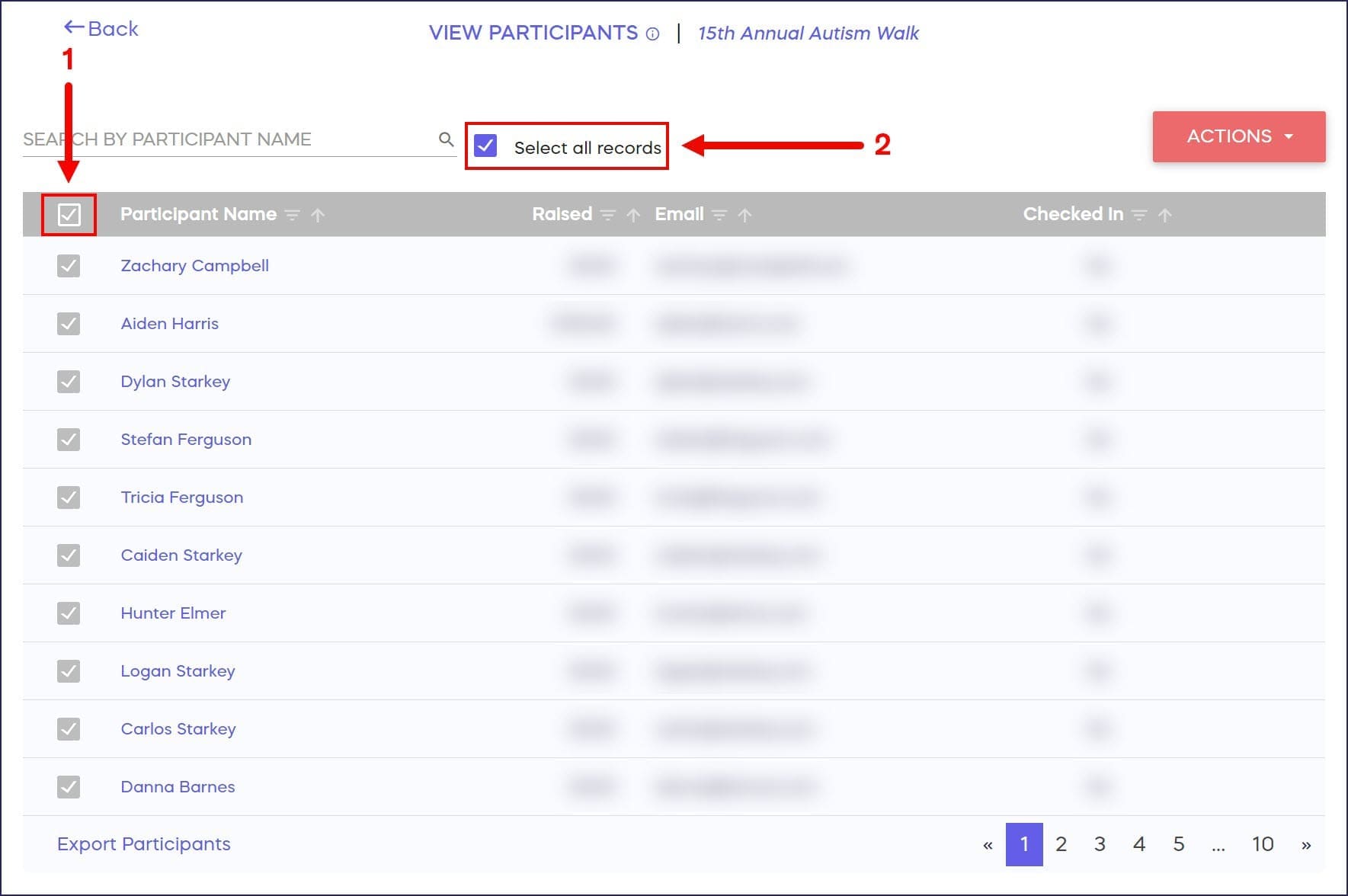
Note that if you only check the box next to Participant Name and don’t check the box next to Select all records, only the Participants on the first page will be selected.
- Select the ACTIONS button in the upper right portion of the screen:

- Select Resend Registration Email.
- Select Resend:
How do I resend Team invitation emails?
- Go to Account Navigation in the left menu and select Campaigns.
- If you have chosen a list view, click on the Campaign title. If you have chosen a grid view, click on the Campaign image.
- Select View Participant Invitations.
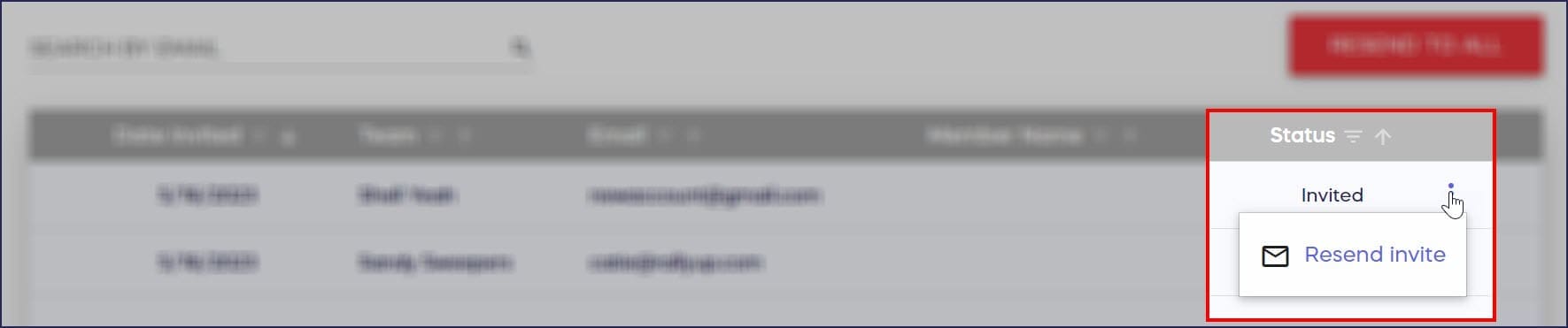
- Those who haven’t yet accepted the invitation to join the Team will be listed as Invited under the Status column:

If the Status column says Accepted, the Participant has already accepted the invitation.
- Go to the row with the person you’re looking for, hover over it, and click on the three-dot icon that will appear on the far right. Then, select Resend Invite:
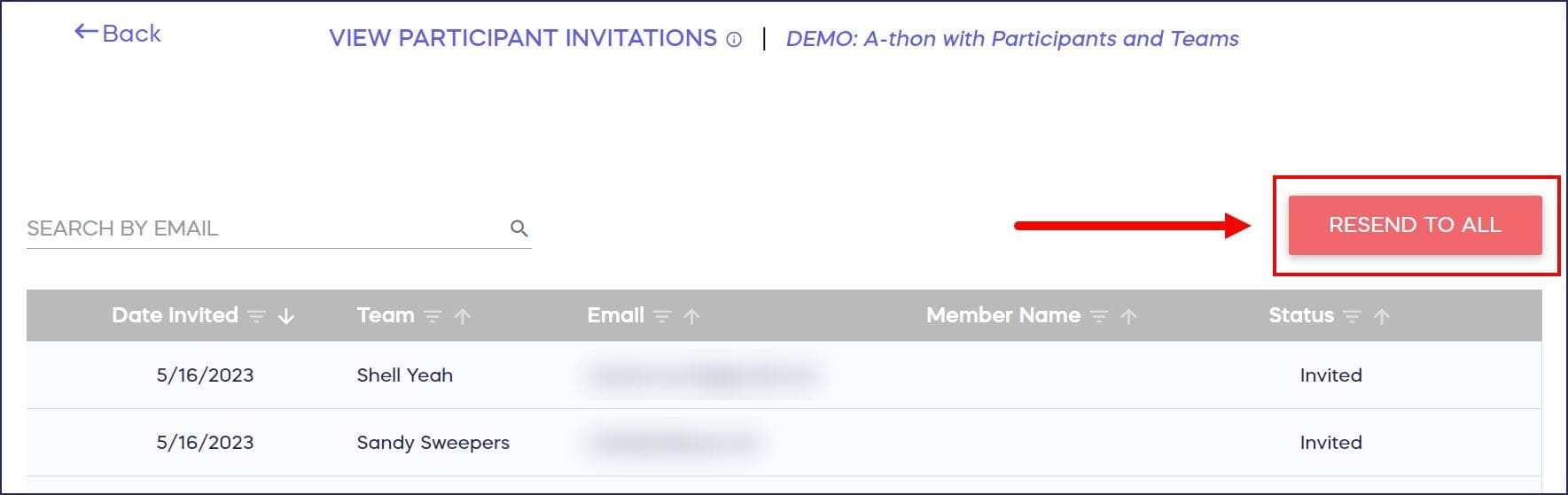
Or, to resend invitations to all invitees, select RESEND TO ALL:
Frequently Asked Questions
Why would I need to resend registration emails?
Participants may accidentally delete their registration email, not receive it due to spam filters, or lose access to the original email with their Participant Dashboard link and Fundraising Page information.
Can I resend registration emails in Draft Mode?
If you’re testing your Campaign in Draft Mode, you can’t send multiple emails at once. However, you can test these features by sending a registration or invitation email to yourself.
What’s the difference between checking “Participant Name” and “Select all records”?
Checking the box next to Participant Name only selects Participants on the current page. To select all Participants across all pages, you must also check the “Select all records” option that appears.
How do I know if a Team invitation has been accepted?
In View Participant Invitations, check the Status column. If it says “Invited,” the Participant hasn’t accepted yet. If it says “Accepted,” they’ve already joined the Team.
Can Participants resend Team invitations themselves?
Yes, if you allow Participants to form Teams, they can send and resend Team invitation emails from their Participant Dashboard to invite other Participants to join their Team.