Have RallyUp automatically notify winner(s) or choose to notify them on your own.
When you run a Raffle, Sweepstakes, or Auction through RallyUp, you can select how you’d prefer to notify winner(s):
- Automatically notify by email on a specified date and time
- Manually notify in your own way, without using RallyUp
Automatic notification is the default setting since it’s instant and hassle-free. However, we recommend manual notification if you have special plans to notify your winner(s) that do not involve email.
Note: Auction winner and non-winner notification emails use a standard template and cannot be customized. The customization options described in this article apply only to Raffle and Sweepstakes notifications. If you need to send a personalized message to Auction winners, choose the manual notification option and contact winners directly.
How do I choose winner notification settings?
- Go to Account Navigation in the left menu and select Campaigns.
- If you have chosen a list view, click on the Campaign title. If you have selected a grid view, click on the Campaign image.
- Select Campaign Setup.
- Go to Raffle/Sweepstakes/Auction in the timeline at the top and select Show optional settings.
- Scroll down to How do you want to notify the winner(s)? and select your preferred option.
- If you select automatic notification, enter the date and time:

Please note that the notification date and time should be scheduled on or after your Auction end date and time or Raffle/Sweepstakes drawing date and time.
- Select Save.
How do I customize the winner notification email?
If you’ve chosen to have the system send winner notifications, you can customize the message content (only available for Raffles and Sweepstakes; Auction notifications can’t be customized):
- Go to Account Navigation in the left menu and select Campaigns.
- If you have chosen a list view, click on the Campaign title. If you have selected a grid view, click on the Campaign image.
- Select Campaign Setup.
- Go to Raffle/Sweepstakes in the timeline at the top and select Show optional settings.
- Scroll down to Customize the email that notifies the winner(s) and customize the email head and body:

- Select Save.
Note: Auction winner notifications use the following standard template and cannot be customized:
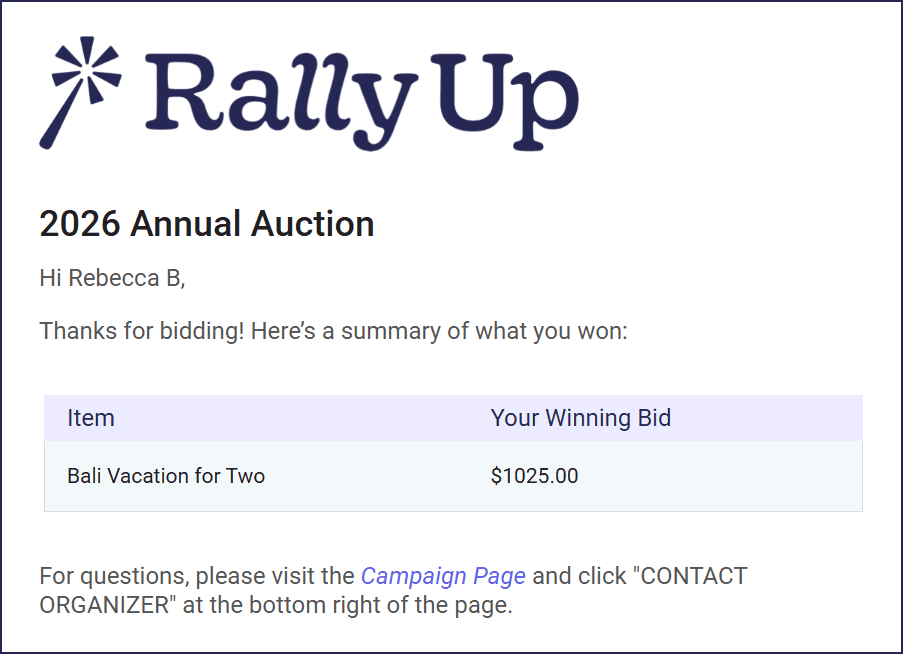
What should I do if winner emails aren’t being delivered?
If you’ve configured automatic winner notifications but recipients aren’t receiving the expected email — or are receiving a generic “Thank you for your support!” message instead — work through the steps below to identify and resolve the issue.
How do I confirm my winner notification is configured correctly?
- Go to Account Navigation in the left menu and select Campaigns.
- If you have chosen a list view, click on the Campaign title. If you have chosen a grid view, click on the Campaign image.
- Select Campaign Setup.
- Go to Raffle/Sweepstakes/Auction in the timeline at the top and select Show optional settings.
- Scroll down to How do you want to notify the winner(s)? and confirm that Automatic notification is selected and that the scheduled date and time are correct.
- Scroll down to Customize the email that notifies the winner(s) and confirm that the subject line and message body are filled in as expected.
- Select Save.
If everything looks correct and delivery issues persist, proceed to the next section.
What should I check if winners received the wrong email?
If winners received a generic “Thank you for your support!” message instead of your configured winner notification, the winner email did not send. The generic message is the standard post-entry confirmation email, not the winner notification.
Instructions to confirm whether the winner notification was sent will differ depending on whether you’re using RallyUp or an email marketing integration to send emails:
If you’re using an email marketing integration:
- Log in to your email service provider account (such as SendGrid).
- Check send activity for the date and time your winner notification was scheduled to go out.
- Look for emails with a subject line matching the one you entered in your winner notification settings.
- If no matching send activity appears, the winner notification did not send.
If you’re using RallyUp:
- Go to Account Navigation in the left menu and select Donor Profiles.
- Use the search bar to search for your winner(s) by name (if you aren’t sure who your winners are, go to your Campaign Management Menu and select Manage Raffle/Sweepstakes/Auction Winners to view a list of all winners).
- Click on the winner’s name to open their Profile.
- Search for the winner notification in the Activity timeline. If the email is not listed in the timeline, the winner notification did not send. If the email is listed in the timeline but the winner cannot find it in their inbox, you can easily resend it by clicking on the three-dot menu and selecting Resend Email.
If you confirm that the notification did not send, contact RallyUp Support and include:
- Your Campaign name and ID
- The scheduled send date and time for the winner notification
- A description of the email winners received instead (for example, “Thank you for your support!”)
- A screenshot of your current winner notification settings
How do I run a test to verify winner notifications are working?
Before your next Campaign closes, you can verify delivery by running a small controlled test:
- Set up a test Campaign with automatic winner notifications enabled.
- Draw winners and confirm that the winner notification is scheduled to send.
- After the scheduled send time, follow the instructions in the section above to check for send activity.
- Confirm that the subject line and message content match your configured winner notification — not a generic post-entry confirmation email.
What else should I know about winner notifications?
- All notification settings can be modified before the email(s) are sent.
- You can also choose whether/how to notify non-winners: How-to: Notify Raffle and Sweepstakes Non-Winners.
Frequently Asked Questions
Can I customize winner notification emails for Auctions?
No, notification email customization is only available for Raffles and Sweepstakes. Auction winner notifications are sent automatically with standard messaging that cannot be customized.
What happens if I choose manual notification?
If you select manual notification, RallyUp will not send any automatic emails to winners. You’ll need to contact winners yourself using your preferred method, such as phone calls, personalized emails, or in-person announcements.
Can I change my notification settings after setting them up?
Yes, you can modify all notification settings at any time before the notification emails are sent. This includes changing from automatic to manual notification or adjusting the date and time.
When are automatic winner notifications sent?
Automatic winner notifications are sent on the date and time you specify during Campaign Setup. You choose the exact notification schedule that works best for your Raffle, Sweepstakes, or Auction.
Why would I choose manual notification over automatic?
Manual notification is recommended if you have special plans to notify winners that don’t involve email, such as announcing winners at a live event, making personal phone calls, or creating a custom announcement experience.
Why am I getting an error about notification dates when I try to publish my Auction?
This error appears when one or both of your notification times are scheduled before your Auction’s end time. Because winners can only be determined once bidding closes, RallyUp requires both winner and non-winner notification emails to be set on or after the Auction end date and time. You will not be able to publish your Campaign until both notification times meet this requirement.
How do I fix the “notification dates must be on or after the bidding end date” error?
In Campaign Setup, go to Auction in the timeline at the top and select Show optional settings. Scroll to the winner and non-winner notification settings and update both dates and times to fall on or after your Auction’s end time. Select Save and try publishing your Campaign again.
Do both my winner and non-winner notification times need to be after the Auction end time?
Yes — both the winner notification time and the non-winner notification time must be set on or after your Auction end date and time. This applies even when both notifications are scheduled for the same day as the Auction ends: if either time falls before the Auction end time, the error will appear and prevent you from publishing your Campaign.
Why did winners receive a generic “Thank you for your support!” email instead of the winner notification?
The “Thank you for your support!” message is the standard post-entry confirmation email, not the winner notification. If winners received this message instead of your configured notification, the scheduled winner email did not send. Log in to your email service provider account or look up the winner’s Donor Profile and check for send activity on the scheduled notification date. If no activity appears, contact RallyUp Support with your Campaign name, ID, and the scheduled send date and time.
Winner emails aren’t showing up in my email service provider account — what should I check?
First, confirm that automatic winner notifications are still enabled in your Campaign settings and that the scheduled send date and time have not passed without a send. If the settings look correct and no send activity appears in your email service provider account or RallyUp Donor Profile Activity timelines, contact RallyUp Support with your Campaign name, ID, and the date and time the notification was expected to send.
Can I resend winner notifications if they didn’t deliver the first time?
If your scheduled winner notifications did not send, contact RallyUp Support. The team can investigate delivery logs and work with you to reach affected participants.