Enter A-Thon activity during your A-Thon or after it ends.
Whenever a Campaign Organizer or Participant logs activity progress on a RallyUp A-Thon, the amount raised will update automatically wherever it’s displayed on the Campaign Page, driving up excitement, friendly competition, and donations:

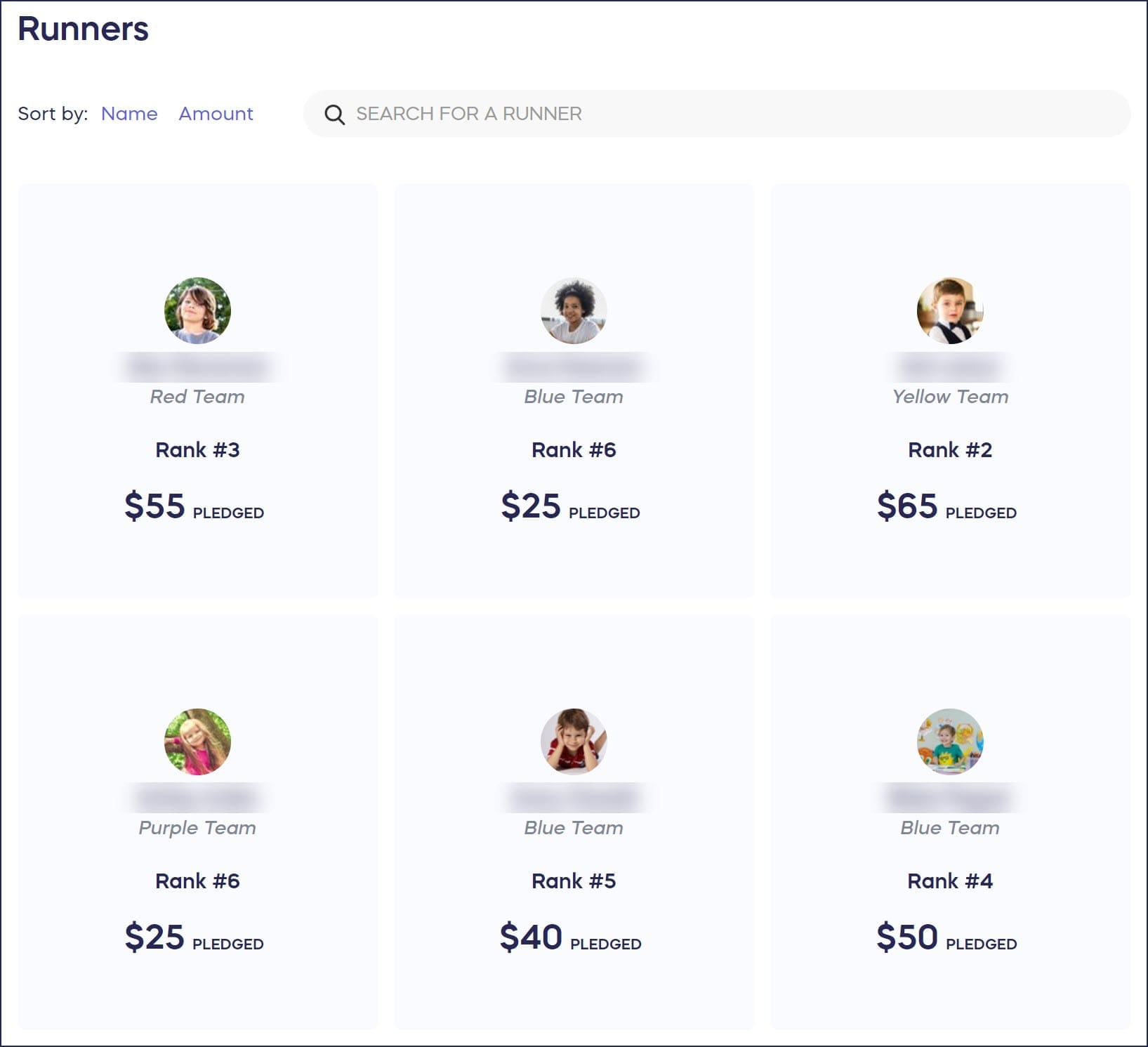
RallyUp’s system also uses this information to automatically calculate how much to charge each donor for their per-unit pledges when the A-Thon ends.
RallyUp offers two options for updating A-Thon activity progress. You can periodically log activity progress manually while the A-Thon is live or import activity results when the A-Thon ends.
How do I manually log A-Thon activity progress?
Campaign Organizers can log Participants’ progress on their behalf:
- Go to Account Navigation in the left menu and select Campaigns.
- If you have chosen a list view, click on the Campaign title. If you have chosen a grid view, click on the Campaign image.
- Under CAMPAIGN MANAGEMENT, select Enter Activity Results.
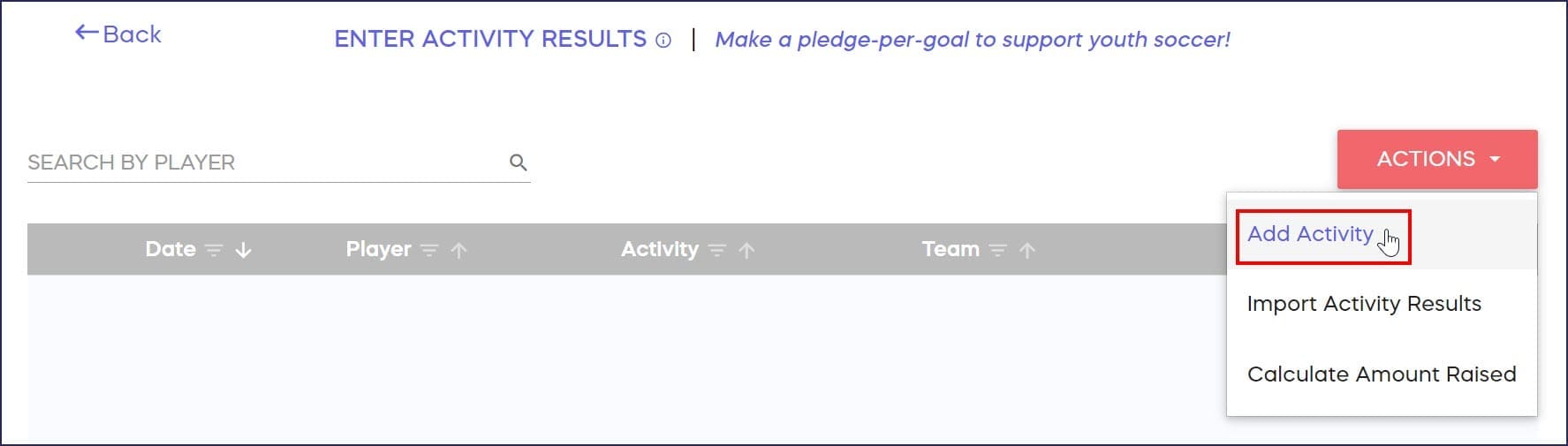
- Click on ACTIONS in the upper right corner of the screen, then select Add Activity:
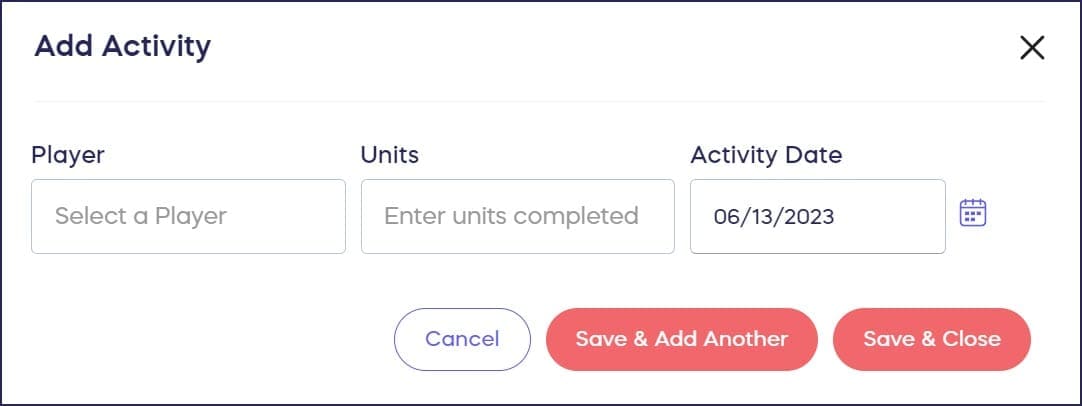
- Enter the activity details, then select either Save & Close or Save & Add Another:
Participants can also log their own progress: How-to: Log A-Thon or Peer-to-Peer Activity as a Participant.
Note that activity units are measured in whole numbers and you won’t be able to enter Participants’ results as a decimal. If needed, you can round the number up or down.
How do I import A-Thon activity results using a spreadsheet?
Campaign Organizers can import activity results when the A-Thon is finished. We recommend downloading the spreadsheet before the A-Thon starts and using it to log progress as the A-Thon proceeds:
- Go to Account Navigation in the left menu and select Campaigns.
- If you have chosen a list view, click on the Campaign title. If you have chosen a grid view, click on the Campaign image.
- Under CAMPAIGN MANAGEMENT, select Enter Activity Results.
- Click on ACTIONS in the upper right corner of the screen, then select Import Activity Results:

- Click on the link to download the Activity Results Upload Template:
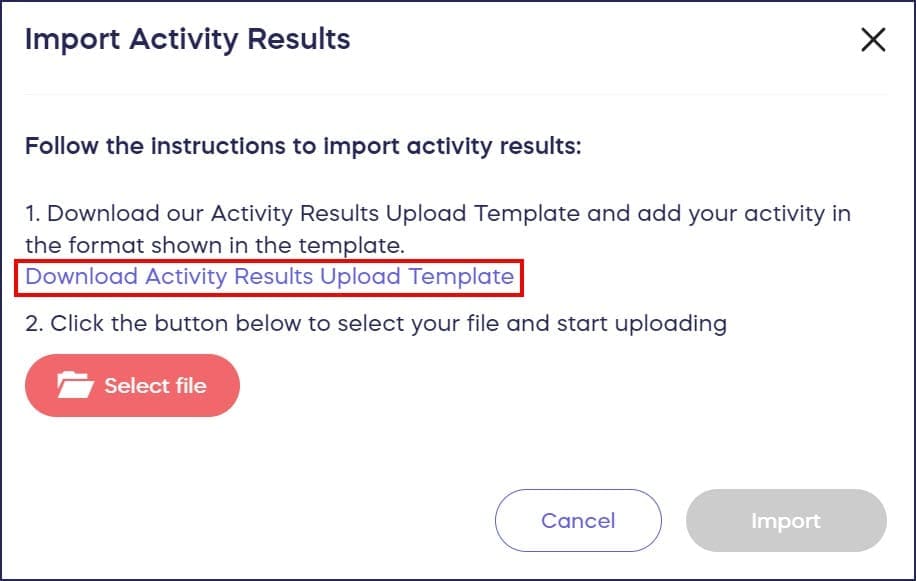
- Fill out the spreadsheet. Here are some tips to help you out:
- All columns are required.
- Enter the First Name, Last Name, and Activity Name (e.g., Goal) exactly as it appears in the Campaign.
- Activity Date column entries should be formatted as MM/DD/YYYY.
- Units Completed column entries should be formatted as a whole number greater than zero (e.g., 10). Decimal numbers won’t work.
- Save your spreadsheet as a .csv file. Most spreadsheet programs (Google Sheets, Microsoft Excel, etc.) will allow you to do this.
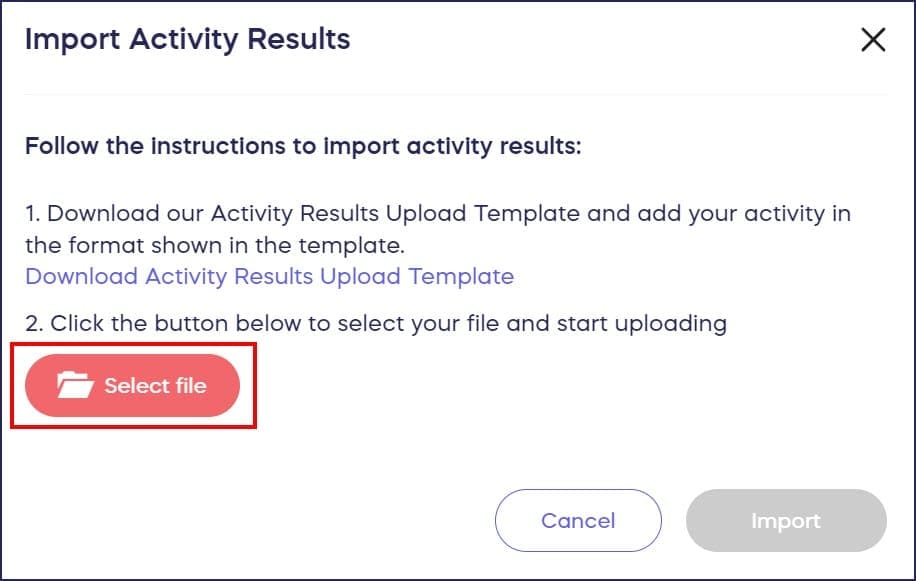
- Click on Select file to upload your spreadsheet:
Frequently Asked Questions
When should I log A-Thon activity during my Campaign?
You can log activity progress periodically while the A-Thon is live to drive excitement and donations, or import all results at once when the A-Thon ends. Many organizers download the spreadsheet template before starting and track progress throughout.
How does logging activity affect donor charges?
When you log activity progress, RallyUp automatically calculates how much to charge each donor based on their per-unit pledges. The system updates the amounts displayed on your Campaign Page in real time to reflect current progress.
Can Participants log their own activity progress?
Yes, Participants can log their own progress directly through their account. Campaign Organizers can also log activity on behalf of Participants using the Enter Activity Results section in Campaign Management.
What format should my activity results spreadsheet use?
Save your spreadsheet as a .csv file with all required columns completed. Format dates as MM/DD/YYYY and units completed as whole numbers greater than zero. Enter names and activity names exactly as they appear in your Campaign.
What happens if I make a mistake when logging activity?
You can edit or update activity entries after logging them. Campaign Organizers have full control over activity results and can make corrections through the Enter Activity Results section at any time during or after the A-Thon as long as the A-Thon has not yet been finalized. Activity entries can’t be updated after the A-Thon has been finalized.