Customize and sell Tickets and Tables for your ticketed event.
RallyUp offers multiple ways to customize event Tickets. You can sell individual Tickets*, Tables* that include multiple Tickets in a single purchase, or both.
*Terminology may differ according to Campaign settings.
What customization options are available for Tickets and Tables?
Can I customize the terminology for Tickets and Tables?
You can call your Tickets and Tables whatever you like. Examples include:
- Admission
- Registration
- Entry
- Passes
- Seats
- Packages
- Teams
- Groups
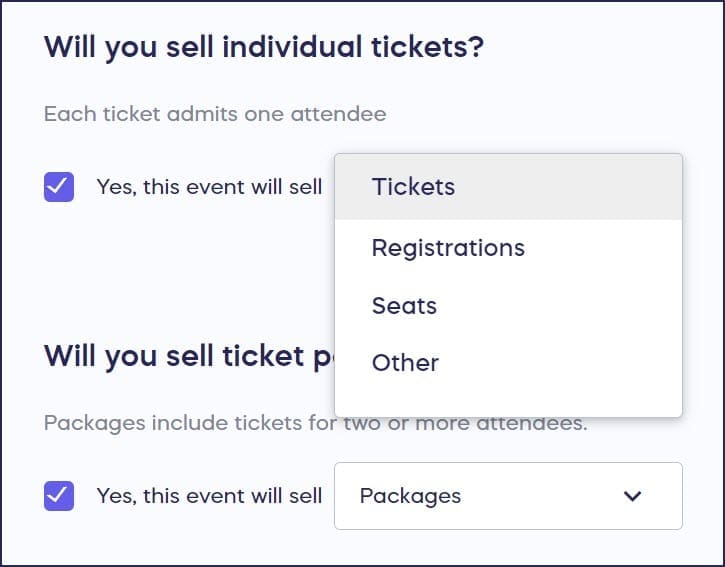
The terminology you select will display throughout your Campaign Page, including buttons and menu items:

Can I add multiple images to Tickets and Tables?
Add multiple images to each Ticket or Table option to:
- Enhance their visual appeal
- Show everything included in the purchase, such as merch or VIP extras

How-to: Add Images to Your Fundraiser
How do I use time limits for Tickets and Tables?
Use time limits to:
- Offer early bird Tickets and Tables at a discounted price
- Wait to display certain Tickets or Tables till a specific date
- Encourage donors to purchase their Tickets and Tables quickly before the time limit runs out
Note that once the time limit has expired, the Tickets or Tables will automatically be removed from your Campaign Page.
How do I set quantity limits for Tickets and Tables?
Use quantity limits to:
- Make your Event appear exclusive
- Encourage donors to purchase their Tickets and Tables early, so they don’t miss out
- Enforce your venue’s occupancy limit
- Offer a select number of VIP Tickets and Tables
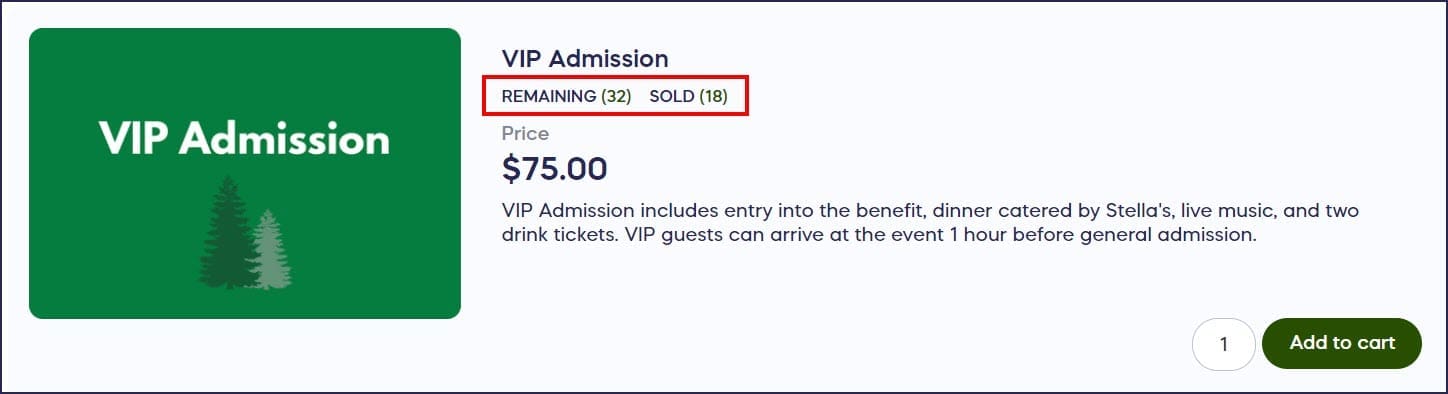
Note that once the quantity limit has been reached, the Tickets or Tables will still be visible on your Campaign Page, but the purchase option will no longer be enabled:

How do custom fields work for collecting attendee information?
Custom fields allow you to collect information from attendees. You can collect the same information from all attendees, add unique custom fields to each Ticket or Table option, and make each field either required or optional. Use custom fields to:
- Let donors opt into a marketing mailing list
- Require donors to agree to terms and conditions
- Allow donors to select their preferred size or color (if merch is included)
- Collect other data such as age, gender, dietary restrictions or preferences, etc.:

How do I create a Ticket?
- Go to Account Navigation in the left menu and select Campaigns.
- If you have chosen a list view, click on the Campaign title. If you have chosen a grid view, click on the Campaign image.
- Select Edit Campaign.
- Go to Ticketing in the timeline at the top.
- Scroll down to Add Tickets and select Create a Ticket.
- To add multiple images, click on Upload images on the left and select your desired images:

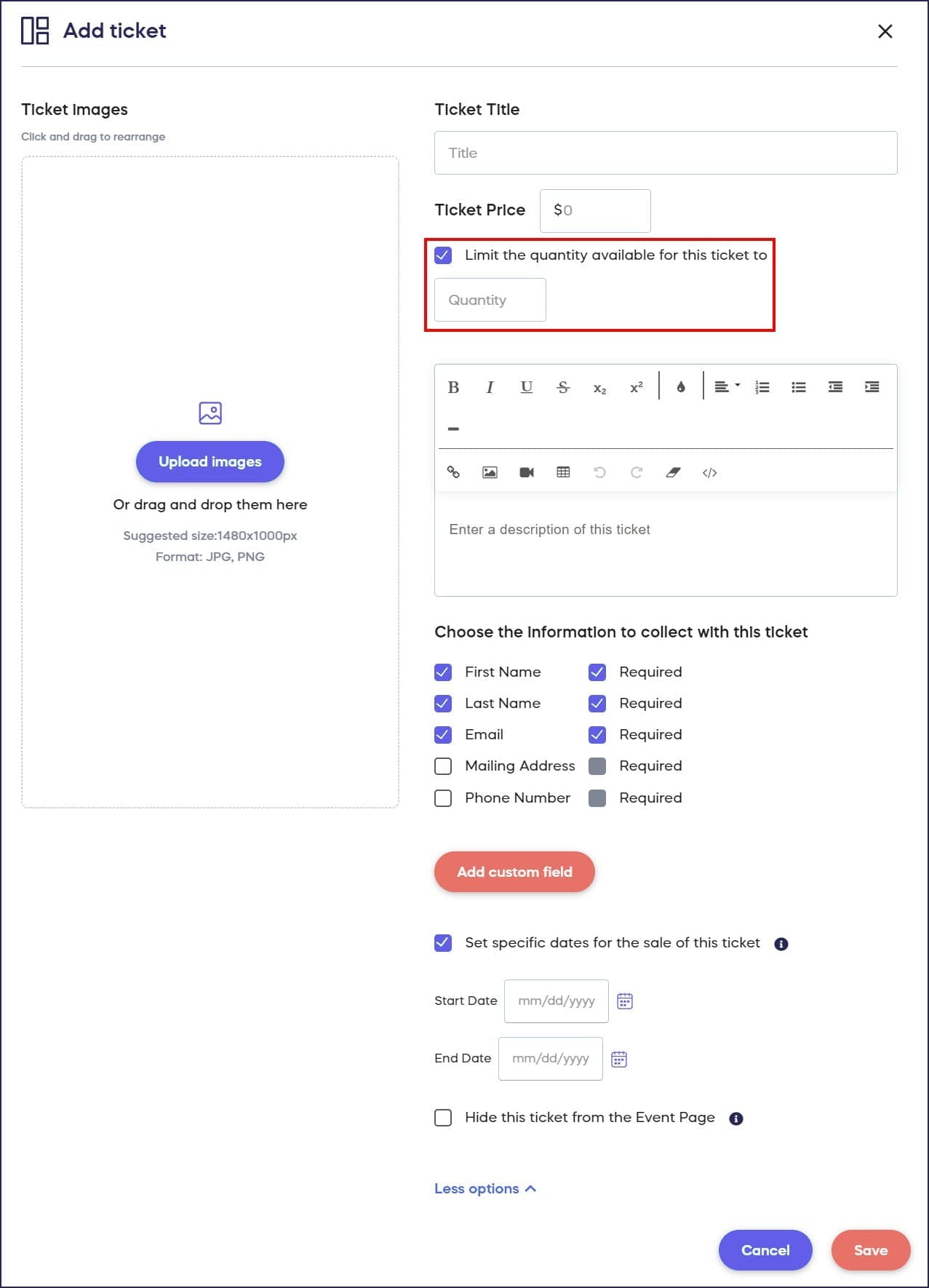
- To set a quantity limit, check the box next to Limit the quantity available for this Ticket and enter the number available:
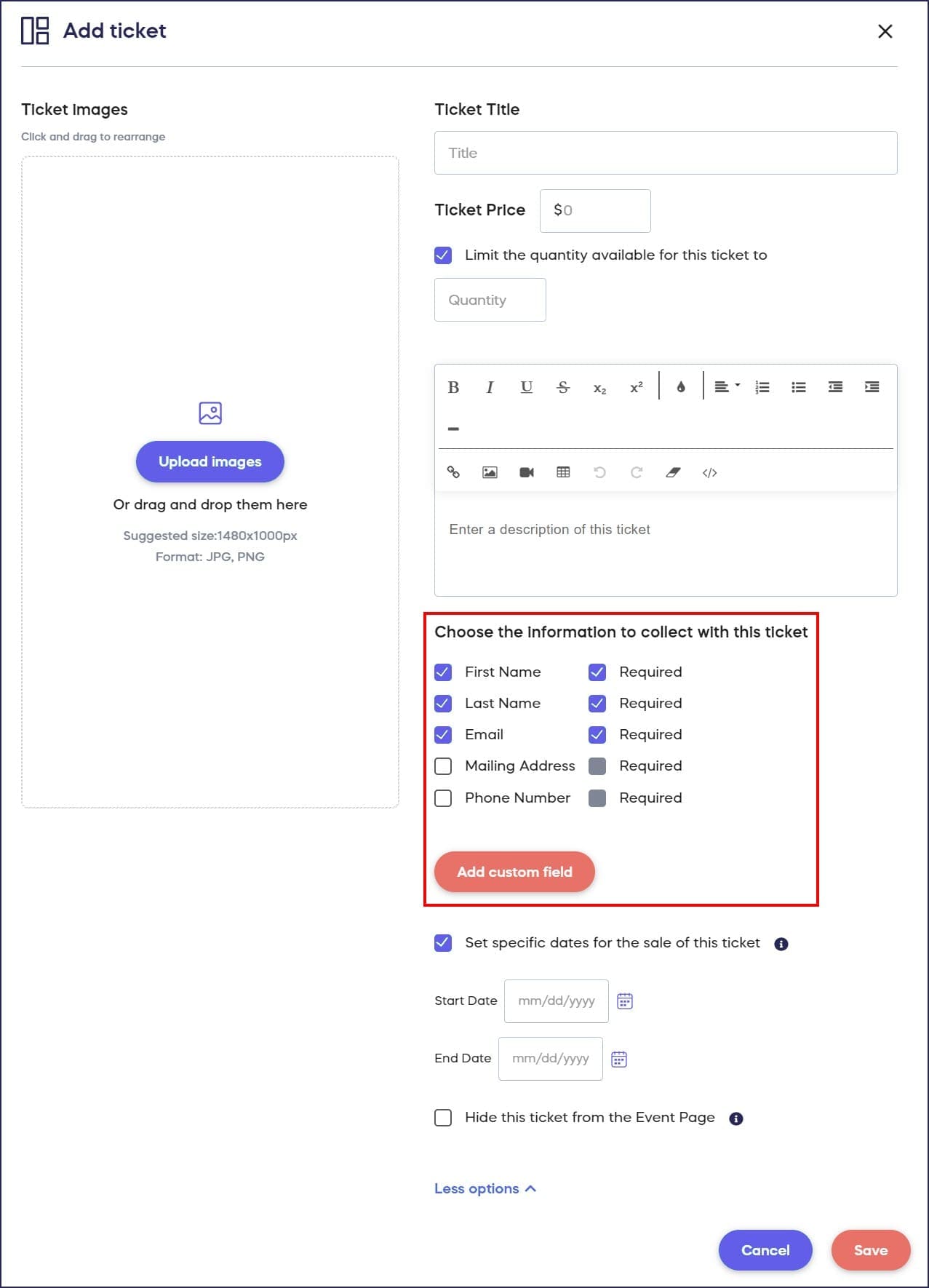
- To add a custom field, scroll down to Choose the information to collect for this Ticket and select Add custom field:
- To set a time limit, click on More Options, check the box next to Set specific dates for the sale of this Ticket, and choose the dates:

- Select SAVE.
How do I create a Table?
- Go to Account Navigation in the left menu and select Campaigns.
- If you have chosen a list view, click on the Campaign title. If you have chosen a grid view, click on the Campaign image.
- Select Edit Campaign.
- Go to Ticketing in the timeline at the top.
- Scroll down to Add Tables and select Create a Table.
- If a Table includes an existing Ticket type (e.g., if a Table includes 4 Seats), go to Does this Table include an existing Ticket type? and select the Ticket type in question:
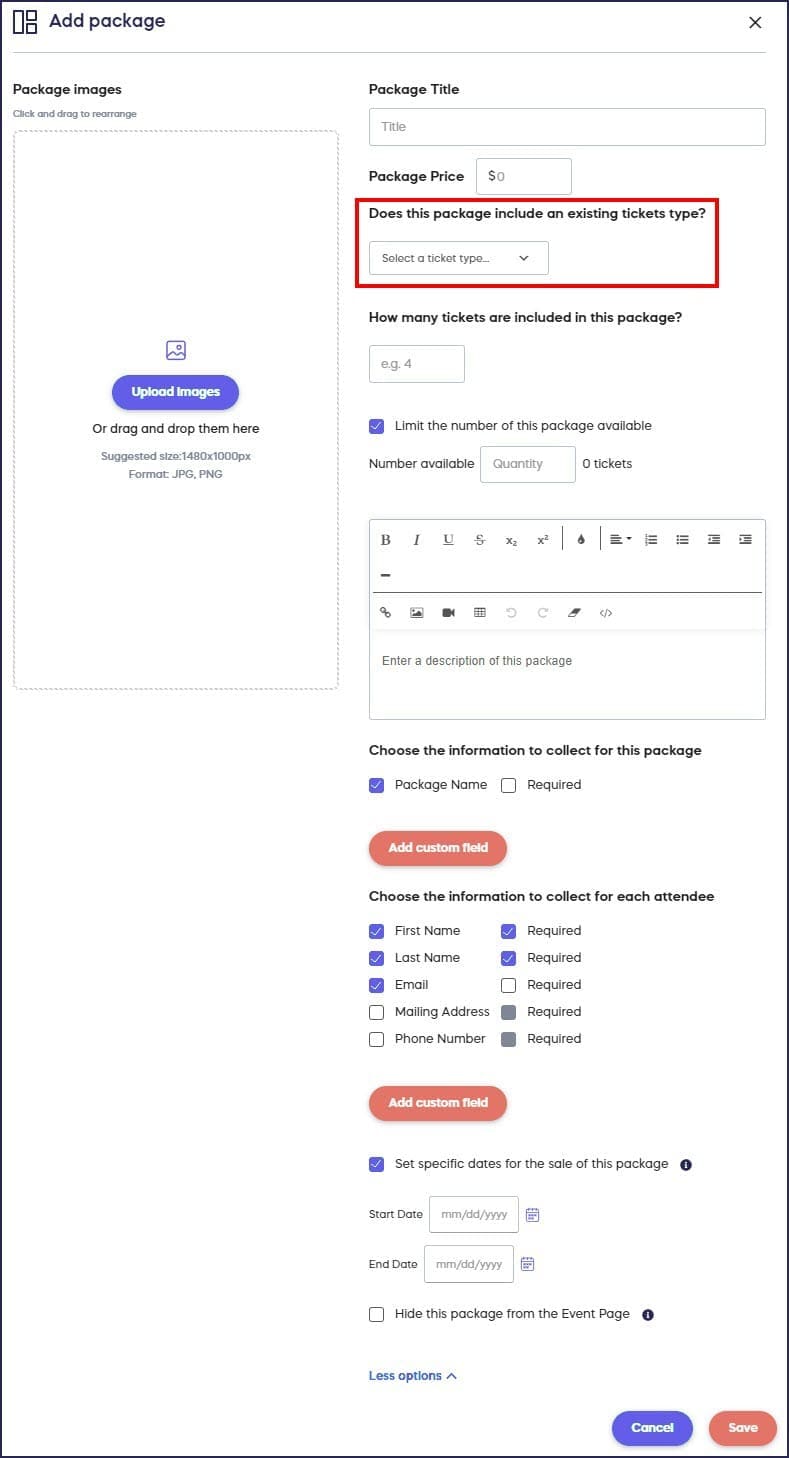
This will ensure that Tables are included when the system calculates how many Tickets have been purchased.
Keep in mind that the linked Ticket type’s available quantity must be high enough to cover the total number of seats across every Table that references it. For example, if you create a Table with 30 seats linked to a Ticket type that only has 7 available, the system will block you from saving the Table. Before creating Tables that include existing Ticket types, check — and if necessary increase — the available quantity on the linked Ticket type.
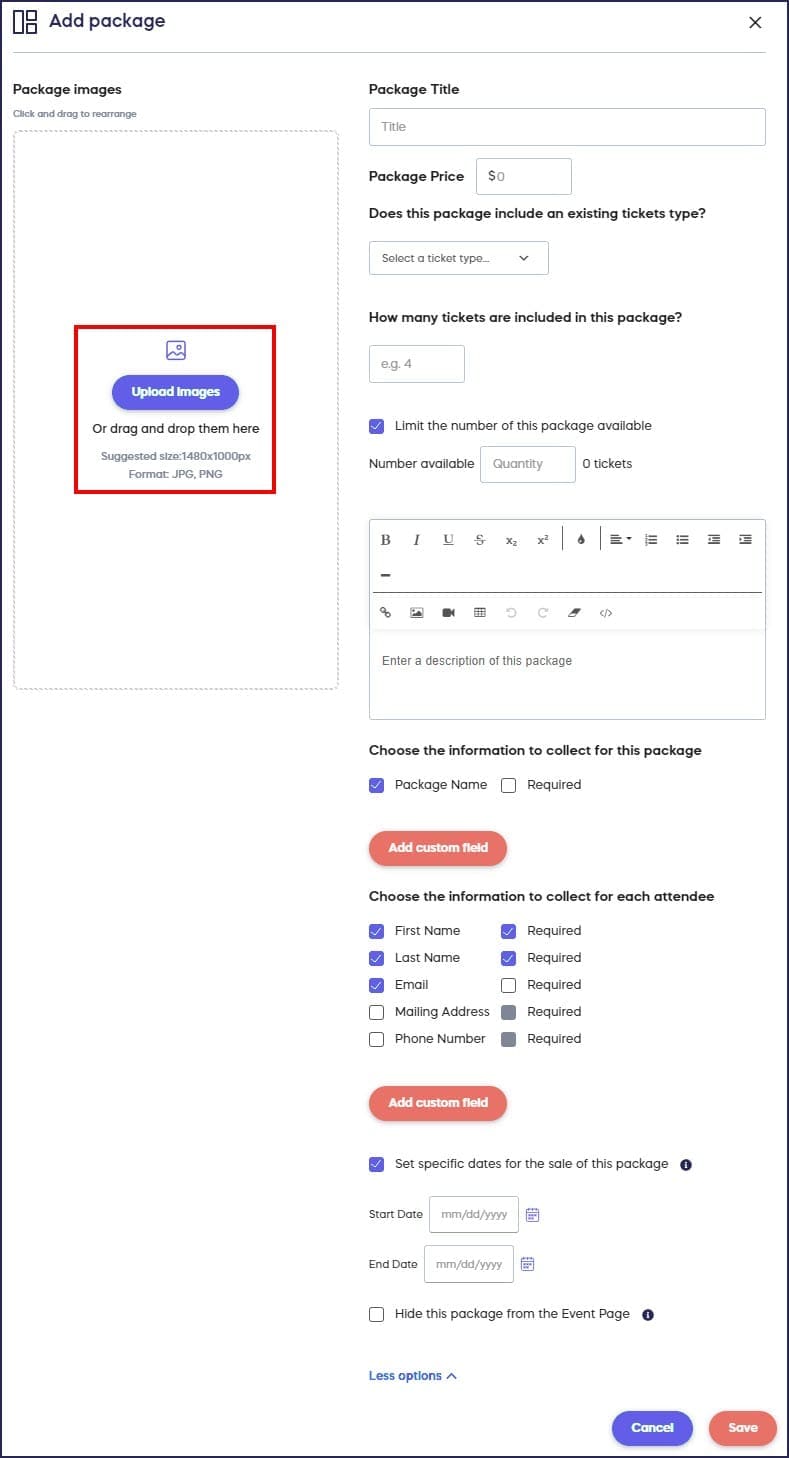
- To add multiple images, click on Upload images on the left and select your desired images:
- To set a quantity limit, check the box next to Limit the quantity available for this Table and enter the number available:

- To add a custom field, scroll down to Choose the information to collect for this Table and select Add custom field:

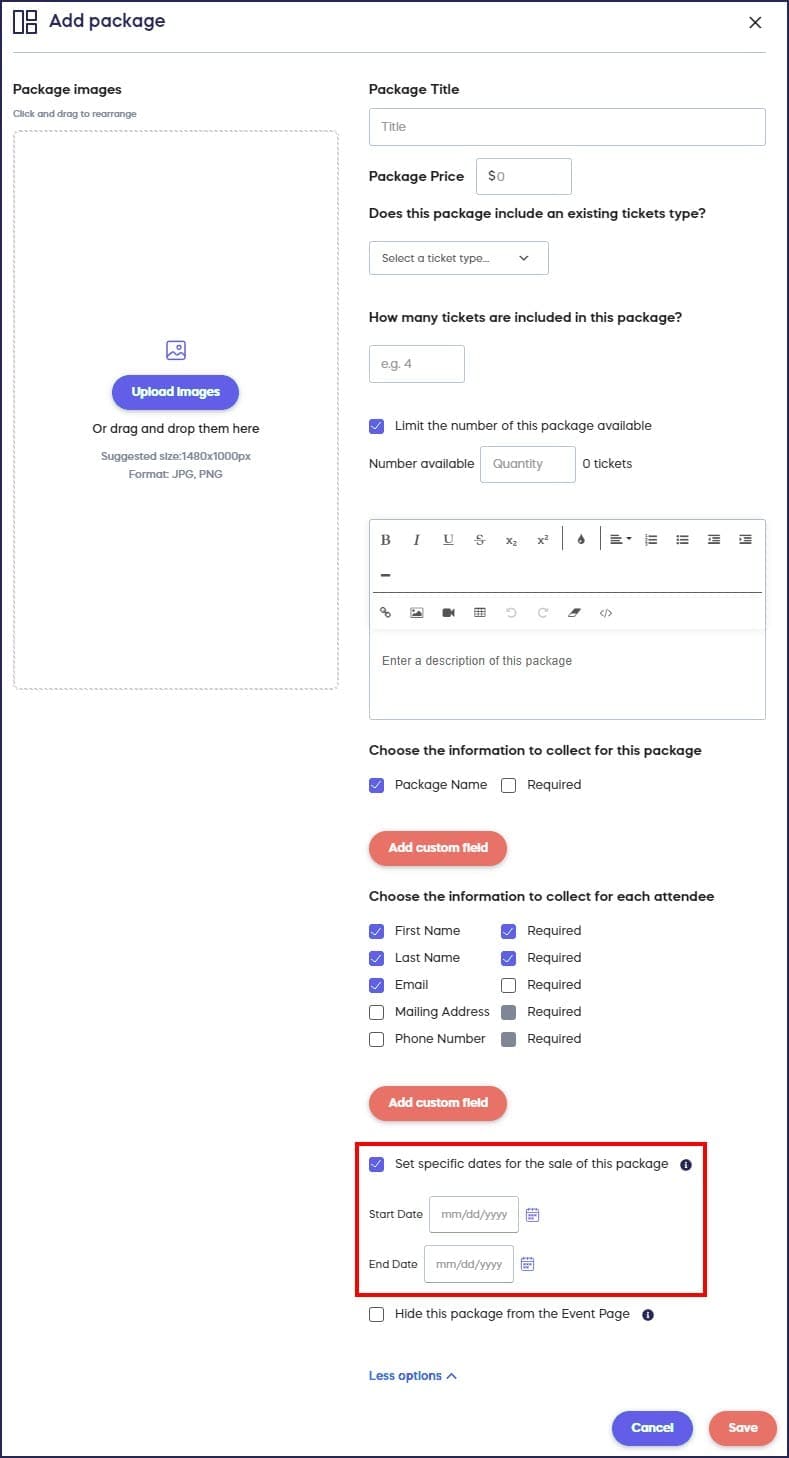
- To set a time limit, click on More Options, check the box next to Set specific dates for the sale of this Table, and choose the dates:
- Select SAVE.
How do I hide a Ticket or Table from my Campaign Page?
Hiding a Ticket or Table removes it from public view on your Campaign Page while keeping it active in your system. Use this when you want to stop accepting new purchases for a specific option — for example, if general admission is closed but a special guest ticket should remain available to select attendees.
- Go to Account Navigation in the left menu and select Campaigns.
- If you have chosen a list view, click on the Campaign title. If you have chosen a grid view, click on the Campaign image.
- Select Edit Campaign.
- Go to Ticketing in the timeline at the top.
- Find the Ticket or Table you want to hide and select Edit.
- Scroll down and select More Options.
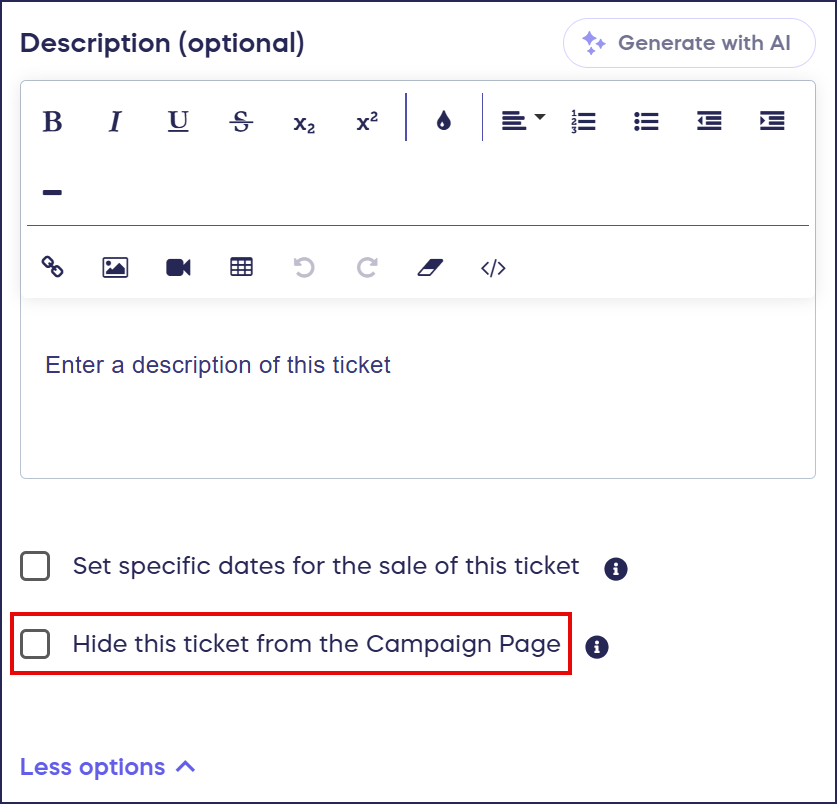
- Check the box next to Hide this Ticket/Table from my Campaign Page:
- Select SAVE.
Repeat these steps for each Ticket or Table you want to hide. Any Tickets or Tables you do not edit will remain visible and available for purchase on your Campaign Page.
Can I organize Tickets and Tables into categories?
If you’re selling many kinds of Tickets or Tables, you can sort them into categories so donors can easily find what they want. Learn more in How-to: Sort Campaign Items into Categories.
Frequently Asked Questions
What’s the difference between Tickets and Tables?
Tickets are individual admission passes to your event, while Tables (also called Packages) include multiple Tickets in a single purchase. You can sell individual Tickets, Tables, or both depending on your event needs.
Can I use different names instead of “Tickets” and “Tables”?
Yes, you can customize the terminology to fit your event. Options include Admission, Registration, Entry, Passes, Seats, Packages, Teams, Groups, or any custom terminology you choose to create. Your chosen terminology will display throughout your Campaign Page.
How do time limits work for Tickets and Tables?
Time limits allow you to offer early bird pricing, wait to display certain options until a specific date, or create urgency by showing when an offer expires. Once the time limit expires, those Tickets or Tables are automatically removed from your Campaign Page.
What happens when a Ticket or Table reaches its quantity limit?
When the quantity limit is reached, the Ticket or Table remains visible on your Campaign Page but the purchase option is disabled and shows as “sold out.” This creates exclusivity and encourages early purchases.
What can I collect with custom fields?
Custom fields let you collect attendee information such as dietary restrictions, t-shirt sizes, marketing opt-ins, agreement to terms and conditions, age, gender, and other relevant data. You can make fields required or optional for each Ticket or Table type.
If a Table includes existing Ticket types, do I need to specify that?
Yes, when creating a Table that includes existing Ticket types (e.g., a Table that includes 4 Seats), select the Ticket type it includes. This ensures the system correctly calculates how many Tickets have been purchased overall.
Can I organize many Ticket and Table options for easier browsing?
Yes, if you’re selling many kinds of Tickets or Tables, you can sort them into categories so donors can easily find what they want. This improves the user experience for events with multiple options.
What is the difference between hiding a Ticket and using a time limit?
A time limit automatically removes a Ticket or Table from your Campaign Page when a specific date passes. Hiding a Ticket gives you manual control — you can hide it at any time, without waiting for a scheduled end date. Use hiding when you need to act immediately or when no automatic expiration date applies.
Will hiding a Ticket affect guests who already purchased it?
No. Hiding a Ticket only removes it from your public Campaign Page. Any existing purchases remain intact, and attendees who already bought that Ticket will not be affected.
Can I unhide a Ticket or Table after hiding it?
Yes. To make a hidden Ticket or Table visible again, edit it, scroll down to More Options, uncheck the Hide this Ticket from my Campaign Page box, and select SAVE.