Learn the benefits of adding images to your Campaign and find out how to add them to different areas.
There are several places where you can add images to liven up your RallyUp fundraiser. Adding images or graphic illustrations can help you quickly convey complex ideas, demonstrate your organization’s positive effect, and enhance the emotional impact of your message.
See how the fundraiser below drives its core messaging home and makes items look more appealing by using images.

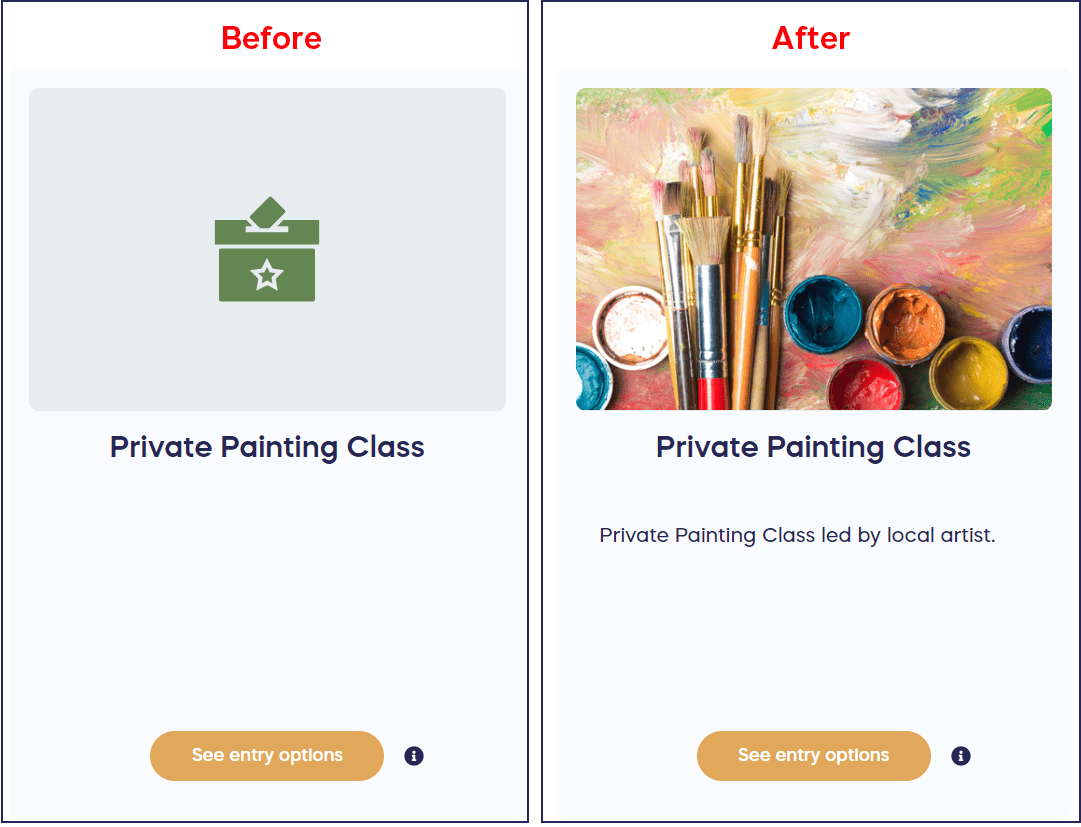
You can add images to the following areas:
- Campaign banner (two options)
- Campaign description
- Raffle, Sweepstakes, and Auction prizes
- Ticketing & Registration tickets
- Storefront items
- Crowdfunding Perks
- Peer-to-Peer registration types
- Sponsor listings
- Donation Page Fund options
You can add images in JPEG or PNG format. Images should be no larger than 20 MB, though even smaller files can sometimes cause rendering issues if the file size is too large. If your image isn’t displaying correctly after uploading, try compressing it first using a free image compression tool, then upload the smaller version. Read on for instructions on how to add images to each area.
How do I set up my Campaign banner?
- Go to Account Navigation in the left menu and select Campaigns.
- If you have chosen a list view, click on the Campaign title. If you have chosen a grid view, click on the Campaign image.
- Select Campaign Setup.
- Select Page Design in the timeline at the top.
- Scroll down to Add images and videos to your Campaign Page.
- Select ADD IMAGE.
- Select the image from your files.
- If you like, crop the image by moving the magnification bar from left to right.
- Select Upload.
Add as many images to your banner as you would like by selecting ADD IMAGE again and repeating steps 7-9.
You can change the order of the images by clicking and dragging:
When donors visit your Campaign Page, the banner images will scroll automatically.
What banner style should I choose for my Campaign?
Note that RallyUp offers two banner style options:
When you create a new Campaign, the banner style will automatically default to Simple, but you can change it to Advanced anytime:
- Go to Account Navigation in the left menu and select Campaigns.
- If you have chosen a list view, click on the Campaign title. If you have chosen a grid view, click on the Campaign image.
- Select Campaign Setup.
- Select Options in the timeline at the top, then select Page Design Options.
- Scroll down to Choose how the top section of your campaign page will look and select Advanced.
See this article for more information on how to properly format your Campaign banner images: How-to: Format Campaign Banner Images.
How do I update my Campaign description?
- Go to Account Navigation in the left menu and select Campaigns.
- If you have chosen a list view, click on the Campaign title. If you have chosen a grid view, click on the Campaign image.
- Select Campaign Setup.
- Go to Page Design in the timeline at the top.
- Scroll down to Share a compelling Campaign description.
- Type or paste your Campaign description, then put your cursor where you would like the image to be placed. You can put the image above, below, or within the text.
- Select the Image icon in the toolbar, then select Drop image.
- Select the image from your files.
- After the image loads, click on the image to bring up the Image toolbar. You can use this to make any desired edits, including resizing, aligning the image right, left, or center, wrapping text around the image, and more:
How do I add images to the Participant Center?
The Participant Center includes a banner image area that appears at the top of your leaderboard page. The recommended image size is 700x394px and no more than 20 MB.
- Go to Account Navigation in the left menu and select Campaigns.
- If you have chosen a list view, click on the Campaign title. If you have chosen a grid view, click on the Campaign image.
- Select Campaign Setup.
- Go to Participant Center in the timeline at the top.
- Scroll to the banner image area near the top of the section.
- Select ADD IMAGE:
- Select an image from your files. You can also add multiple images and click and drag the images to arrange them in your preferred order. The first image will be the default display image:
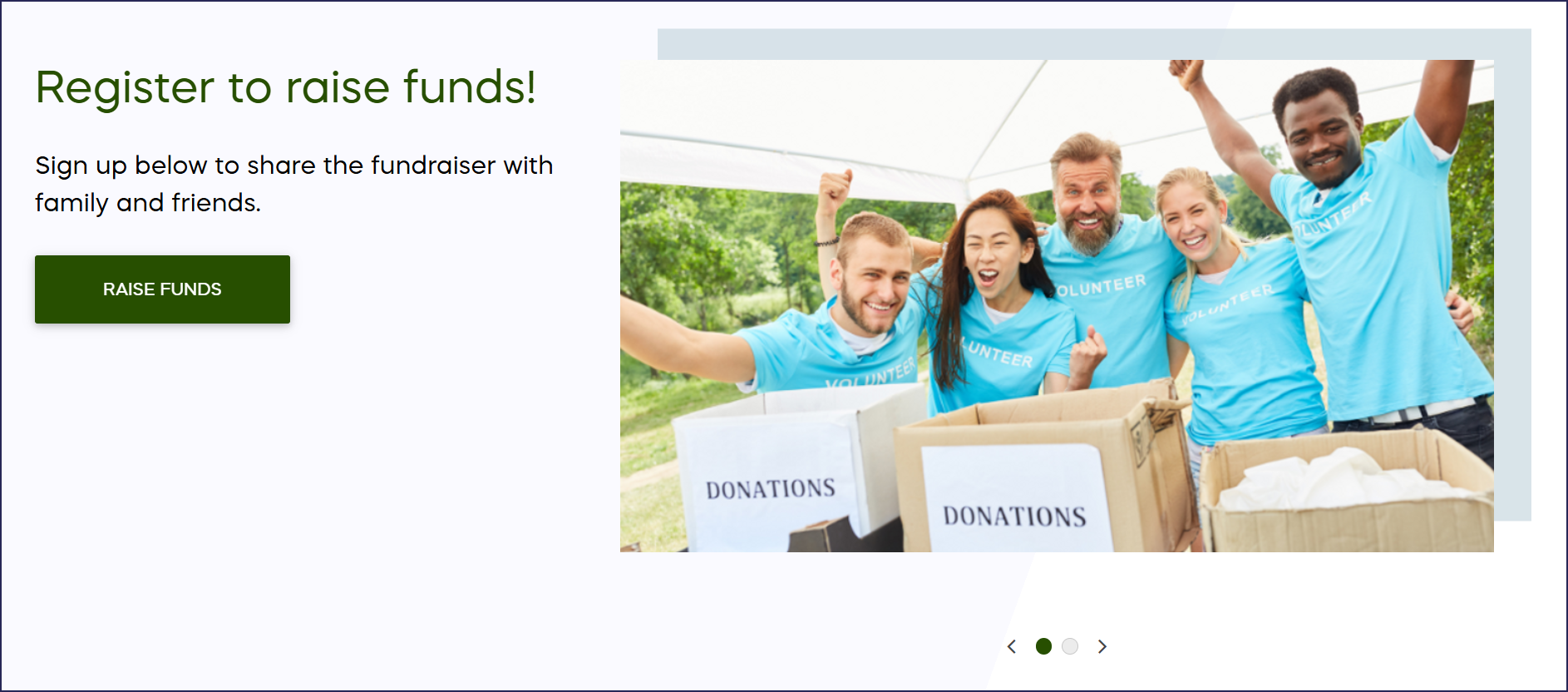
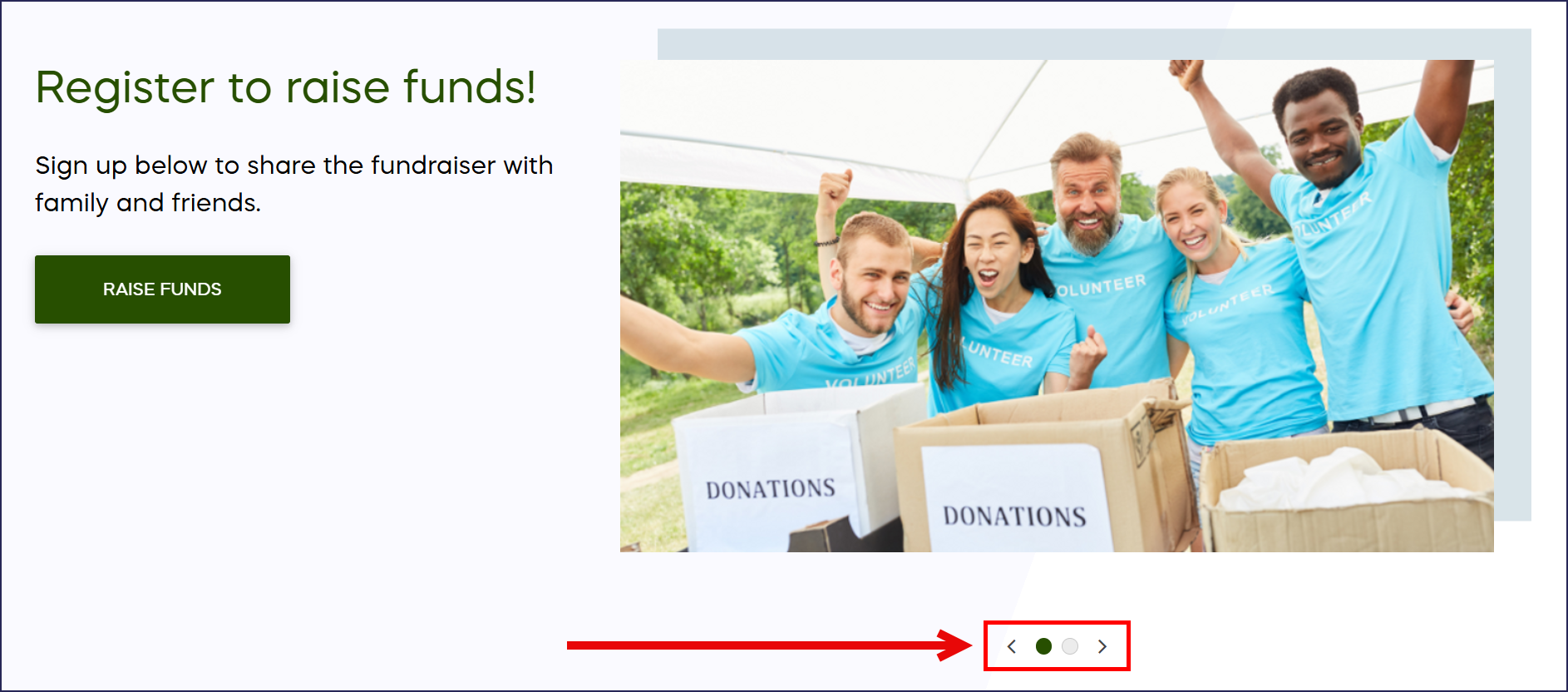
When donors visit your Campaign Page, they can click on the arrows to manually scroll through all images:
- Select Save.
How do I set up Raffle or Sweepstakes prizes?
The recommended image size is 1480x1000px and no more than 20 MB.
- Go to Account Navigation in the left menu and select Campaigns.
- If you have chosen a list view, click on the Campaign title. If you have chosen a grid view, click on the Campaign image.
- Select Campaign Setup.
- Go to Raffle/Sweepstakes in the timeline at the top.
- Scroll down to Add prizes.
- Select Create a Prize, or select the Edit symbol (pencil) to add an image to an existing prize.
- Select Upload images:
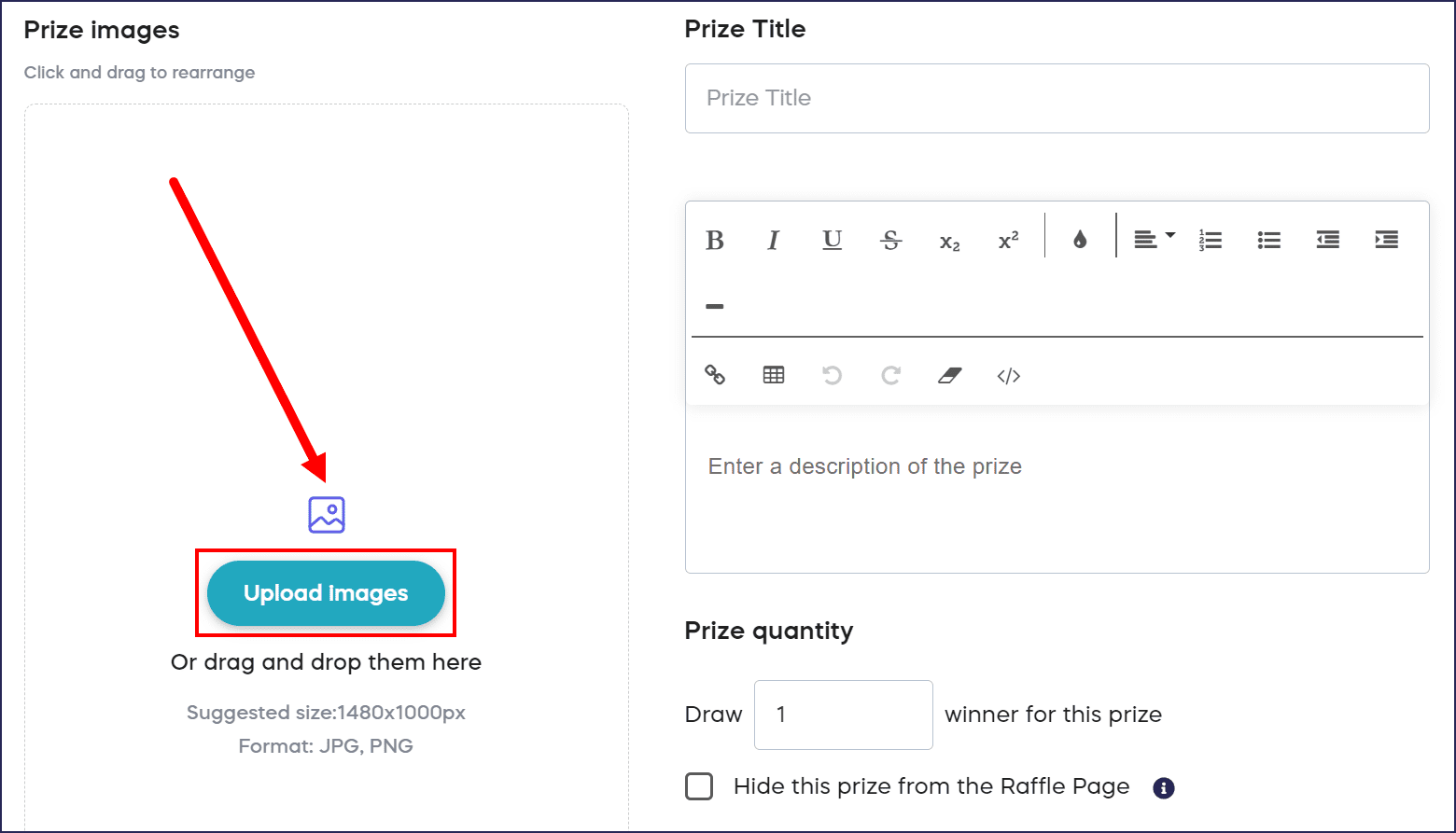
- Select an image from your files. You can also add multiple images and click and drag the images to arrange them in your preferred order. The first image will be the default display image:

When donors visit your Campaign Page, they can click on the arrows to manually scroll through all images:

- Select Save.
How do I set up Ticketing and Registration tickets and packages?
The recommended image size is 1480x1000px and no more than 20 MB.
- Go to Account Navigation in the left menu and select Campaigns.
- If you have chosen a list view, click on the Campaign title. If you have chosen a grid view, click on the Campaign image.
- Select Campaign Setup.
- Go to Ticketing & Registration in the timeline at the top.
- Scroll down to Add tickets/packages.
- Select Create a ticket/package, or select the Edit symbol (pencil) to add an image to an existing prize.
- Select Upload images:

- Select an image from your files. You can also add multiple images and click and drag the images to arrange them in your preferred order. The first image will be the default display image:
When donors visit your Campaign Page, they can click on the arrows to manually scroll through all images:
- Select Save.
How do I set up Auction and Storefront items?
The recommended image size is 1480x1000px and no more than 20 MB.
- Go to Account Navigation in the left menu and select Campaigns.
- If you have chosen a list view, click on the Campaign title. If you have chosen a grid view, click on the Campaign image.
- Select Campaign Setup.
- Go to Auction/Storefront in the timeline at the top.
- Scroll down to Add items.
- Select Create an item, or select the Edit symbol (pencil) to add an image to an existing prize.
- Select Upload images:
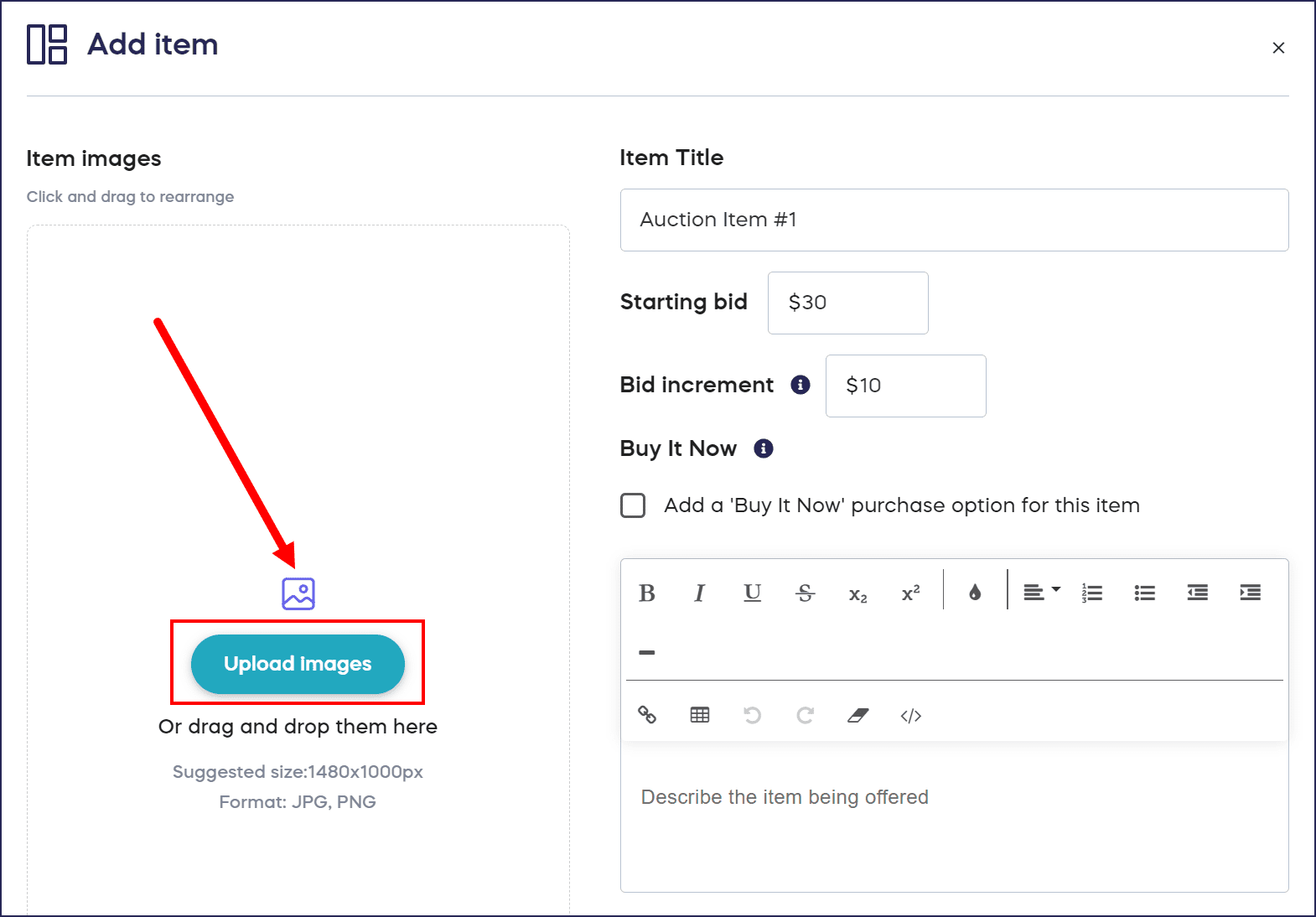
- Select an image from your files. You can also add multiple images and click and drag the images to arrange them in your preferred order. The first image will be the default display image:
When donors visit your Campaign Page, they can click on the arrows to manually scroll through all images:
- Select Save.
How do I set up Crowdfunding Perks?
The recommended image size is 1480x1000px and no more than 20 MB.
- Go to Account Navigation in the left menu and select Campaigns.
- If you have chosen a list view, click on the Campaign title. If you have chosen a grid view, click on the Campaign image.
- Select Campaign Setup.
- Go to Crowdfunding in the timeline at the top.
- Scroll down to Add perks.
- Select Create a perk, or select the Edit symbol (pencil) to add an image to an existing prize.
- Select Upload images:
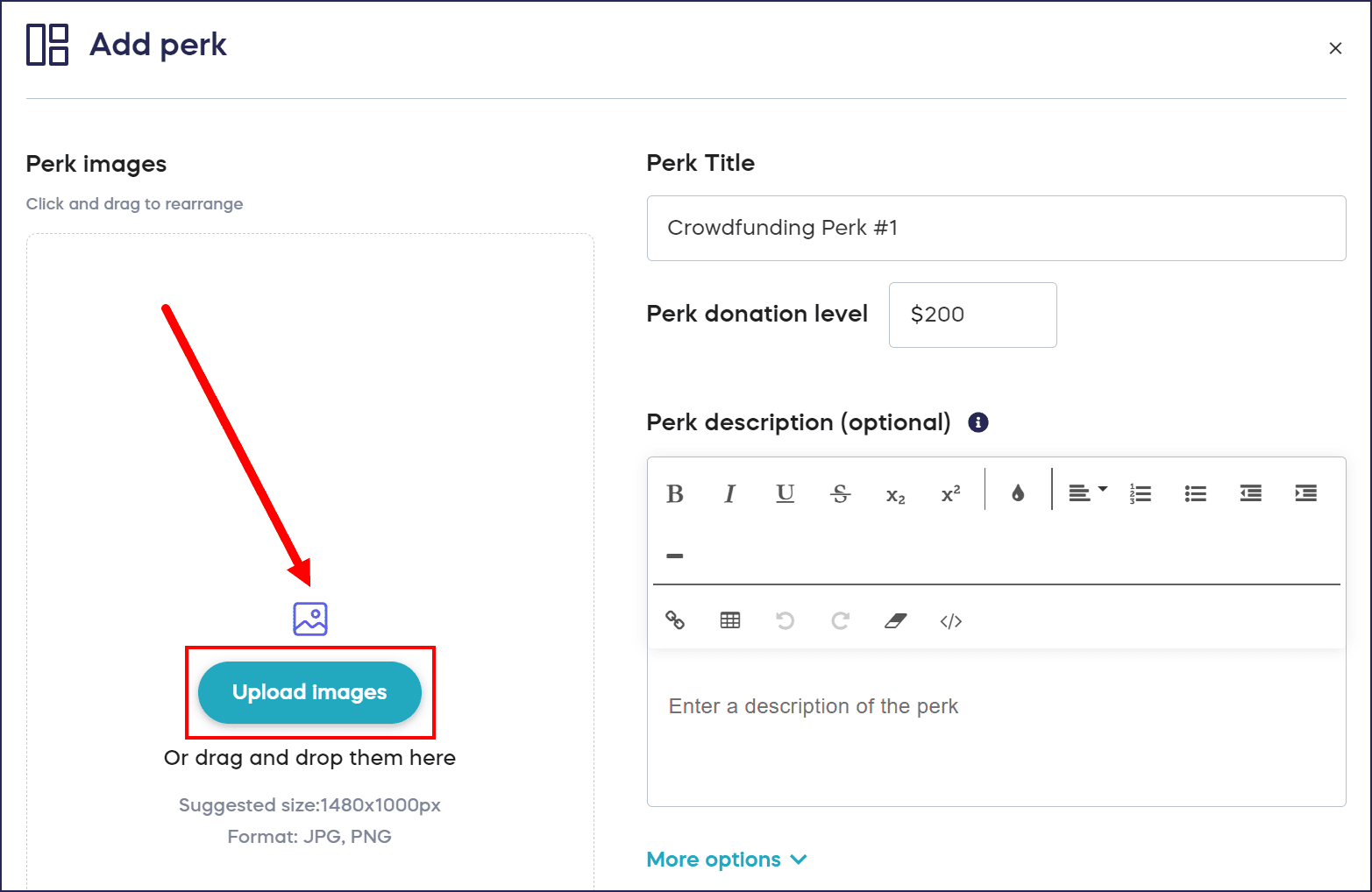
- Select an image from your files. You can also add multiple images and click and drag the images to arrange them in your preferred order. The first image will be the default display image:
When donors visit your Campaign Page, they can click on the arrows to manually scroll through all images:
- Select Save.
How do I set up Peer-to-Peer registration types?
The recommended image size is 1480x1000px and no more than 20 MB.
- Go to Account Navigation in the left menu and select Campaigns.
- If you have chosen a list view, click on the Campaign title. If you have chosen a grid view, click on the Campaign image.
- Select Campaign Setup.
- Go to Peer-to-Peer in the timeline at the top.
- Scroll down to Add participant/team registration types.
- Select Create participant/team registration, or select the Edit symbol (pencil) to add an image to an existing prize.
- Select Upload images:
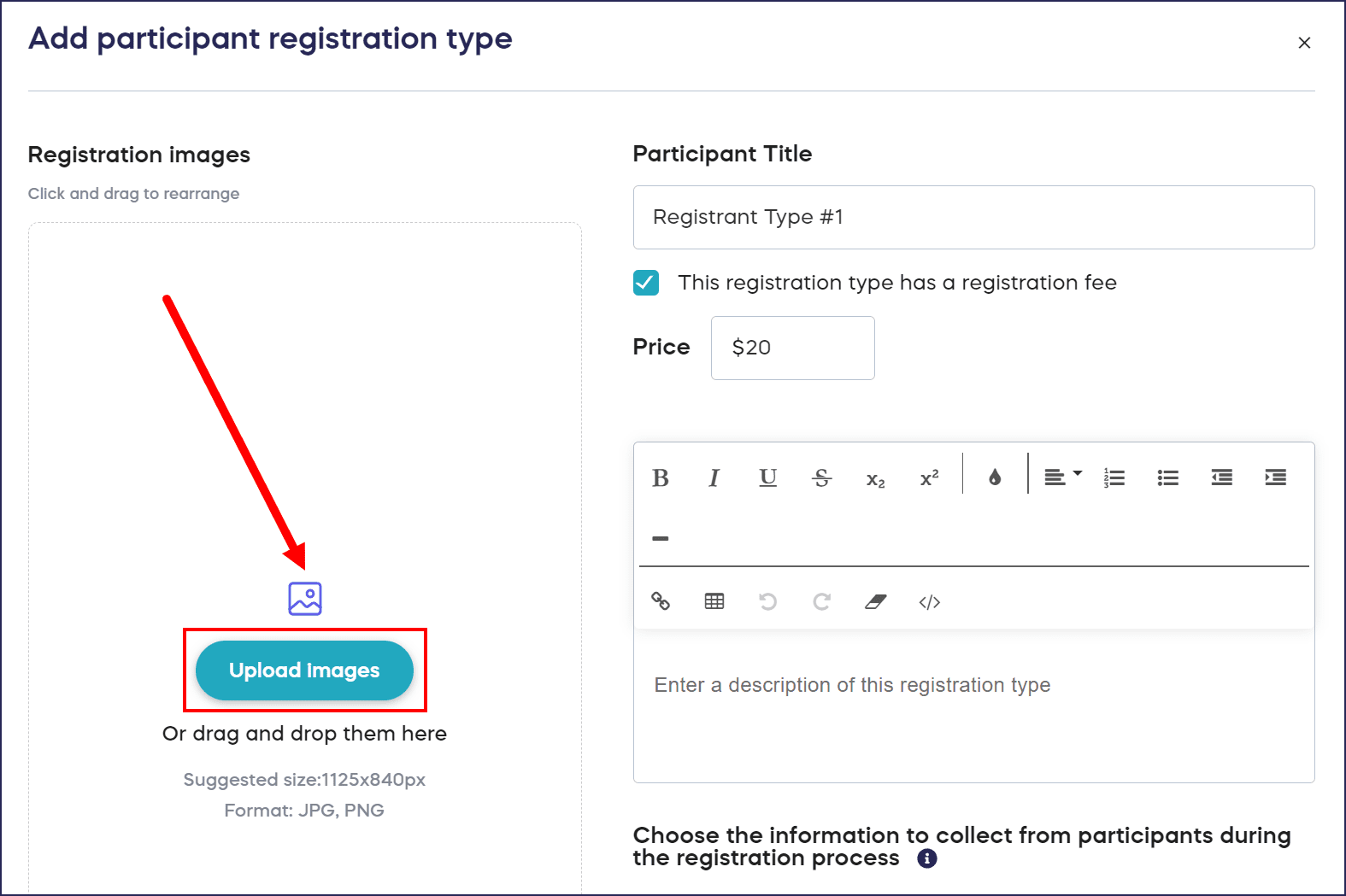
- Select an image from your files. You can also add multiple images and click and drag the images to arrange them in your preferred order. The first image will be the default display image:
When donors visit your Campaign Page, they can click on the arrows to manually scroll through all images:
- Select Save.
How do I set up Sponsor listings?
The recommended image size is 1480x1000px and no more than 20 MB.
- Go to Account Navigation in the left menu and select Campaigns.
- If you have chosen a list view, click on the Campaign title. If you have chosen a grid view, click on the Campaign image.
- Select Campaign Setup.
- Go to Options in the timeline at the top and select Campaign Options.
- Scroll down to Add sponsors to your Campaign Page.
- Select CREATE A SPONSOR, or select the Edit symbol (pencil) to add an image to an existing prize.
- Select Upload images:
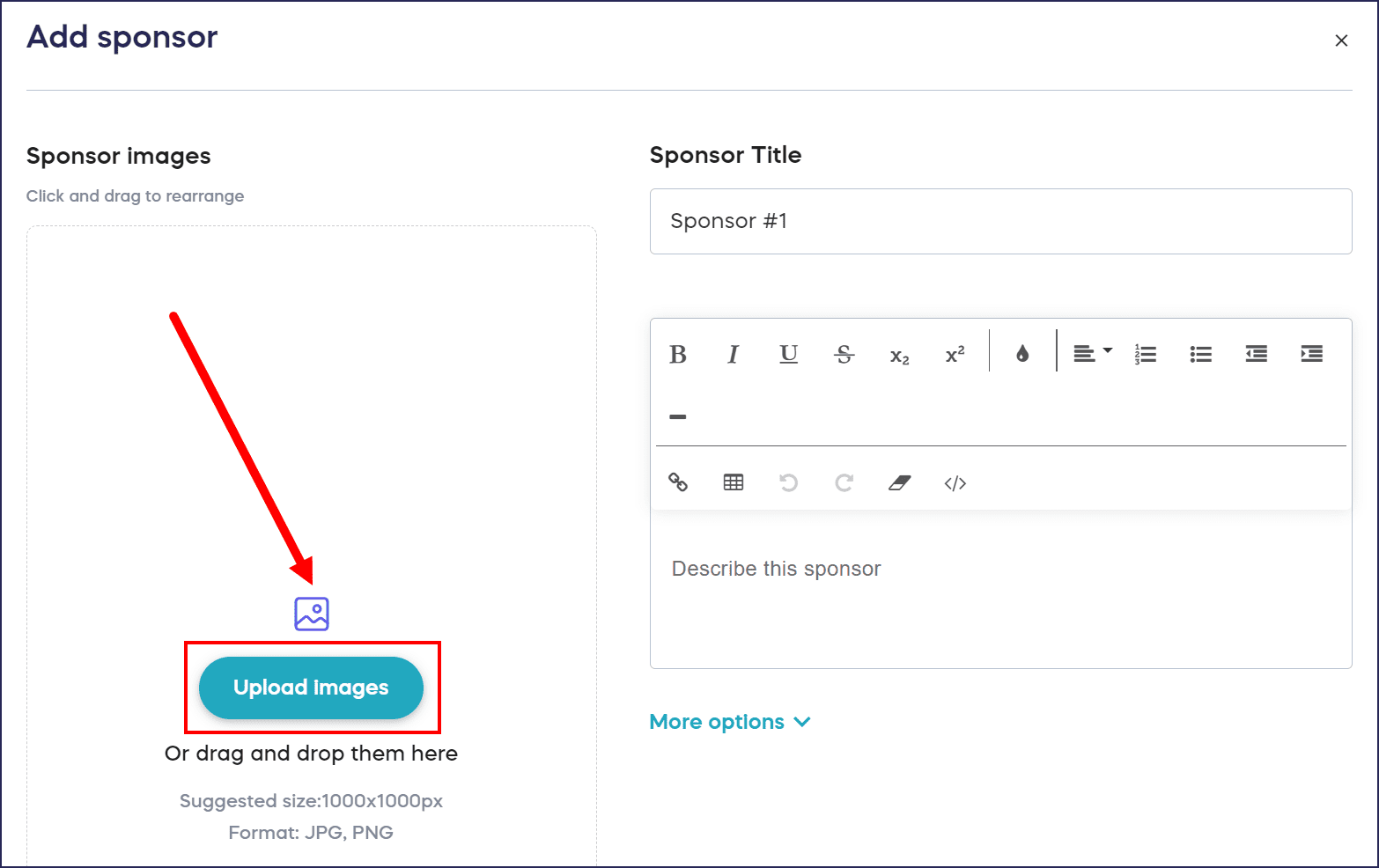
- Select an image from your files. You can also add multiple images and click and drag the images to arrange them in your preferred order. The first image will be the default display image:
When donors visit your Campaign Page, they can click on the arrows to manually scroll through all images:
- Select Save.
How do I set up my Donation Page banner?
The recommended image size is 1920x560px and no more than 20 MB.
- Go to Organization Settings in the left menu and select Donation Pages.
- Select CREATE A DONATION PAGE, or select the Donation Page title to edit an existing Donation Page.
- If you’re editing an existing Donation Page, select Donation Page Setup.
- Scroll down to Upload a banner image.
- Select Add image:

- Select an image from your files.
- Select Save.
How do I set up Donation Page Fund options?
The recommended image size is 500x500px and no more than 20 MB.
- Go to Organization Settings in the left menu and select Donation Pages.
- Select CREATE A DONATION PAGE, or select the Donation Page title to edit an existing Donation Page.
- If you’re editing an existing Donation Page, select Donation Page Setup.
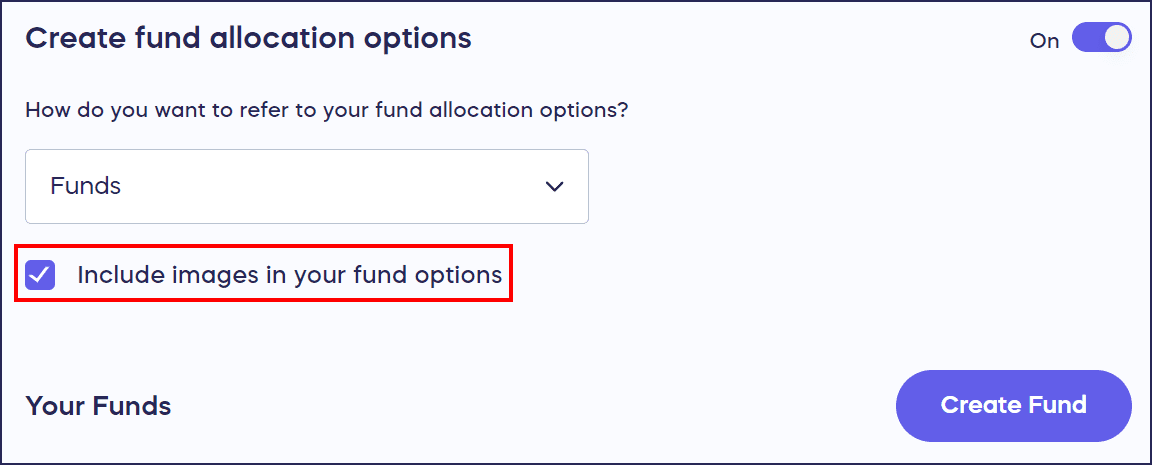
- Scroll down to Create fund allocation options. If this feature is not already turned on, do so by clicking on the toggle to move it to the right.
- Ensure that the Include images in your fund options checkbox is checked:
- Select Create Fund, or select the Edit symbol (pencil) to add an image to an existing Fund.
- Select Add image:

- Select an image from your files.
- Select Save.
Frequently Asked Questions
What image formats does RallyUp accept?
RallyUp accepts images in JPEG or PNG format. Image files should be no larger than 20 MB. However, even images under 20 MB can cause rendering issues if the file size is too large. If your image uploads but does not display correctly, try compressing it before uploading again.
My image uploaded but is not displaying correctly. What should I do?
If your image isn’t showing after uploading, this is usually a file size issue. Even if your image is under the 20 MB limit, a large file size can prevent the image from rendering correctly.
To fix this, run your image through a free image compression tool to reduce the file size while keeping the quality, then upload the smaller version. This applies to any area of the fundraiser where images can be uploaded.
What is the recommended image size for Campaign images?
The recommended image size is 1480×1000 pixels and no more than 20 MB. This ensures your images look professional and load quickly for donors visiting your Campaign Page.
Can I add multiple images to my Campaign?
Yes, you can add multiple images to several areas including your banner, prizes, Crowdfunding Perks, and prizes or other items. For banner images, they will scroll automatically when donors visit your Campaign Page.
Why should I add images to my fundraiser?
Adding images helps you quickly convey complex ideas, demonstrate your organization’s positive impact, and enhance the emotional connection with donors. Images make items look more appealing and help drive your core messaging home.
Can I rearrange the order of multiple images?
Yes, when you add multiple images to areas like your banner, prizes, or items, you can change the order by clicking and dragging them into your preferred sequence. The first image will be the default display image.
Why does my new Campaign still show images from a previous Campaign?
If you copied a Campaign from a previous year, the images carry over from the original. To update them, go to Campaign Setup and replace the images with new ones. Your changes take effect as soon as you save.