Give donors easy access to your fundraising Campaigns with QR codes.
QR codes make it easy for donors to access your fundraising Campaigns. When they scan the QR code with the cameras on their mobile devices, they’ll be taken directly to the Campaign.
How-to: Use QR Codes to Promote Your Fundraisers
How do I create a QR code for my Campaign Page?
- Go to Account Navigation in the left menu and select Campaigns.
- If you have chosen a list view, click on the Campaign title. If you have chosen a grid view, click on the Campaign image.
- Select Campaign Setup.
- Go to Page Design in the timeline at the top and select Expand optional settings.
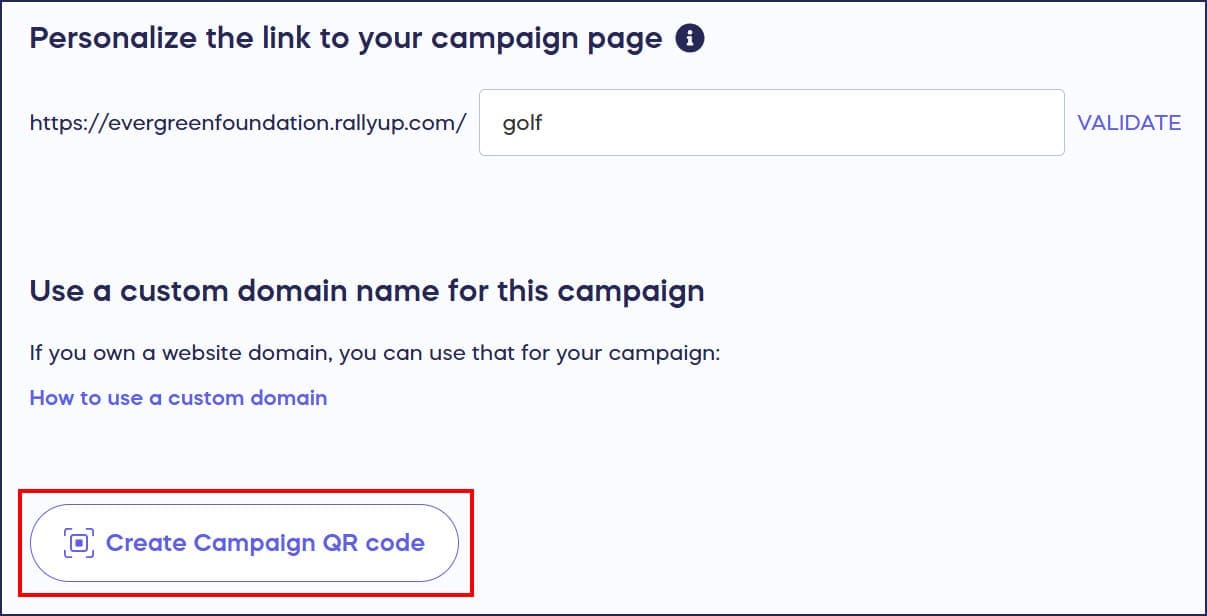
- Scroll down to Personalize the link to your Campaign page and select Create Campaign QR code:
The code will generate automatically in a small window:
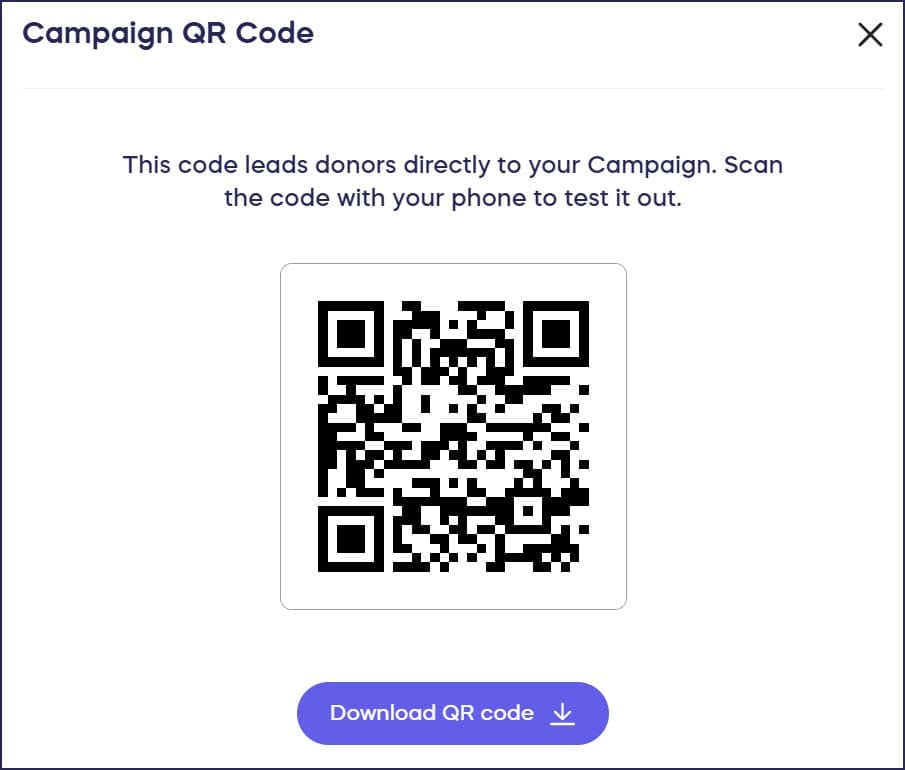
- Download the QR code. The QR code will be formatted as an image file (.png).
- Insert your Campaign QR code into your promotional material, web pages, or other documents the same way you would insert an image. Donors who scan the code with mobile devices will be taken directly to your Campaign Page.
Frequently Asked Questions
What is a Campaign Page QR code used for?
A Campaign Page QR code allows donors to quickly access your fundraiser by scanning the code with their mobile device cameras. When scanned, they’re taken directly to your Campaign Page without needing to type a URL.
What file format is the Campaign Page QR code?
The Campaign Page QR code downloads as a .png image file, which can be easily inserted into promotional materials, flyers, presentations, emails, and other documents.
Can I create a QR code before my Campaign goes live?
Yes, you can create a QR code for your Campaign at any time, even while it’s in Draft Mode. The QR code will work as soon as your Campaign is published and live.
Where should I use my Campaign Page QR code?
Use your QR code on printed materials like flyers and posters, at events on table tents or signage, in email signatures, on social media posts, in presentations, or anywhere donors might see it and want quick access to your Campaign.
Does the QR code work for all Campaign types?
Yes, you can create a Campaign Page QR code for any type of Campaign on RallyUp, including Raffles, Sweepstakes, Auctions, Crowdfunding, Peer-to-Peer, A-Thons, Storefronts, and Ticketing & Registration.