Allow guest presenters to access your Livestream by inviting them to become Campaign Administrators.
RallyUp’s Livestream feature lets you host multiple presenters at once. All presenters must be added as Campaign Administrators, allowing them to access the Livestream Studio and all Presenter Controls. This enables you to feature guest speakers, co-hosts, auctioneers, or special guests during your virtual fundraising events.
Why would I add multiple presenters to my Livestream?
Multiple presenters enhance your Livestream’s engagement and professionalism by bringing diverse voices and expertise to your event. Common scenarios include:
- Featuring special guest speakers who can share stories or testimonials related to your cause
- Having co-hosts who can manage different segments of your event
- Bringing in professional auctioneers for Live Auctions
- Showcasing beneficiaries or program participants
- Including board members and staff for comprehensive event coverage
Multiple presenters create dynamic conversations, allow for panel discussions, and let you transition smoothly between different Livestream segments. This capability transforms single-presenter broadcasts into engaging multi-person productions that maintain audience interest throughout your event.
Understanding Livestream Studio Presenter Controls helps you prepare presenters for their roles.
What access do Livestream presenters have as Campaign Administrators?
Presenters added as Campaign Administrators gain broad access to your Campaign settings beyond just the Livestream Studio. Campaign Administrators have:
- Access to all Campaign settings including fundraising configurations, donor information, financial reports, and Campaign content.
- Ability to view, edit, and manage most aspects of your Campaign through the administrator dashboard.
This comprehensive access allows presenters to troubleshoot issues during the Livestream but also means they can see sensitive Campaign data. Because of this broad access level, carefully consider who you invite as Administrators and plan to remove guest presenters’ Administrator status after your Livestream ends if they don’t need ongoing access to Campaign Management.
How do I add a presenter as a Campaign Administrator?
- Go to Account Navigation in the left menu and select Campaigns.
- If you have chosen a list view, click on the Campaign title. If you have chosen a grid view, click on the Campaign image.
- Select Manage Administrators.
- Select Add Administrator in the top right corner of the screen.
- Enter the email address of the person you would like to add.
- Select INVITE, which will send an email to the guest presenter:

When the guest presenter receives the email, they’ll need to click on the link in the email and create an account if they don’t already have one. Your Campaign will appear in their Campaigns menu, and they can access the Livestream Studio from there.
What happens after I send the presenter invitation?
After you send the invitation, the guest presenter receives an email with a link to accept the administrator invitation. If they already have a RallyUp account, they simply log in and the Campaign appears in their account.
If they’re new to RallyUp, they create an account using the email address where they received the invitation. Once they complete account setup, they have immediate access to your Campaign and can enter the Livestream Studio.
The presenter should test their camera and microphone before your event starts to ensure technical readiness. They can enter the green room area to prepare without going live on camera. Learn how presenters should join a Livestream as a guest presenter to understand their perspective and prepare them for success.
How do I remove a presenter’s access after the Livestream?
After your Livestream concludes, you should remove guest presenters’ administrator access if they don’t need ongoing Campaign management capabilities:
- Go to Account Navigation in the left menu and select Campaigns.
- If you have chosen a list view, click on the Campaign title. If you have chosen a grid view, click on the Campaign image.
- Select Manage Administrators.
- Hover over the Administrator’s name and select the three-dot icon on the right.
- Select Remove:
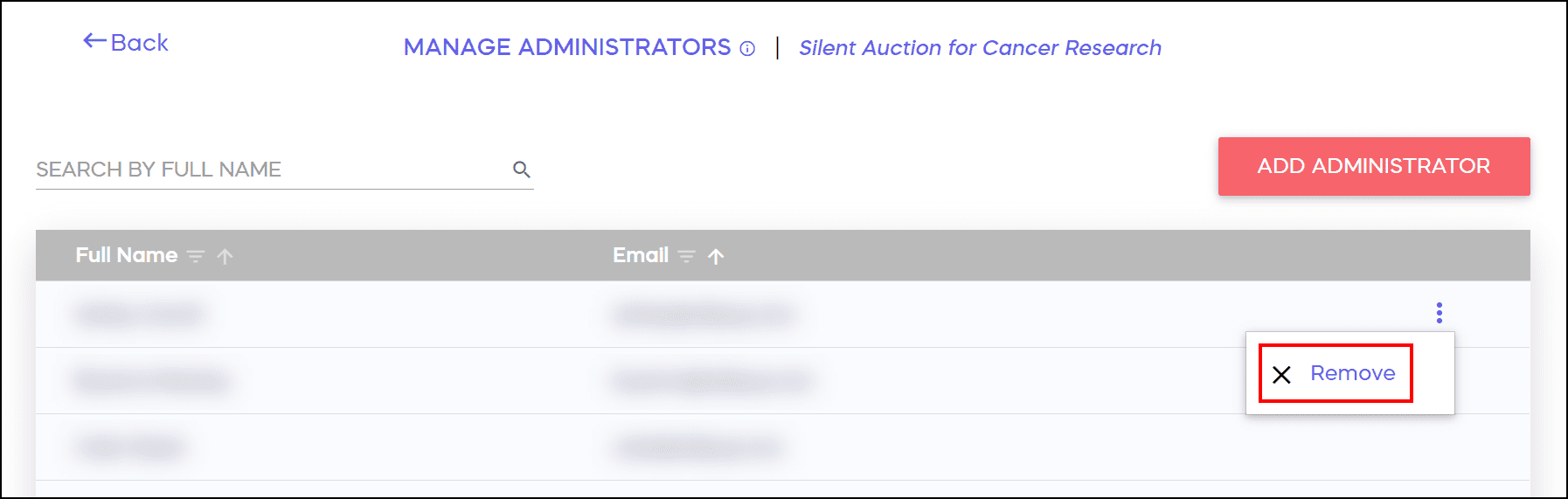
Removing administrator access prevents them from viewing Campaign settings, donor information, and financial data while maintaining your Campaign’s security. You can always re-invite them as Administrators for future Livestreams if needed. This practice protects your organization’s sensitive information while still enabling collaborative Livestream presentations when needed.
Should I brief presenters before the Livestream starts?
Yes, conducting a pre-Livestream briefing with all presenters ensures smooth execution and professional presentation.
- Schedule a practice session where presenters can test their equipment, familiarize themselves with Presenter Controls, and understand the Livestream flow.
- Discuss the event schedule, transition cues between presenters, and protocols for addressing technical issues.
- Establish communication methods for off-camera coordination during the live event.
- Review guidelines for appropriate content and behavior during the broadcast.
- Brief presenters on key fundraising messages, call-to-action timing, and how to engage with audience chat.
These preparations prevent confusion during the live event and create a cohesive, professional presentation that maximizes fundraising impact.
Frequently Asked Questions
Can I add presenters after my Livestream has already started?
Yes, you can add Campaign Administrators at any time, including during a live Livestream. However, the new presenter will need time to receive the invitation, create an account (if necessary), and enter the Livestream Studio. For seamless event execution, add all presenters before your Livestream begins so everyone can test equipment and prepare in the green room. Emergency additions are possible but may cause delays or disruptions.
How many presenters can I have on screen simultaneously?
RallyUp Livestream supports multiple presenters appearing on screen together for panel discussions, interviews, or co-hosting scenarios. While there’s no strict limit, consider that having too many simultaneous video feeds may affect bandwidth and viewing experience. Most successful Livestreams feature two to four presenters on screen at once, with additional presenters waiting in the green room to join when appropriate.
Do presenters need special equipment to join the Livestream?
Presenters need a device with a working camera and microphone plus stable internet connection. Most laptops have built-in cameras and microphones that work adequately, though external webcams and headset microphones often provide better quality. A wired internet connection is preferable to WiFi for more stable streaming. Test equipment during a practice session before your live event to identify and resolve any technical issues.
Can I have some presenters join remotely while others are in the same location?
Yes, presenters can join from any location as long as they have internet access. Some presenters might join from your event venue while others participate remotely from their homes or offices. This flexibility lets you include speakers who cannot attend in person while maintaining the collaborative Livestream format. All presenters access the same Livestream Studio regardless of their physical location.
What should I do if a presenter accidentally changes Campaign settings?
If a presenter inadvertently modifies Campaign settings, you can review and correct changes through your administrator dashboard. Check your Campaign Setup sections after the Livestream to ensure all settings remain correct. To prevent accidental changes, brief presenters that they should only access the Livestream Studio and avoid navigating to other Campaign management areas. After the event, promptly remove administrator access from presenters who don’t need ongoing Campaign management capabilities.