
Heat up fundraising engagement with images that POP
In this article
Ready for a kernel of wisdom on how to hook donors through your fundraiser images?
Raise more with these 5 fast, effective ways to create compelling Campaign images that spotlight your fundraising engagement:
- Focus on authentic images – Show real people, animals, environments (or anything) you are helping. Capturing candid, even (wait for it) corny, moments from your community will tug at heartstrings.
- Use bold colors – Vibrant, contrasting colors grab attention faster than that fresh, warm, buttery popcorn smell at the movies.
- Pick faces – Choose close-up photos showing people’s emotions to create connection. Expressive smiles, eyes, and genuine interactions with your community/cause will do the trick.
- Share stories – Pick images that capture your story and impact. Show donors how their donation helps.
- Optimize images – Reduce your image’s file size (without compromising the quality) for fast-loading fundraising engagement pages.
https://tinypng.com/ and https://jpeg-optimizer.com/ are two great sites for this!
Are you a RallyUp customer and want to learn how?
Here’s How!
Main page: Experience banner and description images
To add an image to your Experience banner, go to Page Design in Experience Setup, scroll down to Add images and videos to your Experience Page and select ADD IMAGE:

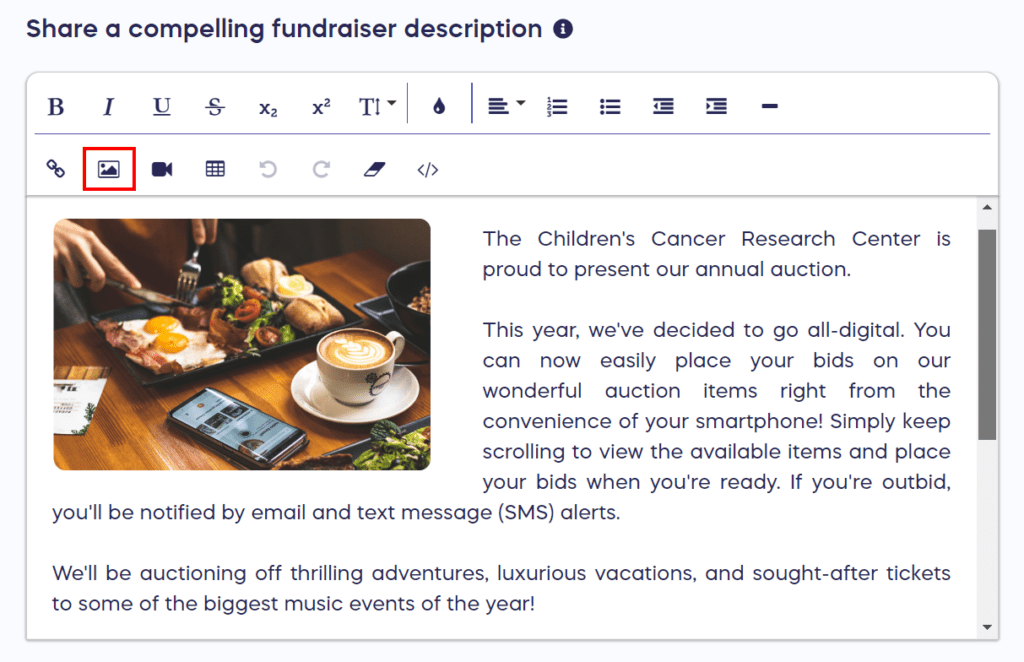
To add an image to your Experience description, go to Page Design in Experience Setup, scroll down to Share a compelling experience description and click on the image icon in the toolbar:
Item (in an Auction, Raffle, etc.) images
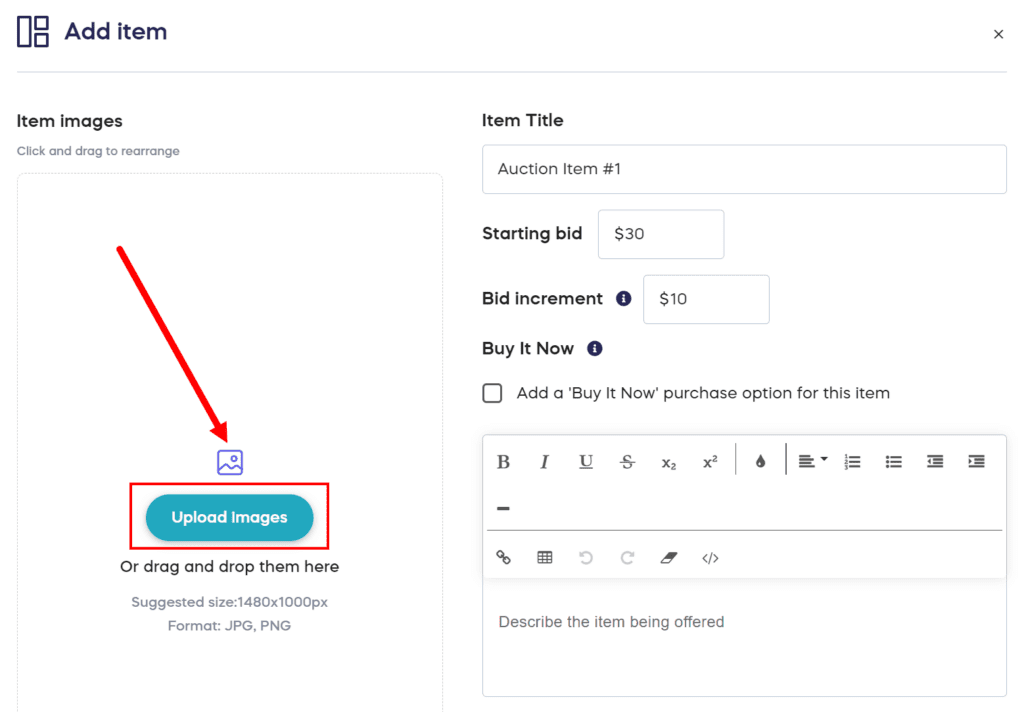
To add an image to an Experience item, go to Experience Setup, find the item where you want to add an image, and select Upload images:
Organization description image:
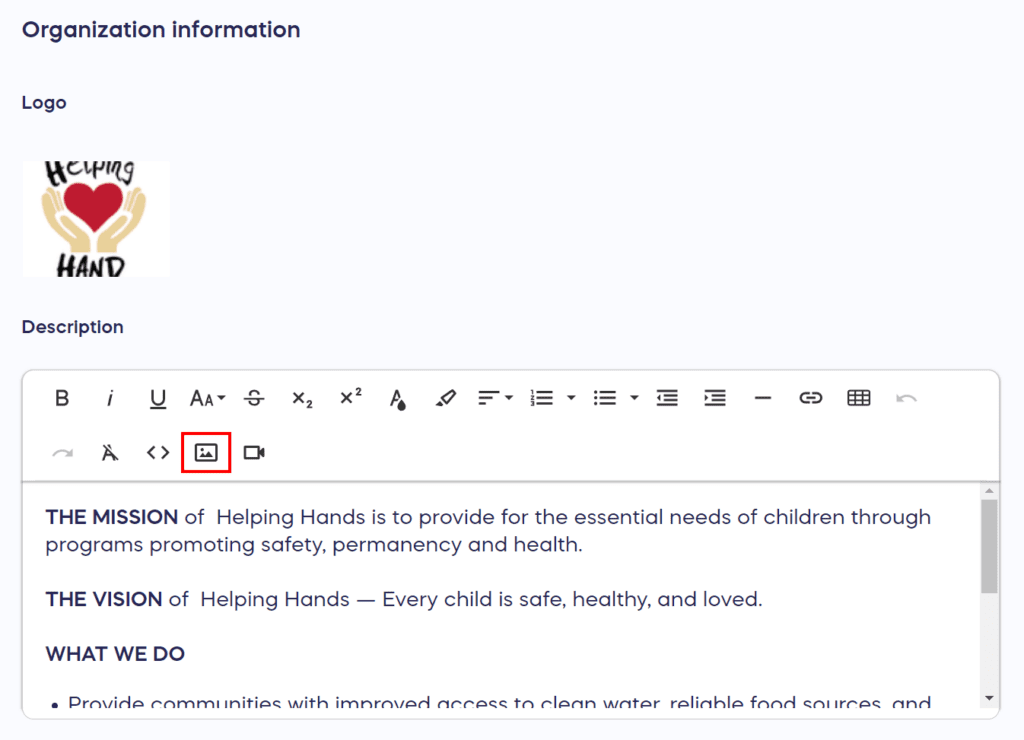
To add an image to your organization description, go to Profile under Settings in the left menu, scroll down to Description under Organization information, and click on the image icon in the toolbar:
For more information about how to make your fundraising images pop, learn more here!
Now that you’ve seen it in action, are you ready to start fundraising?
Get Started