Choose which leaderboards to display in the Participant Center.
When you run a Peer-to-Peer or A-Thon fundraising Campaign on RallyUp, you can display leaderboards to promote friendly competition and motivate Participants* and/or Teams* to raise more for your cause. RallyUp allows you to choose from multiple leaderboard options to meet your unique fundraising needs.
*Terminology may differ according to Campaign settings.
What leaderboard options are available?
RallyUp offers the following leaderboard options:
- Amount raised: Show the Participants and/or Teams that raise the most money.
- Unique donors*: Show the Participants and/or Teams that have the most donors.
- Units* completed (A-Thon only): Show the A-Thon Participants and/or Teams that complete the most units of an activity.
Depending on your Campaign and prize settings, you can display leaderboards for one, multiple, or all of these options.
*Terminology may differ according to Campaign settings.
What are the requirements for displaying leaderboards?
- Learn how to enable Peer-to-Peer on your fundraising Campaign in this Knowledge Base article: Understand: Peer-to-Peer Fundraising.
- You can only display leaderboards if you enable a Participant Center on your Campaign: Understand: Peer-to-Peer or A-Thon Participant Center.
How do I enable and configure leaderboards?
- Go to Account Navigation in the left menu and select Campaigns.
- If you have chosen a list view, click on the Campaign title. If you have chosen a grid view, click on the Campaign image.
- Select Edit Campaign.
- Go to Participant Center in the timeline at the top.
- Scroll down to Choose which leaderboards you want to show.
- Select the leaderboard(s) you want to display by clicking on the toggle(s) to move them to the right (on):

- If you want to display more than one leaderboard, select a default by clicking on the Default button:
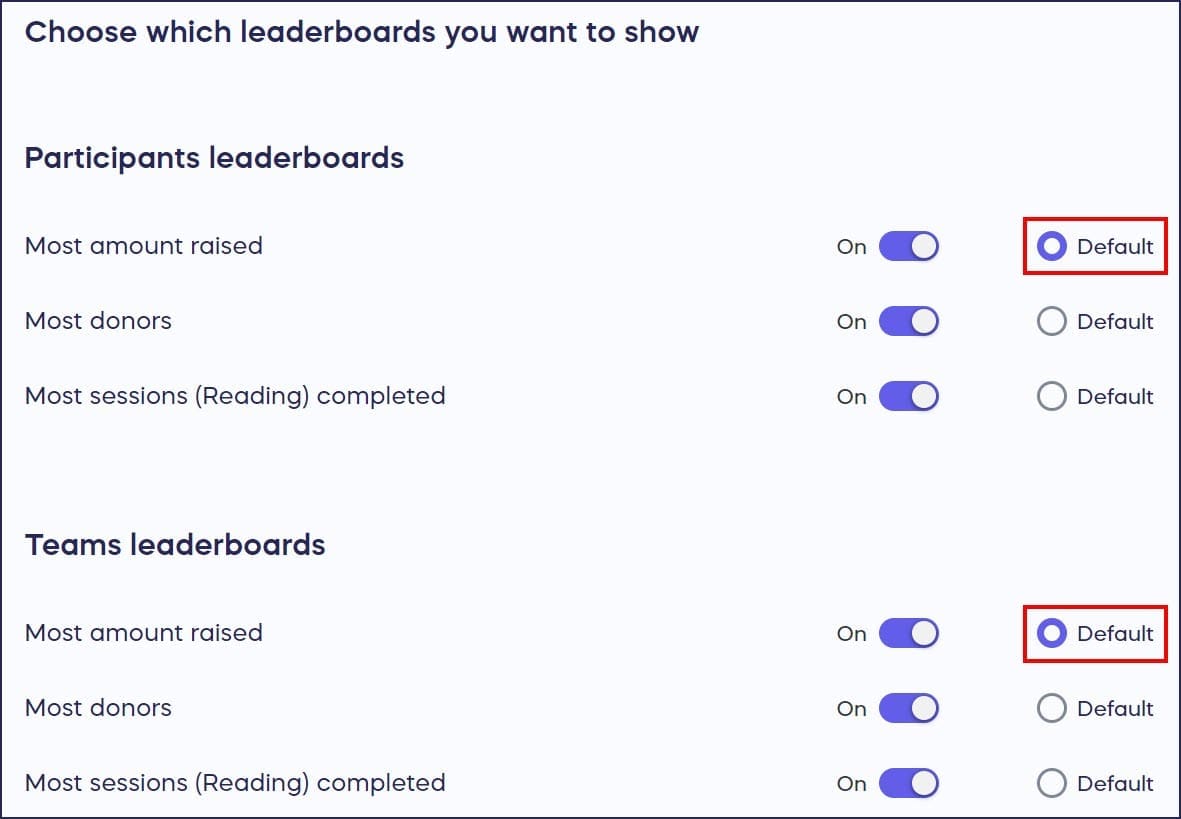
The default leaderboard will be the one on display whenever someone visits the Participant Center (see Donor View below).
- Select Save.
How do leaderboards appear to donors?
Leaderboards are displayed in the Participant Center:

Leaderboard stats update when:
- A Participant or Team logs activity progress.
- A donor credits a flat donation or A-Thon pledge to a Participant or Team.
If you have more than one leaderboard, the default will display automatically. Donors can view the other(s) by using the dropdown menu:


Can I hide leaderboards or display prizes?
- You can hide one, multiple, or all leaderboards from the Participant Center: How-to: Hide Peer-to-Peer or A-Thon Leaderboards.
- You can also display prizes in your Participant Center: How-to: Add Peer-to-Peer or A-Thon Prizes.
Frequently Asked Questions
Do I need a Participant Center to display leaderboards?
Yes, you can only display leaderboards if you enable a Participant Center on your Peer-to-Peer or A-Thon Campaign. The leaderboards appear within the Participant Center for donors to view.
Can I display multiple leaderboards at the same time?
Yes, you can enable multiple leaderboards (amount raised, unique donors, units completed). When you display more than one, select a default that will show first, and donors can switch between them using a dropdown menu.
When do leaderboard stats update?
Leaderboard statistics update automatically when a Participant or Team logs activity progress, or when a donor credits a donation or pledge to a specific Participant or Team.
What’s the difference between the three leaderboard types?
Amount raised shows who raises the most money, unique donors displays who has the most individual supporters, and units completed (A-Thon only) tracks who completes the most activity units like laps or miles.
Can I hide leaderboards after enabling them?
Yes, you can hide one, multiple, or all leaderboards from the Participant Center at any time if you want to reduce competition or change your Campaign strategy.