Process outside donations and phone-in contributions through your Campaign.
When running a fundraising Campaign on RallyUp, you may encounter donors who prefer to contribute outside of your Campaign Page. With RallyUp’s manual charge feature, you can charge donor credit cards for phone-in and in-person donations and ensure every contribution counts toward your Campaign’s total. Note: If you’re running a Campaign as an Advocate or Corporate Social Responsibility program, you won’t be able to add sales tax to items.
What types of outside donations can I process manually?
You can manually charge credit cards for general donations and contributions that don’t require specific fulfillment items. This works well for straightforward monetary gifts, pledges made during Livestream events, and donations collected at fundraising galas or community events.
However, you cannot use manual charges for transactions that involve specific Campaign elements like Ticketing & Registration purchases, Auction bids, Peer-to-Peer Participant registrations, or Storefront merchandise orders. These item-specific transactions require online completion through your Campaign Page. For offline Raffle or Sweepstakes entry purchases, use the dedicated offline entry tool described in this article instead: How-to: Add Raffle or Sweepstakes Tickets You’ve Sold Offline.
How do I charge a donor’s credit card manually?
Processing a manual credit card charge requires you to collect the donor’s payment information and enter it directly into your Campaign management system. To successfully process the charge, you need complete payment details including the full card number, expiration date, CVV security code, billing ZIP code, and the donor’s full name as it appears on the card. You’ll also need their email address for receipt delivery and phone number for your records. Once you have this information ready, follow these steps:
- Go to Account Navigation in the left menu and select Campaigns.
- If you have chosen a list view, click on the Campaign title. If you have chosen a grid view, click on the Campaign image.
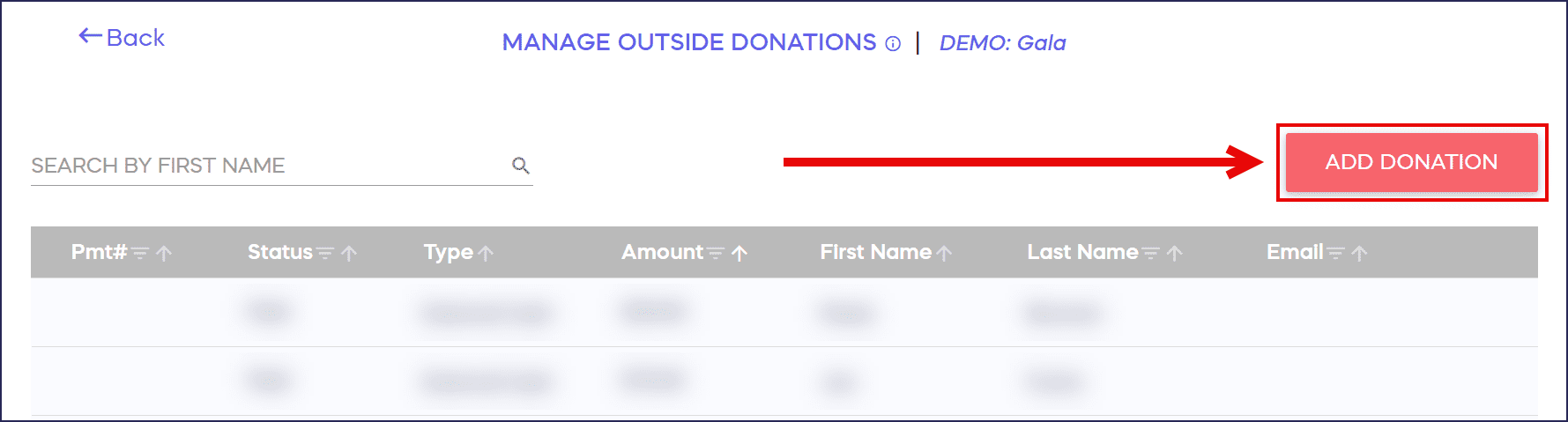
- Select Manage Outside Donations.
- Select Add Donation:
- Select Credit or Debit card for the payment method and enter the payment information:

- Select Save. RallyUp processes the payment immediately.
The donor’s credit card is charged immediately when you select Save, and they’ll receive an automated receipt via email as soon as the charge successfully processes. The donation amount is instantly reflected in your Campaign’s total raised.
How does RallyUp track manually charged donations in my Campaign?
RallyUp fully integrates manually processed donations into your Campaign’s reporting and donor management system. These contributions appear in your transaction history with clear indicators showing that RallyUp processed them as outside donations rather than through the Campaign Page. The donations count toward your Campaign’s fundraising goal, appear in your financial reports, and create complete donor profiles just like online contributions. You can view and resend receipts for manually charged donations using the same process as any other transaction, ensuring consistent donor communication and record-keeping across all contribution methods.
Frequently Asked Questions
Can I process manual charges for any Campaign type?
Yes, manual credit card charges work with all Campaign types including Crowdfunding, Peer-to-Peer, A-Thon, Raffle, and Sweepstakes Campaigns. The feature is available regardless of which Campaign type you’re running. However, remember that you can only process general donations—not purchases of specific items like auction bids, tickets, or merchandise. For offline Raffle or Sweepstakes entries, use the specialized offline entry feature instead.
Is it secure to manually enter credit card information?
Yes, RallyUp processes all manual credit card charges through the same secure, PCI-compliant payment systems used for online donations. Card information is encrypted during transmission and processing, and RallyUp does not store full credit card numbers on its servers. When you manually enter card details, they’re transmitted directly to the payment processor using industry-standard security protocols that protect both your organization and your donors.
Can donors receive tax receipts for manually charged donations?
Yes, donors automatically receive email receipts immediately after their manual charge processes successfully. These receipts include all necessary information for tax purposes, including your organization’s details, the donation amount, transaction date, and a unique transaction ID. If a donor doesn’t receive their receipt, you can easily resend it from your Campaign management dashboard using the receipt management tools.
What happens if a manual charge fails?
If a manual credit card charge fails, you’ll receive an immediate error message explaining why the transaction was declined. Common reasons include insufficient funds, incorrect card information, or expired cards. The failed transaction won’t appear in your Campaign totals or donor records. Contact the donor to verify their payment information and attempt the charge again with corrected details. No partial charges occur—transactions either complete successfully or fail entirely.
Can I issue refunds for manually charged donations?
Yes, you can refund manually processed donations using the same refund procedures as online transactions. Access the transaction in your Campaign management system, locate the specific donation, and initiate the refund through your payment processor. Refunds typically take 5-10 business days to appear on the donor’s credit card statement. The refunded amount is automatically deducted from your Campaign’s total raised, and updated financial reports reflect the adjustment.