Customize your Campaign by adding additional sections.
RallyUp provides a default Campaign template that includes sections for a Campaign description, organization description, fundraising Components, and more. If you like, you can also add custom sections to include additional information such as (but not limited to):
- Listing winners after a Raffle or Sweepstakes drawing
- Adding additional videos
- Listing volunteer opportunities with a link to sign up
- Providing donors more details about Livestreaming and engagement opportunities
- Providing details about in-person events (maps, parking instructions, etc.)
How do I add a custom section to my Campaign Page?
- Go to Account Navigation in the left menu and select Campaigns.
- If you have chosen a list view, click on the Campaign title. If you have selected a grid view, click on the Campaign image.
- Select Campaign Setup.
- Go to Options in the timeline at the top and select Page Design Options.
- Scroll down to Add a custom section to your Campaign Page and select CREATE SECTION:

- Enter the section title and content, then select Save:
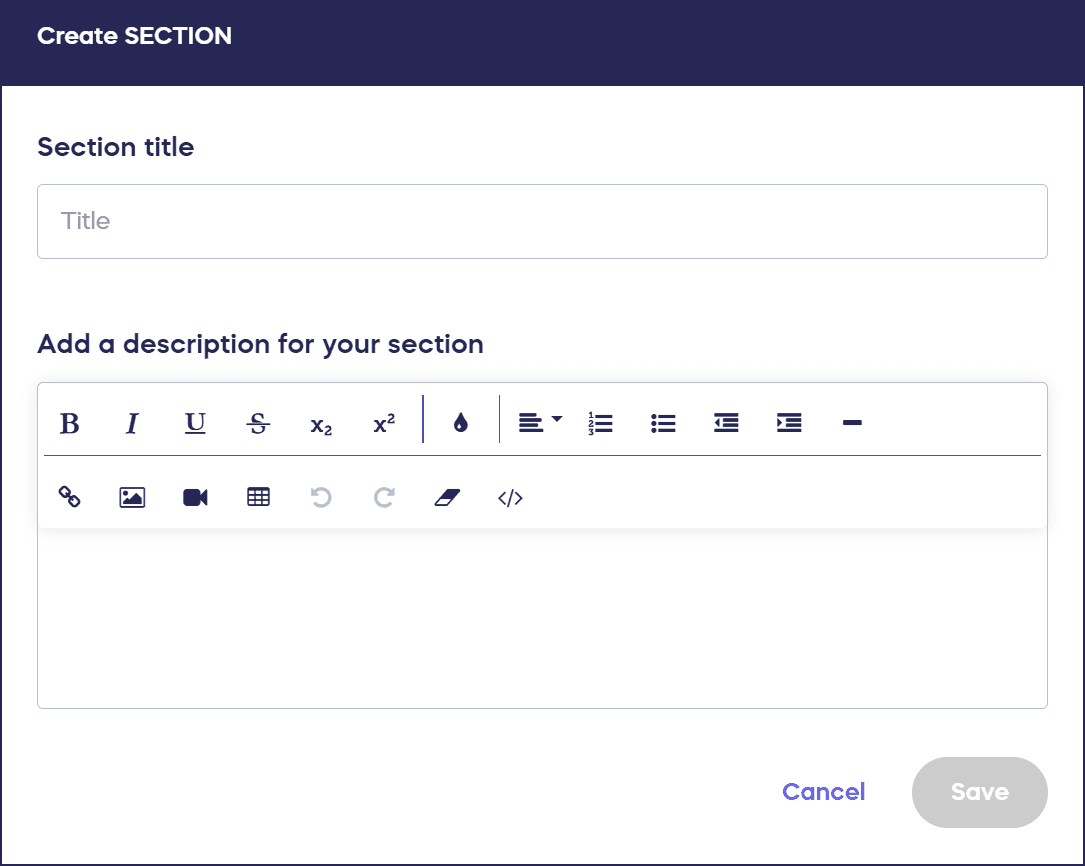
Your custom section will appear on your Campaign Page immediately after saving. You can create multiple custom sections by repeating these steps.
What formatting options are available for custom sections?
Custom sections support rich text formatting, allowing you to create visually appealing and well-organized content:
- Format text with bold, italics, and different heading styles to create hierarchy and emphasis.
- Add numbered and bulleted lists for easy-to-read information.
- Add hyperlinks to direct supporters to external resources, sign-up forms, or related pages.
- Embed images and videos to enhance your message.
This flexibility means you can match the formatting style of your other Campaign Page content while adding unique information specific to your fundraiser.
Can I edit or delete custom sections after creating them?
Yes, you can edit or delete custom sections anytime, even while your Campaign is live. To edit an existing custom section:
- Navigate back to Page Design Options in Campaign Setup.
- Locate your custom section.
- Select the edit option to modify the title or content.
To delete a custom section, access the same area and select the delete option for the section you want to remove. Changes save immediately and appear on your live Campaign Page. This flexibility allows you to update information as your Campaign progresses, such as announcing winners after a drawing or updating event details as they change.
Where do custom sections appear on my Campaign Page?
Custom sections appear among your other Campaign Page sections and can be reordered to appear wherever you want:
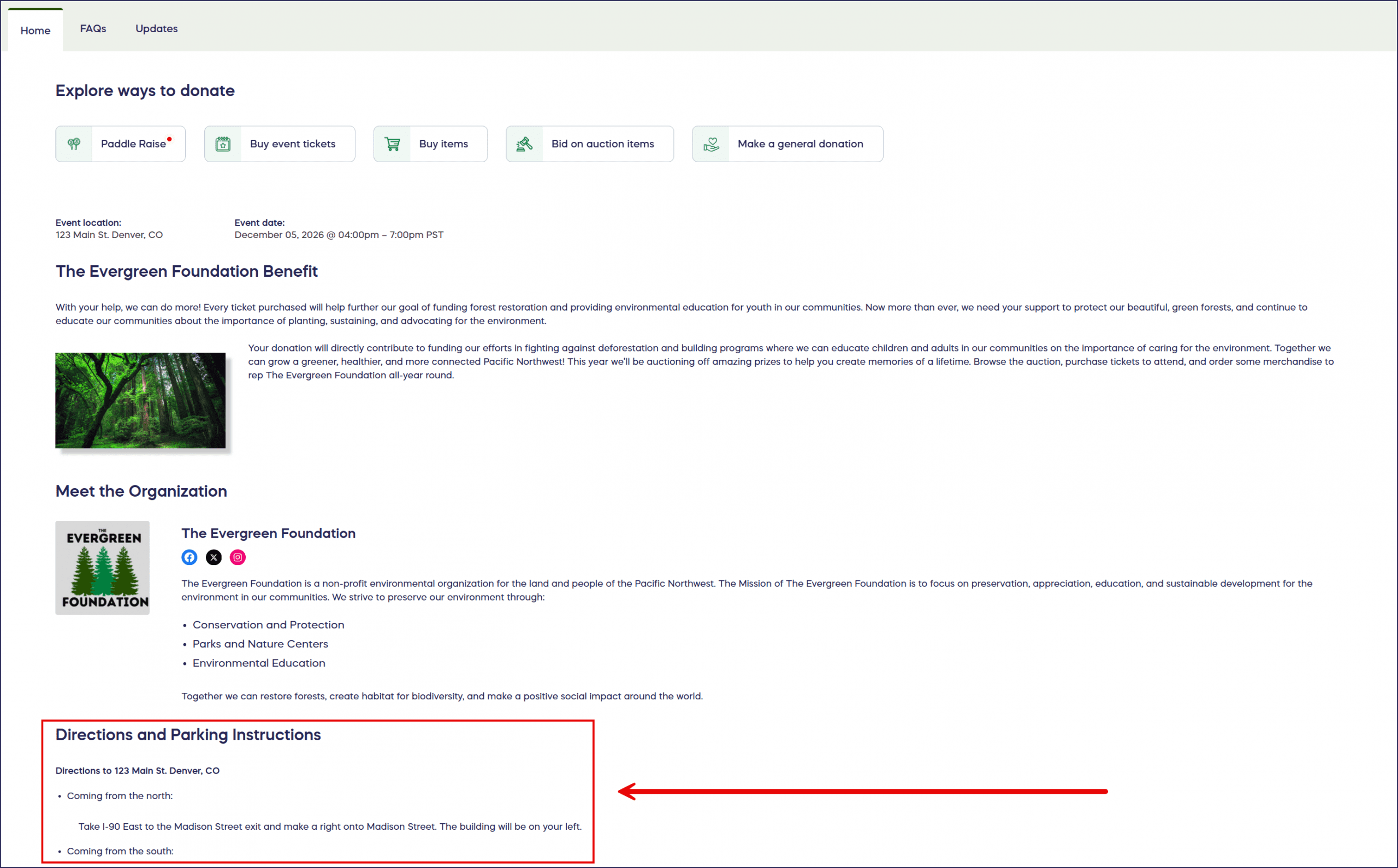
After creating a custom section, you can drag and drop it to position it above or below other sections like your campaign description, organization description, or sponsor information:
This gives you complete control over your page layout and allows you to place your custom content where it will have the most impact. For example, you might position a winner announcement section near the top of your page, while placing event parking instructions further down. Learn more about customizing your Campaign Page layout to arrange all your sections strategically.
Frequently Asked Questions
What are custom sections and when should I use them?
Custom sections are flexible content blocks you can add to your Campaign Page to share information beyond the standard Campaign and organization descriptions. These sections allow you to communicate important details, announce updates, or provide resources that don’t fit into RallyUp’s default template. Custom sections are particularly useful for Campaigns with special instructions, event logistics, ongoing updates like winner announcements, or supplementary content like videos and volunteer information. You can add multiple custom sections to a single Campaign Page and arrange them in any order alongside your standard sections.
How many custom sections can I add to my Campaign Page?
You can add multiple custom sections to a single Campaign Page. There’s no strict limit on the number of custom sections, though adding too many could make your page lengthy and harder to navigate. Consider your supporters’ experience and keep your page focused on the most important information. If you find yourself creating many custom sections, evaluate whether some information could be combined or if certain details are essential to your Campaign.
Can I use HTML or custom code in custom sections?
Custom sections support rich text formatting through the built-in editor but do not support raw HTML or custom code injection for security reasons. You can achieve most formatting needs using the available rich text options including headers, lists, links, bold, italics, and embedded media. If you need advanced customization beyond these options, consider using external landing pages and linking to them from your custom section.
Do custom sections appear on mobile devices?
Yes, custom sections display on mobile devices just like other Campaign Page sections. They automatically adapt to smaller screens and stack vertically in the same order as your desktop layout. Since many supporters view Campaigns on mobile devices, keep your custom section content concise and mobile-friendly. Test how your custom sections appear on mobile by viewing your Campaign Page on a smartphone before finalizing your content.
Can I use custom sections to announce Raffle or Sweepstakes winners?
Yes, custom sections are an excellent way to announce winners on your Campaign Page. After conducting your drawing, create a custom section titled something like “Congratulations to Our Winners!” and list the winner information you want to share. You can update this section as you contact winners and confirm prizes. Position the winner announcement section prominently on your page so supporters can easily find the results. This keeps all Campaign information centralized on your Campaign Page.
What’s the difference between a custom section and the campaign description?
Your Campaign description is the primary content that explains your fundraising goal, mission, and story. It’s a required element that appears in a fixed location on your Campaign Page template. Custom sections are supplementary content blocks for information that doesn’t fit in the main description, such as event logistics, winner announcements, or volunteer opportunities. Think of your Campaign description as your core message and custom sections as supporting details that enhance the supporter experience without cluttering your main narrative.