Remove the Participant and/or Team tabs from your Campaign Page so the list of Participants/Teams isn’t displayed publicly.
By default, when you add Peer-to-Peer or an A-Thon to your Campaign, a list of Participants* and/or Teams* will display on the main Campaign Page:

Some organizations may not want this information to be available to the public. Removing these lists can add a layer of protection and privacy and keep donors focused on your cause.
*Terminology may differ according to Campaign settings.
Why would I hide the list of Participants or Teams?
Organizations choose to hide Participant and Team lists for several important reasons. Removing these lists can add a layer of protection and privacy for your participants, which is especially important for campaigns involving sensitive causes or situations where privacy is a concern. Additionally, hiding these lists can keep donors focused on your cause rather than being distracted by comparing participant performance or browsing through long lists of names.
How do I hide the list of Participants or Teams?
- Go to Account Navigation in the left menu and select Campaigns.
- If you have chosen a list view, click on the Campaign title. If you have chosen a grid view, click on the Campaign image.
- Select Campaign Setup.
- Go to Options in the timeline at the top and select Peer-to-Peer Options.
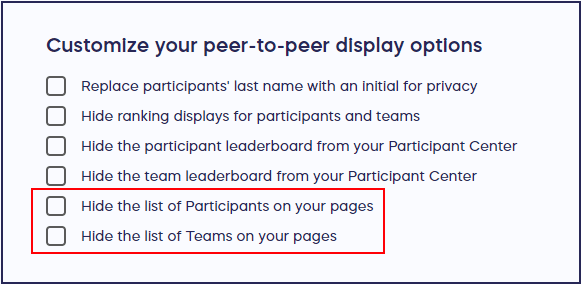
- Scroll down to Customize your peer-to-peer display options and check the box(es) next to Hide the list of participants/teams on your pages:
- Select SAVE.
What should I know about hiding Participants or Teams?
- You can also choose to display Participants and Teams but hide last names, even during checkout, by following the instructions in this article: How-to: Hide Peer-to-Peer or A-Thon Participant Last Names.
- You can hide or unhide this information anytime, even if your Campaign is already live.
- Participants’ names will still show in the checkout process in a dropdown menu, which allows donors to credit their donations to a specific Participant or Team.
Frequently Asked Questions
What happens by default when I add Peer-to-Peer or an A-Thon to my Campaign?
By default, when you add Peer-to-Peer or an A-Thon to your Campaign, a list of Participants and/or Teams will automatically display on the main Campaign Page. These lists appear as separate tabs that show all registered participants and teams publicly. While this default setting encourages visibility and competition among fundraisers, you have the option to hide these lists if privacy or focus is more important for your Campaign.
Can I hide or unhide the list after my Campaign is already live?
Yes, you can hide or unhide this information anytime, even if your Campaign is already live. This flexibility allows you to adjust your privacy settings based on participant feedback, changing circumstances, or evolving Campaign needs without having to pause or restart your fundraiser.
Will Participant names still appear during checkout if I hide the list?
Yes, Participants’ names will still show in the checkout process in a dropdown menu even when you hide the public list. This allows donors to credit their donations to a specific Participant or Team they want to support. The checkout functionality remains intact while keeping the public-facing Campaign Page focused on your cause rather than displaying all participants.
Can I display Participants but hide their last names?
Yes, you can choose to display Participants and Teams but hide last names, even during checkout. This provides a middle-ground option between full public visibility and complete privacy. To learn how to set this up, follow the instructions in this Knowledge Base article: How-to: Hide Peer-to-Peer or A-Thon Participant Last Names.
Does hiding the list affect both Participants and Teams?
You have the flexibility to hide either Participants, Teams, or both, depending on your Campaign needs. In the Peer-to-Peer Options settings, you can check the box(es) next to “Hide the list of participants/teams on your pages,” which allows you to selectively control what information is displayed publicly. This gives you complete control over your Campaign’s privacy settings.