
Access valuable donor data from Donation Page reports.
Any RallyUp user can set up a Donation Page to collect donations year-round. You can also access several Donation Page reports to help you analyze your fundraising methods and gather insights for future fundraisers.
Insights: Common Excel and Google Sheets Formatting Tips for RallyUp Reports
How do I access my Donation Page reports?
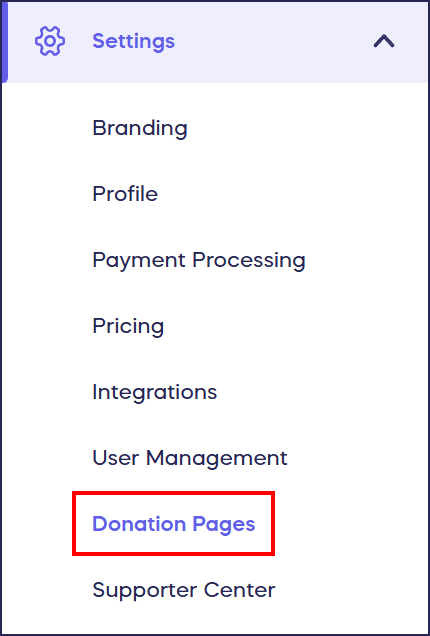
- Go to Settings in the left menu and select Donation Pages:
- Click on the Donation Page title.
- Select View Donations.
This screen has two tabs:
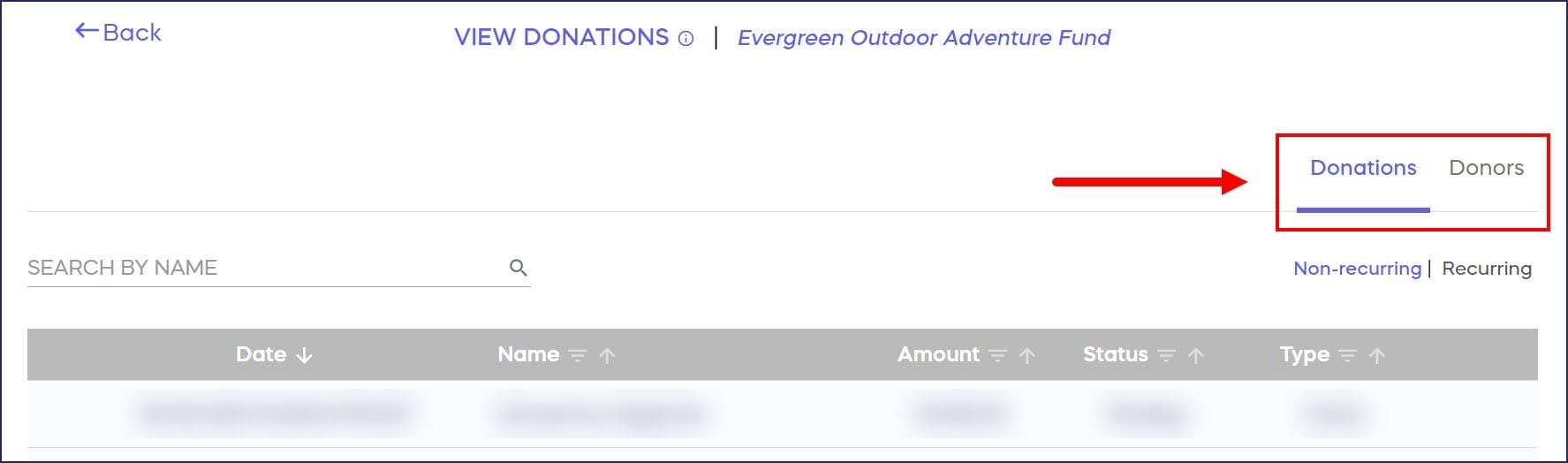
What information is available in the Donations tab?
This tab has two sub-tabs:
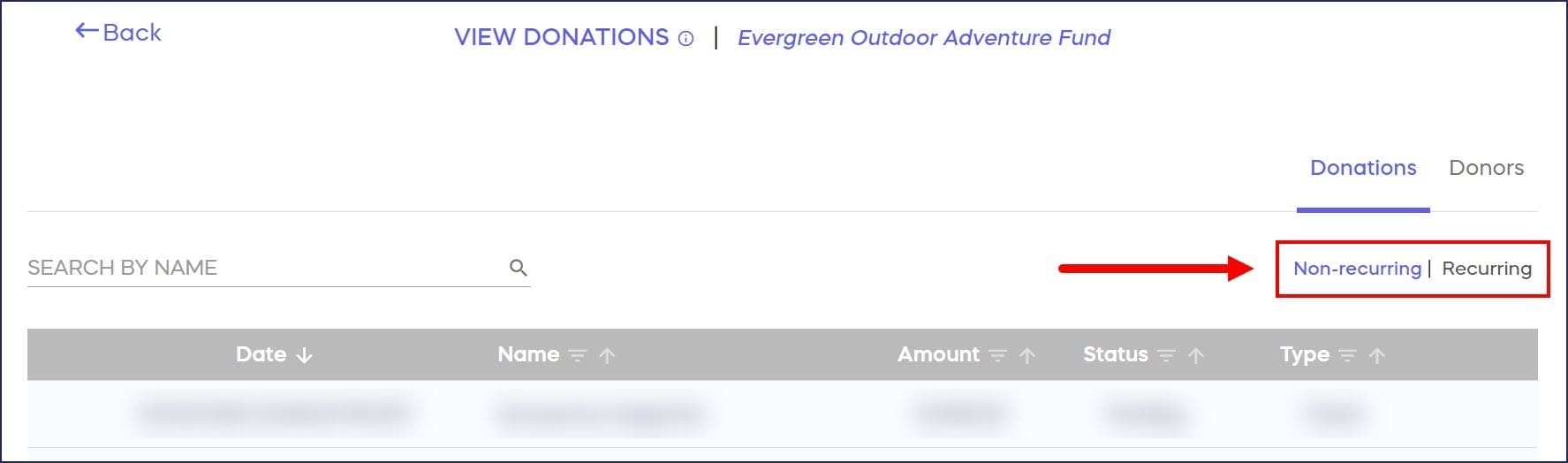
What data appears in the Non-Recurring donations sub-tab?
This sub-tab automatically displays:
- Date (also includes time)
- Name
- Amount
- Status (Pending, Submitted, Paid, Failed, Voided, Cancelled, Free, Action Required)
- Type (Cash, Check, Card)
You can download one report from this sub-tab:
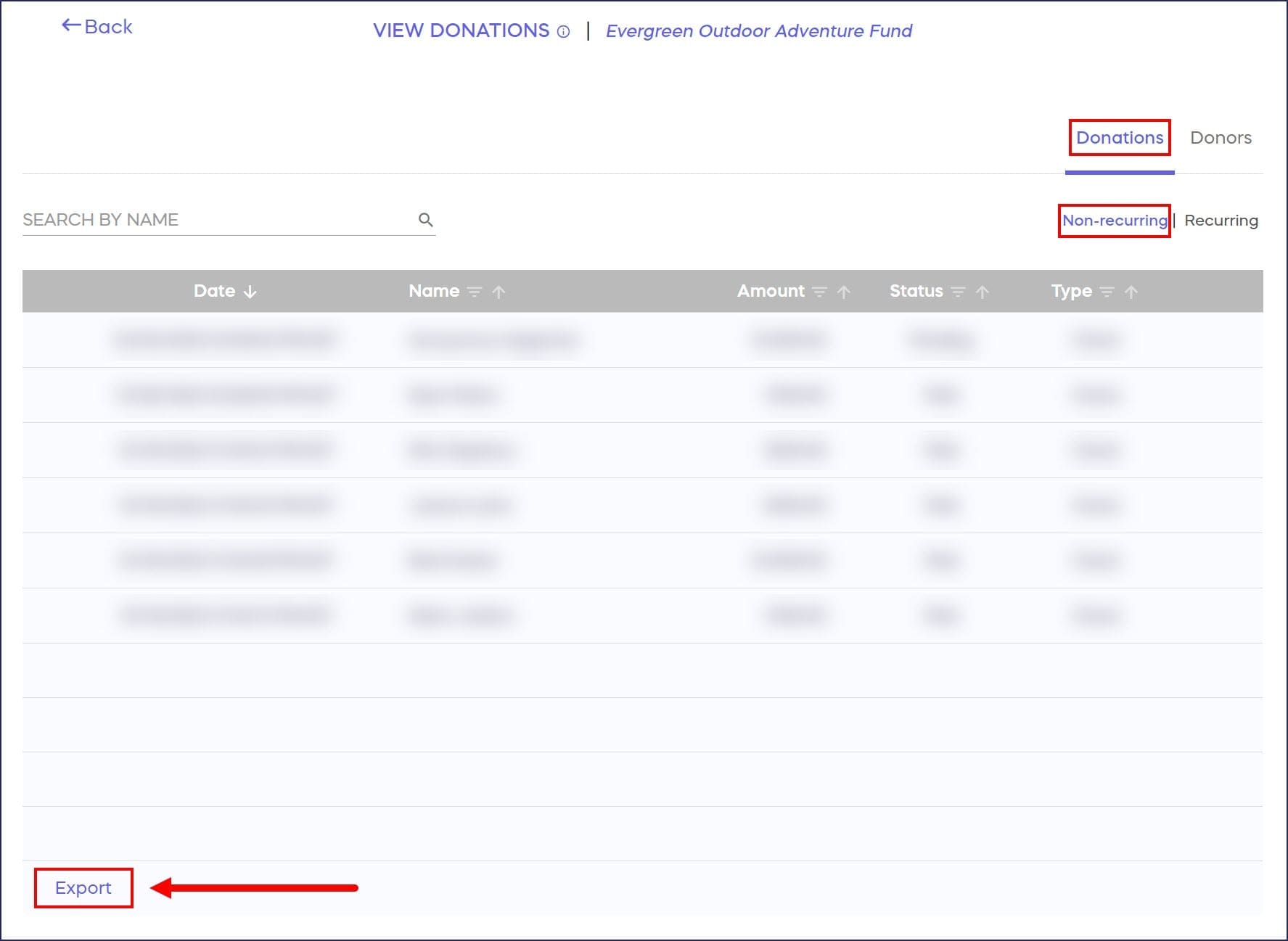
This report is designed to match the way Campaign donation reports are set up so you can easily run analytics on donations made across all RallyUp fundraising pages.
This report includes the following information for ALL donations made through your Donation Page or manually added to the Donation Page records, including recurring donations. Each recurring donation will be listed as an individual transaction. Non-applicable columns or entries may be blank:
- Payment ID (unique number assigned to each transaction)
- Donor Name (full name)
- First Name
- Last Name
- Contribution Date (date/time the donation was originally made)
- Last Updated Date (date/time will be the same as Contribution Date if the donation was not changed after being made)
- Paid Date (date/time payment received after being processed)
- Amount (full donation amount)
- Flat Amount (will be the same as Amount)
- Processing Fee (amount charged by your chosen payment processor; will be blank for offline donations)
- Fees Paid (fee amount covered by the donor, if applicable; will be blank for offline donations)
- After Fees (final amount your organization received after fees)
- Status (Pending, Submitted, Paid, Failed, Voided, Cancelled, Free, Action Required)
- Payment Type (Cash, Check, Card)
- Source (RallyUp or External; External indicates the donation was accepted offline and added to the records manually)
- Fund Code (unique number or word you can optionally assign to each Campaign Page or Donation Page; will be blank if no number or word was assigned)
- Honoree Name (person to whom the donation was dedicated)
- Is Recurring? (Yes or No)
- Anonymous Donation? (Yes or No)
- Comment (will be blank if no comment was left)
- Cancellation Reason (will be blank for uncancelled donations)
What data appears in the Recurring donations sub-tab?
This sub-tab automatically displays:
- Name
- Recurring Amount
- Frequency (Weekly, Monthly, Quarterly, Yearly)
- Start Date (date of first donation)
- Next Charge (date of next scheduled donation)
- Payments Made (number of payments so far)
- Status (Active, Ended, Cancelled)
You can download one report from this sub-tab:
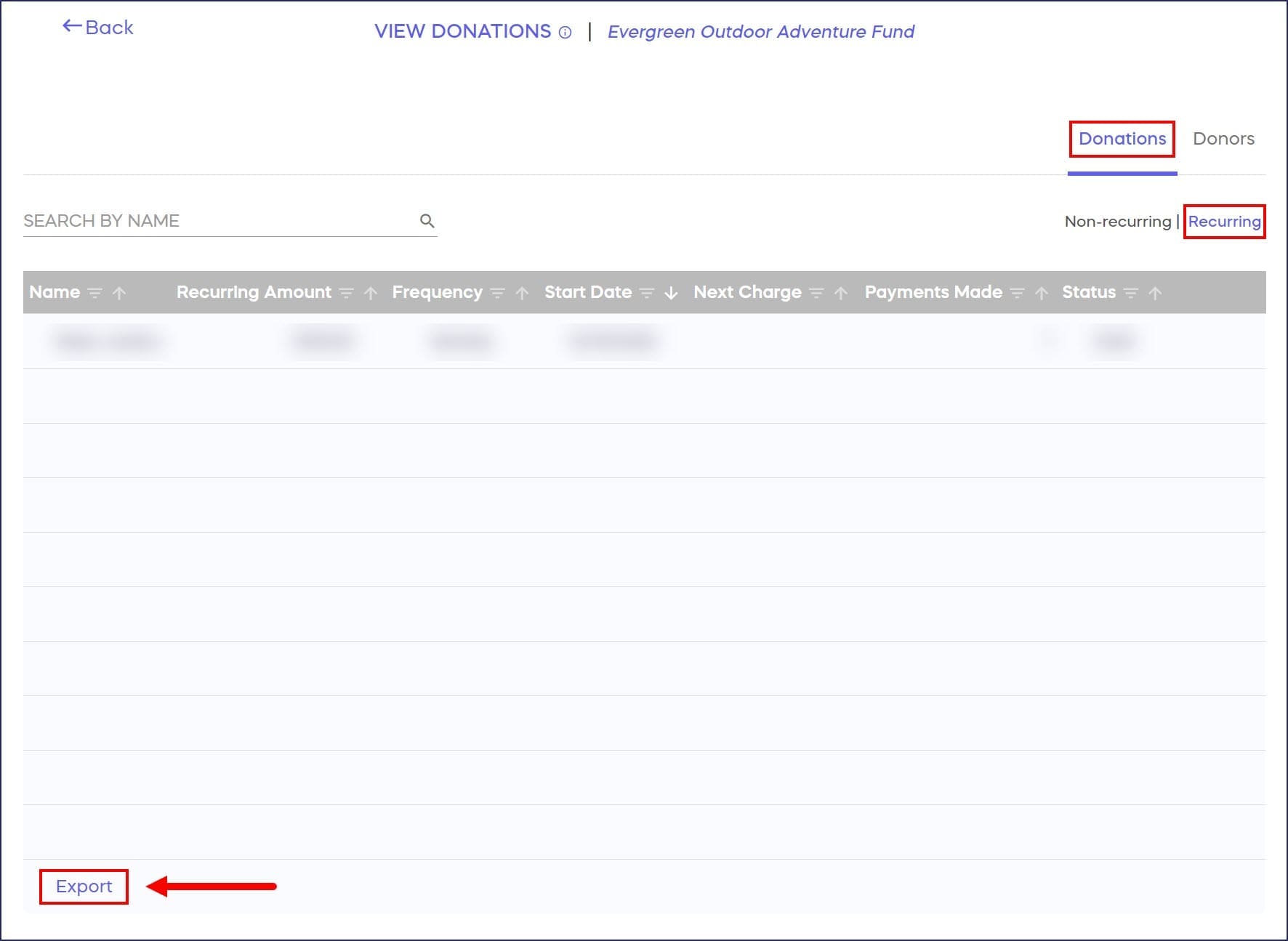
This report includes the following information for recurring donations ONLY:
- Contribution ID (unique number assigned to each transaction)
- Donor Name
- Recurring Amount
- Frequency
- Start Date (date of first donation)
- Next Charge (date of next scheduled donation)
- Payments Made (number of payments so far)
- Status (Active, Ended, Cancelled)
- Email Address
- Payment Type
What information is available in the Donors tab?
This tab automatically displays the following:
- Name
- Total Amount Donated (sum of all donations made so far)
You can download one report from this tab:
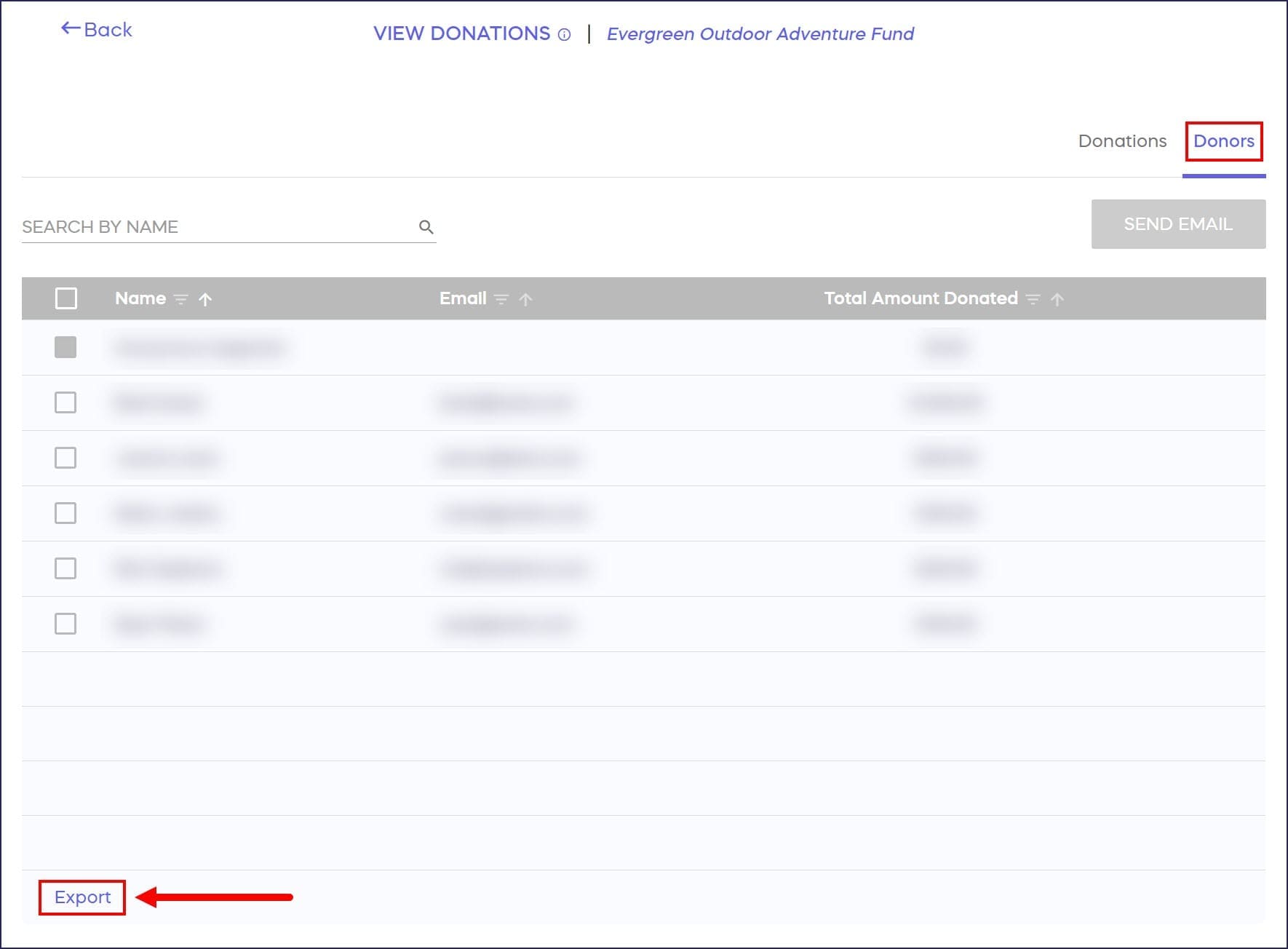
This report includes the following information for anyone who has ever made a donation through your Donation Page:
- Name
- Campaign (Donation Page name)
- Last Contribution Date (date of most recent donation)
- Gross Contributions (sum of all donations made so far before fees)
- Net Contributions (sum of all donations made so far after fees)
Frequently Asked Questions
What’s the difference between the Non-Recurring and Recurring donations reports?
The Non-Recurring report shows all donations including one-time gifts and individual recurring transactions. The Recurring report focuses specifically on ongoing donation schedules, showing frequency, next charge dates, and the number of payments made for each recurring donor.
Do offline donations appear in my Donation Page reports?
Offline donations only appear in reports if you manually add them to your Donation Page records. Donations accepted outside RallyUp that haven’t been entered manually will not show up in any reports.
How can I see the total amount a donor has contributed over time?
The Donors tab shows each donor’s total contribution amount across all donations. You can also export the Donors Report which includes both gross contributions (before fees) and net contributions (after fees) for comprehensive donor history.
What does the Fund Code field in reports represent?
Fund Code is an optional unique number or word you can assign to each Campaign Page or Donation Page. This field helps you categorize and track donations across different fundraising initiatives when running analytics.
Can I export all my Donation Page data at once?
Yes, you can export separate reports from the Non-Recurring sub-tab, Recurring sub-tab, and Donors tab. Each report provides different data perspectives to help you analyze fundraising performance and donor behavior comprehensively.
What should I know about Donation Page reporting?
- If you accept an offline donation and want to add it to your Donation Page records, you can add it manually. Learn how in this Knowledge Base article: How-to: Add Offline Donations.
- Offline donations that haven’t been manually added to your records will not show up in reports.
- To learn more about payment processing fees, read this article: Understand: Debit and Credit Card Processing Fees.
- This article shows you how to pass fees along to donors or give them the option to cover fees: How-to: Pass Campaign and Donation Page Fees on to Donors.