Help donors find what they want by sorting prizes, tickets, and other items into categories.
If your fundraising Campaign includes many items, such as Raffle prizes, you can sort them into categories to help donors find the items they’re most interested in. RallyUp allows you to create categories for the following items:
- Raffle prizes
- Sweepstakes prizes
- Auction items
- Storefront items
- Ticketing & Registration tickets and tables
How do I create and assign categories to Campaign items?
- Go to Account Navigation in the left menu and select Campaigns.
- If you have chosen a list view, click on the Campaign title. If you have chosen a grid view, click on the Campaign image.
- Select Campaign Setup.
- Go to the relevant section in the timeline at the top (e.g., if you’re sorting Auction items into categories, go to Auction).
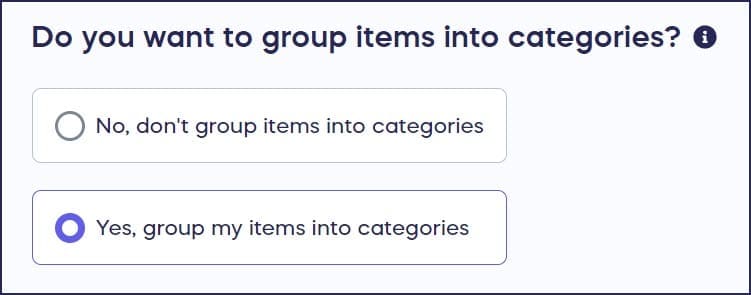
- Scroll down to Do you want to group items into categories?* and select Yes, group my items into categories*:
- Scroll down to Item Categories* and select Add category:
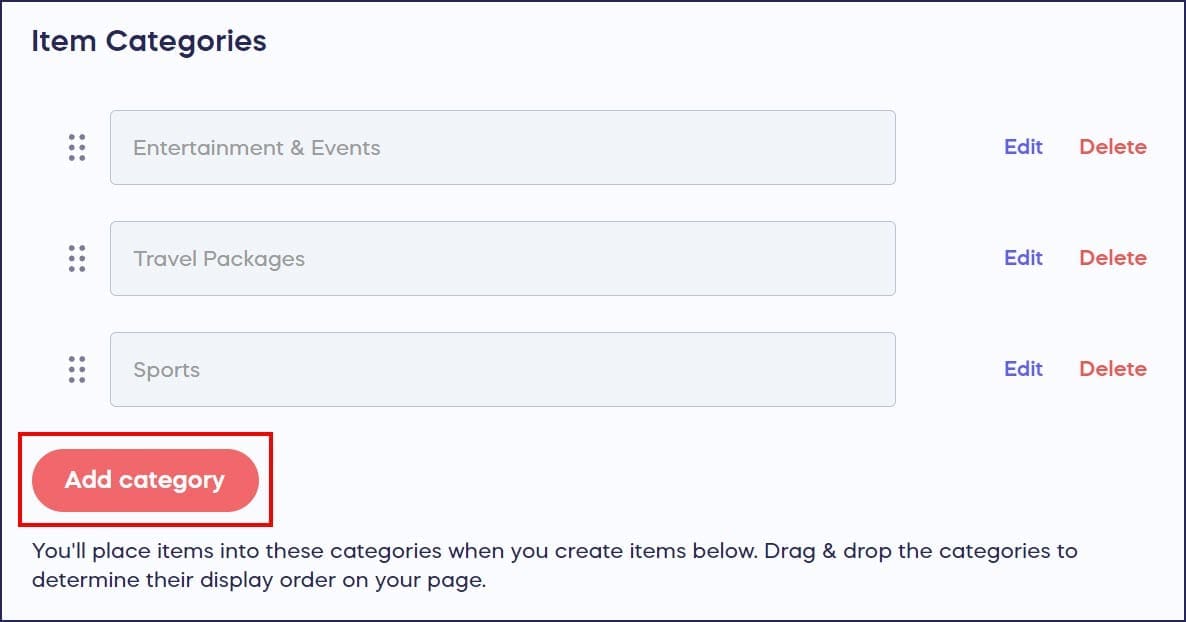
- Enter the category name, then select Save.
- Scroll down to Add items* and either select an existing item or select Create an item*:

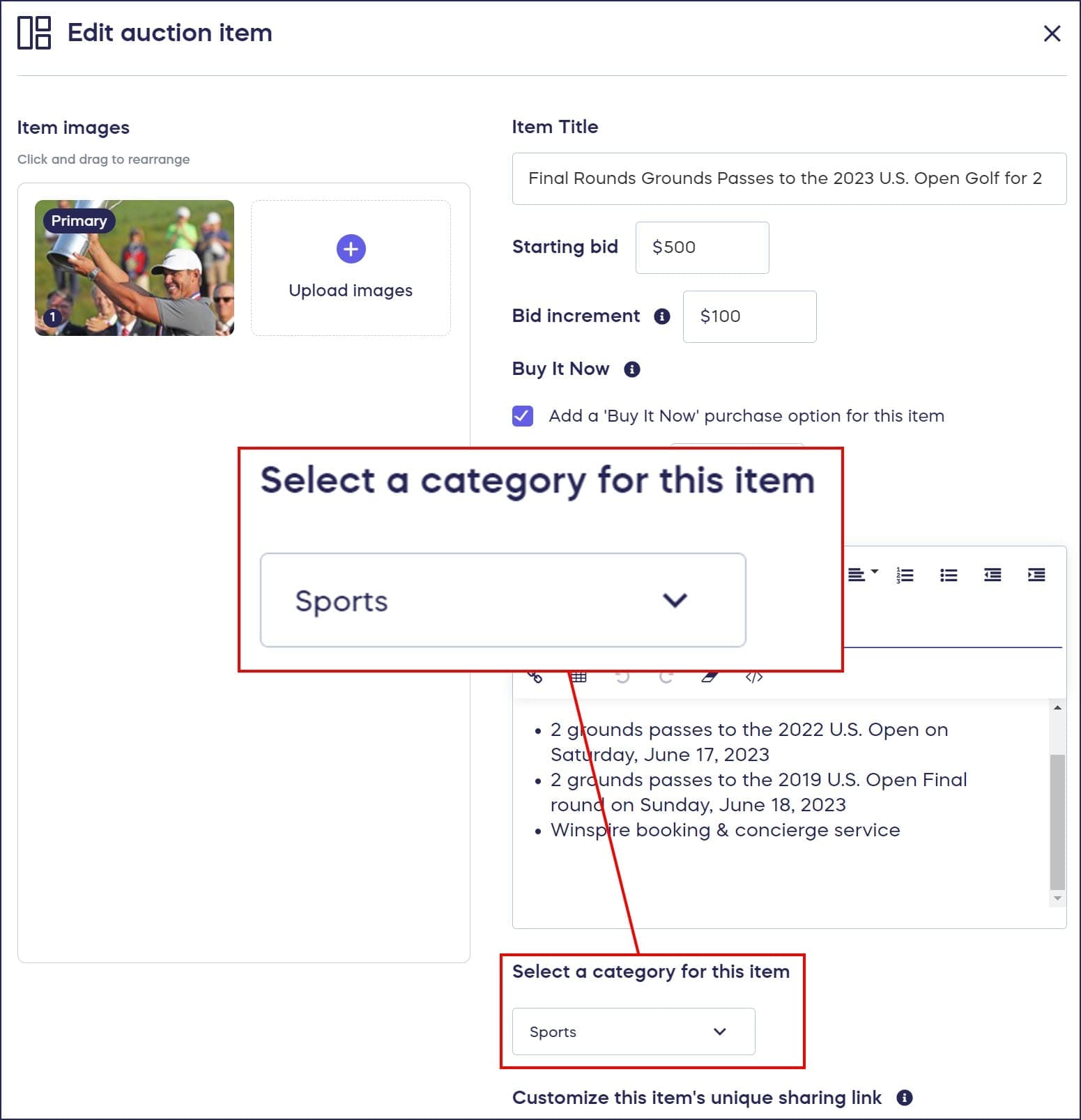
- Scroll down to Select a category for this item* and choose the category from the dropdown menu:
- Select Save.
*Terminology may differ according to Campaign settings.
How do I sort items on my Campaign Page?
RallyUp allows you to further customize the way your items display on your Campaign Page:
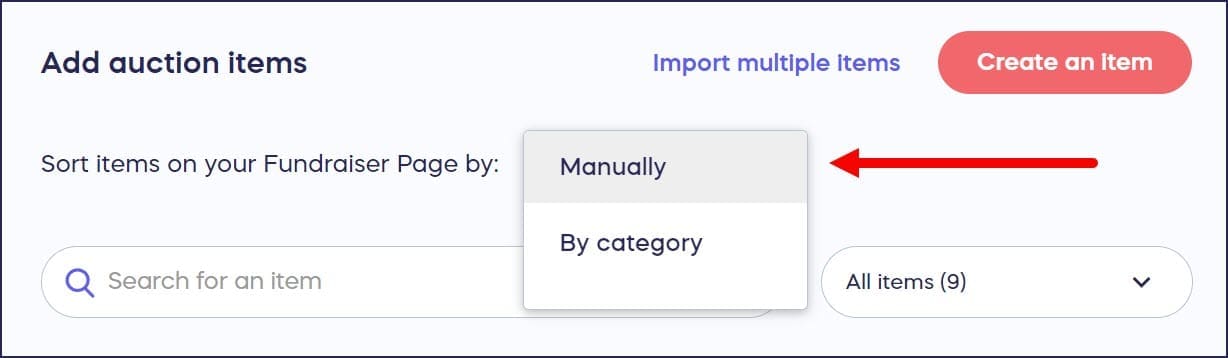
You can automatically sort items by category, or if you have a few hot-ticket items that you want to display first, you can sort them manually regardless of category.
If you’re sorting your items manually, you can drag and drop them to put them in the order you want:
How do donors view and search items by category?
Donors can search categories via a drop-down menu on your Campaign Page:
Can I test out my categories before my Campaign goes live?
You can test out your categories (and many other aspects of your Campaign) by viewing your page in Draft Mode:
The categories you set up will appear on your draft Campaign Page after you add your first Campaign item.
Frequently Asked Questions
What types of Campaign items can I organize into categories?
You can create categories for Raffle prizes, Sweepstakes prizes, Auction items, Storefront items, and Ticketing & Registration tickets and tables. This helps donors quickly find the items they’re most interested in.
Why should I use categories for my Campaign items?
Categories help donors navigate large collections of items more easily. If your Campaign includes many prizes or items, organizing them into categories improves the donor experience and helps them find what they want faster.
Can I sort items manually or does it have to be by category?
You have both options. You can automatically sort items by category, or you can manually arrange them by dragging and dropping. Manual sorting is useful when you want to feature hot-ticket items first, regardless of their category.
How do donors filter items by category on my Campaign Page?
Donors can select categories from a dropdown menu on your Campaign Page. This allows them to view only the items in the categories they’re interested in.
Can I change the category of an item after I’ve assigned it?
Yes, you can edit any item and change its category assignment at any time.
Do I need to enable categories before creating Campaign items?
No, you can enable categories at any time during Campaign Setup. If you already have items created, you can turn on categories and then assign existing items to the categories you create.