Enable Gated Livestreaming to admit only viewers with virtual tickets.
Gated Livestreaming allows you to re-create the exclusivity of an in-person event and raise additional funds for your cause.
How do I enable Gated Livestreaming?
- Go to Account Navigation in the left menu and select Campaigns.
- If you’ve chosen a list view, click on the Campaign title. If you’ve chosen a grid view, click on the Campaign image.
- Select Campaign Setup.
- Go to Getting Started in the timeline at the top.
- Scroll down to Select all components you want to include in your Campaign and select Ticketing & Registration:

- Scroll down to Additional Options and select Livestreaming by clicking the toggle so it shifts to the right:
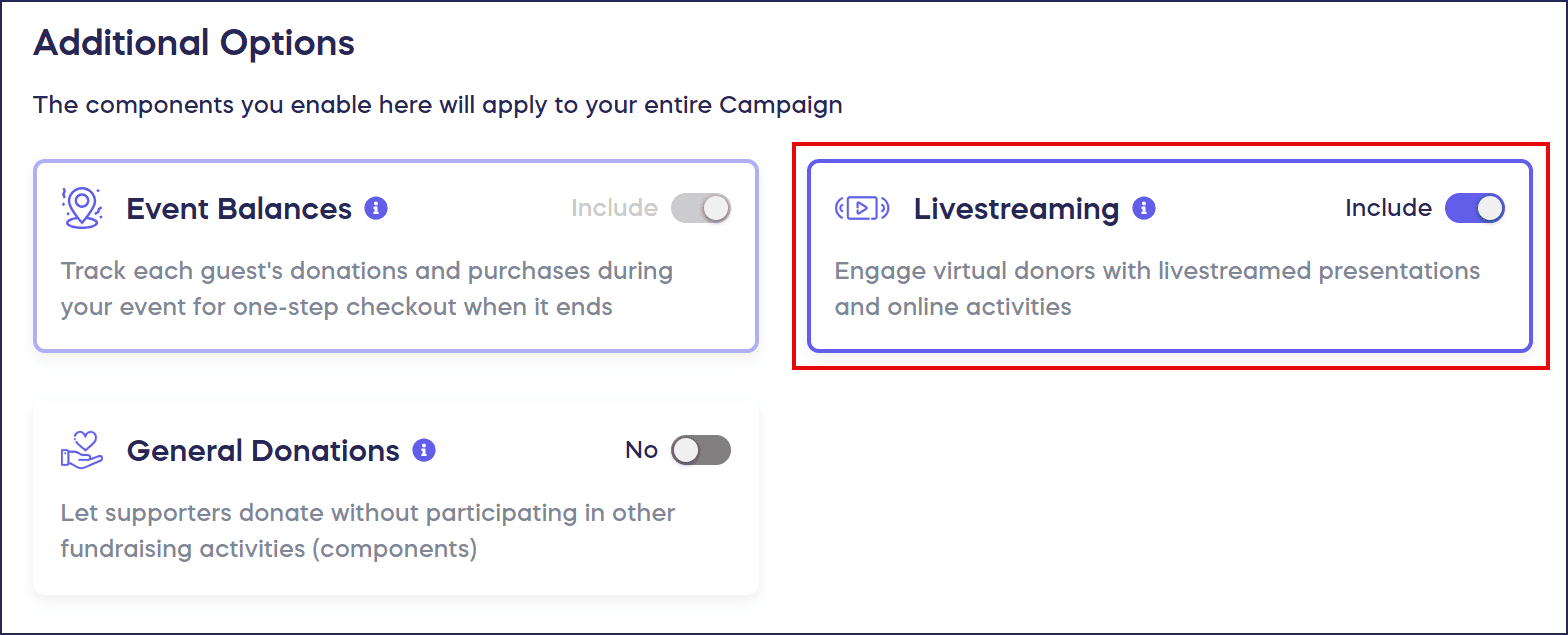
- Go to Livestream in the timeline at the top and select Show optional settings.
- Scroll down to Enable gated livestreaming and click on the toggle so it shifts to the right:

- Select Save.
What do attendees see when accessing a gated Livestream?
When donors purchase a virtual ticket, they receive an access code that allows them to view the Livestream:

When attendees go to access the Livestream, they’ll be prompted to enter their code. If they try to access the Livestream without a ticket, they’ll get the option to purchase one on the spot. They can purchase tickets as long as the Livestream is running.
What else should I know about Gated Livestreaming?
Keep these important points in mind when setting up Gated Livestreaming:
- If an attendee loses their code, you can look it up for them by following the instructions in this article: How-to: Find an Attendee’s Livestream Access Code.
- Turn on Gated Livestreaming before event tickets go on sale so everyone who purchases a ticket receives an access code.
Frequently Asked Questions
What is Gated Livestreaming?
Gated Livestreaming is a feature that requires attendees to purchase tickets to access your virtual event. It allows you to re-create the exclusivity of an in-person event and raise additional funds for your cause by restricting Livestream access to only those viewers who have purchased tickets and received access codes.
What if an attendee loses their Livestream access code?
If an attendee loses their access code, you can look it up for them. Follow the instructions in this Knowledge Base article: How-to: Find an Attendee’s Livestream Access Code. This allows you to quickly retrieve and share the code so they can access the Livestream without purchasing another ticket.
When should I enable Gated Livestreaming?
You should turn on Gated Livestreaming before event tickets go on sale. This ensures that everyone who purchases a ticket automatically receives an access code. Enabling the feature after tickets have already been sold may cause issues with code distribution to early purchasers.
Can attendees purchase tickets after the Livestream starts?
Yes, attendees can purchase tickets as long as the Livestream is running. If someone tries to access the Livestream without a ticket, they’ll be prompted to enter an access code and will get the option to purchase a ticket on the spot, allowing them to join the Livestream immediately after purchase.
How do I create event tickets for my Gated Livestream?
To create event tickets that work with Gated Livestreaming, follow the instructions in this Knowledge Base article: How-to: Create Event Tickets and Tables. If you need to modify ticket purchases after they’ve been made, see this article: How-to: Update Event Ticket or Table Purchases.