Create links for your Raffle prize images to add to your import spreadsheet.
If you’re hosting a Raffle on RallyUp and you have many Raffle prizes, you can use our spreadsheet to import all prizes at once instead of adding them one at a time. If you want to include images of your Raffle prizes, you can find and copy the image links, then add the links to the import spreadsheet.
How do I create image links for Raffle prize imports?
- Upload your Raffle prize image to a public site. This could be your organization’s website, WordPress, or any other publicly accessible site. Images should be 1480 x 1000 pixels for best display on your Campaign Page. Images must be saved as PNG or JPEG files and should be no larger than 20 MB.
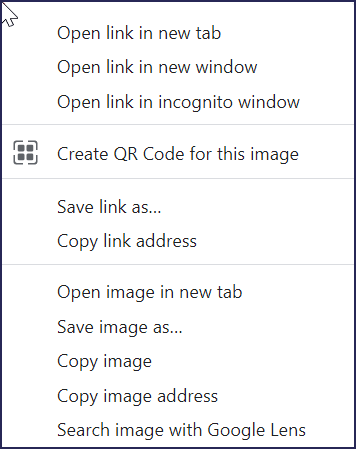
- Once your image is uploaded, right-click on it. A menu will appear:
- Select Copy image address (some browsers may say Copy image link):
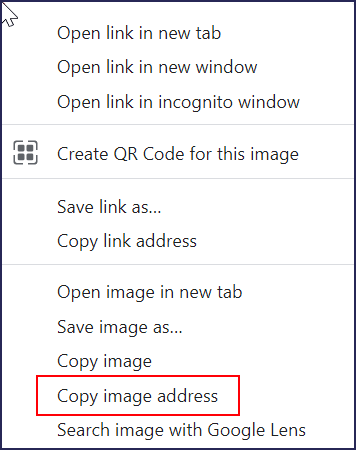
Don’t click on Copy link address. That is the link for the webpage, not the image. The image address must end in .jpg or .png to import properly.
- Paste the image address into the spreadsheet under the Image URL column.
What should I do if my image links aren’t working?
Sometimes an image link fails to pull in an image properly. There are a few reasons this can happen:
- The image is not saved as a JPEG or PNG file. The import requires images in JPEG or PNG format. Re-save your image as a JPEG or PNG and update the image link in the spreadsheet.
- The image file size is too large (over 20 MB). Large images may fail to display even when the URL is valid. Try compressing the image using a free tool like tinypng.com and re-uploading before updating the link in your spreadsheet.
- The link was not inserted into the spreadsheet correctly, either because it’s in the wrong cell or because only part of the link was inserted. Double-check that the link was inserted into the correct row and column. You can also try deleting the current link and re-inserting it.
- The link for the wrong image was inserted. Click on the link and see if it brings up the correct image. If not, delete the current link and insert the correct one.
- The link is broken. If you click on the link and it doesn’t bring up any image, it may be broken. This can happen if the site you uploaded the image to goes down or if the image is deleted from that site. Try re-uploading your image to the same public site (or a new one if the site is down), and then insert the new image link.
- The link is for a webpage or social media post instead of an image. If you click on the link and it leads you to a webpage or a social media site, the wrong link is inserted. You can delete the link and insert the image link.
- The image was uploaded to a private site. In this case, you can simply upload the image to a public site and insert the new image link.
- Images exported from Canva may fail to upload or display correctly due to embedded metadata. If you’re using Canva, try re-exporting the image as a PNG without metadata, or open the image in another editor (such as Preview, Paint, or Photos) and re-save it before uploading.
- If your image uploaded successfully but is not displaying on your Campaign Page, try clearing your browser cache and refreshing the page. If the issue persists, re-upload the image in a different format (e.g., switch from PNG to JPEG or vice versa) and update the link in your spreadsheet.
Frequently Asked Questions
Where can I upload Raffle prize images to create links?
You can upload images to any publicly accessible website including your organization’s website, WordPress, Imgur, Flickr, or similar image hosting services. The key requirement is that the images must be publicly accessible without login requirements.
What’s the difference between an image link and a webpage link?
An image link points directly to the image file (ending in .jpg or .png), while a webpage link points to the page containing the image. Always use “Copy image address” rather than “Copy link address” to get the direct image URL needed for the import spreadsheet.
Can I use images from social media for my import spreadsheet?
While you can technically copy image links from social media, these links often break or require login access. It’s better to download the images and upload them to a reliable public hosting site to ensure the links remain functional throughout your Raffle.
How do I know if my image link is correct?
Paste the image link into your browser’s address bar. If the link is correct, it should display only the image without any surrounding webpage elements. The URL should typically end with an image file extension like .jpg or .png.
What happens if an image link breaks after I import my prizes?
If an image link breaks after importing, you’ll need to re-upload the image to a public site and manually update that specific Raffle prize with the new image through your Campaign management interface. This is why using reliable hosting is important.