Add your brand to the emails you send to donors and send emails from your own domain.
Branded emails look professional and are visually appealing to donors, helping strengthen your organization’s identity with every communication. RallyUp allows you to add a logo image to your emails and change the header colors to match your brand standards, ensuring consistent visual identity across all touchpoints.
If you own a domain that you can send emails from, you can set up your own email domain as well, making emails appear to come directly from your organization rather than through a third-party platform.
These branding changes apply to any email you send through RallyUp, including automated receipts, ticket confirmations, Auction notifications, and manual communications to your donors.
How do I customize my email logo and header colors?
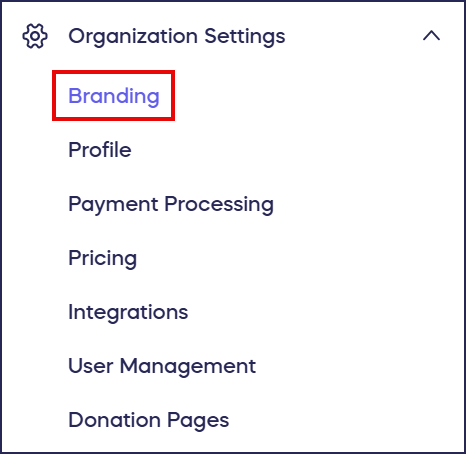
- Go to Organization Settings in the left menu and select Branding:
- Scroll down to Email branding:
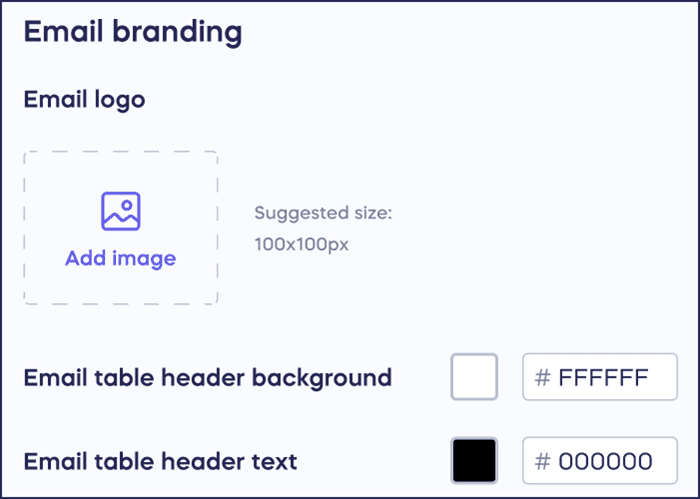
- Upload your email logo image.
- Customize your email table header background and text colors by entering the hex code. If you don’t know the hex code you want, you can manually select a color that matches your organization’s brand colors by clicking on the color square.
- Select Save at the bottom of the page.
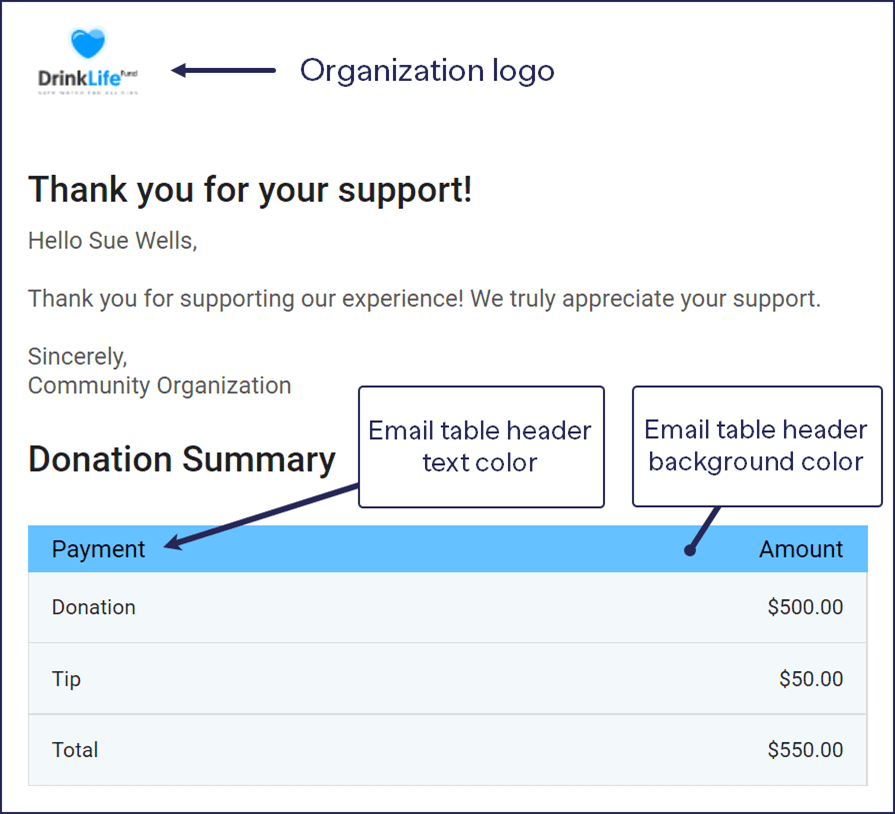
Your branded elements will immediately apply to all new emails sent through RallyUp. Here is an example of an email with the email branding elements added:
How do I set up a custom email domain?
Setting up your own email domain allows emails to appear as coming directly from your organization, increasing trust and brand recognition. This feature is currently in development:
- Go to Organization Settings in the left menu and select Branding:
- Scroll down to Email donors from your own domain under Email branding and click on the toggle to enable this feature:
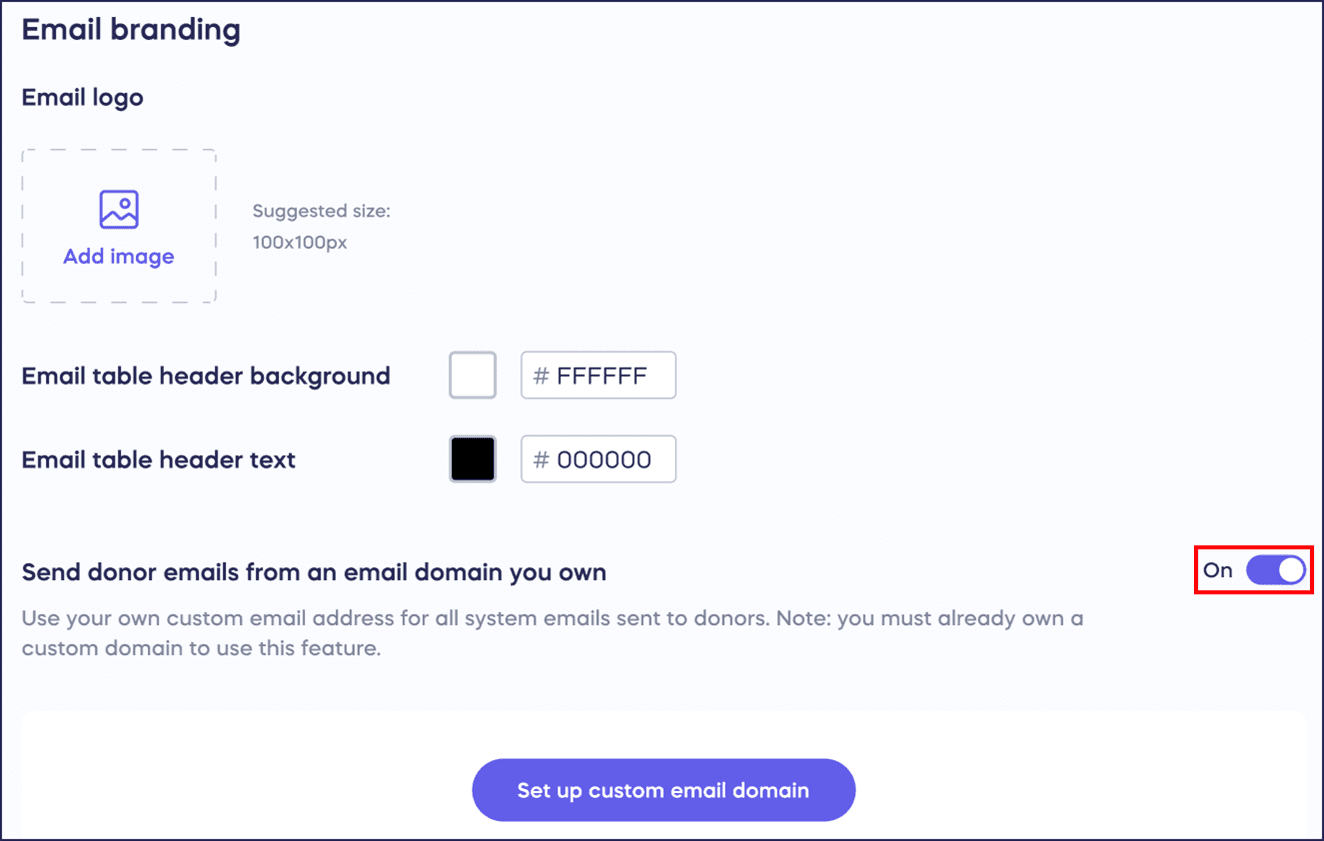
- Select Set up custom email domain. This will open the setup guide.
- Follow the guide’s step-by-step instructions.
- When you’re done, select Save custom email address. All emails you send through RallyUp will now be sent from this email address.
What types of emails will display my branding?
Your email branding applies across all automated and manual emails sent through RallyUp’s system. Automated emails include:
- Donation receipts
- Ticket purchase confirmations
- Auction winning notifications
- Raffle or Sweepstakes entry confirmations
- Event Balance reminders
- Password reset messages
Manual emails include:
- Campaign updates you compose
- Personalized messages to individual donors
- Bulk communications to donor segments
- Any correspondence sent through Donor Profiles
This comprehensive application ensures every email touchpoint reinforces your organization’s professional brand identity.
Frequently Asked Questions
What image format and size should I use for my email logo?
Use PNG or JPG format for your email logo, with PNG preferred for logos with transparent backgrounds. The recommended maximum width is 600 pixels to ensure proper display across different email clients and devices. Keep file size under 1MB for fast loading. Your logo should be high resolution to appear crisp on retina displays, but not so large that it dominates the email header or slows loading times.
Will my branding apply to emails already sent?
No, email branding only applies to emails sent after you save your branding settings. Previously sent emails retain the branding that was active when they were delivered. Donors who view old receipts or confirmations will see whatever logo and colors were configured at that time. This is why it’s beneficial to set up your email branding early in your RallyUp setup process.
Can I use different branding for different Campaigns?
No, email branding applies organization-wide to all Campaigns and communications. You cannot set different logos or colors for individual Campaigns. This limitation ensures consistent brand identity across all your fundraising efforts. If you need dramatically different branding for separate initiatives, consider whether they should operate as distinct organizations within RallyUp.
What are hex codes and how do I find my brand colors?
Hex codes are six-character codes that represent specific colors in digital design, formatted like #FF5733. If you don’t know your organization’s brand color hex codes, check your brand guidelines, ask your marketing team, or use a color picker tool on your existing website or materials. When you click the color square in RallyUp’s settings, you can also manually select colors visually, and the system will display the hex code for your selection.
Why should I set up a custom email domain?
Custom email domains significantly improve email deliverability and donor trust. When emails come from “yourorganization.org” instead of “noreply@rallyup.com,” donors are more likely to recognize the sender, open the message, and trust its authenticity. Custom domains also reduce the likelihood of emails being marked as spam, improve your organization’s professional appearance, and strengthen brand consistency across all communications. This feature requires you to own a domain and have access to update its DNS settings.