Use Ticketing & Registration reports to organize your records and identify effective fundraising methods.
When selling Tickets* and/or Tables* for an event on RallyUp, you can access and export several reports to help you stay organized. You can also use the data to analyze your fundraising methods, pinpoint which strategies were most successful, and create even more successful events in the future.
Insights: Common Excel and Google Sheets Formatting Tips for RallyUp Reports
*Terminology may differ according to Campaign settings.
How do I access Ticketing & Registration reports?
- Go to Account Navigation in the left menu and select Campaigns.
- If you have chosen a list view, click on the Campaign title. If you have chosen a grid view, click on the Campaign image.
- Select the report you want to view:
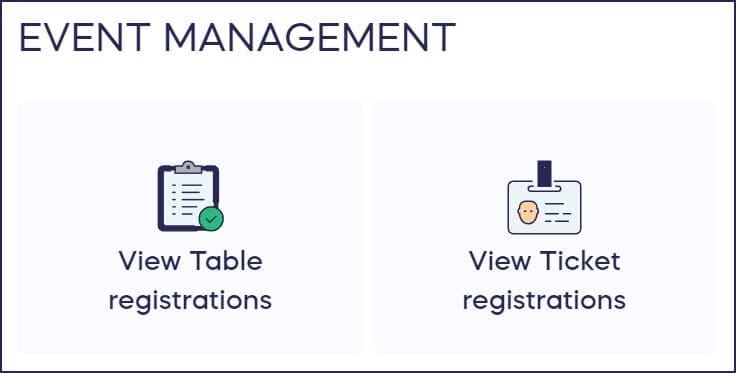
In addition to the reports shown above, you can view and export a list of donations and donor information: How-to: Export Donation and Donor Reports.
If you enable QR code check-in, you’ll also see a Check-in Attendees option you can use to speed up the check-in process: How-to: Check In Event Attendees and A-Thon or Peer-to-Peer Participants.
What information is included in “View Table registrations” reports?
This option will only appear if you’re selling multiple Tickets at once as Tables, Packages, Groups, etc. Selecting this option generates information about each Table purchased:
- Table ID (unique number assigned to each transaction)
- Table Type (only applicable if you create more than one Table type for donors to choose from)
- Purchased By (name of purchaser)
- Amount (how much was paid)
- Number of Tickets (how many Tickets were included in the Table purchase)
You can export one report from this screen:
This report gives you information about each Table purchased, including:
Table ID (unique number assigned to each transaction)
Table Type (only applicable if you create more than one Table type for donors to choose from)
Purchased By (name of purchaser)
Amount (how much was paid)
Number of Tickets (how many Tickets were included in the Table purchase)
You can use this report to run analytics like which Table type was most popular. If your fundraising event included other Components (such as a Raffle or Auction), you can also use this report to determine and what percentage of the overall amount raised came from Table sales.
What information is included in “View Ticket Registrations” reports?
Selecting this option generates information about each Ticket purchased:
- Ticket ID (unique number assigned to each Ticket)
- Name
- Date
- Ticket Type (only applicable if you create more than one Ticket type for donors to choose from)
- Amount (how much was paid)
- Table Type (if applicable)
- Checked In (Yes or No)
You can export one report from this screen:
This report gives you information about each person who purchased a Ticket, including:
Ticket ID (unique number assigned to each Ticket)
Name
Email
Ticket Type (only applicable if you create more than one Ticket type for donors to choose from)
Access Code (only applicable if you enable Gated Livestreaming)
Livestream Access Link (only applicable if you enable Gated Livestreaming)
Date
Contribution Amount (how much was paid)
Table (name of Table this Ticket is assigned to, if applicable)
Table ID (unique number assigned to each Table, if applicable)
Checked In (Yes or No)
Address 1
Address 2
Phone
Country
City
State
Zip Code
Custom Field (only applicable if you created custom questions for donors to answer during checkout)
You can use this report to run analytics like which Ticket type was most popular. If your fundraising event included other Components (such as a Raffle or Auction), you can also use this report to determine and what percentage of the overall amount raised came Ticket sales.
If a donor purchases more than one Ticket type in a single transaction, each Ticket will have its own row in the report. If a donor purchases multiples of the same Ticket type in a single transaction, the multiples will be shown in the same row and the quantity will be noted.
Frequently Asked Questions
What’s the difference between Table and Ticket registration reports?
Table registration reports show information about bulk purchases (Tables, Packages, Groups), while Ticket registration reports show details for each individual attendee. If you sell Tables, you’ll have access to both reports.
Can I export attendee information for check-in?
Yes, the Ticket registrations report includes a “Checked In” field showing Yes or No for each attendee. You can also use the QR code check-in feature to speed up the process on event day.
How do I see which Ticket type was most popular?
Export the Ticket registrations report and analyze the “Ticket Type” column. You can use Excel or Google Sheets to sort and count purchases by Ticket type to identify your best-sellers.
Will custom checkout questions appear in my reports?
Yes, if you created custom questions for donors to answer during checkout, their responses will appear in the “Custom Field” column of your Ticket registrations report.
Can I see how much revenue came from Ticket sales versus other Components?
Yes, you can compare the total amount from your Ticket reports against your overall Campaign revenue to calculate what percentage came from Ticket sales versus other Components like Raffles or Auctions.
Where do I find my custom checkout question responses for Ticket registrations?
Custom field responses, such as meal preferences, food choices, or any other questions you created for attendees during checkout, don’t display in the on-screen table view. To access this data, export the Ticket Registrations Report. Select the Export option at the bottom of the View Ticket Registrations page, and the downloaded file will include a Custom Field column containing each attendee’s individual responses.