Display a message for your virtual audience before starting your Livestream.
When you schedule a Livestream, a countdown timer will appear on your Campaign Page to let donors know when the Livestream will start. This visual countdown builds anticipation and helps viewers plan to attend your virtual event.
Just before the Livestream begins, you may also want to email your donors letting them know you’re about to start, ensuring maximum attendance for your fundraising broadcast. RallyUp makes it easy to send these last-minute email reminders directly from the Livestream Studio, giving you one final opportunity to bring your audience to the stream right as you’re going live.
How do I send an email reminder before starting my Livestream?
- Go to the Livestream Studio and select Start stream mode. A pop-up will appear that gives you the option to email your donors:
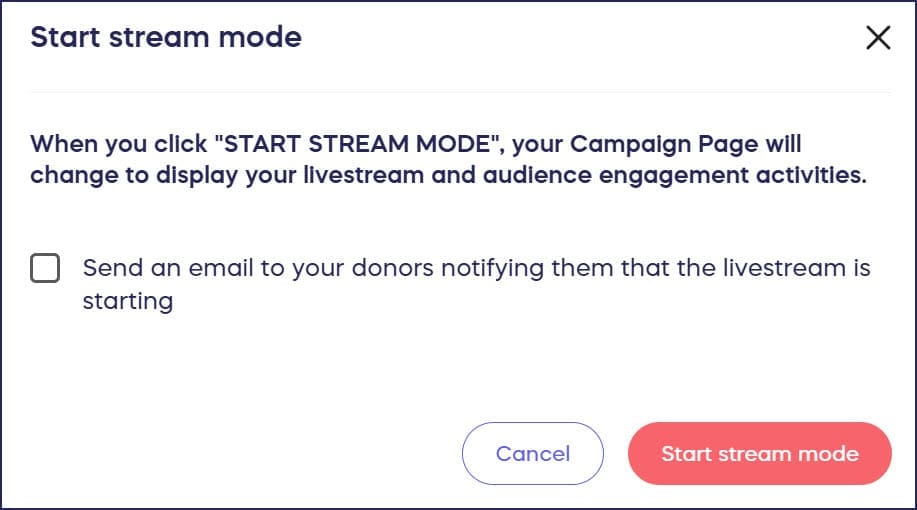
- Check the box next to Send an email to your donors notifying them that the livestream is starting and enter your message:
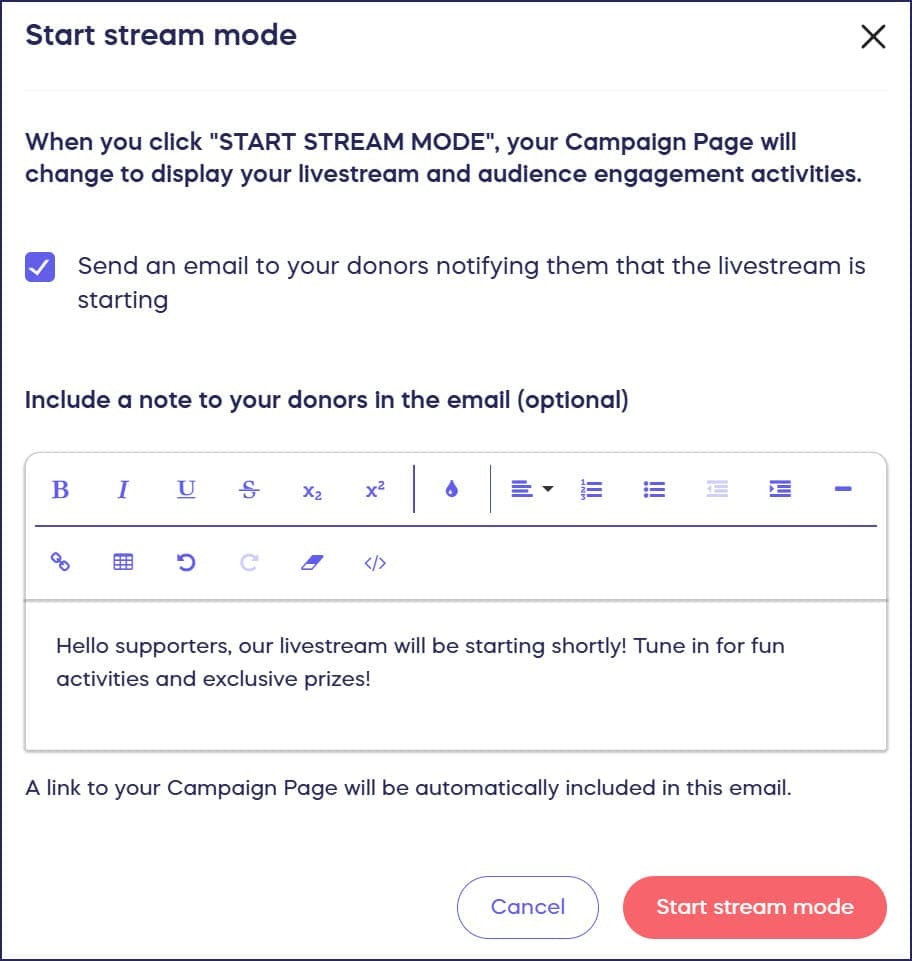
- Select Start stream mode.
After activating stream mode, you’re ready to go live. When you’re ready to begin broadcasting to your audience, follow the instructions in How to Start and End a Livestream to officially launch your virtual fundraising event.
What should I include in my pre-stream email notification?
Your email notification should be brief, urgent, and action-oriented since donors are receiving it right as your event begins. Include a clear message that the Livestream is starting now or in the next few minutes, a direct link to your Campaign Page where they can watch, and a compelling reason to tune in immediately such as exclusive content, limited-time donation matching, or live Auction items.
Keep the message concise—this is a last-minute alert, not a full event description. The goal is to create immediate urgency that drives recipients to stop what they’re doing and join your stream right away.
When is the best time to send the pre-stream notification?
Send your pre-stream notification as close to your actual start time as possible, typically within 5-10 minutes of going live. This timing creates maximum urgency without giving viewers time to forget or get distracted. If you send it too early, people may plan to join later and then forget. If you send it after you’re already streaming, early attendees won’t receive the notification benefit.
Frequently Asked Questions
Who receives the pre-stream email notification?
The email notification goes to all donors associated with your Campaign who have agreed to receive communications from your organization. This includes people who have previously donated to the current Campaign, purchased tickets, or otherwise engaged with your fundraising efforts. The notification does not automatically go to your entire organization’s contact list—only those connected to the specific Campaign with the Livestream.
Can I customize the email notification message?
Yes, when you check the box to send the notification, you can enter a custom message that will be included in the email. This allows you to personalize the notification with specific details about what viewers can expect during the stream, special announcements, or urgent calls to action. Keep your message concise and focused on driving immediate attendance to your Livestream.
Does the countdown timer on my Campaign Page automatically update?
Yes, when you schedule a Livestream, RallyUp automatically displays a countdown timer on your Campaign Page showing how much time remains until the scheduled start. This countdown updates in real-time and helps build anticipation for your event. Once you actually start streaming, the countdown is replaced by the live video feed. The timer and email notification work together to maximize attendance.
Can I send multiple reminder emails before the stream starts?
The built-in notification feature in the Livestream Studio sends one email when you activate stream mode. For additional reminder emails sent earlier (hours or days before), you would need to use your organization’s email marketing tools or RallyUp’s general communication features. The pre-stream notification is specifically designed as a final urgent alert sent right as you’re going live.
What if I’m not ready to stream immediately after sending the notification?
Plan to send the pre-stream notification only when you’re genuinely ready to broadcast within the next few minutes. Sending the “starting now” email and then delaying significantly can frustrate viewers and reduce trust in future notifications. Complete all your technical setup, test your equipment, and prepare your content before activating stream mode and sending the notification.
Will donors receive notifications if they’ve unsubscribed from emails?
No, donors who have unsubscribed from your organization’s communications will not receive the pre-stream notification email. The notification respects all existing email preferences and unsubscribe settings. This is why it’s important to also promote your Livestream through other channels like social media and your website to reach the broadest possible audience.
Can I preview the notification email before sending it?
The notification is sent immediately when you activate stream mode with the checkbox selected, so there’s no preview function. However, you can see exactly what message you’re entering before selecting Start stream mode. Write your message carefully in the text field, review it for any errors, and ensure it includes all necessary information before proceeding to activate stream mode and send the notification.