Customize the domain used in links to your fundraising pages to match your organization’s brand.
Customized subdomains and domains make it easy for donors to find and remember the links to your fundraising pages. All RallyUp users can customize their subdomain and domain:
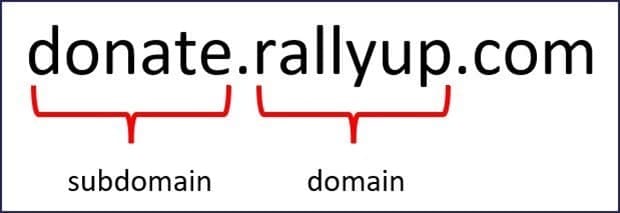
Your customized domain and/or subdomain will apply to all your donor-facing pages, including your fundraising Campaigns and Donation Pages.
How do I customize my RallyUp subdomain?
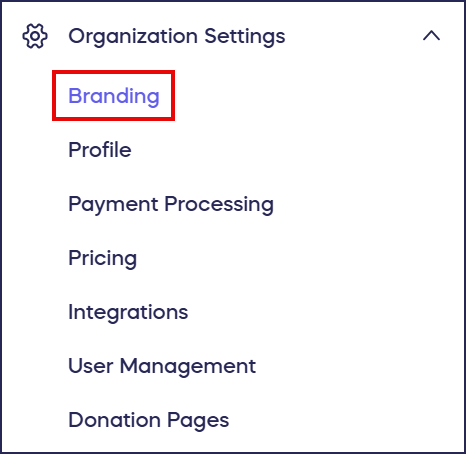
- Go to Organization Settings in the left menu and select Branding:
- Go to Customize the domain for your account, and select Use a subdomain of RallyUp.com:
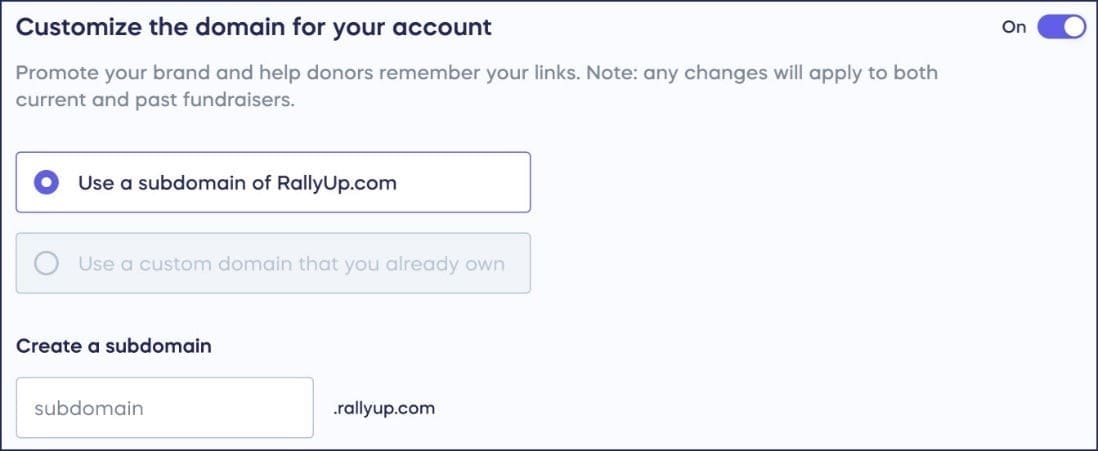
- Enter your desired subdomain into the text box under Create a subdomain. We recommend using one word that relates to your cause and will be easy for donors to remember.
- If your desired subdomain isn’t available, try another until you find one that is available.
- Once you’ve selected an available subdomain, select Save at the bottom of the page. Your subdomain will now appear for all donor-facing pages.
How do I set up a custom domain for my organization account?
What do I need before setting up a custom domain?
- Ensure that you already own a domain name and have access to your domain provider’s management portal. RallyUp doesn’t sell domain names, but you can buy one from any domain provider you like. Common domain providers include but aren’t limited to:
- SSL setup includes a one-time $99 fee.
Step 1: How do I add my subdomain in RallyUp?
- Go to Organization Settings in the left menu and select Branding:
- Go to Customize the domain for your account, and select Use a custom domain that you already own:

- Enter a subdomain you’d like to use for your account (i.e., [myorganization].rallyup.com).
Step 2: How do I add a CNAME record to my domain?
Once you have a registered domain, you’ll need to add a CNAME record to your domain’s DNS records:
- Go to the DNS record section of the portal through which you registered your custom domain (i.e., GoDaddy, WordPress, etc.).
- Choose to add a new record to your DNS settings, and select CNAME as the record type.
- In the host field, enter a subdomain of your domain. For example, if the domain you registered is myorganization.com, you can enter donate.myorganization.com for the host, where “donate” can be any word you choose (e.g., “support,” “give,” “go,” etc.).
- For the destination field, enter the RallyUp Subdomain you created in step 1 (i.e., donate.rallyup.com)
If you still need help, we’ve compiled a list of help articles on adding a CNAME record for popular domain hosting services. Click the one for the provider you used to register your custom domain:
If your domain provider isn’t listed above, just Google search “[Domain Provider Name] CNAME record,” and replace [Domain Provider Name] with the name of the company through which you registered your custom domain, like GoDaddy or Name.com.
Step 3: How do I verify my custom domain in RallyUp?
- Once your new custom domain name (CNAME) is created and registered, return to Branding in the left menu.
- Enter your domain, then select SAVE to verify it.
- Once your domain is verified, scroll down to the bottom of the page and select SAVE one more time.
Step 4: How do I secure my custom domain with SSL?
The final step of your custom domain setup is to secure the domain by installing an SSL Certificate. This step ensures your custom domain will show up as secure on browsers like Google Chrome, Firefox, and Safari. Without this last step, people who visit your pages will likely get a security error message, which could prevent them from accessing your pages.
You’ll need our help with this last step. Contact us when you’re ready by clicking the message icon in the bottom right of the screen, or email success@rallyup.com. We’ll be happy to assist you in finishing this process. SSL setup includes a one-time $99 fee.
Can I use my base domain or www subdomain?
You can’t set up a base domain (e.g., “myorganization.org”) or the “www” subdomain (e.g., “www.myorganization.org”) as the custom domain for your organization. Instead, your Campaign URL will be similar to “donate.myorganization.org/my-campaign-page.”
Frequently Asked Questions
What’s the difference between a subdomain and a custom domain?
A subdomain uses RallyUp’s domain (like donate.rallyup.com) and is free to set up. A custom domain uses your own registered domain name (like donate.myorganization.org), requires DNS configuration, and includes a one-time $99 SSL setup fee.
Do I need to purchase a domain name through RallyUp?
No, RallyUp doesn’t sell domain names. You need to purchase and own a domain name through a domain provider like GoDaddy, Namecheap, or Google Domains before setting up a custom domain with RallyUp.
How long does it take for my custom domain to start working?
After adding the CNAME record, DNS changes can take anywhere from a few minutes to 48 hours to propagate. Once verified in RallyUp and secured with SSL, your custom domain will be active for all your donor-facing pages.
Will my custom domain apply to all my fundraising pages?
Yes, your customized domain or subdomain will apply to all your donor-facing pages, including all your Campaigns and Donation Pages. This creates consistent branding across your entire fundraising presence.
Why do I need SSL for my custom domain?
SSL (Secure Sockets Layer) ensures your custom domain appears as secure in browsers like Chrome, Firefox, and Safari. Without SSL, visitors will see security warning messages that could prevent them from accessing your fundraising pages.