Mix up your Paddle Raise at your next in-person event by featuring Raffle entry levels, Storefront merch, A-Thon pledge amounts, and more.
Paddle Raises are typically used to request donations for specific needs or appeals, but Paddle Raise+ gives you more flexibility. In addition to donation amounts, you can highlight items for purchase like Raffle entry levels, Storefront merch, A-Thon pledge amounts, and more. When an item is featured, event attendees can raise paddles or cards to indicate that they want to make a purchase. This keeps things interesting for donors and shows them all the ways they can contribute, inspiring them to give more for your cause.
How does RallyUp’s Paddle Raise+ work?
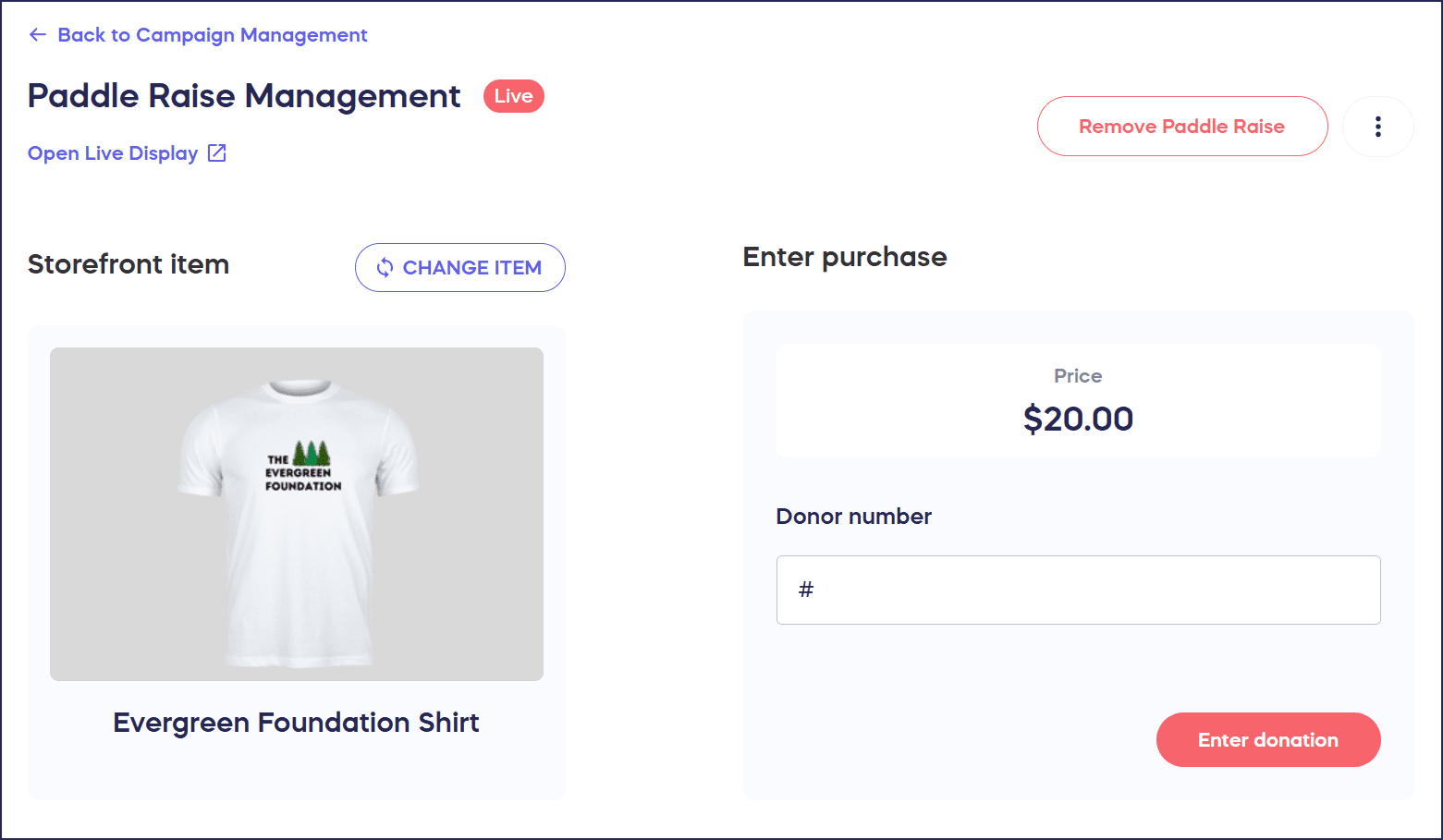
- Use the Paddle Raise Management page to spotlight a specific item:
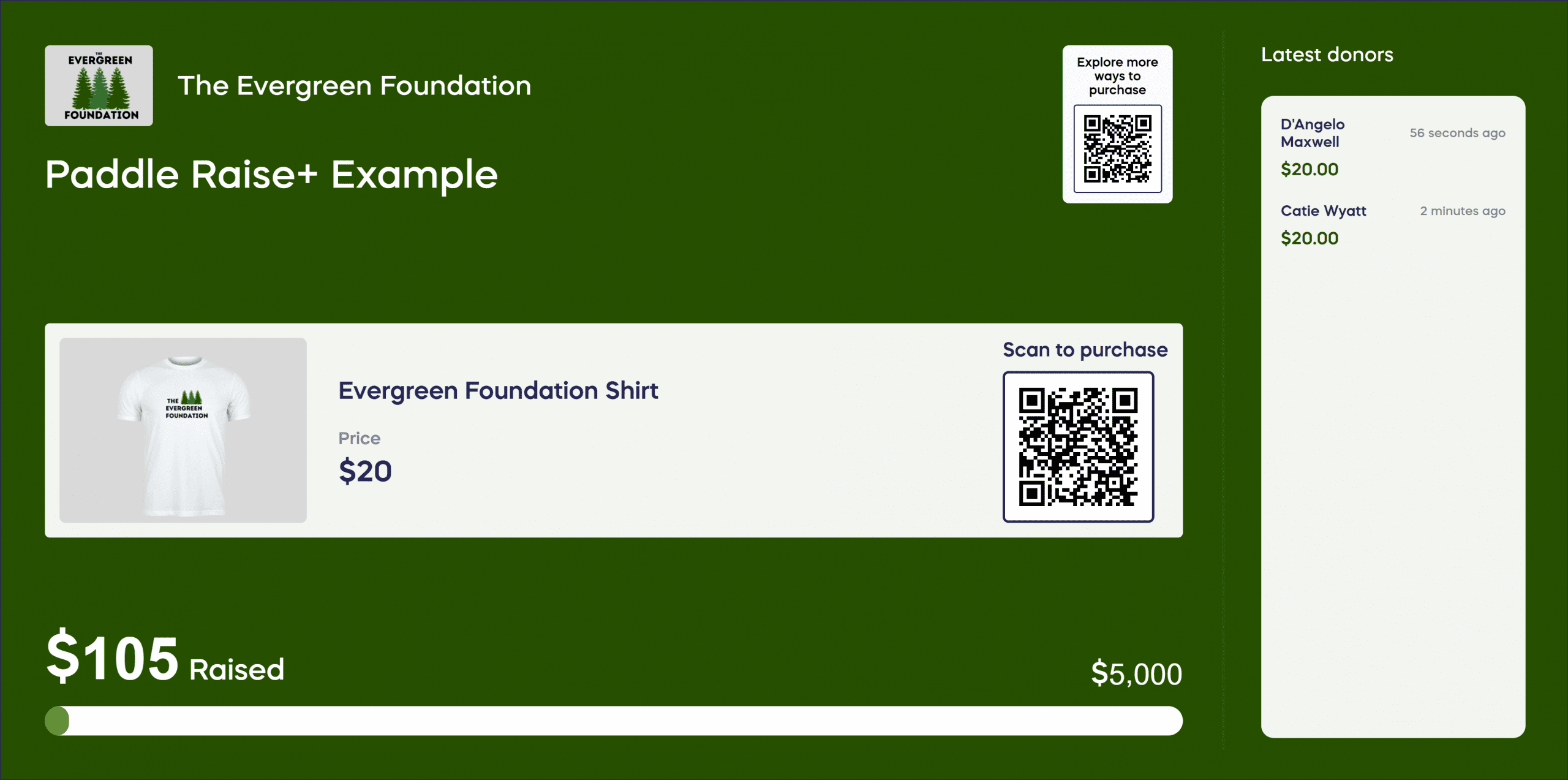
- Guests will see the spotlighted item on the Live Display, which you can project onto monitors or screens throughout your venue:
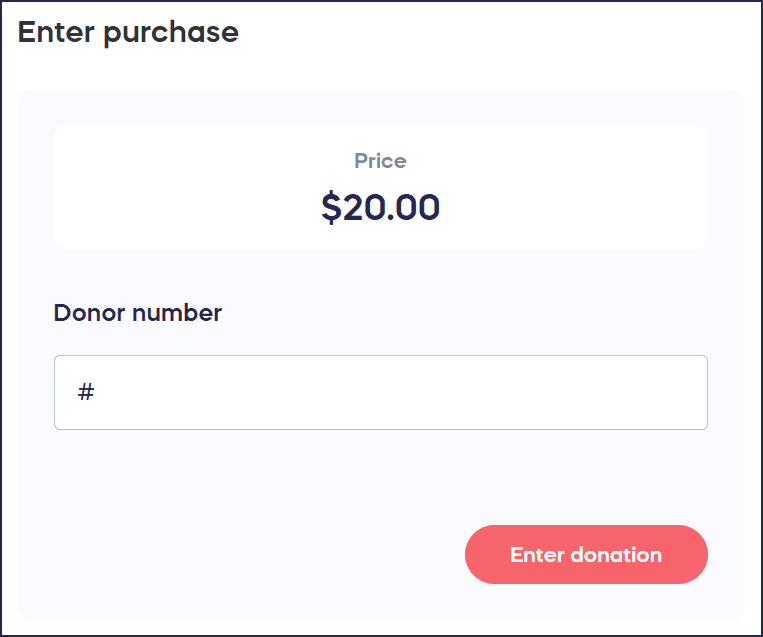
- When guests raise their paddles, use the Paddle Raise Management page to enter each guest’s purchase:
These purchases will be added to each guest’s Event Balance.
Understand: Event Balances and Guest Numbers
- Charge guests for their purchases individually or all at once, whenever you like. You can do so during the Paddle Raise, when the Paddle Raise ends, when the event ends, or anytime you want.
How do I add Paddle Raise+ to my Campaign?
- Go to Account Navigation in the left menu and select Campaigns.
- If you have chosen a list view, click on the Campaign title. If you have chosen a grid view, click on the Campaign image.
- Select Campaign Setup.
- Go to Getting Started in the timeline at the top.
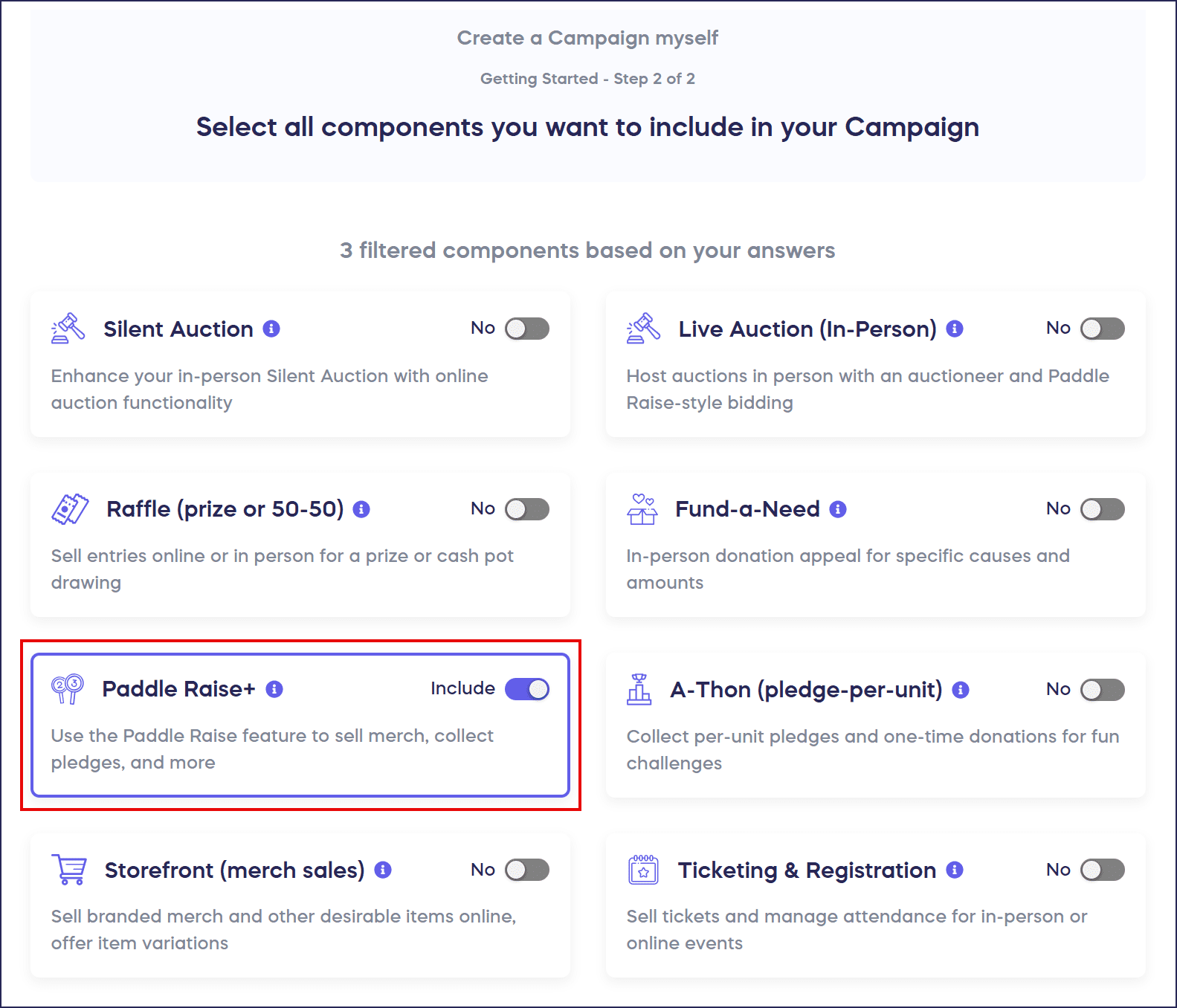
- Scroll down to Select all components you want to include in your Campaign and click on the toggle next to Paddle Raise+:
- Select Save.
What should I do before running a Paddle Raise?
- Ensure you’ve added all relevant items to your Campaign Page before the event starts.
- We suggest printing or writing each attendee’s Guest Number on their paddle, so spotters can easily enter their purchases when they raise their paddles.
- By default, Paddle Raises are visible on your Campaign Page while the Paddle Raise is live:
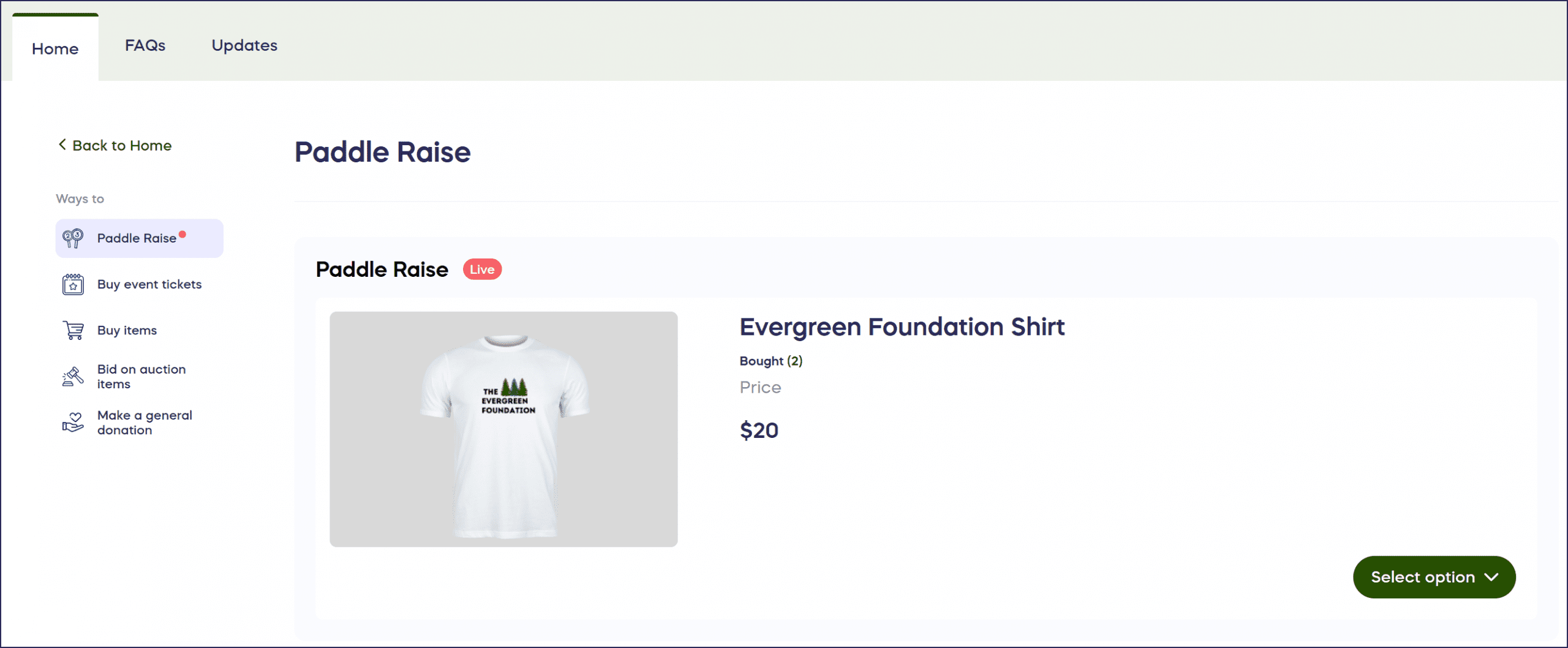
If you want to hide your Paddle Raise from the Campaign Page, you can do so from your Paddle Raise settings.
How do I run a Paddle Raise?
- Go to Account Navigation in the left menu and select Campaigns.
- If you have chosen a list view, click on the Campaign title. If you have chosen a grid view, click on the Campaign image.
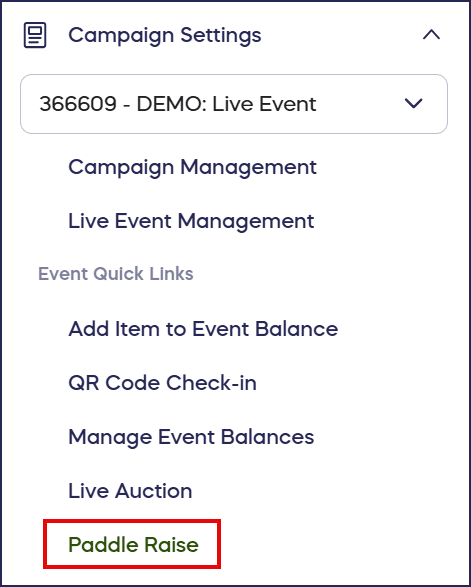
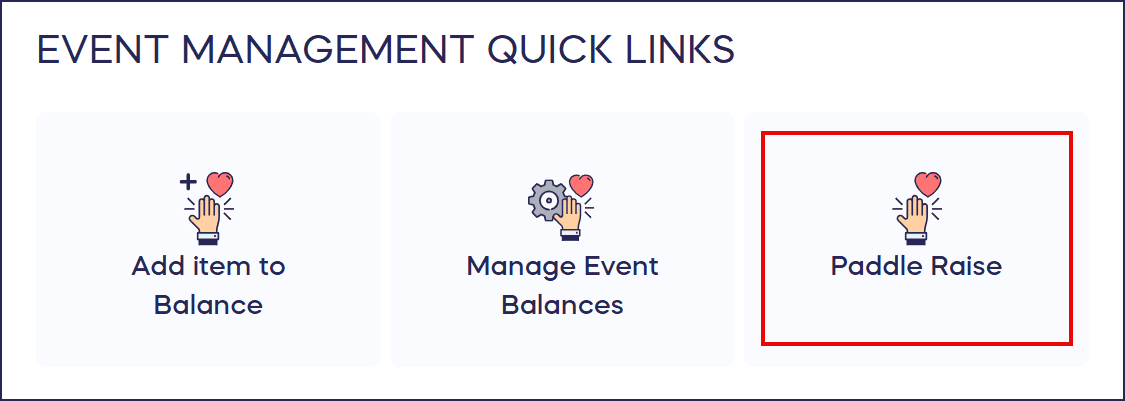
- Scroll down to Event Management Quick Links and select Paddle Raise:
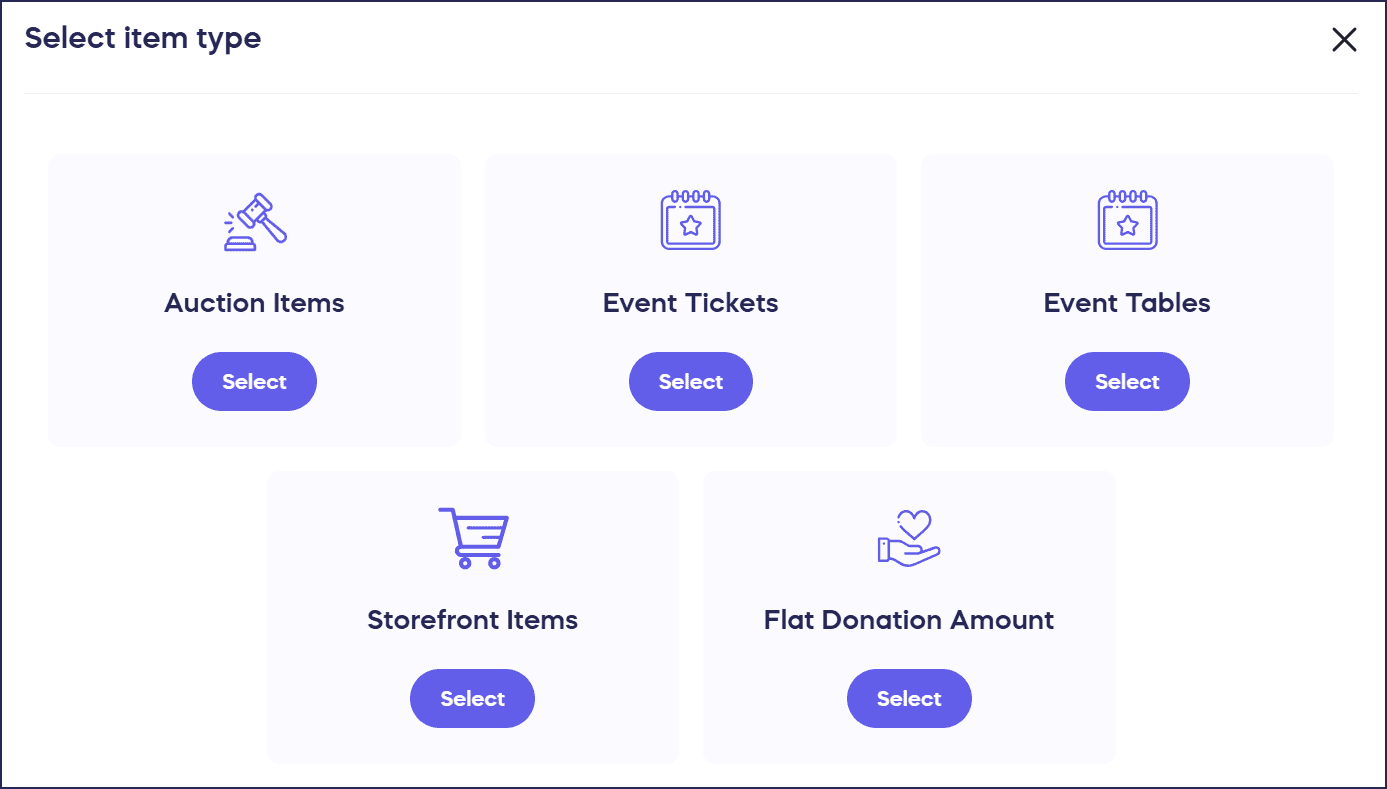
- Select the item you want to spotlight:
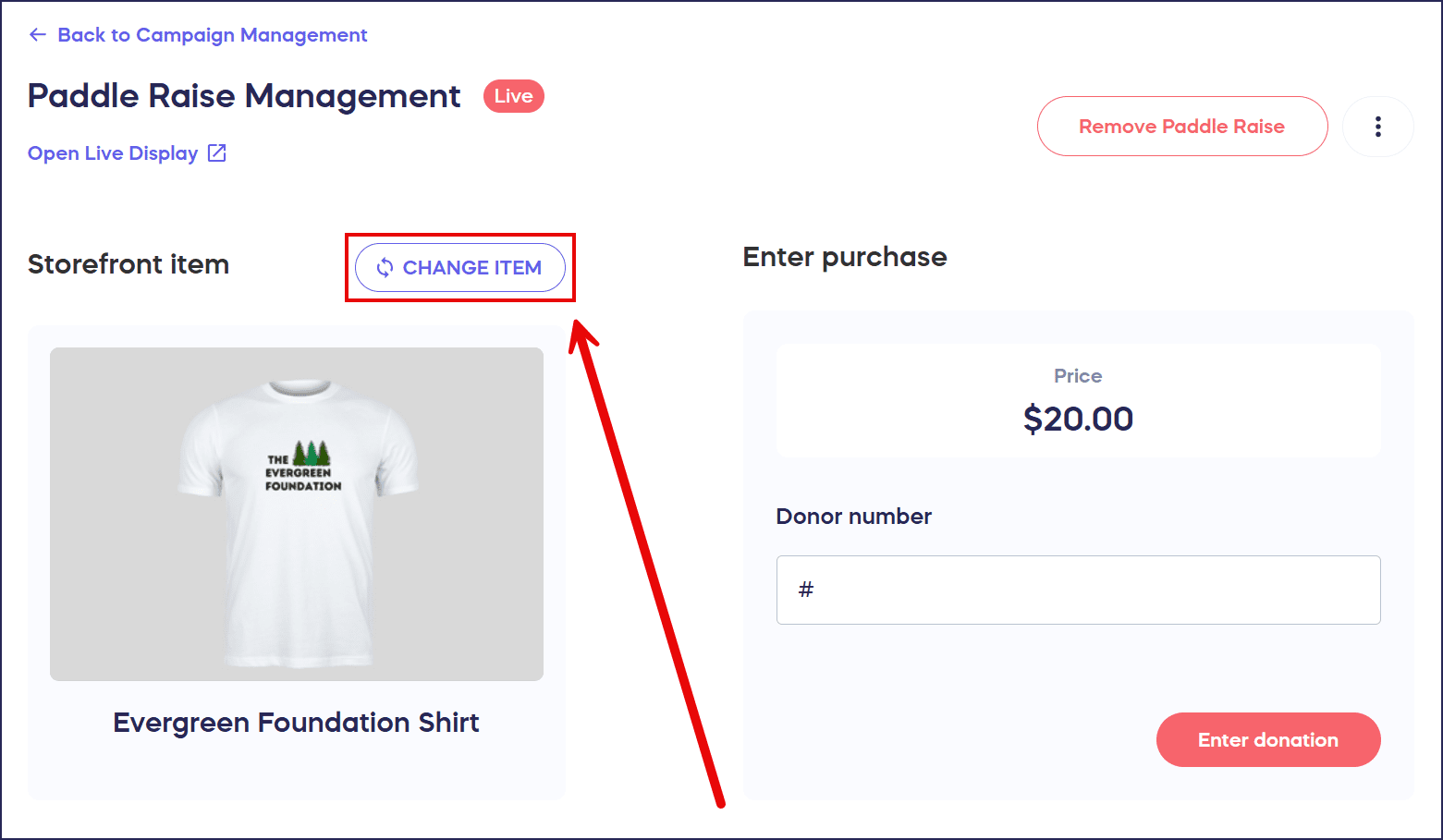
- To spotlight a new item, select Change item on the left:
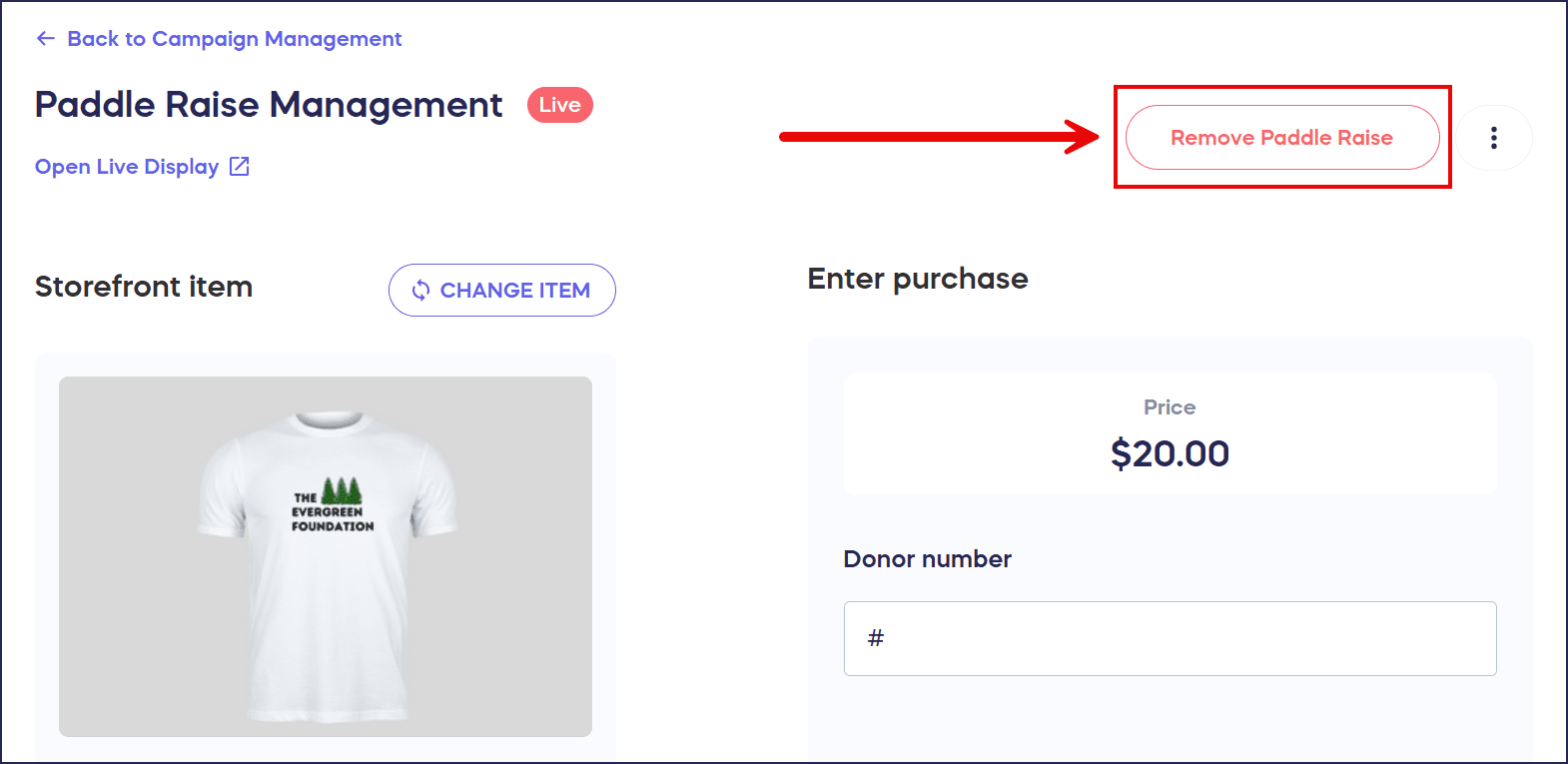
- To end your Paddle Raise, select Remove Paddle Raise:
How do spotters enter Paddle Raise+ purchases?
When guests raise their paddles to indicate that they want to make a purchase, spotters will go to the Paddle Raise Management page and use the Guest Numbers on the paddles to enter their purchases:
How do I access the Paddle Raise Management page?
- Go to Account Navigation in the left menu and select Campaigns.
- If you have chosen a list view, click on the Campaign title. If you have chosen a grid view, click on the Campaign image.
- Scroll down to Event Management Quick Links and select Paddle Raise:
How do I submit a guest’s Paddle Raise+ purchase?
- On the Paddle Raise Management page, go to Enter purchase on the right:
- Enter the donor’s Guest Number in the text box (this number will be displayed on the guest’s paddle or card for easy reference, but you can also find it on the View Ticket Registrations screen).
- Select Enter donation.
How can I change my Paddle Raise settings?
You can access your Paddle Raise settings by clicking on the three-dot menu on the top right corner of the screen:
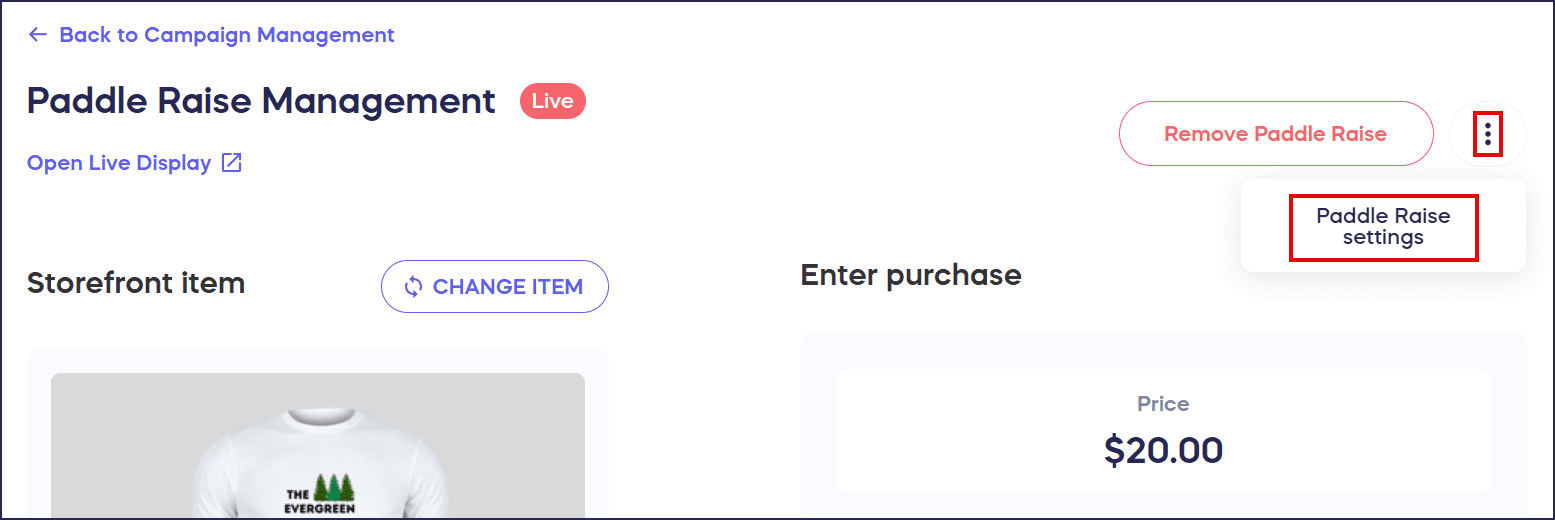
This allows you to:
- Add a fundraising goal.
- A fundraising thermometer will appear on your Live Display to show how close you are to achieving this goal.
- Allocate donations to designated Fund options.
- You can select a Fund anytime during your Paddle Raise, and all purchases will automatically be allocated to that Fund while it’s selected: How-to: Create Donation Designation Options Using the Fund Feature.
- Hide the Paddle Raise from your Campaign Page so only in-person attendees can participate.
Frequently Asked Questions
What’s the difference between Paddle Raise and Paddle Raise+?
Traditional Paddle Raises focus on donation amounts for specific needs or appeals. Paddle Raise+ expands this by allowing you to spotlight Raffle entry levels, Storefront merch, A-Thon pledge amounts, and other purchasable items in addition to donations.
Can I use Paddle Raise+ for virtual events?
Paddle Raise+ is designed primarily for in-person events where attendees can physically raise paddles or cards. However, you can display the Paddle Raise on your Campaign Page to allow virtual attendees to participate.
When can I charge guests for their Paddle Raise purchases?
You can charge guests individually or all at once at any time – during the Paddle Raise, when it ends, when the event concludes, or at any convenient time. All purchases are added to each guest’s Event Balance for flexible payment processing.
Can I track progress toward a fundraising goal during my Paddle Raise?
Yes, you can add a fundraising goal in your Paddle Raise settings. A fundraising thermometer will appear on your Live Display to show attendees how close you are to reaching the goal in real-time.
Can I allocate Paddle Raise+ purchases to specific funds?
Yes, you can select a Fund anytime during your Paddle Raise. All purchases will automatically be allocated to that designated Fund while it’s selected, helping you track donations for specific purposes or appeals.
Is there another way to access the Paddle Raise Management page while my in-person event is live?
Yes, if your event is already live, you can access the Paddle Raise Management page from the Quick Admin Menu on the left side of your screen. Select the event in question from the dropdown menu, then select Paddle Raise under Event Quick Links: