Track fundraising data across all Campaigns and customize each report to meet your needs.
Running reports that track data across all RallyUp Campaigns can help you pinpoint long-term trends and provide insights into how to shape your overall fundraising strategy. RallyUp provides a number of reports to help you gain valuable insights into all aspects of fundraising.
Each report includes at-a-glance statistics at the top of each page for easy reference:

All organization-level reports are customizable and can be shared with others.
How do I access my organization-level reports?
- Go to rallyup.com and log into your account.
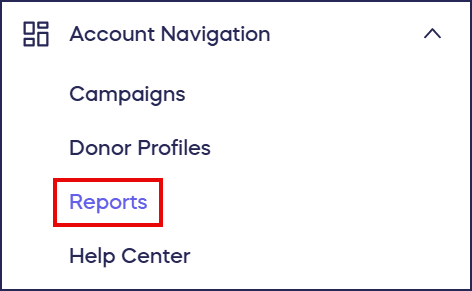
- Go to Account Navigation in the left menu and select Reports:
- Click on the tabs to navigate between different types of reports:

What organization-level reports does RallyUp provide?
The reports RallyUp automatically provides are listed below. Each report contains default columns, but you can add or remove columns to create custom reports that meet your exact needs. You can also sort or apply filters to further customize each report.
Key Reports
This report includes the following default columns:
Date
Name
Amount
Status (Pending, Submitted, Paid, Declined, etc.)
Type (Card, PayPal, Check, Cash, etc.)
This report includes the following default columns:
Name
Email
Total Amount Donated
This report includes the following default columns:
Title
Activity (Crowdfunding, Ticketing, Store, Auction, etc.)
End Date
Raised (total amount raised for the Campaign)
Status (Draft, Started, Ended, Canceled, etc.)
This report includes the following default columns:
Name
Email
Campaign Name
Raised (total amount the Participant raised)
Number of Donations (how many unique donations the Participant received)
This report includes the following default columns:
Name
Email
Campaign Name
Raised (total amount the Team raised)
Number of Donations (how many unique donations the Team received)
Number of Participants (how many people were on the Team)
This report includes the following default columns:
Item Name
Campaign Name
Quantity Sold (how many of the item were sold)
Item Type (Auction, Sale, Raffle, Sweepstakes, etc.)
Total Available (how many of the item were available to purchase)
Focused Reports
This report includes the following default columns:
Name
Email
Phone
Ticket Number
Prize
Campaign Name
This report includes the following default columns:
Name
Email
Phone
Ticket Number
Prize
Campaign Name
This report includes the following default columns:
Name
Email
Phone
Item Name
Winning Bid Amount
Campaign Name
Payment Status
This report includes the following default columns:
Name
Email
Phone
Number of Bids
Number of Items Won
Highest Bid Amount
This report includes the following default columns:
Item Name
Campaign Name
Number of Bids
Status
Current Bid
This report includes the following default columns:
Item Name
Price
Campaign Name
Campaign Status
Quantity Sold
Quantity Available
This report includes the following default columns:
Name
Email
Campaign
Ticket Type
Checked In
This report includes the following default columns:
Name
Recurring Amount
Total Amount Donated
Status
Type
Period
Campaign
This report includes the following default columns:
Name
Email
First Donation Date
Last Donation Date
Total Amount Donated
Number of Donations
This report includes the following default columns:
Name
Recurring Amount
Total Amount Donated
Status (Active or Inactive)
Type (Payment Method)
Period (Monthly, Yearly, etc.)
Campaign Name
This report includes the following default columns:
Name
Recurring Amount
Total Amount Donated
Status (Active or Inactive)
Type (Payment Method)
Period (Monthly, Yearly, etc.)
Campaign Name
This report includes the following default columns:
Name
Email
Total Amount Donated
This report includes the following default columns:
Name
Recurring Amount
Total Amount Donated
Status (Active or Inactive)
Type (Payment Method)
Period (Monthly, Yearly, etc.)
Campaign Name
What are Custom Views?
If you customize any organization-level report, you can save it as a Custom View to download or share whenever you need. All saved customized reports will appear in this section:

How do I customize my organization-level reports?
- Select the report you want to customize.
- To filter a column, click on the filter icon next to the column title:

- To sort column values in ascending or descending order, click on the arrow next to the column title:

- To add or remove columns, click on Edit Columns:

You can also change the order in which the columns appear by dragging and dropping:
When you select Save columns, your customized report will be saved as a Custom View.
- To rename a customized report, click on the three-dot menu in the top right corner of the screen and select Edit Name:
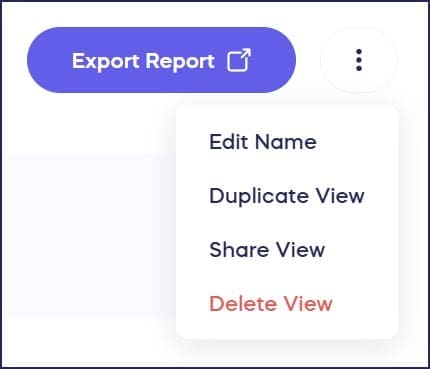
- To duplicate a customized report, click on the three-dot menu in the top right corner of the screen and select Duplicate View.
- To delete a customized report, click on the three-dot menu in the top right corner of the screen and select Delete View.
How do I share and export my organization-level reports?
All organization-level reports can be shared or exported, including customized reports.
To export your report as a .csv file, select Export Report in the top right corner of the screen:

If you’ve customized your report, all customizations will be included in the export.
To share your report via link, click on the three-dot menu in the top right corner of the screen and select Share View:
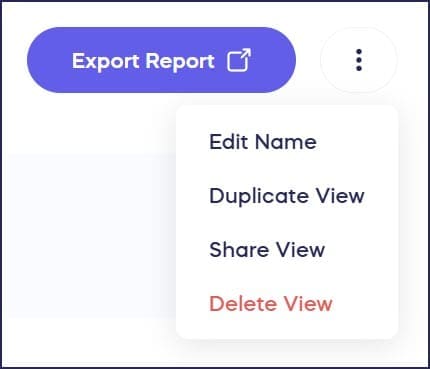
This will generate a link that you can copy and share:

Can I save my customized reports?
Yes! When you customize any organization-level report by adding or removing columns, filtering data, or changing the sort order, you can save it as a Custom View. All saved Custom Views appear in the Custom Views section for easy access whenever you need them.
Frequently Asked Questions
What’s the difference between Key Reports and Focused Reports?
Key Reports provide broad overviews of your fundraising data across all Campaigns, including transactions, donors, and items. Focused Reports dive deeper into specific activities like Raffle winners, Auction bidders, recurring donations, and event ticket sales.
Can I customize the columns in my reports?
Yes, all organization-level reports can be customized. You can add or remove columns, change column order by dragging and dropping, apply filters, and sort data in ascending or descending order to create reports that meet your specific needs.
Are my customizations included when I export a report?
Yes, when you export a report as a .csv file, all customizations including column selections, filters, and sorting will be included in the exported file.
How do I share a report with my team members?
You can share any report, including customized views, by clicking the three-dot menu and selecting “Share View.” This generates a shareable link that you can send to team members or stakeholders.
Can I track recurring donations across all my Campaigns?
Yes, RallyUp provides several recurring donation reports including Recurring Transactions, Campaign Recurring Donors, Donation Page Recurring Donors, and Donation Page Recurring Transactions. These reports help you track and manage all recurring contributions across your organization.