Join a Livestream from your RallyUp account.
If you want to join a Livestream as a guest presenter, you’ll need a RallyUp account and Campaign access. Campaign organizers can invite guest presenters to join their fundraising Livestreams, making it easy to feature multiple speakers, auctioneers, or special guests during your virtual event.
What do I need to join a RallyUp Livestream as a guest presenter?
To participate as a guest presenter in a RallyUp Livestream, you need two things:
- A RallyUp account
- Administrator access to the Campaign
The Campaign organizer must send you an email invitation that grants you administrator status and includes a direct link to the Campaign. If you don’t already have a RallyUp account, the invitation email will also include an account creation link to get you started.
Once you have both account access and Campaign permissions, you can enter the Livestream Studio and join as a presenter.
How do I create my RallyUp account from an invitation?
- Find the email inviting you to become a Campaign administrator and select the campaign URL, which will take you to the RallyUp website:
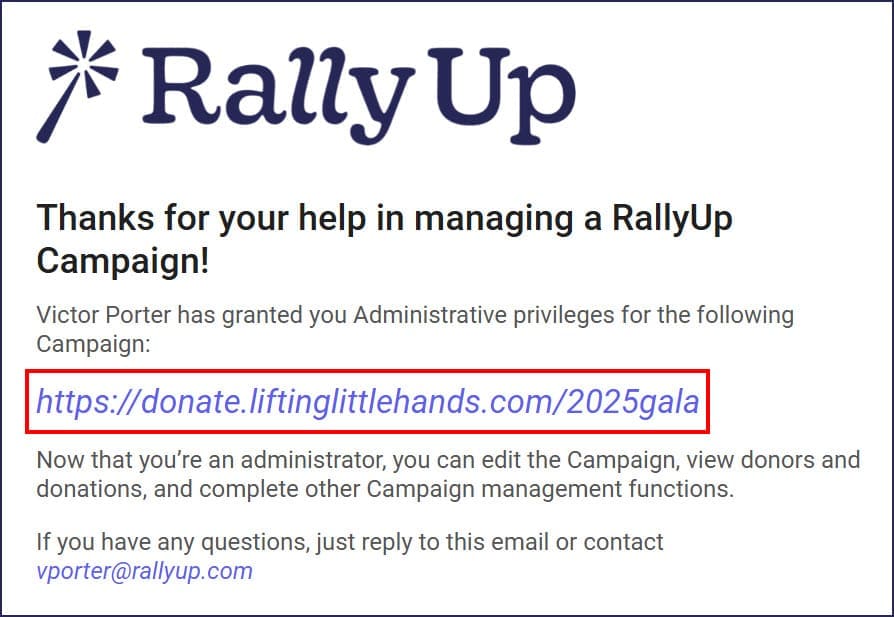
If you can’t find the email, check your spam folder.
- When you reach the login page, your email address should auto-populate. Select GO to continue:
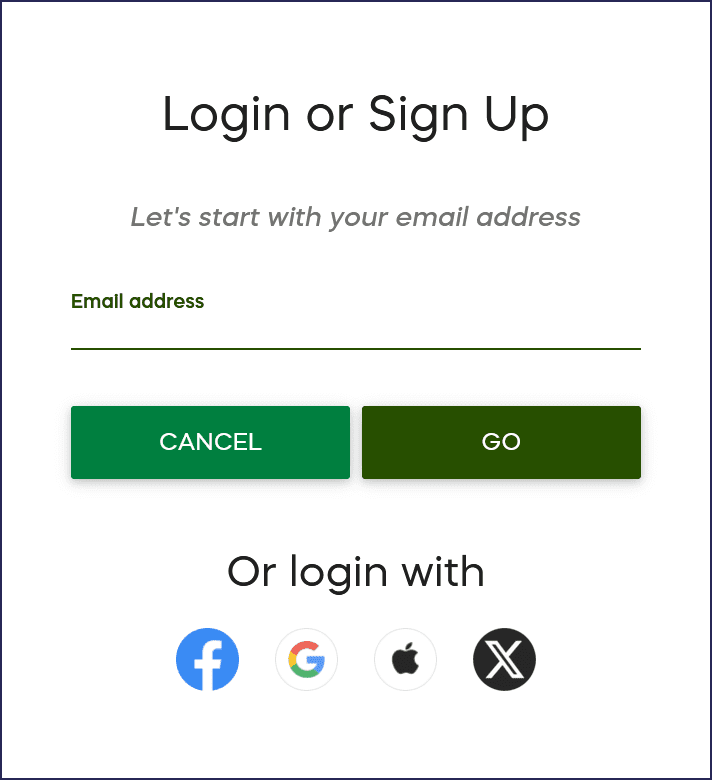
If you’d rather use a different address, you can change it after your account is created by following these instructions.
- Enter your first and last name, set a password, and select CREATE ACCOUNT to complete the process.
How do I confirm that I have Campaign access?
After creating your account or logging in, you can verify your administrator access by checking the Campaigns section. If you’ve been successfully added as an administrator, you should be able to find the Campaign by going to Account Navigation in the left menu and selecting Campaigns:
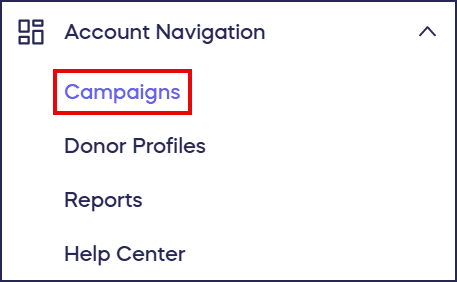
If you’ve logged into your account but you can’t find the Campaign, verify the email address with your Campaign organizer. They may have assigned administrator status to a different email account. If you’re not sure whether you’ve been assigned administrator status, contact your Campaign organizer directly to confirm.
How do I join the Livestream as a presenter?
Once you have confirmed Campaign access, joining the Livestream is a simple process:
- Go to Account Navigation in the left menu and select Campaigns.
- If you have chosen a list view, click on the Campaign title. If you have chosen a grid view, click on the Campaign image.
- Select Livestream Studio, which will take you to a new screen.
- Double-check your audio and video settings, and if needed, grant your browser permission to access your camera or microphone. Learn how to give your browser access to your microphone and camera.
- Enter your first name, last name, and title (optional) and select Continue:
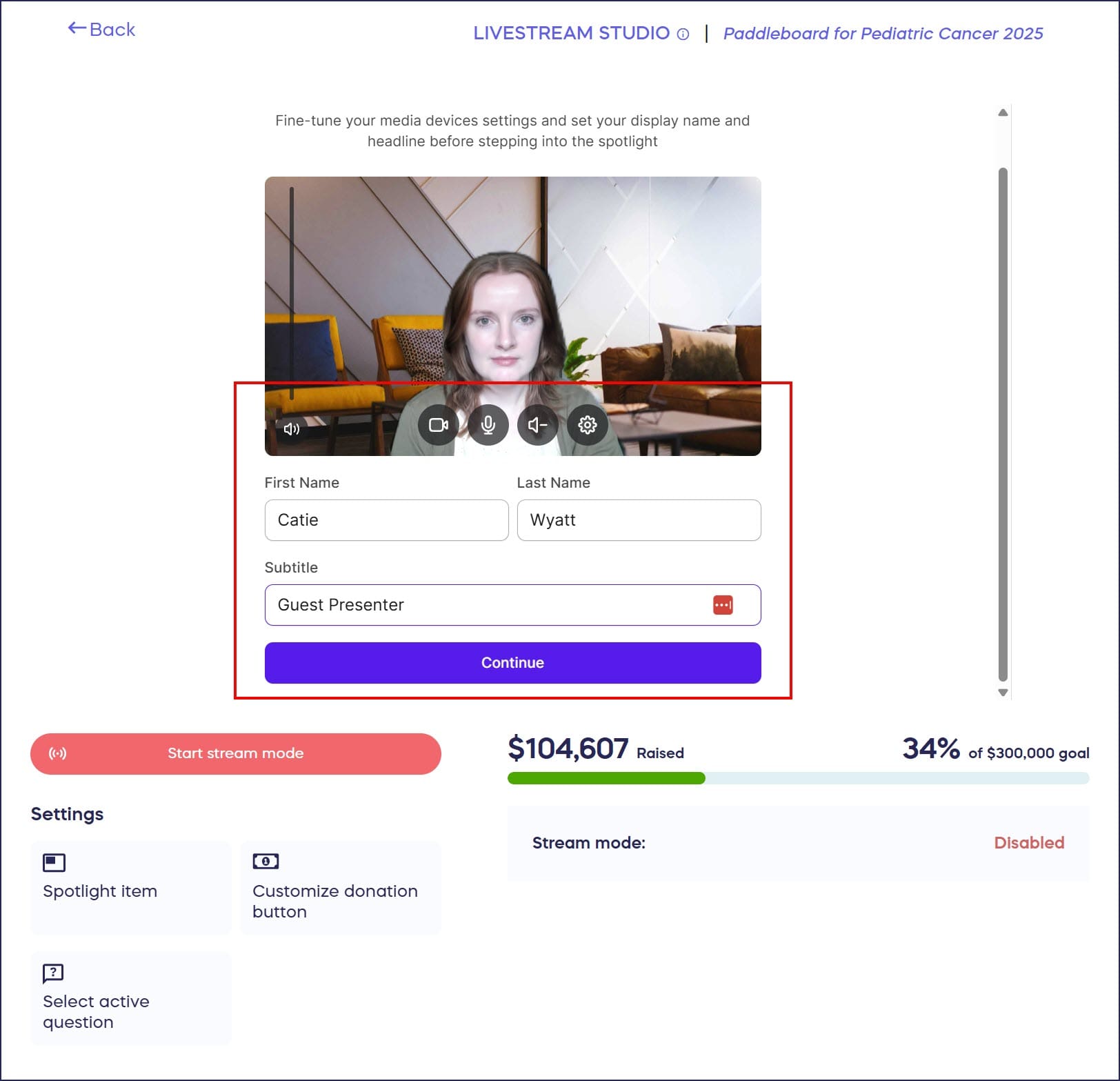
- If you see the following symbols in the upper left corner of the Livestream window, that means the Livestream is already live:

- When you’re ready to present, unmute yourself and click on the toggle to go onstage:
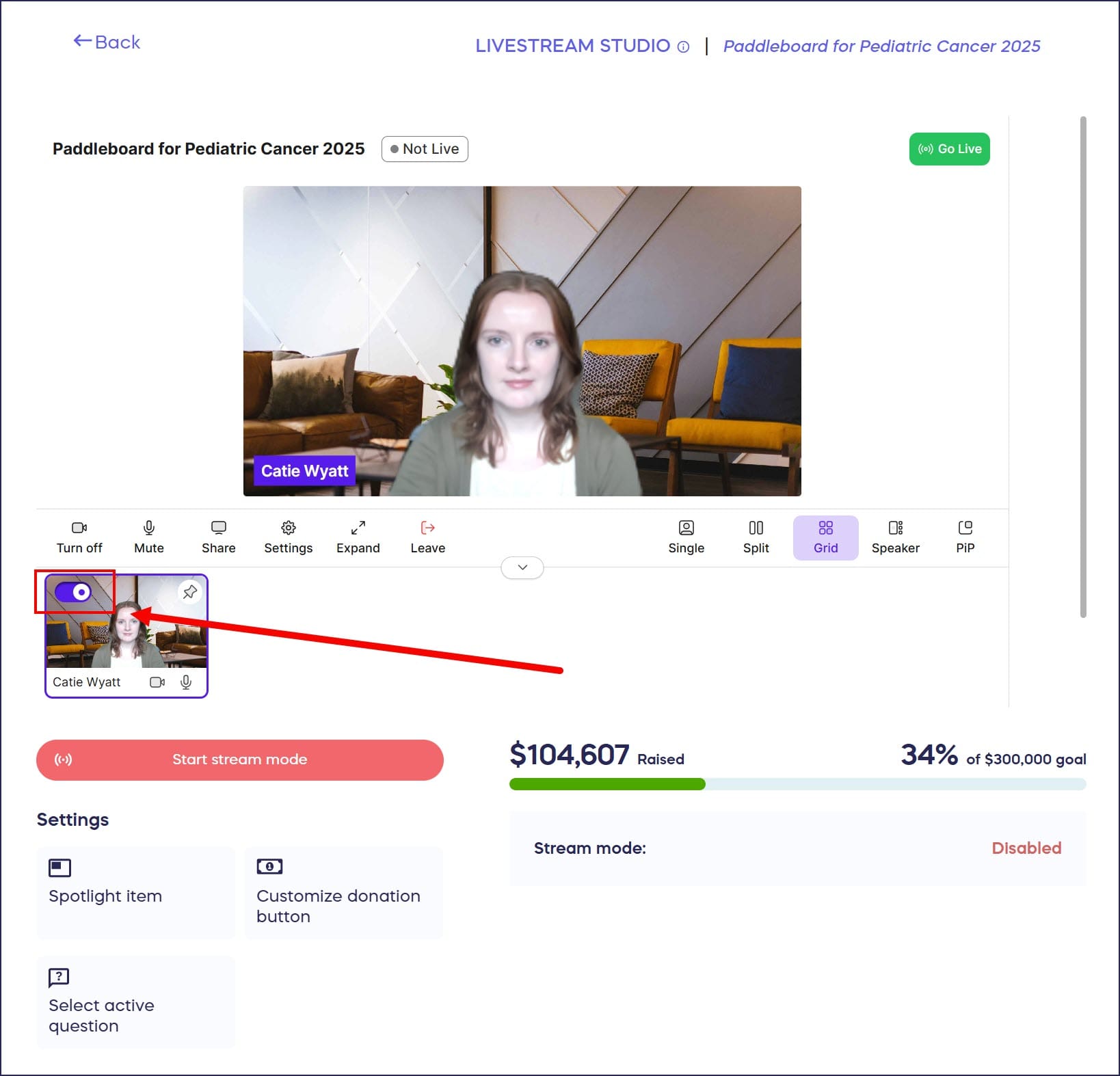
When you’re onstage, the audience can see and hear you.
What should I know before going onstage?
Before joining as an active presenter, keep these important tips in mind:
- Always mute yourself whenever you’re not onstage. Even though the audience can’t see or hear you when you’re offstage, any presenters currently onstage can still hear you. The audience might also hear you if any onstage presenters are using external speakers instead of headsets.
- Familiarize yourself with all Livestream Studio presenter controls before your event starts, and review best practices for Livestream presenters to ensure a smooth presentation experience.
Frequently Asked Questions
Can I join a Livestream without being added as an administrator?
No, you must be added as a Campaign administrator to access the Livestream Studio. Regular viewers can watch the Livestream on the Campaign Page, but only users with administrator permissions can enter the Livestream Studio to present. If you need presenter access, contact the Campaign organizer and ask them to send you an administrator invitation.
What happens if I lose connection during the Livestream?
If you lose internet connection while presenting, you’ll be automatically removed from the stage. Once your connection is restored, you can rejoin the Livestream Studio by refreshing your browser and following the same steps to enter the stage. Other presenters will continue streaming without interruption. To minimize connection issues, use a wired internet connection when possible and close unnecessary browser tabs or applications.
Can multiple guest presenters be onstage at the same time?
Yes, RallyUp Livestream supports multiple presenters onstage simultaneously. The Campaign organizer can add as many administrators as needed, and multiple presenters can appear on screen together. This is ideal for panel discussions, co-hosting events, or featuring multiple speakers throughout your fundraiser. Each presenter controls their own audio and video settings independently.
Do I need special equipment to be a guest presenter?
You don’t need professional equipment, but you do need a device with a working camera and microphone, plus a stable internet connection. Most laptops have built-in cameras and microphones that work well for Livestreaming. For better audio quality, consider using headphones with a built-in microphone to reduce echo. Make sure your browser has permission to access your camera and microphone before joining the Livestream Studio.
Can I test my audio and video before the Livestream starts?
Yes, you should always test your setup before going live. Enter the Livestream Studio before the event begins to check your camera angle, lighting, and audio levels. You can adjust these settings in the green room (the offstage area) without the audience seeing or hearing you. The Campaign organizer can help you troubleshoot any technical issues during this pre-event testing phase. If you’re using an Apple device and need to share your screen, review these instructions ahead of time.