Remove the Participant Center button from your Campaign Page so it’s not accessible to the public.
When you add a Participant Center to your Peer-to-Peer Campaign, RallyUp automatically adds a button to your main Campaign Page so anyone who views your fundraiser can also visit the Participant Center:
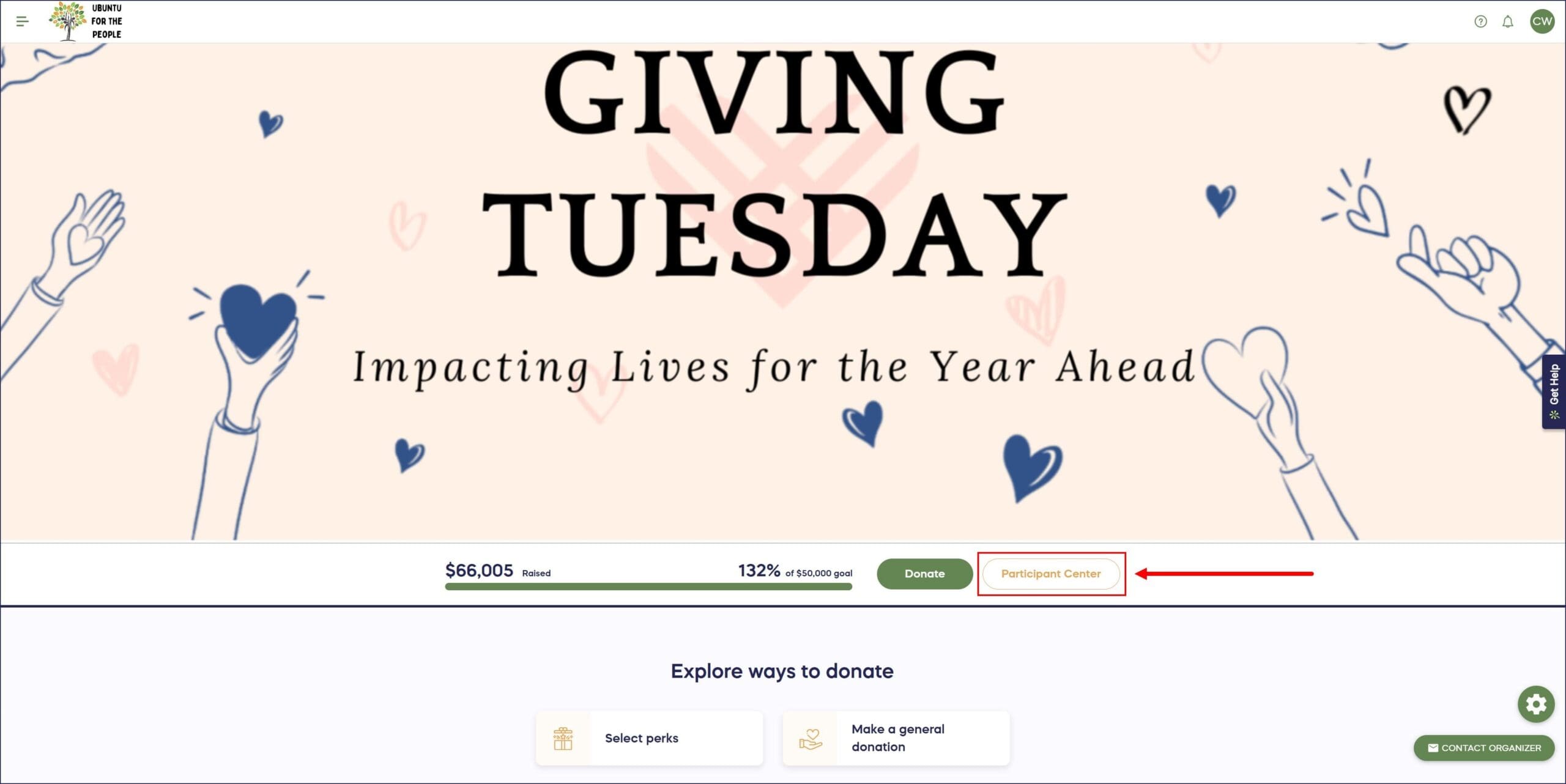
If you don’t want your Participant Center to be publicly accessible, you can remove this button from your Campaign Page. If you do so, only those with the direct link to your Participant Center will be able to access it.
You can also customize the link to your Participant Center to make it more memorable for Participants.
Why would I hide my Participant Center from public view?
Several scenarios make hiding your Participant Center beneficial for campaign management and participant privacy:
- Organizations often hide the Participant Center when they want to control which supporters can access participant tools and resources, creating a more exclusive experience for registered Participants.
- Some Campaigns use private Participant Centers to protect Participant information from public browsing, especially for youth fundraisers or Campaigns with sensitive Participant details.
- Hiding the button also creates a cleaner Campaign Page design for Campaigns where the Participant Center is primarily an administrative tool rather than a public engagement feature.
- Some organizations prefer to share the Participant Center link only with confirmed Participants through direct communication rather than making it publicly discoverable.
How do I hide the Participant Center button from my Campaign Page?
- Go to Account Navigation in the left menu and select Campaigns.
- If you have chosen a list view, click on the Campaign title. If you have chosen a grid view, click on the Campaign image.
- Select Campaign Setup.
- Go to Participant Center in the timeline at the top.
- Scroll down to Optional settings and select Show optional settings.
- Scroll down to Do you want a Participant Center button added to your Campaign Page? and select No, participants should only be able to access the Participant Center if they have a direct link*:

- Select SAVE.
Once saved, the Participant Center button will be removed from your Campaign Page immediately. Your Participant Center still exists and functions normally, but it’s only accessible through the direct URL.
Can Participants still access the Participant Center if I hide the button?
Yes, Participants can still access the Participant Center using the direct link even when the button is hidden from your Campaign Page. Each Participant Center has a unique URL that works regardless of whether the button displays publicly. This means registered Participants can bookmark the link, and you can share it through email invitations or private communications.
Hiding the button simply prevents casual visitors to your Campaign Page from discovering and accessing the Participant Center on their own. This gives you control over who knows about and uses the Participant Center without disrupting Participant functionality.
What’s the difference between hiding the Participant Center and customizing its name?
Hiding your Participant Center removes the button entirely from your Campaign Page, making the Participant Center accessible only through direct links.
Customizing the Participant Center name keeps the button visible but changes the text that appears on the button. For example, instead of “Participant Center,” you might rename it to “Fundraiser Hub” or “Team Portal” to better match your Campaign’s language.
If you want the Participant Center to be publicly accessible but with custom branding, consider renaming it instead of hiding it. Both options can be changed at any time during your Campaign.
How do I share the Participant Center link if the button is hidden?
When your Participant Center button is hidden, you’ll need to share the direct URL with participants through other communication channels. You can find the Participant Center URL in your Campaign Setup and include it in Participant welcome emails, registration confirmation messages, or private group communications. You can also include the Participant Center link in Participant onboarding materials or training documents.
Many organizations create custom shortened links or QR codes for easier sharing. The key is ensuring Participants know where to find the link since they won’t be able to discover it through your public Campaign Page. Creating a clear communication plan before hiding the button helps ensure Participants can access the tools they need.
Frequently Asked Questions
Does hiding the Participant Center affect how Participants register?
No, hiding the Participant Center button does not affect Participant registration functionality. Participants can still register through the Participant Center, they will simply access it via direct URL instead of clicking on the Participant Center button.
Can I hide the Participant Center after my Campaign has already started?
Yes, you can hide or show the Participant Center button anytime during your Campaign, even after it’s launched and Participants are actively fundraising. Changes take effect immediately when you save your settings.
If you hide the button mid-Campaign, make sure to communicate the Participant Center link to existing Participants so they know how to continue accessing their tools. Participants who already bookmarked the Participant Center or have the link in their email will not be affected by hiding the button from the public Campaign Page.
Will hiding the Participant Center improve my Campaign’s privacy?
Hiding the Participant Center button adds a layer of privacy by preventing casual visitors from browsing Participant information through the Participant Center hub. However, individual participant information may still be visible on your Campaign Page depending on your other privacy settings. For comprehensive privacy, consider combining hidden Participant Center with other privacy options like hiding Participant last names, hiding Participant lists, or hiding leaderboards. Review all privacy settings to create the level of protection your campaign needs.
What happens to the Participant Center link if I hide it and then show it again later?
The Participant Center URL remains the same regardless of whether the button is visible on your Campaign Page. If you hide the button and later decide to show it again, the same link continues to work without any changes. This means Participants who saved the direct link won’t experience any disruption. You can toggle the button visibility as many times as needed throughout your Campaign without affecting the Participant Center’s functionality or URL. This flexibility allows you to adjust your Campaign’s public presentation as your strategy evolves.
Can I hide the Participant Center on mobile devices but show it on desktop?
No, the Participant Center button visibility setting applies universally to all devices and platforms. If you hide the button, it will be hidden on both desktop and mobile views of your Campaign Page. Similarly, if the button is visible, it appears on all devices. The setting controls whether the button exists on your Campaign Page, not how it displays across different screen sizes. Both desktop and mobile users will see the same configuration you set in your Campaign Setup.