Ensure donations are properly credited to Peer-to-Peer Participants.
If you’ve added Peer-to-Peer to your Campaign, donors can credit their donation or purchase to a Participant* or Team* during checkout. If a donor can’t find the correct Participant or Team (for instance, maybe the Participant has not signed up yet), a write-in option is enabled by default so that the donor doesn’t abandon their contribution:
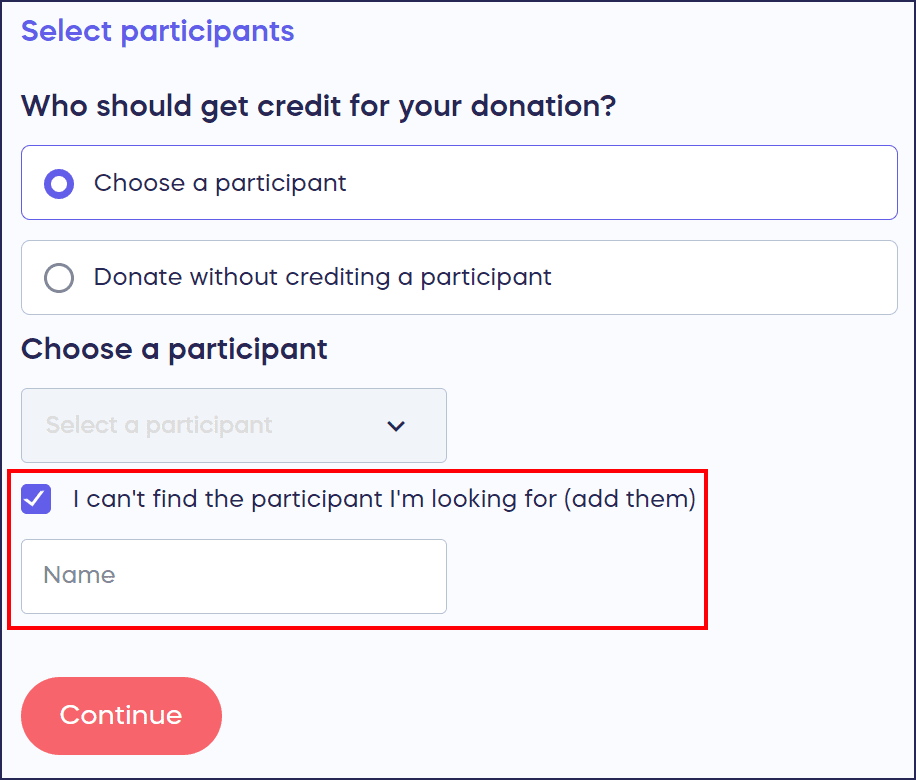
If the write-in option is used, the Campaign Administrator(s) will receive an email containing a link and instructions to credit the donation correctly.
*Terminology may differ according to Campaign settings.
How do I credit a write-in donation to a Participant?
- Go to Account Navigation in the left menu and select Campaigns.
- If you have chosen a list view, click on the Campaign title. If you have chosen a grid view, click on the Campaign image.
- Select View Donations.
- Find the donation you want to edit and click on the three-dot menu on the right:

- Select Edit Donation.
- Go to Choose the participant(s)/team(s) and select Edit:
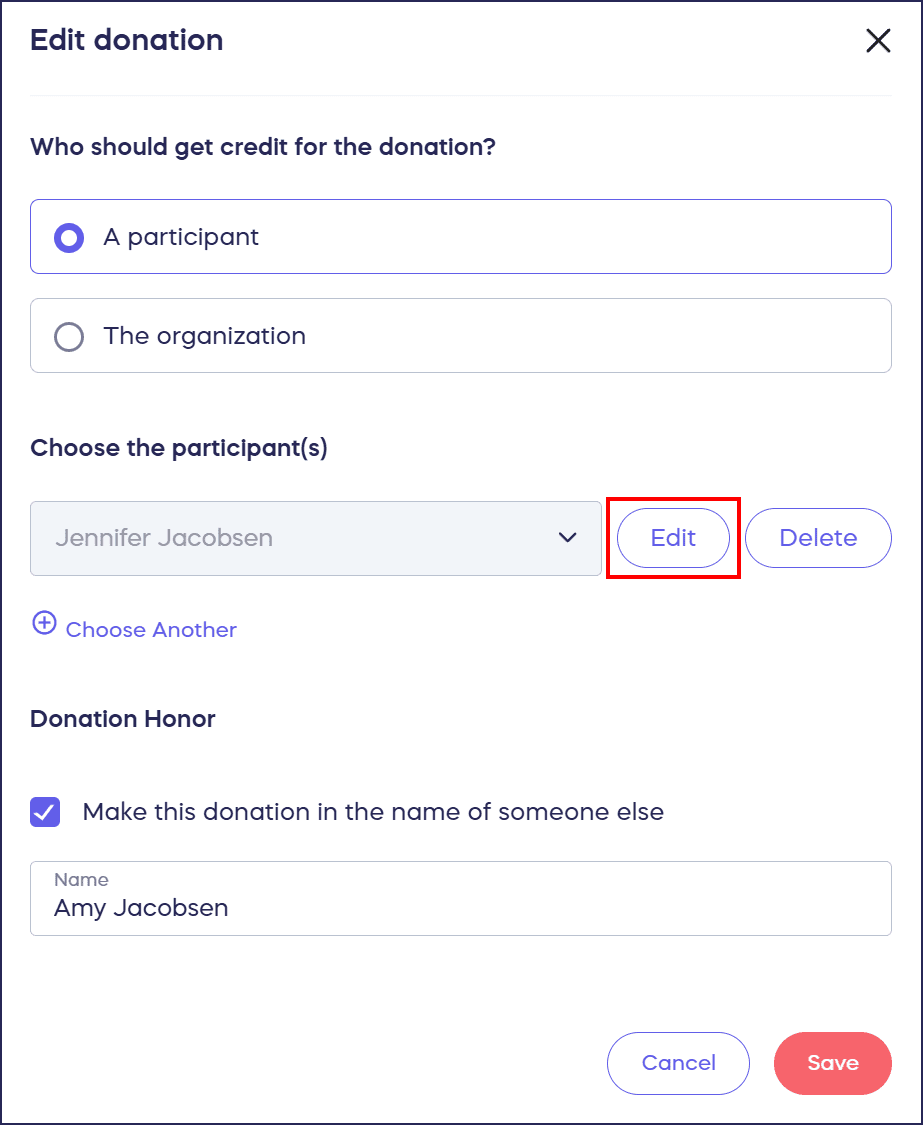
- Select the Participant/Team name from the dropdown menu, then select Save:

If you can’t find the right Participant or Team, you can add them manually and repeat the steps above: How-to: Add Peer-to-Peer and A-Thon Participants and Teams.
What should I know about write-in donations?
- You can disable write-in donations anytime: How-to: Disable Write-In Donations for Peer-to-Peer Campaigns.
- Ensure all write-in donations have been properly credited before finalizing your Campaign. You won’t be able to correct write-in donations after the Campaign is finalized.
- You can double-check all write-in donations by exporting the Donations report from the View Donations page:
How-to: Export Donation and Donor Reports
The exported spreadsheet will include a column titled Write-In Credit. If you do not see this column, all donations have been credited to a registered Participant or Team and there aren’t any write-in donations to correct.
Frequently Asked Questions
What is a write-in donation in Peer-to-Peer Campaigns?
A write-in donation occurs when a donor can’t find the correct Participant or Team in the dropdown menu during checkout, so they manually type in the name they want to credit. This feature is enabled by default to prevent donors from abandoning their contributions.
How will I know if I have write-in donations to credit?
Campaign Administrators receive an email notification when a write-in donation is made, containing a link and instructions to credit the donation correctly. You can also export the Donations report to see a “Write-In Credit” column listing all write-in donations.
Can I disable the write-in donation option?
Yes, you can disable write-in donations at any time if you prefer donors to only select from registered Participants and Teams. However, this may cause some donors to abandon their contributions if they can’t find the person they want to credit.
What happens if I can’t find the Participant a donor wrote in?
If the Participant or Team hasn’t registered yet, you can manually add them to your Campaign and then credit the donation to their profile. This ensures all contributions are properly attributed even if someone registers late.
Can I correct write-in donations after my Campaign ends?
You must credit all write-in donations before finalizing your Campaign. Once a Campaign is finalized, you won’t be able to correct write-in donations, so it’s important to review and update them during your active Campaign period.