Customize entry levels to increase their appeal and encourage donations.
RallyUp provides many customization options for your Raffle or Sweepstakes entry levels to attract donors and boost donations. Each entry level lets you choose the number of chances to win (entries) you’ll offer at each price point.
There are three types of entry levels you can create:
- Basic Entry Levels are the standard entry option without merchandise or impact designation. Each Basic Entry Level specifies a number of entries (chances to win) at a set price point.
- Impact Levels are enhanced entry levels that show donors how their donation will impact your cause. They include images and descriptions explaining what their contribution will accomplish.
- Merch Levels are entry levels that include merchandise with the entry purchase. Donors receive a physical item along with their entries.
Impact Levels and Merch Levels offer additional customization options and different editing rules than Basic Entry Levels. See the “Managing Entry Levels After Creation” section below for details.
This screenshot shows RallyUp’s default setup, which we recommend for most cases, but you can always edit, delete, hide, and add more as you like:

You can add merchandise and time/quantity limits to Impact Levels and Merch Levels to further incentivize donors.

You can even create Impact Levels to show donors how their donation will impact your cause:

What should I know before creating entry levels?
- By default, RallyUp allows donors to enter a custom entry amount if they don’t want to select one of the entry levels you created. To turn this setting off and require donors to select one of your entry options, follow the instructions in this Knowledge Base article: How-to: Disable Custom Entries for Raffles and Sweepstakes.
- For background information on how each customization option helps you raise more money, see the following Knowledge Base article: Insights: Use Entry Levels to Increase Donations.
- The instructions in this article apply to Raffles where donors purchase entries for a chance to win any of the prizes listed. If your Raffle is set up so donors buy entries for specific prizes, entry levels work differently. Instead of creating entry levels in the main Raffle setup section, you will create entry levels for each prize inside the prize setup modal. Each prize can have different entry amounts. For more information, see How-to: Allow Donors to Purchase Raffle Entries for Specific Prizes.
- If you’re creating Impact Levels or Merch Levels, each entry level title must be unique within that Raffle or Sweepstakes. You can’t reuse the same title for two different Impact Levels or Merch Levels, even if they’re tied to different prizes or were added at different times. If you enter a title that’s already in use, RallyUp will display the error: “[Title] is already used for An Entry. Please use another name.” To resolve this, give the new entry level a distinct title — for example, add the prize name or another identifying detail, such as changing “Student Lunch” to “Student Lunch – Shoes.” Basic Entry Levels don’t have titles, so this requirement doesn’t apply to them.
How do I create Basic Entry Levels for my Raffle or Sweepstakes?
- Go to Account Navigation in the left menu and select Campaigns.
- If you have chosen a list view, click on the Campaign title. If you have chosen a grid view, click on the Campaign image.
- Select Campaign Setup.
- Go to Raffle or Sweepstakes in the timeline at the top.
- Scroll down to Set the number of entries for each donation amount.
- Edit or delete an existing entry level by selecting Edit or Delete, or add a new entry level by selecting Add more:

- Enter your desired entry and dollar amounts (whole dollar amounts only), then select Save:

How do I add Impact Levels or Merch Levels?
- Go to Account Navigation in the left menu and select Campaigns.
- If you have chosen a list view, click on the Campaign title. If you have chosen a grid view, click on the Campaign image.
- Select Campaign Setup.
- Go to Raffle or Sweepstakes in the timeline at the top.
- Scroll down to Will you create Impact Levels or offer merch with entry purchase? and select Yes, I will create Impact Levels or offer merch:

- Scroll down to Set the number of entries for each donation amount, and select Create an entry:

- Enter the entry and dollar amounts (whole dollar amounts only), title, image, and description. We suggest showing the Impact Level or merchandise you’re offering in the image, then describing the Impact Level or merchandise in the description:

- Select Save.
How do I add quantity or time limits to Impact Levels and Merch Levels?
You can add time and quantity limits to Impact Levels and Merch Levels to create urgency and exclusivity. These options are not available for Basic Entry Levels.
- Go to Account Navigation in the left menu and select Campaigns.
- If you have chosen a list view, click on the Campaign title. If you have chosen a grid view, click on the Campaign image.
- Select Campaign Setup.
- Go to Raffle or Sweepstakes in the timeline at the top.
- Scroll down to Will you create Impact Levels or offer merch with entry purchase? and select Yes, I will create Impact Levels or offer merch:
- Scroll down to Set the number of entries for each donation amount, and select Create an entry:

- Enter the entry and dollar amounts (whole dollar amounts only), title, image, and description, then select More options:

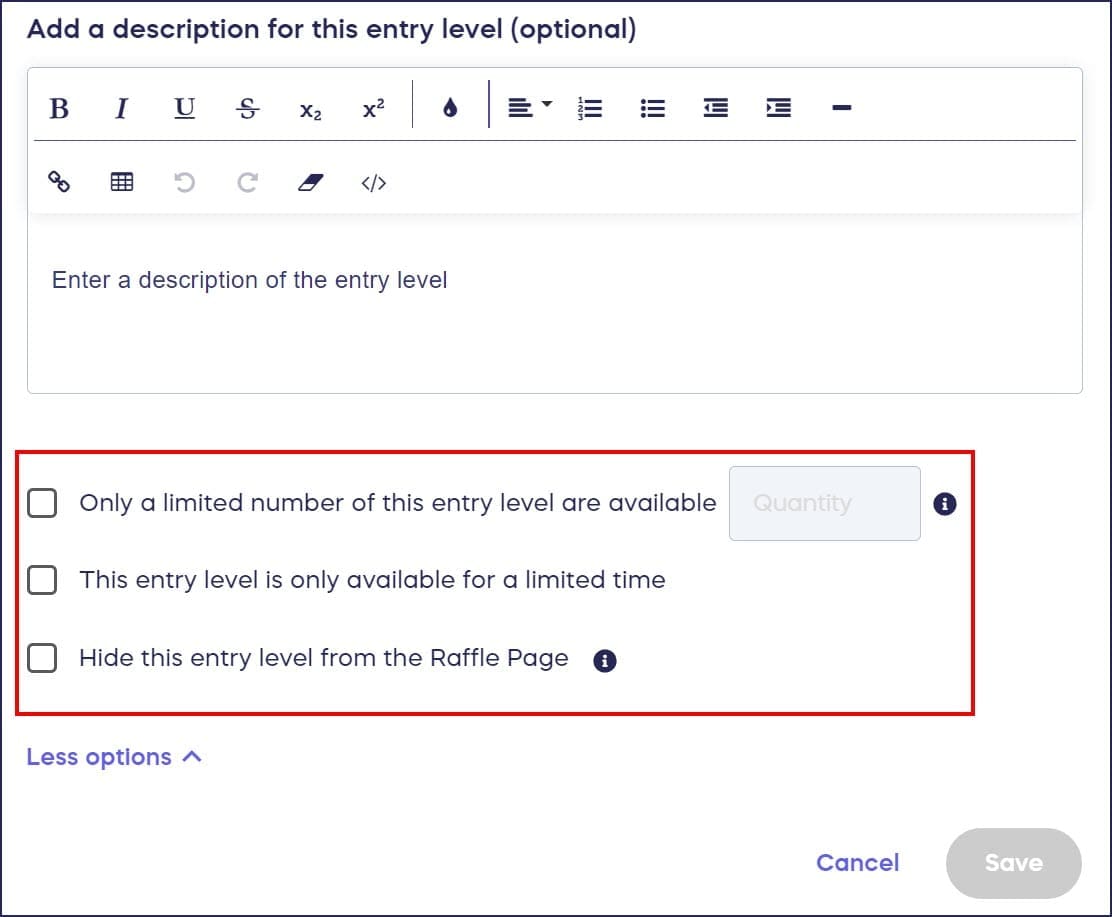
- Check the box(es) next to the time and quantity limit options you want to use:
- Select Save.
Once a quantity limit is reached, the entry level will display as sold out:

Once a time limit has expired, the entry level will display as no longer available:

Managing Entry Levels After Creation
The actions available for your entry levels depend on the entry type and whether entries have been purchased. Below is a summary of what you can do for each type.
Basic Entry Levels
Basic Entry Levels are the standard entry option without merchandise or impact designation.
Before any entries are purchased (Draft or Live):
- Edit: Yes
- Delete: Yes
- Hide: No. Basic Entry Levels cannot be hidden.
After entries are purchased:
- Edit: No. The entry level is fully locked.
- Delete: No. The entry level is fully locked.
- Hide: No. Basic Entry Levels cannot be hidden.
Once someone has purchased entries at a Basic Entry Level, the Edit and Delete buttons will become disabled (grayed out) and you will not be able to click on them.
Impact Levels and Merch Levels
Impact Levels and Merch Levels are enhanced entry levels that include images, descriptions, and optionally merchandise.
Before any entries are purchased (Draft or Live):
- Edit: Yes. You can change the price, number of entries, description, and images.
- Delete: Yes
- Hide: Yes. You can hide an Impact Level or Merch Level from your Campaign Page and un-hide it later when you are ready.
After entries are purchased:
- Edit: Partial. You can still edit the description and images, but you cannot change the price or number of entries.
- Delete: No
- Hide: Yes. You can still hide and un-hide Impact Levels and Merch Levels even after entries have been purchased. Any purchases already made will still count towards the drawing and will not be deleted.
We recommend making sure your entry levels are set up exactly as you want them before publishing your fundraiser. You can preview your fundraiser at any time before publishing.
Frequently Asked Questions
What are entry levels in a Raffle or Sweepstakes?
Entry levels are different price points where donors can purchase entries (chances to win). Each entry level specifies how many entries donors receive for a specific donation amount, such as 10 entries for $10 or 100 entries for $50. There are three types: Basic Entry Levels, Impact Levels, and Merch Levels. Note that for any entry level, you can set the donation amount in whole dollar amounts only. For example, you can set a $30 entry level but not a $30.50 entry level.
Can donors enter a custom amount if they don’t want my preset entry levels?
Yes, by default RallyUp allows donors to enter a custom amount. However, you can disable this feature and require donors to select one of your preset entry levels if you prefer.
Where do I create entry levels if my Raffle uses prize-specific entries?
If your Raffle allows donors to purchase entries for specific prizes, you will not create entry levels in the main Raffle entry levels section. Instead, you create entry levels for each individual prize inside the prize setup modal. This allows you to set different entry amounts for each prize to reflect differences in value. For step-by-step instructions on enabling prize-specific entries, see How-to: Allow Donors to Purchase Raffle Entries for Specific Prizes
What are Impact Levels and how are they different from Basic Entry Levels?
Impact Levels are enhanced entry levels that show donors how their donation will impact your cause. They include images and descriptions explaining what their contribution will accomplish, making donations more meaningful and encouraging higher giving. Unlike Basic Entry Levels, Impact Levels can be hidden from your Campaign Page and their descriptions and images can be edited even after entries have been purchased.
What are Merch Levels and how are they different from Basic Entry Levels?
Merch Levels are entry levels that include merchandise with the entry purchase. Like Impact Levels, Merch Levels can be hidden from your Campaign Page, and their descriptions and images can be edited even after entries have been purchased. Basic Entry Levels cannot be hidden and are fully locked once entries are purchased.
Why am I seeing an error that says my entry level name “is already used for An Entry”?
This error appears because each Impact Level and Merch Level title must be unique. If the title you enter is already used by another entry level in the same Campaign, RallyUp won’t let you save it. To resolve the error, give the new entry level a slightly different title — for example, add the prize name, a number, or another detail that distinguishes it from the existing entry level. Basic Entry Levels don’t have titles, so they aren’t affected by this requirement.
Can I offer merchandise with entry purchases?
Yes, you can add merchandise to entry levels by enabling the Impact Levels or merch option during Campaign Setup, then adding images and descriptions of the items donors will receive with their entry purchase. These are called Merch Levels.
What happens when an entry level reaches its quantity limit?
When a quantity limit is reached, the entry level will display as “sold out” on your Campaign Page. Any purchases already made will still count towards the drawing and will not be deleted.
Can I hide an entry level and reveal it later?
Impact Levels and Merch Levels can be hidden from your Campaign Page and un-hidden later, even if your Campaign is already live and even after entries have been purchased. Any purchases already made at a hidden level will still count towards the drawing and will not be deleted. Basic Entry Levels cannot be hidden.
What’s the difference between time limits and quantity limits?
Quantity limits restrict how many times an entry level can be purchased (e.g., only 50 available), while time limits restrict when an entry level is available (e.g., only available during the first week). Both create urgency and exclusivity.
Can I edit an entry level after someone has purchased it?
For Basic Entry Levels, no. Once someone has purchased entries at a Basic Entry Level, it becomes fully locked and cannot be edited or deleted. For Impact Levels and Merch Levels, you can still edit the description and images after purchase, but the price and number of entries cannot be changed.