Offer prizes to Peer-to-Peer or A-Thon Participants and Teams.
When you run a Peer-to-Peer or A-Thon fundraising Campaign on RallyUp, you can offer prizes to motivate Participants* and/or Teams* to raise more for your cause. However, only giving prizes to those who raised the most money may not be ideal for your situation. RallyUp allows you to fully customize your prize options to meet your unique fundraising needs.
*Terminology may differ according to Campaign settings.
What should I know before adding prizes to my Campaign?
- Learn how to enable Peer-to-Peer on your fundraising Campaign in this Knowledge Base article: Understand: Peer-to-Peer Fundraising.
- You can enable a Participant Center to display the prizes you’re offering: Understand: Peer-to-Peer or A-Thon Participant Center. If you choose not to enable a Participant Center, you can still add prizes but they won’t be displayed on your Campaign Page.
What prize options are available for Participants and Teams?
RallyUp offers the following prize options:
- Amount raised: Reward the Participant and/or Team that raises the most money.
- Fundraising goal: Reward all Participants and/or Teams that raise a specific amount (e.g., $100 or more).
- Unique donors*: Reward the Participant and/or Team that has the most donors.
- Units* completed (A-Thon only): Reward the A-Thon Participant and/or Team that completes the most units of an activity.
You can offer prizes for one, multiple, or all of these options. You can also offer multiple prizes per option and allow more than one Participant or Team to win each prize.
*Terminology may differ according to Campaign settings.
How do I enable prizes for my Peer-to-Peer or A-Thon Campaign?
- Go to Account Navigation in the left menu and select Campaigns.
- If you have chosen a list view, click on the Campaign title. If you have chosen a grid view, click on the Campaign image.
- Select Campaign Setup.
- Go to Peer-to-Peer in the timeline at the top.
- Scroll down to Optional settings and select Show optional settings.
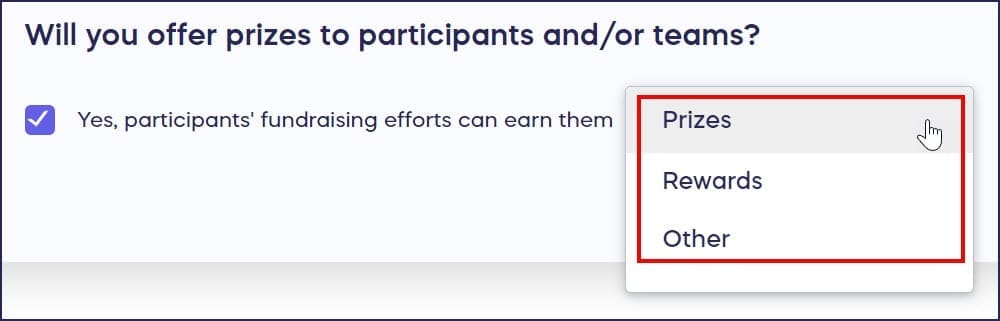
- Scroll down to Will you offer prizes to Participants and/or Teams? and check the box next to Yes, Participants’ fundraising efforts can earn them prizes:

- If you like, change prizes to a custom term:
- Select Save.
How do I configure prize earning criteria?
- Go to Account Navigation in the left menu and select Campaigns.
- If you have chosen a list view, click on the Campaign title. If you have chosen a grid view, click on the Campaign image.
- Select Campaign Setup.
- Go to Prizes in the timeline at the top.
- Scroll down to Determine how fundraising prizes can be earned and check the box(es) next to your desired option(s):

- Select Save.
How do I create and add prizes to my Campaign?
- Go to Account Navigation in the left menu and select Campaigns.
- If you have chosen a list view, click on the Campaign title. If you have chosen a grid view, click on the Campaign image.
- Select Campaign Setup.
- Go to Prizes in the timeline at the top.
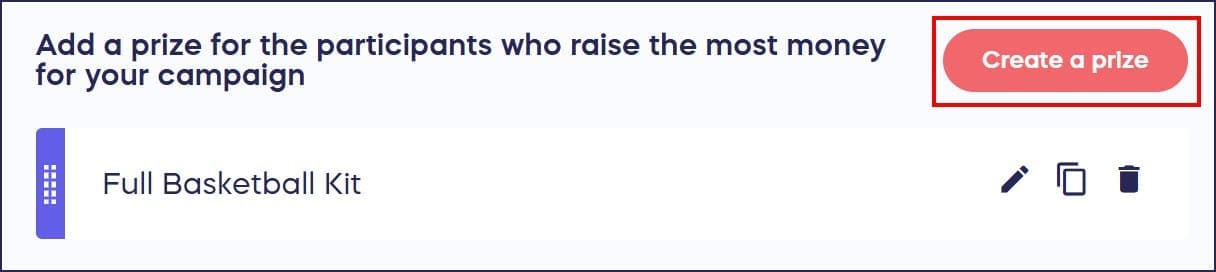
- Scroll down to Add a prize for…* and select Create a prize:
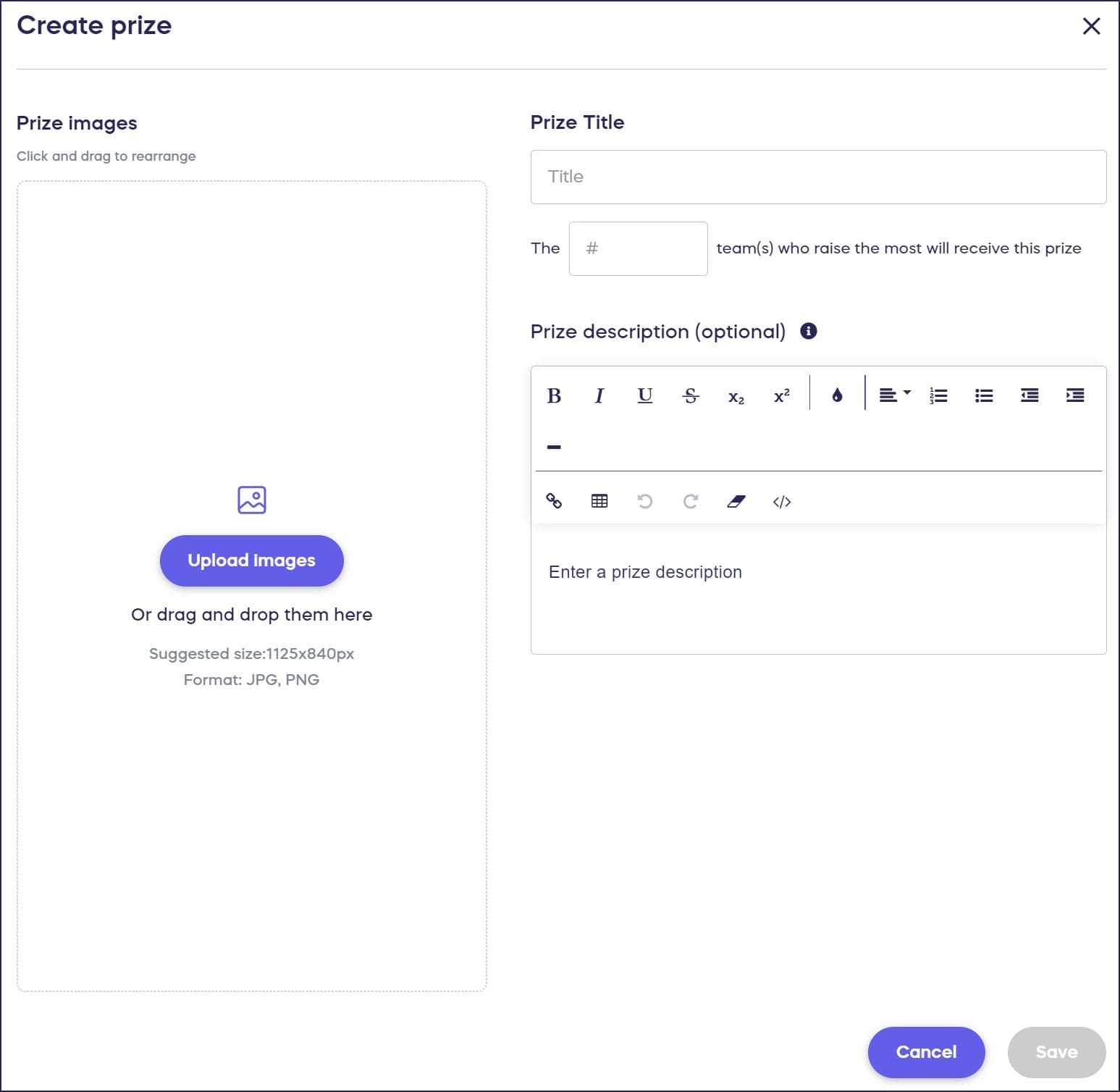
- Enter your prize details, including the number of Participants or Teams who can win each prize:
- Select Save.
*Terminology may differ according to Campaign settings.
How do prizes appear to Participants in the Participant Center?
If you add a Participant Center to your fundraiser, prizes will be displayed there:
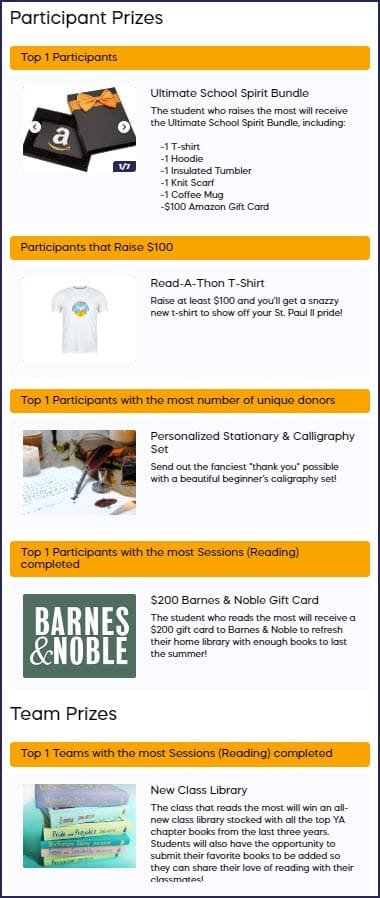
You can decide whether prizes are visible to anyone who visits the Participant Center, or only visible to registered Participants and Teams: How-to: Hide Peer-to-Peer or A-Thon Prizes.
How do I view and export prize winner information?
Once your Campaign is finished, you can view the prize winners from your Campaign Management menu:
- Go to Account Navigation in the left menu and select Campaigns.
- If you have chosen a list view, click on the Campaign title. If you have chosen a grid view, click on the Campaign image.
- Select View Prize Winners.
- Select Export to download this report as an Excel file (.csv):

What else should I know about Peer-to-Peer and A-Thon prizes?
- If you add prizes but don’t have a Participant Center, you can view prize information anytime from the View Prize Winners management page. This page will display the current potential winner until your Campaign ends and the prizes are officially awarded to winners.
- You can add prizes for Participants and Teams before or after your fundraiser has been published.
- If you enable a Participant Center, you can also display leaderboards: How-to: Add Peer-to-Peer or A-Thon Leaderboards.
- Note that Peer-to-Peer fundraising cannot be used to fundraise for personal causes. RallyUp is a fundraising platform for nonprofits and other charities only.
Frequently Asked Questions
Can I offer prizes for criteria other than money raised?
Yes, you can offer prizes based on amount raised, fundraising goals, unique donors, or units completed (A-Thon only). You can choose one, multiple, or all of these options and offer multiple prizes per category.
Do I need a Participant Center to offer prizes?
No, you can add prizes without a Participant Center, though prizes won’t be displayed on your Campaign Page. You can still view prize information and winners through the View Prize Winners management page at any time.
Can I allow multiple Participants or Teams to win the same prize?
Yes, when creating a prize you can specify the number of Participants or Teams who can win each prize. This flexibility lets you reward more people for achieving your criteria.
When can I add prizes to my Campaign?
You can add prizes for Participants and Teams before or after your fundraiser has been published. This gives you flexibility to adjust your prize strategy based on Campaign performance.
How do I see who won prizes after my Campaign ends?
After your Campaign finishes, view prize winners from the Campaign Management menu by selecting View Prize Winners. You can also export this information as an Excel file (.csv) for your records.