Use Sweepstakes reports to organize your records and identify effective fundraising methods.
When running a Sweepstakes on RallyUp, you can access and export several reports to help you stay organized. You can also use the data to analyze your fundraising methods, pinpoint which strategies were most successful, and create even more successful Sweepstakess in the future.
Insights: Common Excel and Google Sheets Formatting Tips for RallyUp Reports
How do I access Sweepstakes reports?
- Go to Account Navigation in the left menu and select Campaigns.
- If you have chosen a list view, click on the Campaign title. If you have chosen a grid view, click on the Campaign image.
- Scroll down to SWEEPSTAKES MANAGEMENT and select the information you want to view:
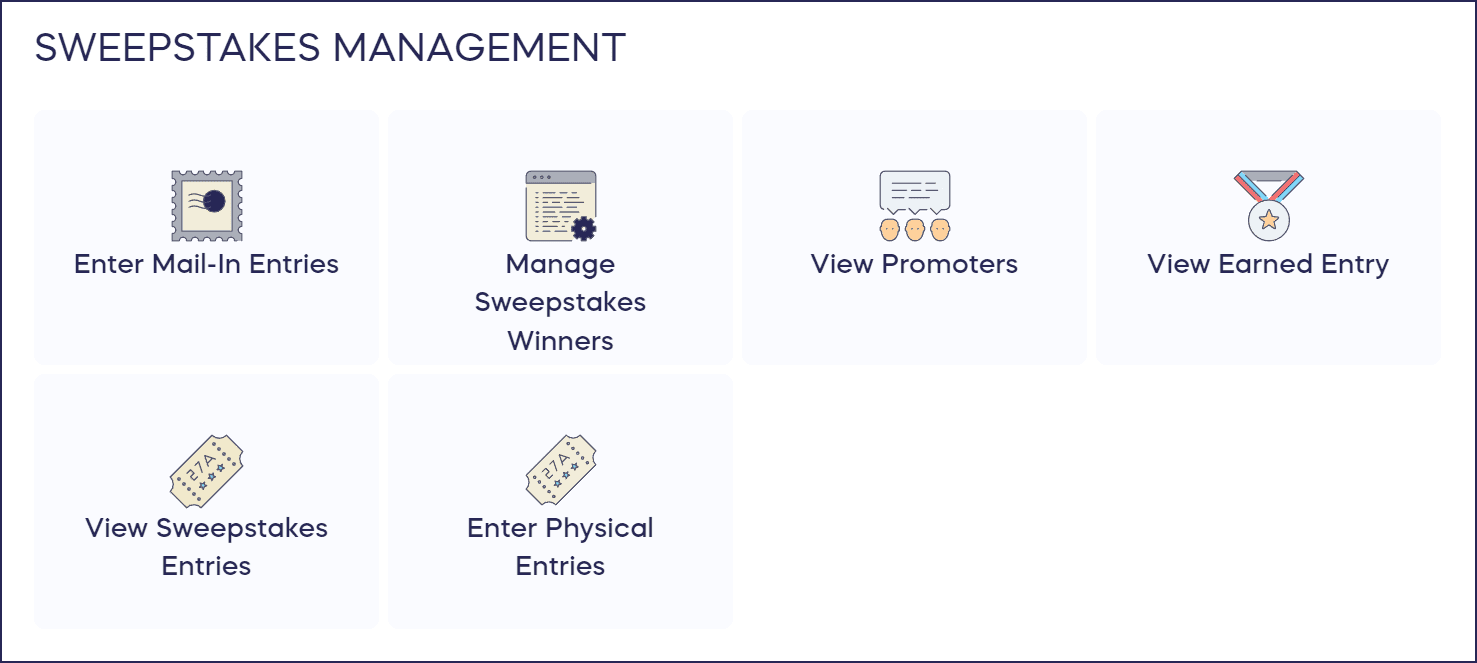
In addition to the reports shown above, you can view and export a list of donations and donor information: How-to: Export Donation and Donor Reports.
What information is included in the “Enter Mail-In Entries” report?
Sweepstakes require a free mail-in entry option to comply with anti-gambling laws. Any mail-in entries you receive can be entered here.
Understand: Sweepstakes Free Entries
Selecting this option allows you to access information about entries that have been mailed in:
- Entrant First Name
- Entrant Last Name
- Phone Number
You can export one report from this screen:
This report gives you information about each offline entry purchase, including:
- Donor First Name
- Donor Last Name
- Phone Number
- Address 1 (street address)
- Address 2 (second line of street address, if any)
- Address 3 (third line of street address, if any)
- Country
- City
- Region
- Zip Code
You can use this report to determine what percentage of total Sweepstakes entries came from the alternate method of entry, or add these individuals to a mailing list.
What information is included in the “Manage Sweepstakes Winners” report?
Selecting this option allows you to access information about Sweepstakes winners:
- Winner Name
- Phone Number
- Prize Won
- Winning Entry Number
You can export one report from this screen:
This report gives you information about each Sweepstakes winner, including:
- Winner First Name
- Winner Last Name
- Phone Number
- Prize Won
- Winning Entry Number
- Status (Won or Revoked)
- Revoke Reason (Will be blank unless winning status is revoked and the winner is redrawn)
- Anonymous Donation? (No or Yes)
- In Name Of (Will be blank unless the winner dedicated their donation to someone)
You can use the information contained in this report to develop a mailing list of Sweepstakes winners for prize fulfillment.
What information is included in the “View Promoters” report?
This option only displays if you’ve enabled Sharing Rewards on a Sweepstakes.
How-to: Promote Your Raffle or Sweepstakes with Sharing Rewards
Selecting this option allows you to access information about individuals who participated in the Sharing Rewards program by sharing a link to your Campaign online:
- Promoter Name
- Sign Up Date
- Entries Earned
- Link Uses (number of times a link they posted was used to make a donation or purchase)
- Amount Raised
You can export this information to a .csv file and use the information to add promoters to a mailing list to share updates or marketing emails.
What information is included in the “View Earned Entries” report?
This option only displays if you’ve enabled Sharing Rewards on a Sweepstakes.
How-to: Promote Your Raffle or Sweepstakes with Sharing Rewards
Selecting this option allows you to access information about the entries promoters and donors earn when they use a Sharing Rewards link to access the Campaign and make a purchase or donation:

Promoter Entries Tab
The Promoter Entries tab automatically displays the following:
- Date (date and time when entries were earned)
- Promoter Name
- Entries (number of entries earned)
- Entry Numbers
- Awarded For (how entries were earned)
You can export this information to a .csv file and use the report to determine how many entries promoters earned and which sharing methods were most successful.
Donors Entries Tab
The Promoter Entries tab automatically displays the following:
- Date (date and time when entries were earned)
- Donor Name
- Entries (number of entries earned)
- Entry Numbers
You can export this information to a .csv file and use the report to determine how many entries donors earned and which sharing methods were most successful.
What information is included in the “Enter Physical Entries” report?
Selecting this option allows you to access information about entries sold offline:
- Donor Name
- Phone Number
- Amount (amount paid for the entries)
- Quantity (number of entries sold)
- Entry Numbers
How-to: Add Raffle or Sweepstakes Tickets You’ve Sold Offline
You can export one report from this screen:
This report gives you information about each offline entry purchase, including:
- Donor First Name
- Donor Last Name
- Entry Start Number
- Entry End Number
- Amount (amount paid for the entries)
- Phone Number
- Address (street address)
- Address 2 (second line of street address, if any)
- Address 3 (third line of street address, if any)
- City
- Country
- State
- Zip Code
You can use this report to determine the percentage of total Sweepstakes entries from offline physical sales versus online sales.
What information is included in the “View Sweepstakes Entries” report?
Selecting this option allows you to access information about Sweepstakes entries sold online:
- Date (date and time of purchase)
- Donor Name
- Amount (amount paid for the entries)
- Entry Numbers
- Quantity (number of entries purchased)
- Payment Status
You can export two reports from this screen:
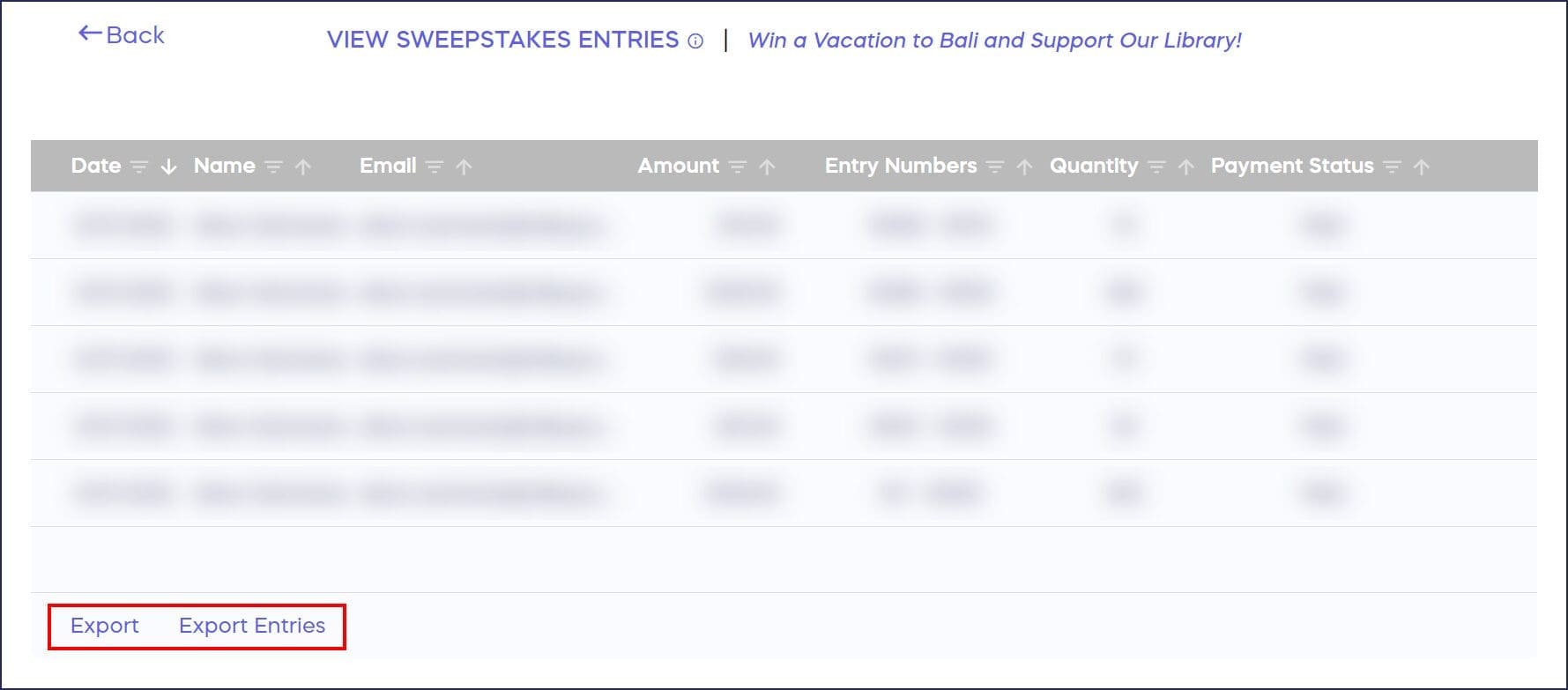
This report gives you information about Sweepstakes entries purchased online:
- Date (date and time of purchase)
- Donor Name
- Amount (amount paid for the entries)
- Entry Numbers
- Quantity (number of entries purchased)
- Prize (only shows if donors can purchase entries for specific prizes)
- Payment Status
- Prize Description
You can use this report to see how much you raised by selling Sweepstakes entries online, which can be especially helpful if you’re running multiple fundraising components in one Campaign.
This report gives you information about each individual entry purchased:
- Donor Name
- Donor Email
- Entry Number
- Prize (only shows if donors can purchase entries for specific prizes)
You can use this report to learn which method of entry was most popular and to help plan for future Sweepstakes.
Frequently Asked Questions
Can I export Sweepstakes reports to analyze my fundraising data?
Yes, you can export multiple reports including Mail-In Entries, Winners, Promoters, Earned Entries, Physical Entries, and online Entries reports. These CSV exports help you analyze entry sources, track promoter performance, and organize winner information for prize fulfillment.
What’s the difference between Physical Entries and Mail-In Entries reports?
Physical Entries tracks paid entries you sold offline (like at an event), while Mail-In Entries records free entries submitted by mail to comply with Sweepstakes laws. Both are offline entry methods but serve different purposes.
Do I need to manually enter mail-in entries into RallyUp?
Yes, Sweepstakes require a free mail-in entry option by law, and you must manually add any mail-in entries you receive into the system. This ensures all entries are included in your random drawing.
How can I track which Sharing Reward promoters were most successful?
Use the View Promoters report to see each promoter’s entries earned, link uses, and amount raised. You can export this data to identify your top promoters and analyze which sharing methods generated the most entries and donations.
Can I see both online and offline entries in one Sweepstakes report?
The reports separate online entries (View Sweepstakes Entries) from offline entries (Physical Entries and Mail-In Entries). To see all entry data together, export the individual reports and combine them in a spreadsheet for comprehensive analysis.