Learn about the tools available to you in the Livestream Studio.
RallyUp’s Livestream Studio has multiple features to customize your Campaign and help your Livestream run smoothly. Understanding these controls ensures you can deliver a professional, engaging broadcast.
The Livestream Studio interface organizes controls into logical categories that let you:
- Manage video display layouts
- Adjust your personal audio and video settings
- Activate interactive features that drive donor engagement and fundraising results
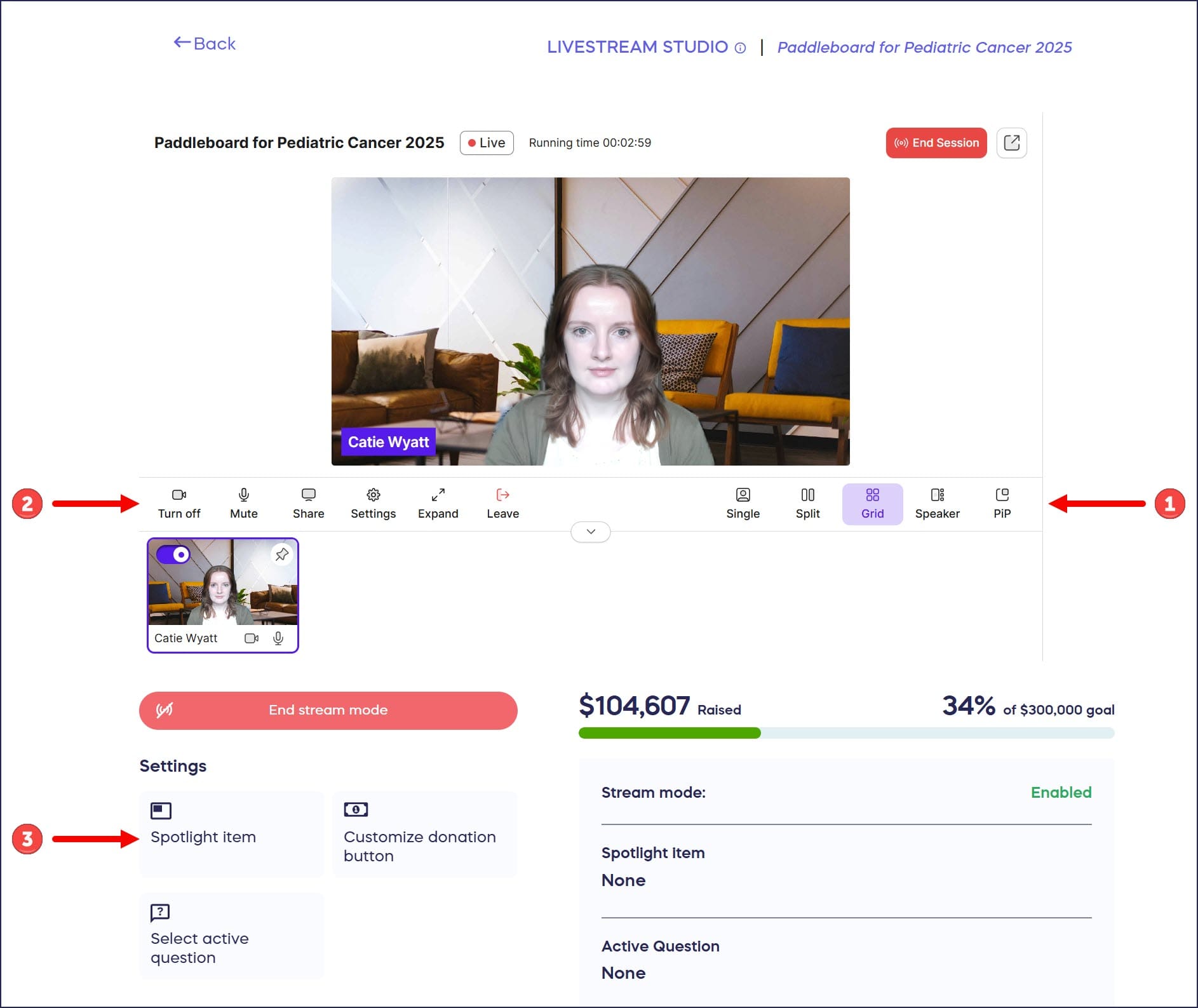
1. Display Controls
The Livestream display controls determine how presenter video feeds appear to your audience, giving you flexibility to match your presentation style and content. You can choose from five distinct layout options that each serve different purposes:
- Single mode displays one presenter’s video onscreen at a time, ideal for solo presentations or when you want viewers focused on a single speaker.
- Split mode divides the screen evenly between two presenters, perfect for co-hosts or interview formats.
- Grid mode arranges all onstage presenters in a grid pattern, working well for panel discussions or events with multiple simultaneous speakers.
- Speaker mode automatically displays only whichever presenter is currently speaking, creating a dynamic experience for conversations.
- Picture-in-Picture allows you to share your screen or media content while also displaying your camera feed in a smaller window in a corner of the screen, essential for presentations that combine slides or videos with live narration.
2. Personal Controls
Personal controls give individual presenters the ability to manage their own audio, video, and screen sharing without affecting other onstage presenters:
- Turn off toggles your camera feed on and off, allowing you to remain onstage audio-only when needed.
- Mute controls your microphone independently, crucial for preventing background noise when you’re not actively speaking.
- Share enables screen sharing, letting you display browser windows or desktop applications to your viewers.
- Settings provides access to camera, microphone, and speaker configurations plus background effects that can hide messy rooms or add branding.
- Expand maximizes the Livestream window to fill your entire computer screen for better visibility of viewer activity and controls.
- Leave removes you from the stage entirely, taking you back to the green room where you can prepare before rejoining or exit the Livestream completely.
3. Interactive Settings
Livestream settings activate features that engage your audience and enhance fundraising outcomes during your broadcast:
- Spotlight item lets you highlight specific Auction or Storefront items, Raffle or Sweepstakes prizes, Crowdfunding Perks, and other offerings to draw viewer attention to particular fundraising opportunities:
How-to: Spotlight an Item During Your Livestream
- Customize donation button allows you to set the donation button to a specific amount for running Fund-a-Need or Paddle Raise campaigns that request targeted contributions for particular needs:
How-to: Use the Customizable Donation Button During Your Livestream
- Select active question enables you to display trivia or survey questions to viewers, keeping them engaged and participating throughout your event:
How to Display Trivia or Survey Questions During Your Livestream
You can also share pre-recorded videos and presentations: How to Share Pre-Recorded Content on Your Livestream.
If you’re using an Apple device and need to share your screen, review the specific permissions required in How to Allow Your Apple Device to Share Your Screen During a Livestream.
Frequently Asked Questions
Can multiple presenters control the display layout simultaneously?
Any presenter currently onstage can change the display layout, and the change affects what all viewers see. If multiple presenters try to change layouts at the same time, the most recent selection takes effect. To avoid confusion, designate one presenter as the primary controller responsible for managing display layouts during your event. Other presenters should coordinate with the controller before making layout changes.
What happens when I mute my microphone versus leaving the stage?
Muting your microphone silences your audio while keeping you visible onstage if your camera is on. You remain an active presenter and can unmute quickly to speak again. Leaving the stage removes you from the broadcast entirely—viewers can’t see or hear you, and you return to the green room backstage. Use mute for brief moments when you’re not speaking, and use leave when you’re done presenting for an extended period or finished with your segment.
Can viewers see me when I’m adjusting my settings?
Viewers only see and hear you when you’re onstage. When you’re backstage in the green room, you can freely adjust all your settings, test your camera and microphone, and prepare for your appearance without any visibility to the audience. Other presenters who are backstage can see and hear you in the green room, so remain professional even when offstage.
How does picture-in-picture mode work?
Picture-in-picture displays your shared screen or media as the main content viewers see, with your camera feed appearing as a small overlay window in one corner. This lets you present slides, demonstrate software, or play videos while maintaining a personal connection by keeping yourself visible. You can adjust the size and position of the camera overlay, and switch back to standard display modes at any time.
Can I use background effects during my Livestream?
Yes, the Settings option includes background effects that can blur your background or replace it with a virtual background. This helps maintain a professional appearance even if you’re broadcasting from a less-than-ideal location. Test background effects before going live, as they can sometimes affect video quality or performance depending on your computer’s capabilities and internet connection speed.
What’s the difference between Single and Speaker display modes?
Single mode manually displays whichever presenter you select and maintains that view until you manually change it. Speaker mode automatically switches the display to show whoever is currently speaking, creating a dynamic view that changes throughout conversations without manual control. Single mode works best when one person presents for extended periods, while Speaker mode excels for interviews, panel discussions, or multi-presenter conversations.
How do I practice using the controls before going live?
Enter the Livestream Studio before your scheduled event to familiarize yourself with all controls in the green room. You can test display layouts, screen sharing, personal settings, and interactive features without broadcasting to your audience. Conduct a full technical rehearsal with all presenters to ensure everyone understands how to operate their controls and coordinate display changes during the actual event.