Learn how the Live Display supports and enhances your Live Auction, Fund-a-Need, or Paddle Raise+.
When you run a Live Auction, Fund-a-Need, or Paddle Raise+ on RallyUp, the system will automatically generate a Live Display with information about the Component. You can project the Live Display on monitors and screens throughout your venue to keep guests engaged and encourage donations.

What information is shown on the Live Display?
The Live Display automatically includes:
- Organization logo, name, and branding
- Campaign title
- Spotlighted need, donation amount, Live Auction item, or Paddle Raise+ item
- Real-time donation feed that automatically updates as donations/bids/purchases are made
- Scan-to-Give QR code guests can use to donate via their phones instead of raising a paddle
- Fundraising thermometer (if you’ve set a fundraising goal)
- Text-to-Give number and code word (if you’ve enabled Text-to-Give on your Campaign)
How-to: Promote Your Campaign with Text-to-Give
How do I enable/turn on the Live Display?
The Live Display is automatically enabled when you add a Live Auction, Fund-a-Need, or Paddle Raise to your Campaign. You also don’t need to turn it on- it will automatically generate as soon as you begin your Live Auction, Fund-a-Need, or Paddle Raise.
Can I test out the Live Display before my Campaign goes live?
Yes, if you test out your Campaign in Draft Mode, you can run a test Live Auction/Fund-a-Need/Paddle Raise and see how your Live Display will look. Note that you’ll need to add your Component end dates in Campaign Setup before you can preview the Live Display.
How do I access the Live Display?
- Go to Account Navigation in the left menu and select Campaigns.
- If you have chosen a list view, click on the Campaign title. If you have chosen a grid view, click on the Campaign image.
- Select Paddle Raise/Fund-a-Need/Live Auction.
- Select Open Live Display:
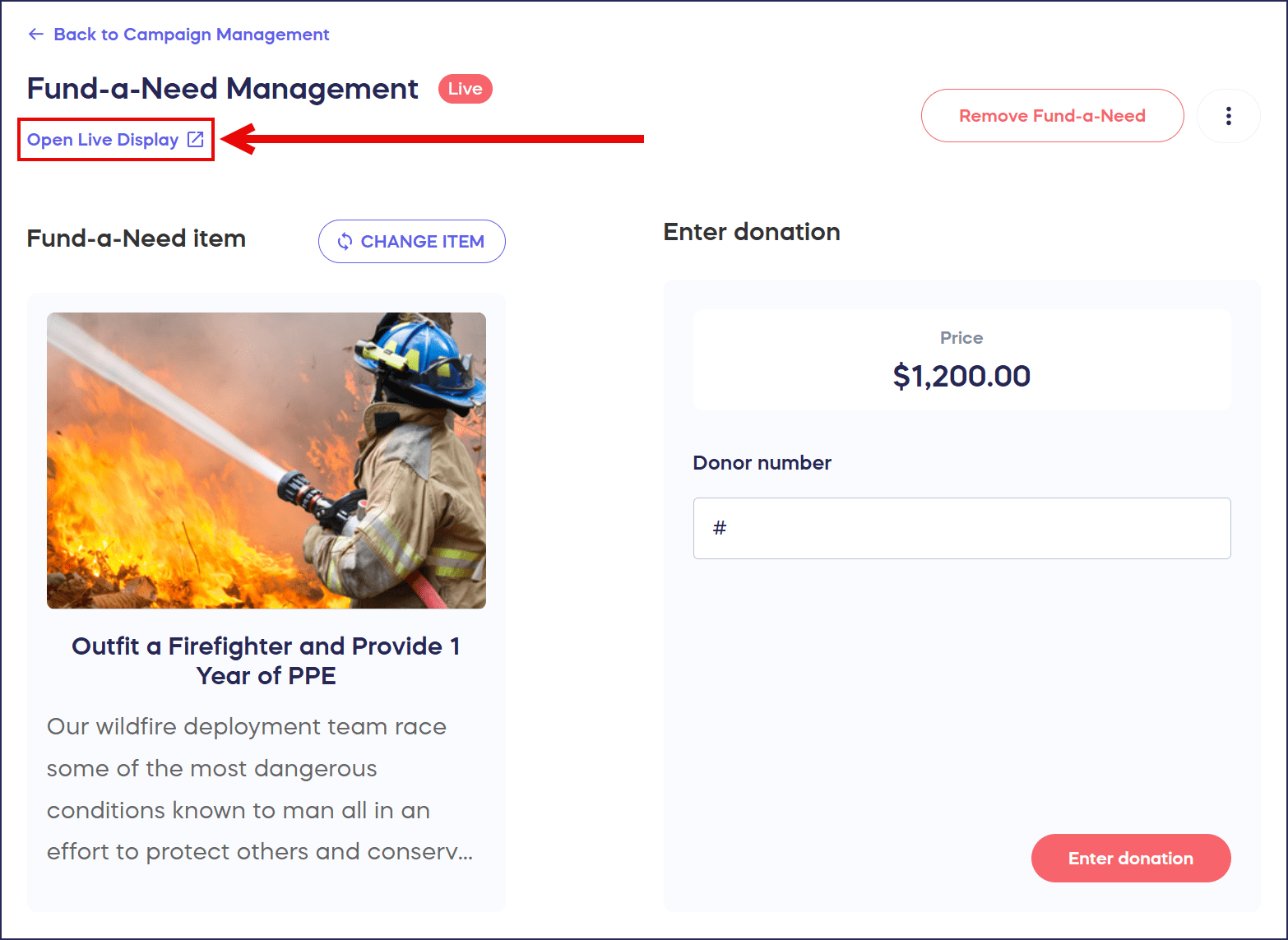
This will open up the Live Display in a separate browser tab, which you can then project onto monitors or screens.
How can I project the Live Display at my event?
There are a number of ways to project the Live Display onto monitors or screens:
- Projector
- HDMI cable connection
- Wireless screen mirroring options such as Chromecast or AirPlay
Frequently Asked Questions
Does the Live Display update in real time during my event?
Yes, the Live Display automatically updates in real time as bids or donations are received. The donation feed refreshes instantly, showing new contributions as they come in to keep guests engaged and motivated.
Can I customize what appears on the Live Display?
The Live Display automatically includes your organization’s logo, name, branding, Campaign title, and spotlighted items or donation amounts. It also displays your fundraising thermometer if you’ve set a goal, and your Text-to-Give information (if enabled). Manual customization options are coming soon!
Do I need special equipment to use the Live Display?
No special equipment is required beyond what you’d typically use to display content at an event. You can project the Live Display using a standard projector, HDMI cable connection, or wireless screen mirroring options like Chromecast or AirPlay.
Can guests donate directly from the Live Display?
Yes, the Live Display includes a Scan-to-Give QR code that guests can scan with their phones to bid, purchase, or donate immediately without needing to raise a paddle. This provides a convenient alternative donation method during your Live Auction, Fund-a-Need, or Paddle Raise.
Is the Live Display automatically created when I set up a Live Auction, Fund-a-Need, or other Paddle Raise?
Yes, when you run a Live Auction, Fund-a-Need, or other Paddle Raise on RallyUp, the system automatically generates a Live Display with all relevant information. You simply need to access it from your Paddle Raise Management area and project it at your event.
Why can’t I view my Live Display when I click on the Live Display button?
If your Live Display won’t generate, it’s likely because of the following two reasons:
- You’re previewing your Campaign in Draft Mode and haven’t yet added your Campaign end dates. Once you’ve added your end dates, the Live Display should generate properly.
- Your Campaign is published but is not yet live. The Live Display will generate properly once your Campaign goes live.