Use A-Thon reports to organize your records and identify effective fundraising methods.
When running an A-Thon on RallyUp, you can access and export several reports to help you stay organized. You can also use the data to analyze your fundraising methods, pinpoint which strategies were most successful, and create even more successful A-Thons in the future.
Insights: Common Excel and Google Sheets Formatting Tips for RallyUp Reports
How do I access A-Thon reports?
- Go to Account Navigation in the left menu and select Campaigns.
- If you have chosen a list view, click on the Campaign title. If you have chosen a grid view, click on the Campaign image.
- Select the report you want to view:
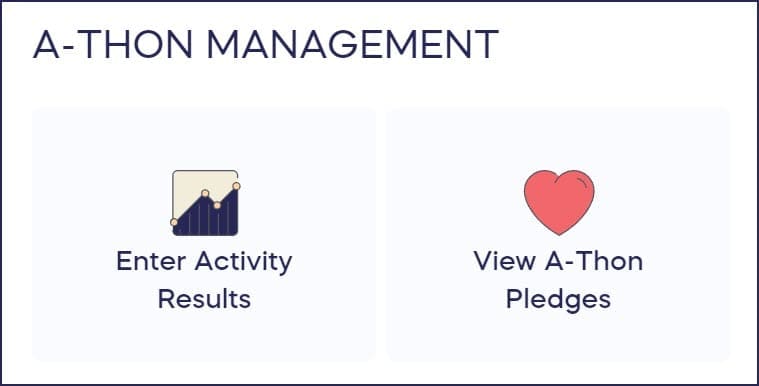
In addition to the reports shown above, you can view and export a list of donations and donor information: How-to: Export Donation and Donor Reports.
If you’re running a multi-Participant A-Thon, you’ll also have access to Peer-to-Peer reports: Understand: Peer-to-Peer Reports.
What information is included in the “Enter Activity Results” report?
Selecting this option generates information about all the Participant activity logged during your A-thon:
- Date
- Participant*
- Activity (which activity they participated in)
- Team* (only appears if Teams are enabled)
- Units (of activity completed; e.g., miles walked)
You can export this information to a .csv file and use this report to track all activity results entered during the A-thon and award prizes to the Participants/Teams that completed the most activity.
*Terminology may differ according to Campaign settings.
What information is included in the “View A-Thon Pledges” report?
Selecting this option generates information about all the A-thon pledges made to each Participant/Team:
- Date
- Name (of donor)
- Email (of donor)
- Type (Per-Unit Pledge or Flat Donation)
- Amount (total amount charged)
- Max Amount (Maximum amount the donor was willing to pledge, if specified)
- Participant* (name of Participant credited for the donation)
- Team* (name of Team credited for the donation)
- Status (payment status, Paid or Pending)
If a donation is split between multiple Participants/Teams, each Participant/Team will have their own row in the report.
You can export this information to a .csv file and use this report to learn how much your A-Thon raised, which Participants/Teams raised the most, and more.
*Terminology may differ according to Campaign settings.
Frequently Asked Questions
How do I export A-Thon reports?
You can export both the Activity Results and A-Thon Pledges reports to a .csv file. Simply access the report you want to view from your Campaign dashboard, and use the export function to download the data for analysis in Excel or Google Sheets.
What’s the difference between Activity Results and A-Thon Pledges reports?
The Activity Results report tracks units of activity completed by Participants (like miles walked or laps completed), while the A-Thon Pledges report shows all donations made, including per-unit pledges and flat donations, along with donor information and payment status.
Can I see which Participant or Team raised the most funds?
Yes, the A-Thon Pledges report includes columns for Participant and Team names, allowing you to sort and analyze which individuals or Teams raised the most money during your A-Thon Campaign.
What does “Pending” status mean in the A-Thon Pledges report?
A “Pending” status indicates that the payment has not yet been processed or completed. This typically occurs with per-unit pledges that are charged after activity results are entered, or when a payment method requires additional processing time.
Do I need separate reports for multi-Participant A-Thons?
If you’re running a multi-Participant A-Thon, you’ll have access to both the standard A-Thon reports and additional Peer-to-Peer reports, which provide more detailed fundraising data across all Participants and Teams.